# Majikah Solutions Technical Reference
This document contains the full technical specification for Majikah Solutions products.
---
title: "Getting Started with Majik Message"
id: "mm-getting-started-documentation"
group: "majik-message"
type: "products"
version: "1.2.0"
lastUpdated: "2026-03-09T00:00:00.000Z"
difficulty: "Beginner"
time: "5-10 minutes"
tags: [getting-started, quick-start, setup, beginner, onboarding, offline, online, post-quantum, file-vault, cloud-storage]
---
# Getting Started with Majik Message
> Everything you need to know to start using Majik Message quickly, both offline and online
## Overview
Get up and running with Majik Message in minutes. This guide covers everything you need to start sending post-quantum encrypted messages — whether you want to use Majik Message offline for local encryption right away, or go fully online for real-time chat with your contacts.
### What is Majik Message?
Majik Message is a post-quantum secure messaging platform built on NIST-standardized ML-KEM-768 (FIPS-203) encryption combined with AES-256-GCM. It is designed to protect your communications against both present-day threats and future quantum computing attacks. You don't need a phone number or email address to create a cryptographic identity — just a 12/24-word seed phrase. Majik Message works in two modes: offline local encryption (no internet required) and online real-time chat. You can start with one or both.
> **NOTE:** Majik Message is available as a Web App at message.majikah.solutions, a Desktop App (Electron), and a Chrome Extension. All platforms share the same encryption engine and are fully cross-compatible.
### Two Ways to Get Started
There are two paths to getting started depending on what you need: Path A – Offline Only is the fastest option. Create a seed phrase account and immediately start encrypting and decrypting messages and files locally, no internet or Majikah account required. Path B – Online + Real-Time Chat requires a few more steps — create a seed phrase account, create a Majikah Account, register your account online, and add contacts. Then you can send and receive real-time encrypted messages and access cloud file storage.
> **NOTE:** Two types of accounts in Majik Message: A Seed Phrase Account is your local cryptographic identity — it holds your ML-KEM-768 keypair and is used for all encryption and decryption. A Majikah Account is your online login (email + password) used to access real-time features and cloud storage. You need both for online chat and file storage, but only a seed phrase account for offline use.
### Path A: Start Offline (Fastest — No Internet Required)
1. **Open the App**
*Launch Majik Message*
- Open Majik Message in your browser at message.majikah.solutions, or launch the desktop app
- No sign-in is required for offline use
2. **Create Your First Seed Phrase Account**
*Your cryptographic identity*
- Go to the Accounts tab (first tab in the top navigation bar)
- Click the plus (+) icon in the upper right corner
- Enter a display name (e.g., 'My Account')
- Set a passphrase to protect your private key at rest
- Click the dice icon to generate a new 12/24-word BIP-39 seed phrase
- Write down your seed phrase and store it securely offline — this is the only way to recover your account
- Click Create
3. **Encrypt Your First Message**
*Send a secure message anywhere*
- Go to the Message tab (5th tab in the top navigation bar)
- The interface opens in Encrypt mode by default
- To create a private note (encrypted only to yourself), skip adding recipients and type your message in the left text box
- The encrypted scanner string appears in the right text box automatically
- Click Copy to copy to clipboard, or Save as TXT/JSON to download
- Share the encrypted text anywhere — email, SMS, notes app — only you can decrypt it
4. **Encrypt Your First File (Optional)**
*Seal any file into a .mjkb binary*
- Go to the File Vault tab (6th tab in the top navigation bar)
- Drop any file onto the input panel or click to browse — 130+ formats supported
- Click Encrypt to seal it with ML-KEM-768 + AES-256-GCM
- Download the encrypted .mjkb binary — safe to store or share anywhere
- To decrypt, switch to Decrypt mode and drop the .mjkb file in
5. **Decrypt a Message**
*Read a message encrypted for you*
- In the Message tab, click the Mode button to switch to Decrypt mode
- Paste the encrypted scanner string into the left text box, or import a .txt / .json file
- If you are an authorized recipient, the decrypted message appears on the right instantly
- All decryption happens locally on your device — nothing is sent to any server
> **NOTE:** That's it for offline use! You can now encrypt and decrypt messages and files privately without any internet connection. To send encrypted messages to others, continue to the Contact setup steps below. To unlock real-time chat and cloud file storage, continue to Path B.
### Path B: Go Online for Real-Time Chat & Cloud Storage
1. **Complete Path A First**
*You need a seed phrase account to proceed*
- Follow all steps in Path A above to create your seed phrase account
- Your seed phrase account is your cryptographic identity for both offline and online messaging
2. **Create a Majikah Account**
*Your online login credential*
- Go to the Majikah tab (7th tab) or the Chats tab (second tab)
- Click Create Account
- Enter your email address, password (min. 8 characters with a symbol and number), first name, and last name
- Click Create Account
- Check your email inbox for a 6-digit OTP and enter it to verify your email
- You are now signed in to your Majikah Account
3. **Register Your Seed Phrase Account Online**
*Link your crypto identity to the online system*
- In the Accounts tab, hover over your seed phrase account
- Click the Wi-Fi icon (Register Online button)
- Alternatively, go to the Majikah tab → Registered Identities section → click the plus (+) icon and select your account
- Your account is now registered and can receive real-time messages
- You can register up to 5 seed phrase accounts per Majikah Account
4. **Add Your First Contact**
*Get someone's invite key to message them*
- Ask a friend to open their Accounts tab, hover over their account, and click the link icon (Share) to copy their invite key
- Go to your Contacts tab (third tab) and click the user plus (+) icon
- Paste their invite key and click Add Contact
- Your friend now appears in your contact directory
5. **Start a Real-Time Conversation**
*Send your first encrypted chat message*
- Go to the Chats tab
- Click the pencil and paper icon (New Message button)
- Click Add Recipient and select your contact from the list
- Type your message and press Enter or click Send
- Your message is encrypted with ML-KEM-768 + AES-256-GCM and delivered instantly
- Messages auto-expire after 24 hours for enhanced privacy
6. **Upload Files to Cloud Storage (Optional)**
*Store encrypted files in your Majikah vault*
- Go to the File Vault tab and click My Files in the upper right corner
- Drop files onto the upload zone or click Upload to browse
- Each file is encrypted on your device before upload — Majikah servers only ever see the sealed .mjkb binary
- Your account includes 500 MB of free permanent cloud storage
- You can also upload unlimited temporary files (up to 100 MB each, max 15 days) without using your quota
> **NOTE:** Don't forget to share your own invite key with your friends so they can add you to their contacts too. Go to the Accounts tab, hover over your account, and click the link icon to copy your invite key.
### What to Explore Next
Once you're set up, Majik Message has more to offer. File Vault encrypts any file locally into a portable .mjkb binary using the same post-quantum pipeline as messages — supports 130+ formats, works fully offline, no size limit for local use. My Files is the cloud storage layer of the File Vault — upload encrypted files to your 500 MB Majikah vault, publish them for web access, and manage permanent or auto-expiring temporary files. Persistent Threads are immutable, hash-chain verified message histories for formal communications, contracts, and audit trails — now with rich text Markdown formatting and encrypted file attachments. Multiple Identities let you register up to 5 different seed phrase accounts to keep work, personal, and other contexts fully separated. Chrome Extension automatically detects encrypted scanner strings on any webpage and decrypts them inline.
### Feature Overview
| Feature | Requires Internet? | Requires Majikah Account? | Requires Contacts? |
| --- | --- | --- | --- |
| Create Seed Phrase Account | No | No | No |
| Encrypt a Message (to yourself) | No | No | No |
| Encrypt a Message (to others) | No | No | Yes |
| Decrypt a Message | No | No | No |
| Encrypt a File (local) | No | No | No |
| Decrypt a File (local) | No | No | No |
| Upload Files to Cloud Storage | Yes | Yes | No |
| Publish & Share Files via URL | Yes | Yes | No |
| Real-Time Chat | Yes | Yes | Yes (registered online) |
| Persistent Threads | Yes | Yes | Yes (registered online) |
| Thread File Attachments | Yes | Yes | Yes (registered online) |
| Register Account Online | Yes | Yes | No |
| Chrome Extension Inline Decrypt | No | No | No |
*Caption: What you can do with Majik Message and what's required*
### Back Up Your Seed Phrase Before Anything Else
> ⚠️ **WARNING:** Your 12/24-word seed phrase is the master key to your cryptographic identity. It is the only way to recover your account on a new device or after a reset. Write it down on paper and store it in a safe place. Never store it digitally in plain text, never share it with anyone, and never enter it on any website other than Majik Message. If you lose your seed phrase, your account and any messages encrypted only to you are permanently unrecoverable.
### Security at a Glance
Majik Message uses ML-KEM-768 (FIPS-203) — a NIST-standardized post-quantum key encapsulation mechanism — combined with X25519 and AES-256-GCM for hybrid encryption. Private keys are protected at rest using Argon2id key derivation. The relay server (Majikah) never sees your plaintext messages — it only routes encrypted payloads identified by 2-byte truncated public key hashes. Files uploaded to cloud storage are sealed .mjkb binaries — the server only ever stores the encrypted binary, never the plaintext. Your contact list, social graph, and message contents remain entirely private. This design protects against both current attackers and future quantum computers running algorithms like Shor's Algorithm.
> **NOTE:** For a deeper dive into any feature, check the dedicated documentation sections: Account Management, Contact Directory, Offline Message Encryption, Real-Time Messaging, File Vault — Offline File Encryption, My Files — Cloud Storage & File Sharing, Persistent Threads, and Majikah Account. For technical and cryptographic details, refer to the Majik Message Technical Whitepaper.
--- # End of mm-getting-started-documentation ---
---
title: "Majikah Account"
id: "majikah-account-documentation"
group: "majik-message"
type: "products"
version: "1.2.0"
lastUpdated: "2026-03-09T00:00:00.000Z"
difficulty: "Beginner"
time: "5-10 minutes"
tags: [majikah, account, profile, authentication, sign-in, sign-up, cloud-storage, quota, file-vault]
---
# Majikah Account
> Learn how to create, manage, and secure your Majikah Account
## Overview
Your Majikah Account is your universal identity across all Majikah products and services. Manage your profile, link up to 5 seed phrase accounts, access 500 MB of free encrypted cloud file storage, generate API keys for external integrations, and control access to real-time messaging and online features.
### What is a Majikah Account?
Your Majikah Account is the central identity that connects you to all Majikah products and services. It's separate from your local seed phrase accounts — think of it as your universal login credential. Your Majikah Account enables real-time messaging, manages your online registered identities (up to 5 seed phrase accounts), provides 500 MB of free encrypted cloud file storage, and gives access to API keys for custom integrations. Email verification is required to prevent system abuse and ensure account security.
> **NOTE:** Majikah Account vs. Seed Phrase Accounts: Your Majikah Account is for logging into services and accessing online features including cloud storage. Seed phrase accounts are for encrypting/decrypting messages and files. You need both to use real-time chat and cloud storage, but only seed phrase accounts for offline encryption.
### What Can You Do with a Majikah Account?
With a Majikah Account, you can: access real-time messaging in the Chats tab, register up to 5 seed phrase accounts for online use, upload and manage encrypted files in the File Vault's My Files panel (500 MB free permanent storage), publish encrypted files for web access via share URLs, manage personal API keys for external platform integrations, use Majikah services across multiple devices, and interact with all Majikah products and services with a single login.
### Account Limits
> ⚠️ **WARNING:** Each Majikah Account can hold up to 5 registered seed phrase accounts at a time and includes 500 MB of free permanent cloud file storage. If you need to register more seed phrase accounts, you'll need to unregister an existing one first or use a separate Majikah Account. Temporary file uploads (up to 15 days) do not count toward your 500 MB quota.
### Cloud File Storage Quota
Your Majikah Account includes 500 MB of free permanent cloud storage for encrypted files uploaded via the File Vault's My Files panel. This quota covers permanent files only — files you intend to keep indefinitely. Temporary files (with TTLs of 1, 2, 3, 5, 7, or 15 days) and files attached to thread messages also consume quota as permanent files. You can monitor your current usage, percentage used, and available storage in real time from the Storage Quota card at the top of the My Files panel. All files stored in Majikah cloud storage are encrypted .mjkb binaries — Majikah servers never hold your plaintext.
### Sign In (Desktop/Web App)
1. **Navigate to Sign In**
*Access the login interface*
- Go to the Chats tab or Majikah tab (7th tab)
- If not already signed in, you'll see the login interface
- The sign-in form will be displayed by default
2. **Enter Your Credentials**
*Provide your email and password*
- Enter your registered email address
- Enter your password
- Password must be minimum 8 characters with at least one symbol and one number
- Click Sign In to log in
3. **Access Your Account**
- Upon successful login, you'll be redirected to your profile or the Chats tab
- You now have access to all online features and services including cloud file storage
- Your session will remain active until you sign out
### Sign In (Website)
1. **Method 1: Via Menu Toggle**
*Using the mobile menu*
- Click the menu icon in the upper right corner
- A menu dialogue will open
- Click Sign In
- You'll be redirected to the login page
2. **Method 2: Via Account Tab**
*Using the top navigation*
- Hover over the Account tab in the top center menu panel
- Click Sign In from the dropdown
- You'll be redirected to the login page
3. **Complete Sign In**
- Enter your email address and password
- Click Sign In
- You'll be logged in and redirected to your dashboard
### Create Account (Desktop/Web App)
1. **Navigate to Sign Up**
*Access account creation*
- Go to the Chats tab or Majikah tab
- If you see the login interface, click Create Account
- The form will switch to sign-up mode
2. **Enter Account Details**
*Provide your information*
- Enter a valid email address (must be accessible to you)
- Create a password (minimum 8 characters with at least one symbol and one number)
- Enter your first name
- Enter your last name
- Click Create Account to continue
3. **Verify Your Email**
*Complete OTP verification*
- Check your email inbox for an OTP (One-Time Password)
- Enter the 6-digit OTP in the verification field
- Click Confirm to verify your email
- If you don't receive the OTP, check your spam folder or request a new code
4. **Account Created**
- Your Majikah Account is now created and verified
- You'll be automatically signed in
- You'll be redirected to your profile page
- You can now register seed phrase accounts, access real-time messaging, and use your 500 MB cloud file storage
### Create Account (Website)
1. **Navigate to Sign Up**
*Multiple access methods*
- Method 1: Click the menu icon (upper right) → Sign In
- Method 2: Hover on Account tab (top center) → Sign In
- On the login page, click Create Account to switch to sign-up
2. **Fill Out Registration Form**
- Enter your valid email address
- Create a secure password (min. 8 characters, include symbol and number)
- Provide your first name and last name
- Click Create Account
3. **Verify Email with OTP**
- An OTP will be sent to your email
- Enter the 6-digit code in the verification field
- Click Confirm to complete registration
4. **Welcome to Majikah**
- Account successfully created
- You're now signed in automatically
- Redirected to your profile page to complete setup
> **NOTE:** Password Requirements: Minimum 8 characters, at least one number, and at least one symbol (!@#$%^&* etc.). Choose a strong, unique password to protect your account.
> **NOTE:** The OTP code is valid for 10 minutes. If it expires, you can request a new code. Check your spam folder if you don't receive the email within a few minutes.
### Update Your Profile
1. **Access Profile Settings**
*Navigate to your profile page*
- Ensure you're signed in to your Majikah Account
- Go to your profile page
- Click Edit Profile (only visible when authenticated)
2. **Edit Your Information**
*Update account details*
- Modify your first name or last name
- Update your email address (requires re-verification)
- Change profile picture or other personal information
- Make any other desired changes
3. **Save Changes**
- Review your updates
- Click Save or Update Profile
- Changes take effect immediately
- If you changed your email, verify the new address with OTP
> **NOTE:** You can update your profile information anytime. The Edit Profile option is only visible when you're properly authenticated and logged in.
### Change Your Password
1. **Initiate Password Reset**
*From the sign-in page*
- Go to the sign-in page
- Enter your registered email address
- Click Forgot Password
- A password reset link will be sent to your email
2. **Access Reset Link**
*Check your email*
- Open your email inbox
- Find the password reset email from Majikah
- Click the confirmation URL in the email
- You'll be redirected to the password recovery window
3. **Set New Password**
*Create a secure password*
- If the token is valid, you'll see the password reset form
- Enter your new password (min. 8 characters with symbol and number)
- Confirm your new password
- Click Update Password or Reset Password
4. **Password Updated**
- Your password has been successfully changed
- The reset link is now expired (one-time use only)
- Sign in with your new password
- Consider storing it in a password manager
### Password Reset Link
> ⚠️ **WARNING:** The password reset link is valid for 1 hour and can only be used once. If the link expires or you need another reset, you'll need to request a new password reset email.
### Delete Your Majikah Account
1. **Navigate to Danger Zone**
*Access account deletion*
- Ensure you're signed in to your Majikah Account
- Go to your profile page
- Scroll down to the Danger Zone section
- This section is only visible when you're authenticated
2. **Initiate Account Deletion**
*Confirm your decision*
- Click Delete Majikah Account
- A confirmation dialog will appear
- Type your email address exactly as it appears to confirm
- Read the warning about permanent deletion
3. **Confirm Deletion**
*Final step — irreversible*
- Click Delete My Account to proceed
- Your Majikah Account will be permanently deleted
- All your information will be removed from Majikah services
- You'll be signed out immediately
### Critical: Account Deletion is Permanent
> ⚠️ **WARNING:** Deleting your Majikah Account is irreversible and will: (1) Delete ALL your registered seed phrase accounts from the online system, (2) Remove access to real-time chat and all Majikah online services, (3) Permanently delete all files stored in your cloud storage — download anything important from My Files before proceeding, (4) Delete your profile, API keys, and all associated data permanently, (5) Cannot be undone — you'll need to create a new account to regain access. However, your local seed phrase accounts remain intact — you can still use Majik Message offline for encryption and decryption.
> **NOTE:** Even after deleting your Majikah Account, your local seed phrase accounts stored on your device remain functional. You can continue using Majik Message offline in the Message tab and File Vault tab for local encryption and decryption.
### Managing API Keys
Your Majikah Account also provides access to personal API keys for external integrations. These keys allow you to use Majikah services in your own platforms and applications via our SDKs. Access API key management from your profile page or the Majikah tab when signed in. Generate, rotate, or revoke keys as needed for your custom integrations.
### Linking Seed Phrase Accounts
Your Majikah Account can hold up to 5 registered seed phrase accounts simultaneously. To register a local account online, go to the Majikah tab → Registered Identities section → click the plus icon. Select the local seed phrase account you want to register. This enables that account for real-time messaging and cloud file storage. To unregister an account, find it in Registered Identities, click the dropdown menu, and select Delete.
### Quick Reference: Account Actions
| Action | Location | Requirement | Notes |
| --- | --- | --- | --- |
| Sign In (App) | Chats/Majikah Tab | Email + Password | Minimum 8 chars, symbol, number |
| Sign In (Web) | Menu or Account Tab | Email + Password | Redirects to login page |
| Sign Up (App) | Chats/Majikah Tab | Valid Email | OTP verification required |
| Sign Up (Web) | Menu or Account Tab | Valid Email | OTP sent to email |
| Update Profile | Profile Page | Authenticated | Edit Profile button |
| Change Password | Sign In Page | Email | One-time reset link |
| Delete Account | Profile Page → Danger Zone | Email Confirmation | ⚠️ Permanent — downloads files from My Files first |
| Manage API Keys | Profile Page | Authenticated | For external integrations |
| Check Storage Quota | File Vault → My Files | Authenticated | Storage Quota card at top of panel |
| Register Seed Account | Accounts or Majikah Tab | Local account exists | Max 5 accounts |
| Unregister Seed Account | Majikah Tab | Account is registered | Dropdown menu → Delete |
*Caption: Common Majikah Account management tasks*
### Account Security Best Practices
Keep your Majikah Account secure by: using a strong, unique password with at least 8 characters, symbols, and numbers; never sharing your password or OTP codes with anyone; enabling two-factor authentication when available; regularly updating your password; immediately changing your password if you suspect unauthorized access; and keeping your email account secure, as it's the recovery method for your Majikah Account. For file storage, periodically review your My Files panel to remove files you no longer need and free up quota.
> **NOTE:** Your Majikah Account works across all devices and platforms. Sign in on desktop, web, or mobile to access your registered identities, cloud file storage, API keys, and real-time messaging from anywhere.
--- # End of majikah-account-documentation ---
---
title: "Account Management"
id: "accounts-documentation"
group: "majik-message"
type: "products"
version: "1.1.0"
lastUpdated: "2026-02-19T00:00:00.000Z"
difficulty: "Beginner"
time: "5-10 minutes"
tags: [accounts, seed-phrase, security, setup, post-quantum, ml-kem, argon2id]
---
# Account Management
> Learn how to create, configure, and manage your seed phrase accounts for post-quantum secure messaging
## Overview
Manage your local seed phrase accounts in Majik Message. These cryptographic accounts are used to encrypt and decrypt messages using post-quantum ML-KEM-768 encryption, whether you're chatting online or working offline. Private keys are protected at rest using Argon2id key derivation.
### Understanding Seed Phrase Accounts
Seed phrase accounts are your cryptographic identities in Majik Message. Unlike your Majikah account (online profile), these are local accounts that store your crypto identity and enable post-quantum message encryption and decryption. Each account is derived from a 12/24-word BIP-39 mnemonic seed phrase, which deterministically generates both your X25519 identity key and your ML-KEM-768 post-quantum keypair. Private keys are encrypted at rest on your device using Argon2id. You need at least one seed phrase account to start using Majik Message. You can use them offline in the Message tab or register them online for real-time chat messaging.
> **NOTE:** Post-Quantum Security: Majik Message accounts use ML-KEM-768 (FIPS-203), NIST's standardized post-quantum key encapsulation mechanism, combined with X25519 for classical security. Your messages are protected against both current and future quantum computing threats.
> **NOTE:** All account management happens in the Accounts tab (first tab in the top navigation bar).
### Create a New Account
1. **Open Account Creation**
*Navigate to the Accounts tab*
- Go to the Accounts tab in the top navigation bar
- Click the plus (+) icon in the upper right corner
- A dialog window will appear
2. **Set Account Details**
*Configure your account name and security*
- Enter a display name (e.g., 'Work Account', 'Personal')
- Set a password/passphrase to protect this account
- Your passphrase is used with Argon2id to encrypt your private keys at rest—remember it, as you'll need it to make changes later
3. **Configure Seed Phrase**
*Generate or import your 12/24-word seed phrase*
- Click the dice icon to generate a new 12/24-word BIP-39 seed phrase
- Or manually enter an existing 12/24-word seed phrase if importing
- Write down your seed phrase in a secure location—this is the master key to your cryptographic identity
4. **Complete Setup**
- Review all details and click Create
- Your new account will appear in the Accounts tab
- If this is your first account, it will automatically become the active account
### Critical Security Information
> ⚠️ **WARNING:** Never share your seed phrase with anyone. Store it securely offline. Anyone with your seed phrase can regenerate your full cryptographic identity—including your ML-KEM-768 private key—and access all messages encrypted to you. If you lose your seed phrase, you cannot recover your account.
### How Your Keys Are Derived
When you create an account, your 12/24-word BIP-39 seed phrase is converted into a 64-byte master seed using PBKDF2-SHA512. From this seed, two keypairs are deterministically derived: an X25519 keypair (used for your identity fingerprint and address) and an ML-KEM-768 keypair (used for post-quantum message encryption). Your private keys are then encrypted with Argon2id using your passphrase before being stored locally. This means your passphrase protects your keys at rest, but your seed phrase is what allows full account recovery on any device.
### Delete an Account
1. **Locate the Account**
- Go to the Accounts tab
- Find the account you want to delete
- Hover over the account to reveal action buttons
2. **Delete the Account**
*Remove from local storage*
- Click the delete icon on the rightmost side
- Confirm the deletion when prompted
- The account will be removed from local memory
> **NOTE:** Deleted accounts can be re-imported later if you have the backup JSON file and your seed phrase.
### Rename an Account
1. **Open Rename Dialog**
- In the Accounts tab, find your account
- Hover over it to reveal action buttons
- Click the pencil icon on the right side
2. **Update Display Name**
- Enter the new display name in the dialog
- Click Save to apply changes
- The updated name will appear immediately
### Set Active Account
1. **Set Active Account for Local Encryption**
*Used in the Message tab for offline encryption/decryption*
- In the Accounts tab, find the account you want to activate
- Hover over it to reveal action buttons
- Click the star icon on the leftmost side
- This account is now active for all local encryption in the Message tab
2. **Change Active Account for Online Chat**
*Used in the Chats tab for real-time messaging*
- Go to the Chats tab
- Change the current identity from the identity selector
- This will automatically update your active local account
- Note: The account must be registered online and present locally
> **NOTE:** If you try to use an online registered account that isn't in your local list, you'll need to re-import it first.
### Register Account Online
1. **Method 1: From Accounts Tab**
*Quick registration from account list*
- In the Accounts tab, hover over an unregistered account
- Click the Wi-Fi icon (Register Online button)
- This button only appears if the account isn't registered yet
- The account will be registered to the online system
2. **Method 2: From Majikah Tab**
*Register through the Registered Identities panel*
- Go to the Majikah tab
- Find the Registered Identities section panel
- Click the plus (+) icon on the right side (Register Account button)
- Select an existing local account from the dialog
- Click confirm to register
> ⚠️ **WARNING:** You cannot register an account that's already registered online. The system will show an error if you attempt this.
### Change Password/Passphrase
1. **Open Passphrase Settings**
- In the Accounts tab, find your account
- Hover over it to reveal action buttons
- Click the gear icon (Change Passphrase button)
2. **Update Your Passphrase**
*You'll need your current password*
- Enter your current passphrase
- Enter your new passphrase
- Confirm the new passphrase
- Click Save to apply changes
- Your ML-KEM-768 private key will be re-encrypted at rest with the new passphrase using Argon2id
> **NOTE:** If you forget your passphrase, you can reset your entire app session and re-import your accounts manually with a new passphrase using your seed phrase. This won't affect your ability to encrypt or decrypt messages as long as you have your seed phrase.
### Copy Public Key
1. **Access Public Key**
- In the Accounts tab, find your account
- Hover over it to reveal action buttons
- Click the key icon (Copy Public Key button)
- Your public key is now copied to the clipboard
> **NOTE:** Your public key is safe to share. It contains your X25519 and ML-KEM-768 public keys, which allow others to encrypt messages to you, but cannot be used to decrypt your messages.
### Share Contact with Friends
1. **Generate Invite Link**
- In the Accounts tab, find the account you want to share
- Hover over it to reveal action buttons
- Click the link icon (Share button)
- Your invite key is now copied to the clipboard
2. **Send to Friends**
- Paste the invite key in a message to your friend
- They can use this to add you to their contacts directory
- You can share this via email, messaging apps, or any communication channel
### Unregister from Online Registry
1. **Navigate to Registered Identities**
- Go to the Majikah tab
- Find the Registered Identities section panel
- You'll see all your online registered accounts listed here
2. **Remove Registration**
*Delete from online system only*
- Locate the account you want to unregister
- Click the dropdown menu on the rightmost side
- Select Delete from the options
- Confirm the deletion when prompted
### What Happens When You Unregister
> ⚠️ **WARNING:** Unregistering removes your account from the online Majikah system. You will no longer receive real-time messages from other users and cannot access online chat. However, your local account remains intact and can still be used for offline encryption and decryption in the Message tab. You can re-register at any time.
### Quick Reference: Account Actions
| Action | Location | Button/Icon | Requirement |
| --- | --- | --- | --- |
| Create Account | Accounts Tab | Plus (+) icon (top right) | None |
| Delete Account | Accounts Tab | Delete icon (rightmost) | Hover over account |
| Rename Account | Accounts Tab | Pencil icon | Hover over account |
| Set Active (Local) | Accounts Tab | Star icon (leftmost) | Hover over account |
| Set Active (Chat) | Chats Tab | Identity selector | Must be registered online |
| Register Online | Accounts or Majikah Tab | Wi-Fi icon / Plus icon | Unregistered account |
| Change Passphrase | Accounts Tab | Gear icon | Know current passphrase |
| Copy Public Key | Accounts Tab | Key icon | Hover over account |
| Share Contact | Accounts Tab | Link icon | Hover over account |
| Unregister Online | Majikah Tab | Dropdown menu | Must be registered |
*Caption: Common account management tasks and their locations*
--- # End of accounts-documentation ---
---
title: "Contact Directory"
id: "contacts-documentation"
group: "majik-message"
type: "products"
version: "1.1.0"
lastUpdated: "2026-02-19T00:00:00.000Z"
difficulty: "Beginner"
time: "3-5 minutes"
tags: [contacts, directory, messaging, communication]
---
# Contact Directory
> Learn how to add, remove, and organize contacts for secure messaging
## Overview
Manage your contact directory in Majik Message. Contacts are accounts from other users that you can message and communicate with, both in real-time chat and offline messaging.
### Understanding Contacts
Contacts in Majik Message are other users' accounts stored in your directory. Unlike your own seed phrase accounts, contacts contain only public key information—no private keys are stored. You can exchange encrypted messages with contacts both in real-time chat and offline messaging. Only users in your directory can be added as recipients when sending messages.
> **NOTE:** All contact management happens in the Contacts tab (third tab in the top navigation bar).
### The Invitation System
If you receive a message from someone not in your directory, they will appear as an unknown public key. Majik Message includes a built-in Invitation System that allows you to easily send them a contact request. Sending an invite securely shares your contact card with them, and once they accept, you can add their contact card to your directory.
### Add a New Contact
1. **Open Add Contact Dialog**
*Navigate to the Contacts tab*
- Go to the Contacts tab in the top navigation bar
- Click the user plus (+) icon in the upper right corner
- A dialog window will appear prompting you for an invite key
2. **Enter Invite Key**
*Paste the key shared by your friend*
- Paste the invite key provided by your friend into the input field
- The invite key is a unique identifier for their account
- Click Add Contact to confirm
3. **Verify Contact Added**
- The new contact will appear in your Contacts tab
- You can now send messages to this contact
- They can be added as a recipient in both chat and offline messages
### How to Get an Invite Key from Friends
To add someone as a contact, they need to share their invite key with you. Here's how they can generate it:
### Getting an Invite Key (Instructions for Your Friend)
1. **Navigate to Accounts Tab**
- Ask your friend to open the Accounts tab
- They should find the account they want to share
- Hover over the account to reveal action buttons
2. **Copy Invite Key**
- Click the link icon (Share button)
- The invite key is automatically copied to clipboard
- They can now paste and send it to you via email, messaging apps, or any communication channel
> **NOTE:** Invite keys are safe to share publicly. They contain only your public key information and cannot be used to decrypt your messages or access your account.
### Remove a Contact
1. **Locate the Contact**
- Go to the Contacts tab
- Find the contact you want to remove
- Hover over the contact to reveal action buttons
2. **Delete the Contact**
*Remove from your directory*
- Click the delete icon on the rightmost side
- Confirm the deletion when prompted
- The contact will be removed from your local directory
### What Happens When You Remove a Contact
> ⚠️ **WARNING:** Removing a contact deletes them from your local directory. You won't be able to add them as a recipient in new messages. However, you can always re-add them later if you have their invite key. Past messages with this contact will remain in your message history.
### Rename a Contact
1. **Open Rename Dialog**
- In the Contacts tab, find the contact you want to rename
- Hover over the contact to reveal action buttons
- Click the pencil icon on the right side
2. **Update Display Name**
*Give your contact a memorable name*
- Enter the new display name in the dialog
- This name is only visible to you—it doesn't change their actual account name
- Click Save to apply changes
- The updated name will appear immediately in your directory
> **NOTE:** Contact names are stored locally on your device. Renaming a contact doesn't affect how they appear to other users or change their actual account information.
### Using Contacts in Messages
Once contacts are added to your directory, you can easily add them as recipients when composing messages. In the Chats tab for real-time messaging, select contacts from your directory to start a conversation. In the Message tab for offline encryption, add contacts as recipients when encrypting a message. Only users in your contact directory can be selected as recipients.
### Quick Reference: Contact Actions
| Action | Location | Button/Icon | Requirement |
| --- | --- | --- | --- |
| Manage Invites | Contacts Tab | Handshake Icon (top right) | None |
| Add Contact | Contacts Tab | User Plus (+) icon (top right) | Valid invite key |
| Remove Contact | Contacts Tab | Delete icon (rightmost) | Hover over contact |
| Rename Contact | Contacts Tab | Pencil icon | Hover over contact |
| Get Invite Key | Accounts Tab | Link icon (Share) | Access to friend's device |
| View Contact Details | Contacts Tab | Click on contact | Contact in directory |
*Caption: Common contact management tasks and their locations*
### Contacts vs. Accounts: What's the Difference?
Accounts are your own seed phrase accounts that contain private keys and are stored in your MajikKeyStore. You use them to send and decrypt messages. Contacts are other users' accounts that only contain public key information. You use contacts to add recipients when sending messages, but they don't give you access to decrypt messages meant for those users. Think of accounts as your identities and contacts as your address book.
> **NOTE:** You can only decrypt messages if you were added as a recipient when the message was encrypted. Having someone in your contacts doesn't automatically give you access to their messages—they must explicitly include you as a recipient.
--- # End of contacts-documentation ---
---
title: "Managing Contact Invites"
id: "manage-invites-documentation"
group: "majik-message"
type: "products"
version: "1.0.0"
lastUpdated: "2026-10-21T16:57:01.536Z"
difficulty: "Beginner"
time: "3-5 minutes"
tags: [contacts, invites, requests, communication, directory]
---
# Managing Contact Invites
> A complete guide to sending, accepting, declining, and finalizing contact invitations.
## Overview
Learn how to use the invitation system to securely connect with new contacts, share your contact card, and manage pending or accepted requests.
### How the Invitation System Works
When you interact with a user who isn't in your contact directory, you can send them an Invitation Request. This request automatically attaches your contact card. If they accept the request, their contact card is securely sent back to you. This two-way handshake ensures both parties have the necessary public keys to send and receive encrypted messages securely.
> **NOTE:** You can view all your incoming and sent requests by navigating to the Contacts tab and clicking the Manage Invites (Handshake) button at the top right.
### Handling Incoming Requests
1. **View Incoming Requests**
- Open the Manage Invites panel.
- Click the Incoming tab to filter requests sent to you.
- Requests waiting for your response will be marked as 'Pending'.
2. **Accept or Decline**
*Respond to the invitation*
- To Accept: Click the green Checkmark icon. This instantly adds their contact card to your directory and shares yours in return.
- To Decline: Click the red X icon. This rejects and deletes the request.
### Managing Sent Requests
1. **Track Sent Requests**
- Open the Manage Invites panel and click the Sent tab.
- Here you will see requests you've sent to others. They will be marked as 'Pending' until the other user responds.
2. **Cancel a Pending Request**
- If a request is still 'Pending', you can click the red X icon to cancel the invitation before it is accepted.
3. **Finalize Accepted Requests (Important)**
*Add them to your directory*
- When a user accepts your request, the status will change to 'Accepted'.
- An Add to Directory button will appear on the request.
- You must click this button to officially import their contact card into your local directory and finalize the connection.
### Don't Forget to Add to Directory
> ⚠️ **WARNING:** Just because a sent request says 'Accepted' doesn't mean the user is in your contacts yet. You must click the 'Add to Directory' button to securely import their public key. Once imported, the invite record will be cleaned up automatically.
### Invite Status Reference
| Status | Meaning | Available Actions |
| --- | --- | --- |
| Pending (Incoming) | Someone wants to connect with you. | Accept (Green Check) or Decline (Red X) |
| Pending (Sent) | You are waiting for the other user to accept. | Cancel (Red X) |
| Accepted (Sent) | They accepted and sent their contact card back. | Add to Directory |
*Caption: Understanding the different states of your invitations*
--- # End of manage-invites-documentation ---
---
title: "Offline Message Encryption"
id: "message-local-documentation"
group: "majik-message"
type: "products"
version: "1.1.0"
lastUpdated: "2026-02-19T00:00:00.000Z"
difficulty: "Beginner"
time: "5-7 minutes"
tags: [encryption, decryption, offline, local, privacy, security, post-quantum, ml-kem, mjkb]
---
# Offline Message Encryption
> Learn how to encrypt and decrypt messages locally without real-time chat using post-quantum encryption
## Overview
Encrypt and decrypt messages offline with Majik Message's local encryption tool using post-quantum ML-KEM-768 (FIPS-203) combined with AES-256-GCM. Send encrypted messages anywhere—via email, text, or any platform—without needing real-time connectivity. Perfect for storing sensitive information or sharing secure messages across any communication channel.
### What is Offline Message Encryption?
The Message tab provides powerful offline encryption and decryption capabilities using post-quantum ML-KEM-768 (FIPS-203) combined with AES-256-GCM. Unlike the Chats tab which requires real-time connectivity, this feature lets you encrypt messages that can be sent anywhere—email, SMS, social media, or stored as files. The encrypted message is serialized into a portable MJKB format and represented as a scanner string that can be safely shared through any platform. Only recipients you specify can decrypt the message, and no server ever sees your plaintext.
> **NOTE:** Access offline encryption in the Message tab (fourth tab in the top navigation bar).
### Message (Local) vs. Chats: What's the Difference?
Chats tab is for real-time messaging between online users. Messages are delivered instantly but auto-expire after 24 hours. Message tab is for offline encryption. You manually share encrypted messages through any platform (email, text, cloud storage). Messages don't expire and can be stored permanently. Both use the same post-quantum ML-KEM-768 + AES-256-GCM encryption and recipient system.
### Encrypted Message Format (MJKB & Scanner Strings)
All encrypted messages are stored in Majikah's proprietary MJKB binary format, which is designed for consistent parsing across web, desktop (Electron), and Chrome Extension environments. When shared as text (e.g., via email or a messaging platform), encrypted messages are serialized into a scanner string with the prefix ~*$MJKMSG: followed by a base64-encoded binary envelope. The Majik Message Chrome Extension's DOM scanner automatically detects this prefix and decrypts matching messages inline on any webpage.
> **NOTE:** Messages encrypted here are fully compatible with the Majik Message Google Chrome Extension. The extension automatically scans webpages for scanner strings (~*$MJKMSG: prefix) and decrypts them inline, allowing you to encrypt and decrypt across any platform.
### Account Required
> ⚠️ **WARNING:** Before you can encrypt or decrypt messages, you must have at least one seed phrase account created or imported. If you don't have an account yet, visit the Accounts tab to create one.
### Encrypt a Message Locally
1. **Navigate to Message Tab**
*Open the encryption interface*
- Go to the Message tab in the top navigation bar
- By default, it loads in Encrypt mode
- You'll see two text boxes side by side
2. **Choose Recipients**
*Who should be able to decrypt this message?*
- To encrypt only for yourself (like a private journal), leave recipients empty or select only yourself
- To share with others, click Add Recipient
- Select contacts from your directory—only contacts in your directory can be added
- You can add multiple recipients; each recipient gets their own ML-KEM-768 encrypted key slot, so all of them can decrypt the message independently
3. **Write Your Message**
*Enter plain text on the left*
- Type your message in the left text box (editable area)
- As you type, the encrypted MJKB scanner string appears in the right text box automatically
- The encrypted text is prefixed with ~*$MJKMSG: and looks like random characters—this is the post-quantum encrypted envelope
4. **Save or Share Encrypted Message**
*Multiple export options available*
- Copy to Clipboard: Click the copy button to paste anywhere
- Save as TXT: Download as a plain text file containing the scanner string
- Save as JSON: Download as a JSON file (preserves metadata)
- Share Anywhere: Send via email, SMS, social media, cloud storage, or any platform—the encrypted string is safe to share publicly
> **NOTE:** The encrypted message string is safe to share publicly. It uses ML-KEM-768 + AES-256-GCM encryption. Only recipients you specified can decrypt it, even if someone intercepts the message.
### How Group Encryption Works
When you add multiple recipients, Majik Message generates a random 32-byte AES key, encrypts your message once with AES-256-GCM, then for each recipient uses ML-KEM-768 encapsulation to produce a shared secret. The group AES key is XOR'd with each recipient's unique shared secret, creating an individually encrypted key slot per recipient. This means adding more recipients does not allow them to see each other's key material—each recipient decrypts only their own slot to retrieve the AES key and read the message.
### When to Use Offline Encryption
Use offline encryption when you want to: store sensitive notes securely (encrypt to yourself only), send confidential information via unsecured channels like email, preserve important messages from the auto-expiring chat, share encrypted data across different platforms or devices, or maintain a secure backup of conversations.
### Decrypt a Message Locally
1. **Switch to Decrypt Mode**
*Change the interface mode*
- Go to the Message tab
- Click the Mode button to switch from Encrypt to Decrypt mode
- The interface will adjust to show decryption options
2. **Import Encrypted Message**
*Multiple import methods available*
- Paste Directly: Copy the encrypted scanner string (starting with ~*$MJKMSG:) and paste it into the left text box
- Import TXT File: Click the import button and select a .txt file containing the encrypted message
- Import JSON File: Select a .json file exported from Majik Message
3. **View Decrypted Message**
*Only visible if you're a recipient*
- If you're the sender or a designated recipient, the decrypted message appears in the right text box
- If you're not a recipient, you'll see an error message: 'You do not have permission to decrypt this message'
- The decryption happens instantly and locally on your device—no data is sent to any server
### Decryption Permissions
> ⚠️ **WARNING:** You can only decrypt messages if: (1) You encrypted the message yourself, or (2) You were added as a recipient when the message was encrypted. Having the encrypted text is not enough—you must be explicitly authorized as a recipient with your own ML-KEM-768 key slot in the envelope.
### Saving Messages from Real-Time Chat
Since real-time chat messages auto-expire after 24 hours, you can preserve important conversations using the Message tab. In the Chats tab, hover over any message bubble to reveal action buttons. Click the copy icon to copy the encrypted text to your clipboard, or click the download icon to save it as a TXT file. Then switch to the Message tab in Decrypt mode to view or store the message permanently.
### Save Chat Messages for Later
1. **Export from Chat**
*In the Chats tab (real-time messaging)*
- Find the message you want to preserve
- Hover over the message bubble to reveal action buttons
- Copy: Click the copy icon to copy encrypted text to clipboard
- Download: Click the download icon to save as a .txt file
2. **Import to Message Tab**
*Decrypt and store permanently*
- Go to the Message tab and switch to Decrypt mode
- Paste the copied text or import the .txt file
- View the decrypted message and save it locally on your device
- Store in your personal archive, notes app, or encrypted backup
> **NOTE:** All encryption and decryption happens locally on your device. Your messages and private keys never leave your computer, ensuring maximum privacy and security.
### Cross-Platform Compatibility
Encrypted messages work seamlessly across all Majik Message platforms. Encrypt on the desktop app and decrypt on the Chrome extension, or vice versa. The MJKB format and scanner string standard are universal across web, desktop (Electron), and the Chrome Extension. As long as you have your seed phrase account on any device, you can decrypt messages intended for you. This makes Majik Message perfect for multi-device workflows.
### Quick Reference: Message Actions
| Action | Location | Mode | Requirement |
| --- | --- | --- | --- |
| Encrypt Message | Message Tab | Encrypt Mode (default) | At least 1 account |
| Add Recipients | Message Tab | Encrypt Mode | Contacts in directory |
| Copy Encrypted Text | Message Tab | Encrypt Mode | Copy button |
| Save as TXT | Message Tab | Encrypt Mode | Download button |
| Save as JSON | Message Tab | Encrypt Mode | Download button |
| Decrypt Message | Message Tab | Decrypt Mode | Be a recipient |
| Paste Encrypted Text | Message Tab | Decrypt Mode | Valid ~*$MJKMSG: scanner string |
| Import TXT/JSON | Message Tab | Decrypt Mode | Import button |
| Save Chat Message | Chats Tab | N/A | Hover over message bubble |
*Caption: Common offline encryption tasks and options*
### Export Formats Explained
TXT Format: Plain text file containing the MJKB scanner string (~*$MJKMSG: prefix + base64 envelope). Simple and universal—works with any text editor, messaging platform, or the Chrome Extension's DOM scanner. JSON Format: Structured file that includes the encrypted envelope plus metadata (timestamp, recipients, etc.). Best for organizing and archiving multiple messages. Both formats use ML-KEM-768 + AES-256-GCM encryption and are equally secure.
> **NOTE:** Recipients must be in your contact directory before you can add them to a message. If you need to add someone new, go to the Contacts tab first to add them to your directory using their invite key.
### Why Use Offline Encryption?
Offline encryption gives you complete control over your data. Unlike real-time chat platforms that store messages on servers, encrypted messages exist only as portable scanner strings. You decide where to store them—on your device, in the cloud, or anywhere else. No server can read your messages, no company can access your data, and no one can decrypt without being an explicitly authorized recipient. The ML-KEM-768 post-quantum encryption ensures your messages remain secure even against future quantum computers. It's true end-to-end, post-quantum encryption that puts you in full control.
--- # End of message-local-documentation ---
---
title: "Real-Time Messaging"
id: "chats-realtime-documentation"
group: "majik-message"
type: "products"
version: "1.1.0"
lastUpdated: "2026-02-19T00:00:00.000Z"
difficulty: "Beginner"
time: "5-8 minutes"
tags: [chats, real-time, messaging, online, conversations, instant, post-quantum, ml-kem, ephemeral]
---
# Real-Time Messaging
> Learn how to send real-time post-quantum encrypted messages and manage chat conversations
## Overview
Send secure, end-to-end encrypted messages in real-time with Majik Message's chat feature using post-quantum ML-KEM-768 (FIPS-203) + AES-256-GCM encryption. Connect instantly with contacts who are registered online, create group conversations, and manage multiple identities—all while maintaining complete privacy with auto-expiring ephemeral messages.
### What is Real-Time Messaging?
The Chats tab enables instant, post-quantum encrypted messaging with your contacts. Unlike offline encryption in the Message tab, real-time chat delivers messages instantly to recipients who are registered online. Messages are end-to-end encrypted using ML-KEM-768 + AES-256-GCM and stored ephemerally in Redis with a 24-hour TTL, after which they are automatically and permanently purged. Supports text messages, emoji, and GIFs (via GIPHY). Perfect for quick conversations, group discussions, and instant secure communication.
> **NOTE:** Access real-time messaging in the Chats tab (second tab in the top navigation bar).
### Chats vs. Message (Local): Understanding the Difference
Chats tab is for instant, real-time messaging. Messages are delivered immediately to online recipients, support emoji and GIFs, and auto-expire after 24 hours (ephemeral, non-chained). Requires both sender and recipients to have registered online accounts. Message tab is for offline encryption. You manually share encrypted messages through any platform. Messages don't expire and can be stored permanently. No online registration required. Both use the same post-quantum ML-KEM-768 + AES-256-GCM encryption. For audit trails and immutable records, use Threads instead.
### Requirements for Real-Time Messaging
> ⚠️ **WARNING:** Before you can use real-time chat, you must: (1) Have at least one seed phrase account created or imported, (2) Register that account online, and (3) Be logged into your Majikah account. Without these requirements, the Chats feature will not be available.
> **NOTE:** Only registered online accounts can use real-time chat. Even if a contact exists in your directory, if their account isn't registered online, they won't appear in your available recipients for chat. This is automatically filtered when creating new messages.
### Setting Up for Real-Time Chat
1. **Create or Import an Account**
*You need a seed phrase account first*
- Go to the Accounts tab
- Create a new account or import an existing one
- Remember your passphrase—you'll need it later
2. **Register Account Online**
*Enable online messaging capabilities*
- In the Accounts tab, hover over your account
- Click the Wi-Fi icon (Register Online button)
- Or go to the Majikah tab → Registered Identities → click the plus icon
- Your account is now registered for real-time messaging
3. **Sign In to Majikah**
*Access online services*
- Go to the Majikah tab (fifth tab)
- Sign in with your Majikah account credentials
- If you don't have a Majikah account, create one first
- Once signed in, the Chats feature becomes available
### Start a New Conversation
1. **Open New Message Dialog**
*Create a new chat conversation*
- Go to the Chats tab
- Click the pencil and paper icon (New Message button) in the top area
- A dialog window will open for composing your message
2. **Add Recipients**
*Select who will receive your message*
- Click Add Recipient in the dialog
- Select contacts from the list—only registered online accounts appear here
- You can add multiple recipients for group conversations
- Important: At least one other recipient (besides yourself) is required to send a message
- Contacts not registered online are automatically filtered out
3. **Compose and Send**
*Write your encrypted message*
- Type your message in the text box at the bottom of the dialog
- Use the emoji picker to add emoji reactions to your message
- Use the GIF button (powered by GIPHY) to search and send animated GIFs
- Press Enter or click Send to deliver the message
- The message is encrypted with ML-KEM-768 + AES-256-GCM and sent instantly to all recipients
- Recipients will see it appear in their chat window immediately
4. **Message Privacy**
- Only you and the specified recipients can decrypt and read the message
- Messages are stored in encrypted form in Redis and auto-expire after 24 hours
- After expiration, messages are permanently purged and cannot be recovered
> **NOTE:** Real-time chat supports group conversations. Add multiple recipients to create a group chat where all members can see and respond to messages. All participants must be registered online.
> **NOTE:** If a recipient is offline when you send a message, it stays in the encrypted Redis buffer until they connect—as long as the 24-hour TTL hasn't expired. Messages are delivered automatically when they come online.
### Reply to an Existing Conversation
1. **Select a Conversation**
*Open an existing chat thread*
- Go to the Chats tab
- You'll see a list of active conversations on the left sidebar
- Only conversations with unexpired messages are visible
- Conversations with all expired messages are automatically purged/deleted
- Click on a conversation to open it
2. **Send Your Reply**
*Continue the conversation*
- Once the conversation is open, you'll see the message history in the center
- Find the text box at the bottom of the conversation window
- Type your reply message or add emoji/GIFs
- Press Enter or click Send
- Your message appears instantly for all participants
### 24-Hour Ephemeral Storage
> ⚠️ **WARNING:** Real-time chat messages are stored in encrypted Redis with a 24-hour time-to-live (TTL). Unlike Persistent Threads, chat messages use a non-chained integrity model and are not immutable—they are ephemeral by design. After 24 hours, messages are permanently deleted and cannot be recovered. Export important messages before they expire.
### Export Messages for Safekeeping
1. **Select Message to Save**
*In your active conversation*
- Hover over the message bubble you want to preserve
- Action buttons will appear on the message
- You'll see options to copy or download
2. **Export the Encrypted Message**
*Choose your export method*
- Copy to Clipboard: Click the copy icon to copy the encrypted scanner string
- Download as TXT: Click the download icon to save as a text file
- The encrypted string is safe to store anywhere
3. **Decrypt Later in Message Tab**
*Permanent local storage*
- Go to the Message tab and switch to Decrypt mode
- Paste the copied encrypted text or import the TXT file
- View the decrypted message and save it to your personal archive
- The message is now stored permanently, unaffected by the 24-hour expiration
> **NOTE:** Encrypted chat messages are fully compatible with the Majik Message Google Chrome Extension. Export from the app and decrypt in the browser extension, or vice versa.
### Switch Between Multiple Identities
1. **Method 1: From Chats Tab**
*Quick identity switching*
- In the Chats tab, look for the dropdown selector at the top
- It displays your current account name and address
- Click the dropdown to see all your registered online accounts
- Select a different account to switch your active identity
- All new messages will be sent from the selected identity
2. **Method 2: From Majikah Tab**
*Manage identities and registrations*
- Go to the Majikah tab (fifth tab)
- When logged in, you'll see the identity selector on the first card
- Click the dropdown to change your active account
- This change applies across the entire application
3. **View All Registered Identities**
*Manage your online accounts*
- In the Majikah tab, scroll to the Registered Identities section
- You'll see all your accounts that are registered online
- Click the plus (+) icon to register additional local accounts
- Use the dropdown menu on each identity to delete/unregister if needed
> **NOTE:** Switching your active identity changes which account is used for sending messages and receiving notifications. Each identity maintains its own separate chat history and contacts can see which identity you're messaging from.
### Why Use Multiple Identities?
Multiple identities let you separate different aspects of your communication. Use one identity for work conversations, another for personal chats, and a third for community groups. Each identity has its own reputation and contact list. Recipients see which identity you're messaging from, allowing you to maintain professional boundaries and context separation.
### Quick Reference: Chat Actions
| Action | Location | Button/Icon | Requirement |
| --- | --- | --- | --- |
| New Conversation | Chats Tab | Pencil and paper icon | Registered account + Majikah login |
| Add Recipients | New Message Dialog | Add Recipient button | Registered contacts in directory |
| Send Message | Message Composer | Send button or Enter key | At least 1 other recipient |
| Send Emoji/GIF | Message Composer | Emoji picker / GIF button (GIPHY) | Open conversation |
| Reply to Chat | Conversation Window | Text box at bottom | Open conversation |
| Copy Message | Message Bubble | Copy icon (hover) | Hover over message |
| Download Message | Message Bubble | Download icon (hover) | Hover over message |
| Switch Identity | Chats Tab or Majikah Tab | Identity dropdown | Multiple registered accounts |
| View Registered IDs | Majikah Tab | Registered Identities section | Majikah login |
| Register New Account | Majikah Tab | Plus (+) icon | Unregistered local account |
*Caption: Common real-time messaging tasks and locations*
### Understanding Recipient Availability
When creating a new message, you'll only see contacts who meet these criteria: (1) They're in your contact directory, and (2) Their account is registered online. Local-only accounts don't appear in the recipient list because they cannot receive real-time messages. If a contact you want to message isn't showing up, ask them to register their account online first.
### 24-Hour Message Expiration
> ⚠️ **WARNING:** All real-time chat messages automatically expire and are permanently deleted from Redis after 24 hours. This enhances privacy by ensuring messages don't accumulate indefinitely on any server. If you need to keep important messages, use the export feature to save them to the Message tab before they expire.
### Privacy and Security Features
Real-time chat uses post-quantum ML-KEM-768 (FIPS-203) combined with AES-256-GCM end-to-end encryption. Messages are encrypted on your device before being sent, transmitted securely through Cloudflare Workers and Durable Objects, and can only be decrypted by specified recipients. The Majikah relay never sees your plaintext—it only routes encrypted payloads identified by 2-byte truncated public key hashes. Auto-expiring ephemeral messages add an additional privacy layer by automatically cleaning up old conversations.
> **NOTE:** More message expiration duration options (custom timers, longer retention periods) will be available in future updates. Stay tuned for enhanced chat features.
--- # End of chats-realtime-documentation ---
---
title: "Persistent Message Threads"
id: "threads-documentation"
group: "majik-message"
type: "products"
version: "1.3.0"
lastUpdated: "2026-03-11T00:00:00.000Z"
difficulty: "Intermediate"
time: "10-15 minutes"
tags: [threads, persistent-messages, hash-chain, immutable, verification, post-quantum, ml-kem, consensus-deletion, audit-trail, rich-text, markdown, attachments, file-vault, yara, magika, file-scanning, threat-detection]
---
# Persistent Message Threads
> Learn how to create, manage, and verify persistent message threads with post-quantum encryption, rich text formatting, YARA-scanned file attachments, and cryptographic hash-chain security.
## Overview
Threads are persistent, tamper-resistant message conversations that maintain a permanent, cryptographically-verified history using SHA-256 hash chains and ML-KEM-768 (FIPS-203) post-quantum encryption. Unlike self-destructing chat messages, thread messages are immutable and stored with hash-chain integrity verification — similar to blockchain design but not cryptocurrency-related. Messages support rich text Markdown formatting and file attachments. Every file attached to a thread is automatically scanned for threats in your browser using YARA pattern matching and Google's Magika content-type detector before it can be encrypted or uploaded — no bytes leave your device during scanning. Thread deletion requires N-of-N consensus from all participants. Perfect for important discussions, formal communications, legal/contractual records, and audit trails.
### Understanding Persistent Threads
Threads in Majik Message are fundamentally different from regular chats. While chat messages auto-expire after 24 hours (ephemeral, non-chained), thread messages are permanent and immutable by design. Each message is post-quantum encrypted with ML-KEM-768 + AES-256-GCM and cryptographically hashed, linked to the previous message using a SHA-256 hash chain — a technique inspired by blockchain design but without any cryptocurrency or Web3 technology. Messages support rich text Markdown formatting and file attachments, making threads behave like a secure, encrypted email system. Every attachment is automatically scanned for threats in your browser before encryption using YARA and Google's Magika — the same scanner used across the rest of Majik Message's file pipeline. Thread data is stored persistently in Supabase/PostgreSQL and archived in Cloudflare R2. Threads cannot be deleted unless all participants approve or the owner closes the thread, ensuring accountability and data integrity.
> **NOTE:** Not Blockchain/Crypto: Majik Message threads use SHA-256 hash-chain verification similar to blockchain technology, but this is purely for message integrity. There is no cryptocurrency, tokens, mining, or Web3 involvement — just cryptographic security for your messages.
### Threads vs. Chats: Key Differences
Chats: Self-destructing ephemeral messages that expire after 24 hours (stored in Redis, non-chained integrity model). Support emoji and GIFs. Great for casual, temporary conversations. Threads: Persistent messages that remain permanently (stored in Supabase + R2, SHA-256 hash-chain integrity). Support rich text Markdown formatting and YARA-scanned file attachments. Tamper-resistant history. Require N-of-N approval from all participants to delete. Best for important discussions, formal communications, contracts, or anything requiring a permanent, verifiable record. Both use ML-KEM-768 + AES-256-GCM encryption.
> **NOTE:** Access threads in the Threads tab from the top navigation bar. Make sure you're signed in to your Majikah Account and have an active registered identity.
### Cryptographic Hash-Chain Message Integrity
Every message in a thread contains a SHA-256 cryptographic hash of the previous message, creating an unbreakable verification chain: H_i = SHA-256(Payload_i || H_{i-1}). If any message is tampered with, altered, or removed, the chain breaks and verification fails. This hash-chain technique is inspired by blockchain design principles but serves only to protect message integrity — there's no cryptocurrency or distributed ledger involved. You can verify any thread's integrity at https://message.majikah.solutions/threads/validate
### Messages Are Immutable
> ⚠️ **WARNING:** Once sent, thread messages cannot be edited, changed, or deleted. This is by design to maintain integrity and accountability. Always review your message carefully before sending — including any attached files and formatting.
### Create a New Thread
1. **Open Thread Creation**
*Navigate to Threads*
- Go to the Threads tab in the top navigation bar
- Click the plus (+) icon in the upper right corner (New Thread button)
- A dialog window will appear
2. **Assign Participants**
*Select recipients from your contacts*
- Choose recipients from your contact directory
- All recipients must be registered online to use threads
- Important: Participants cannot be changed after creation — this protects the hash chain integrity and ensures attachments are encrypted for the correct set of recipients from the start
- If you make a mistake, you can delete an empty thread and create a new one
3. **Set Thread Topic (Optional)**
*Give your thread a subject or label*
- Enter a topic or label for the thread (e.g., 'Project Alpha Discussion', 'Q4 Planning')
- This field is optional but recommended for organization
- You can change the topic later at any time
4. **Create Thread**
- Click Create to finalize the thread
- The thread is now created and visible to all participants
- You can now start adding messages and attachments to the thread
> **NOTE:** Empty threads (threads with no messages) can be deleted by the owner at any time without requiring approval from other participants.
### Add a Message to a Thread
1. **Open the Thread**
*Select the thread you want to message in*
- In the Threads tab, find the thread from your list
- Click on the thread to open it
- The Thread Viewer panel will display with the message history
2. **Start New Message**
*Access the message composer*
- In the Thread Viewer panel, click the plus (+) icon in the upper right corner (New Message button)
- A dialog will open with the message composer
3. **Compose Your Message**
*Write and format your encrypted message*
- Enter a subject for this specific message (optional)
- Write your message in the rich text editor — Markdown formatting is fully supported
- Use Markdown syntax for headings, bold, italic, lists, code blocks, blockquotes, links, and more
- A live preview renders your formatting as you type so you can see exactly how it will appear to recipients
- The formatted message is encrypted as-is with ML-KEM-768 + AES-256-GCM when you send it
- Review carefully — messages cannot be edited after sending
4. **Attach Files (Optional)**
*Add YARA-scanned, encrypted file attachments*
- Use the attachment panel in the composer to add files to your message
- Drop files onto the attachment drop zone or click to browse — files are immediately queued and scanned
- Each file is automatically scanned with YARA and Google's Magika before encryption begins — a pulsing Scanning… badge appears on each pending file row
- Files that fail the scan (score below 70, flagged, or scan error) are blocked and cannot be attached — a red Scan Blocked Notice explains the reason
- Files that pass the scan automatically proceed to encryption for all thread participants
- In compose mode, a green Ready badge appears on each successfully encrypted file — these will be uploaded when you send the message
- Attached files are stored as permanent files in your Majikah cloud storage and count toward your 500 MB permanent storage quota
5. **Send or Save Message**
*Multiple options available*
- Ensure all attachments show a green Ready badge before sending — the Send button reflects pending attachment state
- Click Send to add the message to the thread and extend the hash chain
- Or use quick download buttons to save encrypted message locally:
- Copy to Clipboard: Save encrypted text for pasting elsewhere
- Save as TXT: Download as a plain text file
- Save as JSON: Download with full metadata
### Rich Text Markdown Formatting
Thread messages support full Markdown formatting, giving your messages the structure and clarity of a well-formatted email. You can use headings (# H1, ## H2, ### H3) to organize sections, bold (**text**) and italic (*text*) for emphasis, unordered and ordered lists for structured information, code blocks (``` ``` ```) for technical content, blockquotes (>) for referencing prior context, inline code (`code`) for short references, and links ([label](url)) for external references. All formatting is rendered for recipients when they view the message — the raw Markdown is encrypted along with the plaintext, so recipients see the formatted version automatically. Because thread messages are immutable, take advantage of the live preview in the composer to verify your formatting looks correct before sending.
### File Attachments
You can attach files directly to thread messages using the attachment panel in the composer. Every file goes through an automatic three-stage pipeline entirely on your device: (1) Scan — YARA pattern matching and Google's Magika content-type detection run against the raw file bytes. Files scoring below 70 or matching a dangerous rule are hard-blocked. (2) Encrypt — files that pass are encrypted with ML-KEM-768 + AES-256-GCM for all thread participants. (3) Upload — the encrypted .mjkb binary is uploaded to Majikah cloud storage as a permanent file. Encrypted .mjkb files cannot be attached — they are rejected immediately with an error. All attachment scanning, encryption, and upload happens without sending any plaintext or scan results to Majikah's servers.
### How Attachment Scanning Works
The attachment scanner runs the same YARA engine and Magika model used throughout Majik Message's file pipeline. Scanning begins the moment a file is dropped or selected — before any encryption or upload begins. Each pending file row in the attachment panel shows its current state with a status badge: a pulsing Scanning… badge while the scan runs, a green Scan clean badge with a score pill (e.g. 98/100) when it passes, or a red Threat detected / amber Score too low badge when blocked. A Scan Blocked Notice appears below any blocked file explaining the exact reason — number of YARA rules matched, score, or scan failure. Blocked files cannot be encrypted or uploaded and must be removed from the queue. The Confirm/Upload button and the composer's Send action both remain gated until all pending attachments have either passed their scan or been removed.
### Attachment Scan Outcome Reference
| Scan Phase | Badge | Upload Blocked? | What to Do |
| --- | --- | --- | --- |
| Scanning… | Pulsing amber Scanning… | Yes — Confirm/Send gated | Wait for scan to complete |
| Clean (score ≥ 70) | Green Scan clean + score pill | No — proceeds to encryption | File auto-encrypts; Ready badge appears |
| Flagged (score < 70) | Red Threat detected | Yes — hard block | Remove the file |
| Score too low (< 70, not explicitly flagged) | Amber Score too low | Yes — blocked | Remove the file |
| Scan error | Amber Scan failed | Yes — blocked | Remove and re-add the file |
*Caption: How scan results affect the attachment queue in compose mode*
> **NOTE:** Attachment scanning is 100% local. The YARA engine and Magika model run as WASM/JavaScript modules in your browser. No file bytes, scan results, or filenames are transmitted during the scanning phase.
### Attachments Use Permanent Storage Quota
> ⚠️ **WARNING:** Every file attached to a thread message is stored as a permanent file and counts toward your 500 MB free storage quota. There is no option to attach temporary files to thread messages. Check your available quota in File Vault → My Files before attaching large files to avoid a failed upload mid-send.
### Downloading Attachments
Thread participants can download attachments directly from the thread message view. Downloading an attachment from within a thread gives you the raw .mjkb encrypted binary — the same format as downloading from My Files. Take the downloaded .mjkb to the File Vault → Decrypt mode to recover the original file. Only authorized thread participants have access to download the binary — anyone outside the thread who somehow obtained it would still need the correct Majik Message account to decrypt its contents.
### Deleting Attachments Affects All Participants
> ⚠️ **WARNING:** Thread attachments can be managed from the File Vault → My Files → Attachments tab. If you delete an attachment from My Files, the file is permanently removed from cloud storage. All thread participants will lose the ability to download that attachment from the thread. The message record in the thread log will still exist and the hash chain remains intact, but the file itself will no longer be retrievable. Be cautious when deleting files from the Attachments tab — coordinate with participants before removing shared files.
### Collaborative Deletion: N-of-N Consensus
Majik Message uses a consensus-driven deletion model for threads. Unlike traditional messaging apps that allow unilateral 'delete for everyone,' our system requires approval from all participants before a thread is deleted. This ensures no single participant can destroy a shared record without agreement. Thread deletion is a deliberate, multi-step process that includes an encrypted archive and 72-hour recovery window.
### Request Thread Deletion
1. **Initiate Deletion Request**
*Start the consensus process*
- Open the thread in the Thread Viewer
- Click the trash icon (Request Deletion button)
- Confirm your request
- The thread status changes to PENDING_DELETION
- All participants are notified of your deletion request
2. **Await Participant Approval**
*All participants must consent*
- Each participant must individually approve the deletion
- Thread remains fully accessible during pending state
- The thread status displays how many approvals remain
- Only when all participants (N of N) approve does deletion proceed
3. **Deletion Execution**
*What happens when consensus is reached*
- Thread is encrypted with ML-KEM-768 and uploaded as an archive to Cloudflare R2 storage
- Download links are sent to all participants via email
- Thread messages and headers are deleted from Supabase/PostgreSQL
- After 72 hours, the R2 archive is permanently and irreversibly deleted
- Note: attachment files stored in each participant's My Files are not automatically deleted — manage these separately from File Vault → My Files → Attachments
> **NOTE:** Owner Privilege: Thread owners can immediately delete threads by closing them with auto-delete enabled. This bypasses the N-of-N consensus requirement but still archives the thread to Cloudflare R2 for 72 hours. All participants receive encrypted download links regardless of deletion method.
### Revoke a Deletion Request
1. **Revoke Approval**
*Remove your deletion vote*
- Click the hand/stop icon in the upper right corner (Cancel Deletion button)
- This button only appears if you've already requested deletion
- Confirm the revocation
- Your approval is removed from the deletion request
2. **Updated Status**
- If you were the only one requesting deletion, status returns to ONGOING
- If others still have pending requests, status remains PENDING_DELETION
- Thread remains active and accessible
### Verify Thread Integrity
1. **Access Validation Tool**
*Use the web-based validator*
- Go to https://message.majikah.solutions/threads/validate
- This is Majikah's official thread validation service
- Works with downloaded thread logs from deletion notification emails
2. **Prepare for Validation**
*Set up your account (if viewing messages)*
- If you want to preview decrypted messages:
- Make sure you have the correct seed phrase account set up
- Authenticate with the account that was a participant in the thread
- Set this account as your active identity
- If you only need to verify hash-chain integrity (not read messages), authentication isn't required
3. **Import Thread Log**
*Upload the JSON file*
- Click Import or drag-and-drop the thread log JSON file
- The file is the encrypted export from the deletion email
- Processing begins automatically
4. **Review Validation Results**
*Check thread integrity and stats*
- Thread Statistics: Total messages, participants, date range
- Hash Chain Validation: SHA-256 cryptographic integrity check (pass/fail)
- Tamper Detection: Any modified or corrupted messages are flagged
- Message Preview: If authenticated, view decrypted message content with full Markdown rendering
- Verification Certificate: Download proof of validation
> **NOTE:** Thread validation happens entirely in your browser. The encrypted log file is never uploaded to Majikah servers. Only you can decrypt and view the messages if you have the correct seed phrase account.
### How Hash-Chain Verification Works
Each message contains a SHA-256 hash of its content concatenated with the hash of the previous message, creating a linked chain: H_i = SHA-256(Payload_i || H_{i-1}). The validator checks: (1) Each message's individual hash matches its content, (2) Each message correctly links to the previous message's hash, (3) The first message links to the thread's creation hash, (4) No gaps or missing messages in the chain. If any message has been tampered with, the hash chain breaks and verification fails, making tampering immediately detectable. This technique is inspired by blockchain technology but is used purely for message verification — no cryptocurrency or Web3 technology is involved.
### Quick Reference: Thread Actions
| Action | Location | Button/Icon | Permission Required |
| --- | --- | --- | --- |
| Create Thread | Threads Tab | Plus (+) icon (top right) | Any authenticated user |
| Add Message | Thread Viewer | Plus (+) icon | Any participant, thread must be open |
| Format message (Markdown) | Thread Viewer → Composer | Rich text editor toolbar | Any participant composing a message |
| Attach a file | Thread Viewer → Composer → Attachment panel | Drop zone or browse | Any participant (requires YARA scan pass + available quota) |
| View attachment scan result | Composer → Attachment panel → file row | Scan badge / score pill | Any participant adding an attachment |
| Download attachment (.mjkb) | Thread Viewer → Message | Download button on attachment | Thread participants only |
| Decrypt downloaded attachment | File Vault → Decrypt mode | Drop .mjkb onto drop zone | Active account must be a thread participant |
| Manage attachments | File Vault → My Files → Attachments tab | File row actions | File owner (uploader) |
| Rename Thread | Thread Viewer | Pencil/edit icon | Any participant |
| Close Thread | Thread Viewer | Check icon | Thread owner only |
| Request Deletion | Thread Viewer | Trash icon | Any participant |
| Cancel Deletion | Thread Viewer | Hand/stop icon | User who requested deletion |
| Validate Thread | Web validator | Import button | Anyone with JSON file |
*Caption: Common thread management tasks and requirements*
### Understanding Thread Status
ONGOING: Thread is active, messages and attachments can be added. PENDING_DELETION: At least one participant has requested deletion, but not all have approved yet. MARKED_FOR_DELETION: All participants have approved (N-of-N consensus reached); thread will be archived to R2 and deleted from Supabase. CLOSED: Thread is closed by owner; no new messages or attachments can be added, but history remains visible unless auto-deleted.
> **NOTE:** Download links in deletion notification emails are valid for 72 hours. After this window, the Cloudflare R2 archive is permanently and irreversibly deleted. Make sure to download your thread history within this timeframe.
### Privacy and Encryption
All thread messages — including rich text Markdown content and attachment metadata — are encrypted with ML-KEM-768 + AES-256-GCM at rest in Supabase/PostgreSQL. Majikah never stores decrypted messages and has no ability to access message content — the relay only sees encrypted payloads routed by 2-byte truncated public key hashes. Attachments are stored as encrypted .mjkb binaries in Majikah's R2 storage. Attachment scanning happens entirely in your browser before any bytes leave your device — YARA and Magika run as local WASM/JavaScript modules with no network calls. When you download a thread log, it remains encrypted. Only participants with the correct seed phrase accounts can decrypt and read the messages. The validation tool decrypts messages locally in your browser — nothing is sent to Majikah servers.
### Analytics & Retained Metadata After Deletion
After a thread is deleted, Majikah retains only minimal, non-identifying metadata for internal analytics: message count per thread, participant 2-byte truncated public key addresses (not full fingerprints), and thread creation/deletion timestamps. All message bodies (plaintext and ciphertext), Markdown content, thread topics, full fingerprints, and user display names are permanently purged. Attachment files stored in individual participants' My Files are not automatically purged on thread deletion — each participant manages their own attachment files.
### When to Use Threads
Threads are ideal for: formal business communications requiring records, contract negotiations and agreements with document attachments, project discussions with accountability, important decisions that need documentation, compliance and audit trails, long-term collaborations with shared files, or any conversation where message integrity, formatting, and verification matter. For casual, temporary chats with emoji and GIFs, use the Chats tab instead.
### Participants Cannot Be Changed
> ⚠️ **WARNING:** Thread participants are set at creation and cannot be modified. If you need different participants, you must create a new thread. This ensures the integrity of the SHA-256 hash-chain verification system. Attachments are encrypted for all thread participants at upload time — adding participants after the fact would require re-encryption of all existing attachments, which is not supported.
### Thread Management Best Practices
Set clear, descriptive topics for easy identification. Use Markdown formatting to write structured, readable messages — especially for long-form content, technical details, or formal communications. Wait for all attachment scan badges to turn green before sending — blocked files prevent upload and will stall the message. Check your storage quota before attaching files to avoid a failed upload. Close threads when the discussion concludes to keep your workspace organized. Download important thread histories before they're deleted — you only have 72 hours after deletion. Verify downloaded logs periodically to ensure integrity. Coordinate with participants before requesting thread deletion so the N-of-N consensus process goes smoothly. If you plan to delete shared attachment files from My Files, notify participants first so they can download what they need.
--- # End of threads-documentation ---
---
title: "File Vault — Offline File Encryption"
id: "file-vault"
group: "majik-message"
type: "products"
version: "1.1.0"
lastUpdated: "2026-03-11T00:00:00.000Z"
difficulty: "Beginner"
time: "5-10 minutes"
tags: [encryption, decryption, offline, local, file, file-vault, privacy, security, post-quantum, ml-kem, aes-gcm, mjkb, compression, zstd, yara, magika, file-scanning, threat-detection, pre-encrypt-scan, post-decrypt-scan]
---
# File Vault — Offline File Encryption
> Learn how to encrypt and decrypt any file locally using post-quantum encryption, with built-in YARA threat scanning and Magika content-type detection in the Majik Message File Vault.
## Overview
Encrypt and decrypt any file locally with Majik Message's File Vault using post-quantum ML-KEM-768 (FIPS-203) combined with AES-256-GCM and Zstd compression. Every file is automatically scanned for threats before encryption and after decryption using an embedded YARA engine and Google's Magika content-type detector — all running entirely in your browser with no data sent to any server. Drop any file in — images, video, audio, documents, code, archives, executables, 3D assets, and 130+ other formats — and it gets sealed into a portable .mjkb binary you can store, share, or upload anywhere. Only the authorized account(s) you specify can ever decrypt it.
### What is the File Vault?
The File Vault is a fully offline, post-quantum file encryption tool built into Majik Message. It works the same way as Majik Message's message encryption — using ML-KEM-768 (FIPS-203) for key encapsulation and AES-256-GCM for symmetric encryption — but instead of encrypting text strings, it encrypts any file format you throw at it. Files are automatically compressed with Zstd before encryption to reduce binary size, then sealed into Majikah's proprietary .mjkb binary format. New in this version: every file is scanned for threats by an embedded YARA engine and Google's Magika content-type detector before it can be encrypted, and again after decryption — entirely in your browser, without any data leaving your device.
> **NOTE:** Access File Vault from the 6th tab in the top navigation bar.
### Account Required
> ⚠️ **WARNING:** You must have at least one seed phrase account created or imported and set as active before you can encrypt or decrypt any file. If you don't have an account yet, go to the Accounts tab first.
### Interface Layout
The File Vault is split into two side-by-side panels. The left panel is the input — this is where you drop or browse for the file you want to process, and where you choose the Zstd compression preset. The right panel is the output — this is where you monitor encryption or decryption progress, review the scan result, and download your result. At the top of the right panel is a mode toggle: Encrypt (blue) or Decrypt (green). Above the panels is the Recipients section, where you specify who should be able to decrypt the file. A persistent scan bar sits at the bottom of the output panel and surfaces the security verdict for every file processed.
### Built-in Threat Scanning
The File Vault includes a two-layer threat scanner that runs locally in your browser on every file — no data ever leaves your device. The scanner combines YARA pattern matching (a battle-tested security rule engine used by malware analysts worldwide) with Google's Magika (a deep-learning content-type detector) to catch both known threat signatures and deceptive file types. Scanning runs automatically: once before encrypting a file, and again on the recovered plaintext after decrypting a .mjkb. The result is surfaced in the scan bar below the output panel and in the result card.
### Scan Score and Risk Bands
Every scan produces a cleanliness score from 0 to 100. The score starts at 100 and deductions are applied for each matched YARA rule, weighted by severity. Files with no matches score 100. The score maps to five qualitative risk bands: Clean (90–100), Low Risk (70–89), Moderate Risk (40–69), High Risk (1–39), and Critical Risk (0). Files scoring 70 or below are blocked from uploading to cloud storage. In the File Vault's local encrypt/decrypt workflow, a threat detection triggers a warning but the download button remains available after acknowledgement — giving you full control over your own files.
### Risk Band Reference
| Score | Risk Band | Meaning |
| --- | --- | --- |
| 90–100 | Clean | No threats detected — all rules passed |
| 70–89 | Low Risk | Weak or informational signals only — safe to proceed |
| 40–69 | Moderate Risk | Suspicious patterns — proceed with caution |
| 1–39 | High Risk | Strong threat signals — review before use |
| 0 | Critical Risk | Catastrophic match — hard block in upload contexts |
*Caption: How scan scores map to risk bands and UI behavior*
### Severity Tiers
Each matched YARA rule carries a severity tier that determines how many points are deducted from the score. Danger rules (−100 pts) trigger an immediate hard block — they indicate file type spoofing or catastrophic threats with no override. Critical rules (−40 pts) flag strong threat signals such as detected PE/ELF executables, PHP webshells, or Office DDE injection. High rules (−20 pts) cover dropper patterns, embedded binaries, JNDI injection, and credential material like SSH private keys. Medium rules (−10 pts) surface context-dependent signals such as base64 loaders, Office auto-exec strings, and shebang scripts. Low rules (−5 pts) flag weak signals like obfuscated JavaScript or CSV formula injection. Info rules (0 pts) are purely informational — for example, detecting a ZIP header or an EICAR test string.
### Content-Type Detection with Magika
Google's Magika deep-learning model analyses the actual bytes of your file to determine what it really is — independent of the filename or extension. This powers four detection paths. File Type Spoof (Danger): if a file has a non-executable extension but Magika detects executable content with high confidence (>80%) and the declared extension scores near zero, the file is flagged as a dangerous spoof — for example, a file named document.pdf that is actually a Windows PE executable. This is a hard block with no override. Declared Executable (High, soft-warn): if a file openly uses an executable extension (.exe, .dll, .elf, etc.) and Magika confirms executable content, it is classified as a declared executable. The scan deducts 20 points but does not hard-block — a warning dialog is shown. Undeclared Executable (Critical): executable content detected at >60% confidence but the extension is not in the declared executable list — for example, a .docx that Magika identifies as an ELF binary. Clean Type (Info): not executable — purely informational, no score impact.
> **NOTE:** Windows .lnk shortcut files are always classified as Critical regardless of extension transparency. They are frequently used as phishing delivery vectors and are never treated as safely declared executables.
### The Scan Bar
The scan bar is a persistent strip at the bottom of the output panel that updates in real time as each scan runs. While scanning, it pulses amber and shows Scanning…. Once complete, it displays the risk band label, score, and a one-line summary of the top finding. Click ▼ Details to expand the panel and see the full breakdown: score, risk band, duration, and every matched YARA rule grouped by severity with its description and point deduction. The Scan Phase Badge in the output panel header also reflects the current state — Scanning…, Scan clean, Threat detected, or Scan inconclusive.
### Double-Encrypt Guard
After decrypting a .mjkb file, the File Vault checks whether the recovered plaintext is itself a valid .mjkb binary. If so, a warning banner appears in the output panel: Nested .mjkb detected. This means the file was double-encrypted — someone encrypted an already-encrypted .mjkb. The result card will show ⚠ Nested .mjkb — decrypt again. Download the file and run it through Decrypt mode a second time to recover the original plaintext. By design, the File Vault blocks encrypting an already-encrypted .mjkb at the input stage to prevent accidental double-encryption.
### Compression Presets
In Encrypt mode, once a valid file is loaded you can choose a Zstd compression preset from a pill selector in the left panel. Seven presets are available: Fastest (lv 2), Fast (lv 3), Balanced (lv 6), Good (lv 9 — default), Better (lv 15), Best (lv 19), and Ultra (lv 22). Higher levels compress more aggressively but take longer and use more memory. For most files, Good offers the best balance of speed and size reduction. Ultra is suited for archival use and is automatically clamped to a lower level for large files to prevent out-of-memory errors in the WASM runtime.
### Compression Preset Reference
| Preset | Zstd Level | Best For |
| --- | --- | --- |
| Fastest | 2 | Speed-first — large files where CPU time matters |
| Fast | 3 | Zstd default fast mode — general use |
| Balanced | 6 | Best ratio-per-ms — recommended for most uploads |
| Good | 9 | Default — strong compression, reasonable time (recommended) |
| Better | 15 | High-effort — documents and code archives |
| Best | 19 | Near-maximum — WASM-safe ceiling for large files |
| Ultra | 22 | Archival — auto-clamped on files >10 MB to prevent OOM |
*Caption: Available Zstd compression presets and when to use them*
> **NOTE:** If your chosen preset would exceed the safe level for the file's size, a ⚡ Clamp Notice appears below the preset picker showing the effective level that will actually be used. The preset is auto-clamped to: lv 19 for files >10 MB, lv 16 for files >50 MB, lv 12 for files >100 MB, lv 6 for files >500 MB.
> **NOTE:** Zstd compression is applied automatically for compressible formats (text, PNG, BMP, PDF, JSON, WAV, FLAC, etc.). Already-compressed formats like JPEG, WebP, MP4, ZIP, and RAR skip compression since they gain no benefit. The effective Zstd level used is embedded in the .mjkb context field and recovered automatically at decryption time — you do not need to remember which level you used.
### How File Encryption Works
When you encrypt a file, Majik Message performs the following pipeline entirely on your device: (1) Scan — the file is scanned by the YARA engine and Magika. If the scan score is below the block threshold or a danger-tier rule matches, encryption is halted. (2) Hash — a SHA-256 digest of the original raw bytes is computed for integrity and deduplication. (3) Compress — the file is Zstd-compressed at the chosen preset level (skipped for already-compressed formats). (4) ML-KEM-768 encapsulate — for each recipient a post-quantum key encapsulation produces a unique shared secret; for multiple recipients a random 32-byte AES key encrypts the file once and each recipient's shared secret wraps that key via XOR. (5) AES-256-GCM encrypt — the compressed bytes are encrypted with a 12-byte random IV. The result is encoded into a .mjkb binary containing the IV, payload JSON (with ML-KEM ciphertext and embedded metadata), and the ciphertext.
### The .mjkb Binary Format
All encrypted files are stored in Majikah's proprietary .mjkb format — a compact binary envelope designed for consistent parsing across the web app, Electron desktop app, and Chrome Extension. The binary layout is: [4 bytes magic "MJKB"] [1 byte version] [12 bytes AES-GCM IV] [4 bytes payload JSON length] [N bytes payload JSON] [M bytes AES-GCM ciphertext]. The payload JSON embeds the ML-KEM ciphertext(s), the original filename, MIME type, file context, and the compression level used — so metadata is recovered automatically at decryption time without needing a separate database lookup.
### Recipients — Who Can Decrypt?
Before encrypting, choose who should be able to decrypt the file using the Recipients selector above the panels. Your active account is always included by default — this ensures you can always decrypt your own files. If you want to share a file with specific people, add them as recipients from your contact directory. Each recipient gets their own ML-KEM-768 key slot in the .mjkb envelope, meaning they can independently decrypt the file without exposing each other's key material. Encrypted files can only ever be decrypted by the exact account(s) used at encryption time — no exceptions.
> **NOTE:** Recipients must already be in your contact directory. To add a new contact, click the Add Contact button in the header and enter their invite key.
### Encrypt a File
1. **Open File Vault**
*Navigate to the correct tab*
- Go to the 6th tab in the top navigation bar — labeled File Vault
- The interface loads in Encrypt mode by default (blue toggle)
2. **Set Recipients**
*Who should be able to decrypt this file?*
- Check the Recipients section above the panels
- Your active account is pre-selected — this means only you can decrypt the file
- To allow others to decrypt it too, add them from your contact directory
- Each added recipient gets their own independent ML-KEM key slot in the .mjkb envelope
3. **Provide Your Input File**
*Drop or browse for the file you want to encrypt*
- In the left panel, drag and drop a file directly onto the drop zone, or click to browse
- 130+ file formats are supported — images, video, audio, documents, code, archives, executables, 3D, design files, and more
- Once loaded, the panel shows the filename, size, and MIME type along with a green Allowed chip
- .mjkb files are rejected — if you accidentally drop one, the vault auto-switches to Decrypt mode
4. **Choose a Compression Preset**
*Select how aggressively to compress before encrypting*
- The Compression pill selector appears in the left panel once a valid file is loaded
- The default preset is Good (Zstd lv 9) — suitable for most files
- Choose a higher preset for better compression at the cost of more CPU time, or a lower preset for speed
- If the selected preset would be auto-clamped for your file size, a ⚡ Clamp Notice appears showing the effective level
5. **Scan and Encrypt**
*Trigger the encryption pipeline*
- Click the Encrypt button in the bottom-right footer of the right panel
- The output panel first shows Scanning… while YARA and Magika analyse the file
- If a threat is detected with a score ≤ 70, encryption is blocked and a toast error is shown — the file cannot be encrypted until it is removed
- If the scan passes, the pipeline continues: Hash → Compress → ML-KEM encapsulate → AES-GCM encrypt
- The scan result is preserved in the output panel and scan bar even after encryption completes
6. **Review & Download**
*Inspect the result and save your .mjkb file*
- The right panel shows: output filename, cipher, original size, encrypted size, compression level used, SHA-256 hash, and the pre-encrypt scan verdict
- The scan bar at the bottom of the output panel shows the risk band and score — click ▼ Details to expand the full findings breakdown
- Click Download .mjkb to save the encrypted binary to your device
- The downloaded file is named [original-name]_[hash-prefix].mjkb
### Decrypt a File
1. **Switch to Decrypt Mode**
*Toggle the mode switcher*
- Click the Decrypt pill in the mode toggle (top-right of the panels) — it turns green
- The left panel now only accepts valid .mjkb files
2. **Provide Your .mjkb File**
*Drop or browse for the encrypted binary*
- Drag and drop a .mjkb file onto the left panel drop zone, or click to browse
- The panel validates the file by checking both magic bytes (MJKB) and structural integrity via MajikFile.isValidMJKB()
- If you drop a non-.mjkb file, the vault auto-switches to Encrypt mode
3. **Decrypt the File**
*Trigger the decryption pipeline*
- Click the Decrypt button in the footer of the right panel
- The output panel progresses through: Parse .mjkb → ML-KEM decapsulate → AES-GCM decrypt → Decompress
- Decryption happens entirely on your device — no data is sent to any server
- If your active account was not one of the authorized recipients, decryption will fail immediately
4. **Post-Decrypt Scan**
*The recovered plaintext is automatically scanned*
- After decryption, the recovered file is immediately scanned with YARA and Magika
- The scan bar updates to show the post-decrypt security verdict
- If a threat is detected, a toast warning is shown — but you can still download the file after acknowledging the warning
- If the decrypted payload is itself a valid .mjkb binary, a Nested .mjkb detected warning banner appears
5. **Review & Download**
*Recover and save the original file*
- The right panel shows: recovered filename, MIME type, original size, a ML-KEM verification badge, decompression status, and the post-decrypt scan verdict
- If the scan flagged a threat, the download button turns red — ⚠ Download Anyway — as a visual reminder
- Click Download File to save the restored file — it is identical to the original before encryption
### Decryption Requires Authorization
> ⚠️ **WARNING:** You can only decrypt a .mjkb file if your currently active account was explicitly included as a recipient when the file was encrypted. Possessing the .mjkb binary alone is not enough — your ML-KEM-768 key must match one of the key slots embedded in the binary. If it does not, decryption will fail immediately. There is no override or password recovery.
### Supported File Formats
File Vault supports 130+ file formats across every major category. Images: PNG, JPEG, GIF, WebP, AVIF, SVG, BMP, TIFF, ICO, HEIC, HEIF, JXL, PSD, XCF, RAW (CR2, NEF, ARW). Video: MP4, WebM, MOV, AVI, MKV, FLV, 3GP, MPEG, WMV, M4V. Audio: MP3, OGG, WAV, AAC, FLAC, M4A, MIDI, AIFF, Opus, AMR. Documents: PDF, DOCX, DOC, XLSX, XLS, PPTX, PPT, ODT, ODS, ODP, RTF. Text & Code: TXT, HTML, CSS, CSV, JSON, XML, Markdown, JavaScript, TypeScript, Python, Java, C, C++, C#, Go, Rust, Swift, Kotlin, Ruby, PHP, Shell, PowerShell, Lua, SQL, GraphQL, YAML, TOML. Archives: ZIP, RAR, 7Z, TAR, GZ, BZ2, XZ, ZST. Executables & Installers: EXE, MSI, DMG, DEB, RPM. Fonts: TTF, OTF, WOFF, WOFF2. 3D & Design: GLB, GLTF, OBJ, STL, Blender, FBX, Figma, Sketch, XD, Affinity. Database: SQLite. eBook: EPUB, MOBI. Certificates: PEM, P12, CER.
> **NOTE:** Executable file types (EXE, DMG, DEB, RPM, etc.) are accepted by the File Vault and will be processed through the Declared Executable path in the scanner — the scan deducts 20 points but does not hard-block. A warning is shown in the scan bar. This lets you legitimately encrypt and share installers or binaries while still surfacing the risk.
### Quick Reference
| Task | Panel | Mode | Notes |
| --- | --- | --- | --- |
| Encrypt a file | Left (input) + Right (output) | Encrypt (blue) | Scan runs automatically before encryption |
| Choose compression preset | Left panel — Compression section | Encrypt | Default: Good (lv 9) |
| Set recipients | Recipients section (above panels) | Encrypt | Contacts in directory |
| Download .mjkb | Right panel footer | Encrypt | Encryption and scan must both complete |
| Decrypt a .mjkb file | Left (input) + Right (output) | Decrypt (green) | Active account must be a recipient |
| Post-decrypt scan | Right panel — scan bar | Decrypt | Runs automatically on recovered plaintext |
| View scan details | Right panel — scan bar → ▼ Details | Either | Shows all matched rules, severity, and deductions |
| Download recovered file | Right panel footer | Decrypt | Button turns red if scan flagged a threat |
| Handle nested .mjkb | Right panel — warning banner | Decrypt | Download and decrypt again to unwrap |
| View cloud-stored files | Header → My Files button | Either | Requires authenticated account |
*Caption: Common File Vault tasks and where to find them*
### Privacy & Security Guarantees
All encryption, decryption, and threat scanning happen entirely on your device. Your files, private keys, plaintext, and scan results never leave your computer. The YARA engine (via libyara-wasm) and Magika model both run as in-browser WASM and JavaScript modules respectively — no network calls are made during scanning. The .mjkb output is safe to store anywhere because the cryptographic envelope is self-contained and only breakable by the authorized recipients' ML-KEM-768 secret keys. The combination of ML-KEM-768 (NIST FIPS-203) and AES-256-GCM ensures your files remain secure against both today's attacks and future quantum computers.
> **NOTE:** File Vault works completely offline. No internet connection is required for local encryption, decryption, or threat scanning. Your files, keys, and scan results never leave your device.
### Cloud File Storage (Covered in Separate Guide)
In addition to local offline encryption, Majik Message includes an online My Files vault accessible via the My Files button in the File Vault header. Cloud uploads require a YARA scan pass (minimum score 70) before any file can be uploaded. Because the cloud storage and sharing features are extensive, they are covered in their own dedicated documentation. Everything described on this page works entirely offline.
--- # End of file-vault ---
---
title: "Cloud Storage & File Sharing"
id: "cloud-storage"
group: "majik-message"
type: "products"
version: "1.1.0"
lastUpdated: "2026-03-11T00:00:00.000Z"
difficulty: "Beginner"
time: "5-10 minutes"
tags: [cloud, storage, upload, files, sharing, file-vault, my-files, quota, permanent, temporary, publish, mjkb, post-quantum, ml-kem, yara, magika, file-scanning, threat-detection, compression, zstd]
---
# Cloud Storage & File Sharing
> Learn how to upload, scan, manage, and share your encrypted files in the Majik Message cloud storage panel.
## Overview
My Files is the cloud storage layer of Majik Message's File Vault. Every file you upload is automatically scanned for threats using an embedded YARA engine and Google's Magika content-type detector — entirely in your browser before any bytes leave your device. Files that pass the scan are encrypted into .mjkb binaries and uploaded to Majikah's encrypted cloud storage, where you can manage permanent and temporary files, share them via public URLs, and access them from any device. Only authorized recipients can ever decrypt a file, even when it's hosted on the web.
### What is My Files?
My Files is the cloud-backed storage panel inside the File Vault. While the File Vault's main interface handles local, offline encryption and decryption, My Files lets you upload your .mjkb binaries to Majikah's encrypted cloud storage so they're accessible from any device. Before any file is encrypted or uploaded, it is automatically scanned in your browser using YARA pattern matching and Google's Magika content-type detector. Files that fail the scan are blocked from uploading. Every file stored here is a post-quantum encrypted .mjkb binary — Majikah's servers never see your plaintext. You can manage your storage quota, choose a compression preset, organize files, control expiry, publish files for web access, and delete files, all from one panel.
> **NOTE:** Access My Files from the File Vault tab (6th tab in the top navigation), then click the My Files button in the upper-right corner of the page.
### Authenticated Account Required
> ⚠️ **WARNING:** My Files requires a logged-in Majikah account. Local offline encryption in the File Vault works without authentication, but uploading, managing, and sharing files in the cloud requires you to be signed in.
### Automatic Pre-Upload Threat Scanning
Every file added to the upload queue is automatically scanned before it can be encrypted or uploaded. Scanning runs locally in your browser using two complementary engines: YARA (a pattern-matching engine used by security professionals worldwide, running via libyara-wasm) and Google's Magika (a deep-learning content-type detector). Scanning happens entirely on your device — no bytes are sent anywhere during this phase. While a file is being scanned, its row in the pending queue shows a pulsing Scanning… badge. The Confirm upload button remains disabled until the scan completes and passes.
### Scan Gate — What Gets Blocked
Each scan produces a score from 0 to 100 (starting at 100, with points deducted per matched YARA rule). Files must score 70 or above to proceed to encryption and upload. Files scoring below 70, or that match a flagged or danger-tier rule, are blocked. A red Threat detected or amber Score too low badge appears on the pending row, and a Scan Blocked Notice explains the reason. Blocked files cannot be confirmed for upload — remove and replace them with a safe version to continue.
### Scan Outcome Reference
| Scan Phase | Badge | Upload Blocked? | What to Do |
| --- | --- | --- | --- |
| Scanning… | Pulsing amber Scanning… | Yes — Confirm disabled | Wait for scan to complete |
| Clean (score ≥ 70) | Green Scan clean + score pill | No — proceeds to encryption | Choose preset and confirm |
| Flagged (score < 70) | Red Threat detected | Yes — hard block | Remove the file |
| Score too low (< 70, not flagged) | Amber Score too low | Yes — blocked | Remove the file |
| Scan error | Amber Scan failed | Yes — blocked | Remove and re-add the file |
*Caption: How scan results affect upload queue behaviour*
> **NOTE:** Scanning is 100% local. The YARA engine and Magika model both run in your browser as WASM/JavaScript modules. No file bytes, scan results, or filenames are transmitted during the scanning phase.
### Storage Quota
Every Majikah account includes 500 MB of free permanent cloud storage. This quota applies exclusively to permanent files — files you intend to keep indefinitely. Temporary files do not count against your 500 MB quota, regardless of how many you upload, as long as each file is under 100 MB and within its allowed duration. The Storage Quota card at the top of the My Files panel shows your current usage, the percentage used, and how much storage is still available, updated in real time as you upload or delete files.
### Permanent vs. Temporary Storage
Permanent files are stored indefinitely and count toward your 500 MB quota. Use these for files you want to keep long-term — important documents, shared assets, encrypted backups. Temporary files have a time-to-live (TTL) and are automatically deleted when they expire. They do not count against your permanent quota, making them ideal for short-lived shares or ephemeral transfers. When uploading, you choose the storage type and — if temporary — the TTL duration before confirming.
### Temporary File TTL Options
| Duration | Use Case |
| --- | --- |
| 1 day | Same-day transfer or one-time share |
| 2 days | Short handoff window |
| 3 days | Weekend-spanning share |
| 5 days | Work-week share |
| 7 days | One-week availability |
| 15 days | Default — two-week availability (maximum) |
*Caption: Available durations for temporary files*
### Upload Limits
Each individual file uploaded to cloud storage must be 100 MB or less. This limit applies to both permanent and temporary files. Encrypted .mjkb files produced by Majik Message cannot be re-uploaded — if you drop a .mjkb onto the upload queue it will be rejected with an error. Permanent files count toward your 500 MB quota, so uploading large permanent files will consume your available storage faster.
### Compression Preset Per File
After a file passes its YARA scan, a Compression pill selector appears on its pending row. You can choose a Zstd compression preset for each file individually before confirming the upload. The default is Good (lv 9), which gives strong compression for most file types without excessive CPU time. Choosing a different preset triggers an automatic re-encryption of the pending file with the new level — you'll see a re-encrypting… badge on the recipients selector while this runs. A ⚡ Clamp Notice appears if your chosen preset will be automatically reduced for the file's size to prevent WASM out-of-memory errors.
### Compression Preset Reference
| Preset | Zstd Level | Best For |
| --- | --- | --- |
| Fastest | 2 | Speed-first — large files where CPU time matters |
| Fast | 3 | Zstd default fast mode |
| Balanced | 6 | Best ratio-per-ms |
| Good | 9 | Default — recommended for most uploads |
| Better | 15 | Documents and code |
| Best | 19 | Near-maximum, WASM-safe |
| Ultra | 22 | Archival — auto-clamped on large files |
*Caption: Available Zstd presets per pending file in the upload queue*
### Upload a File
1. **Open My Files**
*Access the cloud storage panel*
- Go to the File Vault tab (6th tab in the top navigation)
- Click the My Files button in the upper-right corner
- The My Files panel opens as a sliding dialogue
2. **Add Files to the Queue**
*Drop or browse for files to upload*
- Drag and drop one or more files onto the drop zone at the top of the panel
- Or click the drop zone or the Upload button in the toolbar to browse your directory
- Multiple files can be added at once — each gets its own entry in the pending queue
- Encrypted .mjkb files are automatically rejected — a toast error will appear if you try to drop one
3. **Wait for the YARA Scan**
*Scanning starts automatically — no action needed*
- Each pending file immediately begins scanning in the background using YARA and Magika
- A pulsing Scanning… badge appears on the file row while the scan runs
- The Confirm button stays disabled until the scan completes
- If the scan finds a threat or the score falls below 70, the row turns red and a Scan Blocked Notice explains why — remove the file to proceed
- If the scan passes, a green Scan clean badge and score pill appear on the row
4. **Choose Compression Preset (Optional)**
*Select how aggressively to compress this file*
- After the scan passes, a Compression pill selector appears on the file's row
- The default preset is Good (lv 9) — suitable for most files
- Changing the preset triggers a re-encryption of the file; the Confirm button re-disables until re-encryption completes
- If a clamp warning appears, the file is large enough that the chosen level will be automatically reduced
5. **Set Recipients**
*Choose who can decrypt this file*
- After the scan passes, an inline recipient selector appears below the compression section
- By default it is seeded with your current active account — meaning only you can decrypt it
- Add contacts from your directory to allow them to decrypt the file as well
- Changing recipients triggers an automatic re-encryption — you'll see a re-encrypting… badge while this completes
6. **Choose Storage Type & TTL**
*Decide how long the file should persist*
- Each pending file has a Perm / Temp toggle — select Perm for permanent storage or Temp for auto-expiring storage
- If you select Temp, a TTL duration picker slides in — choose from 1, 2, 3, 5, 7, or 15 days
- Permanent files count toward your 500 MB quota; temporary files do not
7. **Confirm Upload**
*Finalize and send the encrypted file to the cloud*
- The Confirm button turns green once: scan has passed, encryption is complete, and no re-encryption is in progress
- Click Confirm to upload the encrypted .mjkb binary to Majikah cloud storage
- An Uploading… badge shows while the transfer is in progress
- Once complete, the file disappears from the pending queue and appears in your file list below
- Your storage quota updates automatically
> **NOTE:** Files are scanned, compressed, and encrypted on your device before they leave your browser. Majikah's servers only ever receive the sealed .mjkb binary — your plaintext, private keys, and scan results never leave your device.
### Browsing & Organizing Your Files
The file list supports multiple ways to find and organize your files. Use the tab bar to filter by All, Permanent, Temporary, Shared, or Attachments. Use the search bar for fuzzy search across filename, MIME type, and context. Use the sort control to cycle between sorting by Date (newest first), Name (alphabetical), or Size (largest first). Toggle between list view and grid view using the view switcher in the toolbar. Files are paginated at 10 per page — use the pagination controls at the bottom to navigate.
### Filter Tabs
| Tab | Shows |
| --- | --- |
| All | Every file associated with your account |
| Permanent | Files with permanent storage (count toward 500 MB quota) |
| Temporary | Files with a TTL that will auto-delete on expiry |
| Shared | Files currently published for web access |
| Attachments | Files attached to thread messages (see Thread documentation) |
*Caption: What each tab shows in the My Files panel*
### File Actions
1. **Download a File**
*Retrieve the encrypted .mjkb binary*
- Hover over a file row (or open a grid card) to reveal the action buttons
- Click the Download icon (arrow down) to download the .mjkb binary to your device
- The downloaded file is the encrypted binary — take it to the File Vault's Decrypt mode to recover the original file
- You must have an authorized account imported to decrypt it
2. **Publish a File**
*Make it accessible via a public web URL*
- Click the Globe icon on any file to toggle web publishing
- When published, a unique share token is generated and the file becomes reachable at a public URL: https://majikah.solutions/share/files/[token]
- Published does not mean decryptable by anyone — the file is still a sealed .mjkb binary. Only the authorized recipients specified at encryption time can decrypt it
- Publishing makes the encrypted binary downloadable from the web — the lock itself does not change
- When already published, the Globe icon turns green — click it again to unpublish and revoke web access immediately
3. **Copy Share Link**
*Copy the public URL to your clipboard*
- Click the Copy icon on any file to copy its share URL
- If the file is not yet published, you will be prompted to publish it first using the Globe icon
- Share the copied URL with anyone — they can download the .mjkb binary, but they will need an authorized Majik Message account to decrypt its contents
4. **Delete a File**
*Permanently remove a file from cloud storage*
- Click the Trash icon on any file to delete it
- Deletion is immediate and irreversible — the .mjkb binary is removed from Majikah's R2 storage
- Your quota is updated automatically after deletion
- You can also select multiple files using checkboxes and use the Delete button in the multi-select action bar at the bottom
### Deleting Thread Attachments
> ⚠️ **WARNING:** If you delete a file under the Attachments tab, that file was originally attached to a thread message. Deleting it removes it from cloud storage permanently — all thread participants will lose the ability to download that attachment. The message record in the thread log will still exist, but the file itself will no longer be retrievable. Proceed with caution when deleting thread attachments.
### Bulk Actions
You can select multiple files by clicking their rows or grid cards. A multi-select action bar appears at the bottom of the panel when one or more files are selected, showing the count of selected items and offering bulk Download, Copy Link, Publish, and Delete actions. Bulk Publish will publish all selected files at once — each will get its own unique share token.
### What "Published" Really Means
Publishing a file does not make its contents public — it makes the encrypted binary publicly downloadable via a URL. The file is still a sealed .mjkb envelope protected by ML-KEM-768 + AES-256-GCM. Anyone who downloads the binary from the share URL will get a file they cannot read without the correct Majik Message account. Only the recipient(s) specified at encryption time hold the ML-KEM key slots required to open it. Think of publishing as making the locked box accessible on the web — the lock itself does not change.
### Quick Reference
| Task | How | Notes |
| --- | --- | --- |
| Open My Files | File Vault tab → My Files button (upper right) | Requires authenticated account |
| Upload a file | Drop onto drop zone or click Upload button | Max 100 MB per file; .mjkb files rejected |
| YARA scan | Runs automatically on each pending file | Score must be ≥ 70 to proceed; 100% local |
| Set compression preset | Compression pill selector on each pending file row (appears after scan passes) | Default: Good (lv 9); changing preset triggers re-encryption |
| Set recipients on upload | Inline recipient picker on each pending file row (appears after scan passes) | Changing recipients triggers re-encryption |
| Set storage type | Perm / Temp toggle on each pending file row | Temp files do not count toward 500 MB quota |
| Set TTL for temp files | Duration chips (1d / 2d / 3d / 5d / 7d / 15d) | Only visible when Temp is selected |
| Confirm upload | Green Confirm button per pending file | Active only when scan passed and encryption is complete |
| Filter files | Tab bar: All / Permanent / Temporary / Shared / Attachments | Attachments tab shows thread-linked files |
| Search files | Search bar (fuzzy search by name, type, context) | Results sorted by relevance score |
| Sort files | Sort button cycles Date → Name → Size | Date = newest first; Size = largest first |
| Toggle view | List / Grid icons in the toolbar | Grid view shows thumbnail-style cards |
| Download a file | Hover row → Download icon | Downloads the encrypted .mjkb binary |
| Publish to web | Hover row → Globe icon | Makes binary downloadable via URL; decryption still requires account |
| Copy share link | Hover row → Copy icon | Must be published first |
| Unpublish | Hover row → Globe icon (when already green/published) | Immediately revokes web access |
| Delete a file | Hover row → Trash icon | Irreversible; thread attachments affect participant access |
| Bulk actions | Click rows to select → action bar at bottom | Download, Copy Link, Publish, Delete |
*Caption: Common My Files tasks and how to perform them*
> **NOTE:** Majikah's cloud storage only ever holds your encrypted .mjkb binaries. No server-side decryption is possible — your private keys, plaintext, and scan results exist only on your device. Storage quota tracking, file metadata, and share tokens are the only data stored server-side alongside the binary.
--- # End of cloud-storage ---
---
title: "Install Majik Message (PWA)"
id: "pwa-installation-documentation"
group: "majik-message"
type: "products"
version: "1.2.0"
lastUpdated: "2026-03-14T00:00:00.000Z"
difficulty: "Beginner"
time: "1-2 minutes"
tags: [pwa, installation, mobile, ios, android, safari, chrome, desktop, macos, windows, home-screen, app, progressive-web-app]
---
# Install Majik Message (PWA)
> Step-by-step instructions to install Majik Message as a Progressive Web App on any device
## Overview
Install Majik Message on your phone or computer and access it like a native app — no app store required. This guide covers installation on iOS, Android, macOS, and Windows.
### Install It Like an App — No App Store Needed
Majik Message is a Progressive Web App (PWA). That means you can install it directly from your browser and use it just like a native app — with its own icon on your home screen or desktop, full-screen experience, and offline support. There's no app store, no large download, and no waiting for updates. The app updates itself automatically in the background.
> **NOTE:** Already on Windows? Majik Message is available on the Microsoft Store as a native desktop app — no extra steps needed. The PWA option below works great for macOS users who want the same desktop app experience without visiting the Store.
### 📱 iOS (iPhone & iPad) — Safari
1. **Open Safari**
*Safari is required on iOS*
- Open the Safari browser on your iPhone or iPad
- iOS requires Safari for PWA installation — Chrome and other browsers on iOS do not support adding PWAs to the home screen with full app capabilities
2. **Navigate to Majik Message**
*Visit the web app*
- In the Safari address bar, go to message.majikah.solutions
- Wait for the page to fully load
3. **Tap the Share Button**
*Open the Share menu*
- Tap the Share button at the bottom of the screen — it looks like a square with an arrow pointing upward
- If you're on an iPad, the Share button is in the top navigation bar
4. **Select 'Add to Home Screen'**
*Find the install option*
- Scroll through the Share menu and tap 'Add to Home Screen'
- A preview screen will appear showing the Majik Message icon and name
- You can edit the display name if you'd like, though the default is recommended
5. **Tap 'Add'**
*Confirm the installation*
- Tap 'Add' in the top right corner to confirm
- The Majik Message icon will appear on your home screen instantly
- Tap the icon to launch it — it opens full-screen, just like a native app
### 📱 Android — Chrome (Recommended)
1. **Open Chrome**
*Chrome gives the best Android PWA experience*
- Open Google Chrome on your Android device
- Chrome is recommended — it installs Majik Message as a proper app with its own icon in your app drawer and home screen
- Other Chromium-based browsers like Edge and Brave also work using the same steps below
2. **Navigate to Majik Message**
*Visit the web app*
- In the Chrome address bar, go to message.majikah.solutions
- Wait for the page to fully load
3. **Install from the Menu or Banner**
*Two ways to install*
- Option A — Install Banner: Chrome may automatically show an 'Add to Home screen' or 'Install app' banner at the bottom of the screen. Tap it and confirm.
- Option B — Menu: Tap the three-dot menu icon in the top right corner of Chrome, then tap 'Add to Home screen' or 'Install app' from the dropdown
4. **Confirm Installation**
*Tap Install to finish*
- A pop-up will appear showing the Majik Message name and icon
- Tap 'Install' or 'Add' to confirm
- Majik Message is now installed and will appear in your home screen and app drawer just like any other app
> **NOTE:** Using a Samsung device? Samsung Internet Browser also supports PWA installation. Tap the menu icon (three horizontal lines) at the bottom of the screen, then select 'Add page to' → 'Home screen'. On some Samsung devices, you'll also see a small install icon appear directly in the URL bar.
### 💻 macOS — Chrome or Edge (Recommended)
1. **Open Chrome or Edge**
*Pick your preferred browser*
- Open Google Chrome or Microsoft Edge on your Mac
- Both browsers support installing PWAs to your Mac's Dock and Launchpad
- Safari on macOS supports PWA installation via File → Add to Dock (Safari 17 or higher required)
2. **Navigate to Majik Message**
*Visit the web app*
- In the address bar, go to message.majikah.solutions
- Wait for the page to fully load
3. **Click the Install Icon**
*Look in the address bar*
- Look for a small install icon (looks like a monitor with a down arrow, or a computer with a plus sign) on the right side of the address bar
- Click it, then click 'Install' in the prompt that appears
- Alternative: Click the three-dot menu in the top right corner → 'Save and share' → 'Install page as app' (Chrome) or 'Apps' → 'Install this site as an app' (Edge)
4. **Choose Where to Pin It**
*Set up your shortcuts*
- A dialog may ask where you'd like to pin Majik Message — you can add it to your Dock, Launchpad, or both
- Click 'Allow' or 'Install' to confirm
- Majik Message will open immediately as a standalone app window and will be available in Spotlight search and your Launchpad
> **NOTE:** macOS Safari users: With Safari 17 or higher, you can install Majik Message directly from Safari. Go to message.majikah.solutions, then click File → Add to Dock from the Mac menu bar. The app will be added to your Dock and Launchpad.
### 💻 Windows — Chrome or Edge
1. **Check for the Microsoft Store Version First**
*The Store app may already be the easiest option*
- Majik Message is available on the Microsoft Store — search for 'Majik Message' in the Store app for a one-click native install
- If you prefer the PWA route or want a second install alongside the Store app, continue below
2. **Open Chrome or Edge**
*Both work great on Windows*
- Open Google Chrome or Microsoft Edge on your Windows PC
- Edge is built into Windows and tends to have the tightest PWA integration on the platform
3. **Navigate to Majik Message**
*Visit the web app*
- In the address bar, go to message.majikah.solutions
- Wait for the page to fully load
4. **Install the App**
*Use the address bar icon or menu*
- Look for the install icon on the right side of the address bar (a monitor with a down arrow in Chrome, or a plus sign in Edge)
- Click it and then click 'Install'
- Alternative (Chrome): Click the three-dot menu → 'Save and share' → 'Install page as app'
- Alternative (Edge): Click the three-dot menu → 'Apps' → 'Install this site as an app'
5. **Launch from the Start Menu**
*It's now a proper app*
- Click 'Install' to confirm — Majik Message will open immediately in its own app window
- You can find it in the Start Menu and pin it to your Taskbar just like any other Windows app
### Supported Browsers by Platform
| Platform | Recommended Browser | Also Works | Notes |
| --- | --- | --- | --- |
| iPhone / iPad (iOS) | Safari | Chrome / Edge (iOS 16.4+) | Safari is required for full PWA support on iOS |
| Android | Google Chrome | Edge, Brave, Samsung Internet | Chrome installs as a true app via WebAPK on most devices |
| macOS | Chrome or Edge | Safari 17+ (File → Add to Dock) | Adds to Dock, Launchpad, and Spotlight |
| Windows | Edge or Chrome | Brave | Also available on the Microsoft Store as a native desktop app |
*Caption: Which browser to use for PWA installation on each platform*
### PWA vs. Native App — What's the Difference?
For most users, the experience is identical. The PWA version of Majik Message runs the same encryption engine, has the same features, and works offline just like the native desktop app. The key differences are in distribution: the native desktop app installs through the Microsoft Store and gets tighter OS integration on Windows, while the PWA installs in seconds directly from your browser with no store account required. Both are always up to date — the PWA updates silently in the background, and the Store app updates automatically through the Store.
> **NOTE:** Once installed, Majik Message works offline for local encryption and decryption — no internet connection required for those features. Real-time chat, cloud file storage, and contact lookup require an internet connection.
### iOS Users: Use Safari for Installation
> ⚠️ **WARNING:** On iPhone and iPad, PWA installation only works through Safari. Even if Chrome or Edge is your default browser, you must open Safari specifically and navigate to message.majikah.solutions to install the app. Chrome and Firefox on iOS cannot install PWAs with home screen icon and standalone app behavior — this is a system-level restriction by Apple, not a Majik Message limitation.
--- # End of pwa-installation-documentation ---
---
title: "Getting Started with Majik Signature"
id: "ms-getting-started-documentation"
group: "majik-signature"
type: "products"
version: "0.10.1"
lastUpdated: "2026-09-20T00:00:00.000Z"
difficulty: "Beginner"
time: "10-15 minutes"
tags: [getting-started, quick-start, setup, installation, beginner, onboarding, offline, post-quantum, ed25519, ml-dsa-87, seed-phrase, bip39, batch, folder, zip, document-stamping, audio-stamping, image-stamping, trusted-timestamps, tsa, multi-signature, expected-signers, allowlist, sealing, detached-signature, expiring-signature, contacts, identity-tab, windows-hello]
---
# Getting Started with Majik Signature
> A complete walkthrough — installation, account setup, signing, stamping, timestamps, multi-party signing and sealing, verification, and final output — for getting started with Majik Signature
## Overview
Get up and running with Majik Signature from installation to your first signed file. This guide covers accessing the web app or installing the desktop app, creating your Majik Key account, signing and verifying files and text with hybrid post-quantum cryptography (Ed25519 + ML-DSA-87), and using the full feature set — document, audio, and image stamping, Detached Signing, Expiring Signatures, Trusted Timestamps, multi-party signing and sealing, and batch processing of folders and ZIP archives. Core signing and verification work entirely offline, with no account or server required.
### What is Majik Signature?
Majik Signature is a hybrid post-quantum digital signature application that proves content authenticity and detects tampering. Sign virtually any file — PDFs, Office documents, images, audio, video, source code, and archives — or plain text with hybrid Ed25519 + ML-DSA-87 (NIST FIPS-204) cryptography. Every signature is produced by two independent algorithms, meaning no single algorithmic break — classical or quantum — is sufficient to forge a signature. Signatures are embedded directly into files using native metadata containers, so there are no sidecar files to manage. Beyond core signing, you can add professional document, audio, and image stamps, obtain independently signed Trusted Timestamps, keep the original file untouched with Detached Signing, set a validity window with Expiring Signatures, route documents through multi-party signing workflows with sealing, and batch sign entire folders and ZIP archives. Verification is fully public — anyone with the signer's public keys can verify a signature without needing a private key, an account, or an internet connection.
> **NOTE:** Majik Signature is available as a Web App at signature.majikah.solutions, as a Windows Desktop App via the Microsoft Store, and as an npm package (@majikah/majik-signature) for developers integrating with Majik Universal ID. macOS and Linux desktop apps, a Chrome extension, and mobile apps are planned. All platforms share the same cryptographic engine and work entirely offline for core signing and verification.
### Installation
1. **Option A — Web App (No Installation Required)**
*Fastest way to get started*
- Open your browser and go to signature.majikah.solutions
- The app loads immediately — no download, no sign-in, and no account required to begin
- All cryptographic operations run locally in your browser using IndexedDB for encrypted key storage
- Works on any modern desktop browser; bookmark the page for quick access
2. **Option B — Windows Desktop App**
*Recommended for local filesystem integration*
- Open the Microsoft Store on your Windows device
- Search for Majik Signature, or go directly to its Microsoft Store listing
- Click Get or Install
- Once installed, launch Majik Signature from the Start menu like any other app
- The desktop app offers the same interface as the web app, with local filesystem integration for drag-and-drop signing and native file dialogs
- Private keys are stored encrypted on your local filesystem rather than browser storage
- On Windows, you can optionally protect your account with Credential Store (face, fingerprint, or PIN) instead of typing a passphrase every time — see the account setup step below
3. **Option C — npm Package (Developers)**
*For integrating signing into your own application or Majik Universal ID*
- Run npm install @majikah/majik-signature in your project
- If you're using Majik Universal ID, it automatically uses Majik Signature as a peer dependency for all signing and verification — no extra setup needed
- Refer to the Majik Signature SDK documentation for API-level usage
> **NOTE:** macOS and Linux desktop apps are coming soon (both Tauri-based, matching the Windows and web experience). Until then, macOS and Linux users can use the web app at signature.majikah.solutions.
### Account Requirement — Majik Key Seed Phrase Identity
Before you can sign anything, you need a Majik Key account. This is your cryptographic identity — a BIP-39 mnemonic seed phrase (12/24-word or 24-word, in any official BIP-39 language) that deterministically derives two signing keypairs: Ed25519 (for the classical signature) and ML-DSA-87 (for the post-quantum signature). Your private keys are encrypted at rest with Argon2id and protected by your passphrase — or, on Windows, optionally by Credential Store instead of a typed passphrase (see below). As long as you have your seed phrase, you can recover your full signing capability anywhere. No email, phone number, or personal information required. This account is entirely separate from — and not required for — the optional Majikah account used for online features like Trusted Timestamps.
> **NOTE:** Credential Store passwordless unlock (Windows Desktop App). Instead of typing a passphrase, you can opt in to unlocking your Majik Key with Credential Store — face, fingerprint, or PIN. Under the hood, a cryptographically random 64-byte passphrase is generated and fed into the same Argon2id protection as a typed passphrase; Credential Store simply guards access to that random secret. This is additive and best-effort — if Credential Store setup or authentication ever fails, your account keeps working through the normal passphrase flow.
> **NOTE:** Core signing and verification in Majik Signature work entirely offline. All cryptographic operations happen locally on your device — no server required, no internet needed. Your private keys never leave your device and are never transmitted. An internet connection is only needed for optional online features: Trusted Timestamps (TSA) and Majikah account sign-in.
### Quick Start — Sign Your First File in 3 Steps
1. **1. Open the App**
*Launch Majik Signature*
- Open Majik Signature in your browser at signature.majikah.solutions, or launch the installed desktop app
- No sign-in is required — the app loads immediately
2. **2. Create a Majik Key Account**
*Your cryptographic signing identity*
- Go to the Accounts tab (first tab in the navigation bar)
- Click the plus (+) icon in the upper right corner
- Enter a display name (e.g., 'My Signing Key')
- Set a passphrase to protect your private keys at rest, or — on the Windows Desktop App — opt in to Credential Store to unlock with your face, fingerprint, or PIN instead
- Click the dice icon next to the seed phrase field to generate a new BIP-39 mnemonic (12/24-word or 24-word, your choice)
- Critical: Write down your seed phrase and store it securely offline — this is the ONLY way to recover your account. Never share it with anyone.
- Click Create
- Your account is now active and ready to sign
3. **3. Sign Your First File**
*Embed a hybrid post-quantum signature*
- Go to the Sign tab (second tab in the navigation bar)
- Choose the guided Signing Wizard for a step-by-step flow, or Advanced Mode for full control including stamping and TSA options
- Drag-and-drop any file onto the input panel, or click to browse — any format works (PDF, image, audio, video, document, etc.)
- Your active account is automatically selected as the signer in the dropdown above the panels
- Click Sign in the bottom-right footer of the input panel (or the final wizard step)
- After a moment, the output panel shows the signature result with signer info, timestamp, algorithm details, and content hash
- Click Download Signed File to save the file — the signature is embedded in its metadata
- The signed file is the same format as the original — a signed PDF is still a PDF, a signed WAV is still a WAV, a signed PNG is still a PNG
> **NOTE:** That's it! You've just created your first hybrid post-quantum signature. The file you downloaded is cryptographically signed and tamper-evident. Any byte change invalidates both the Ed25519 and ML-DSA-87 signatures.
### Signing Plain Text
In addition to files, you can sign plain text or clipboard snippets. In the Sign tab, switch to Text mode using the toggle at the top of the panels. Paste or type your text in the input box. Click Sign. The output panel shows the signature result, and you get a base64-encoded detached signature that you can copy and share alongside the original text through any channel — email, messaging apps, notes, etc.
### Adding a Document Stamp (PDF, DOCX, XLSX)
When signing a PDF, DOCX, or XLSX file in Advanced Mode, you can add a visual stamp alongside the cryptographic signature — a professional, at-a-glance mark of authenticity. In the signing panel, open the Stamp section before clicking Sign. Import an image (PNG/JPG) to use as your stamp, or draw one directly with your mouse or stylus. If you imported an image, enable chroma key to automatically remove a solid background color. Resize, rotate, and reposition the stamp on the page or sheet, and optionally add name and position text with custom font size and color. Once positioned, continue signing as usual — the stamp is layered onto the document while the underlying signature still covers the original file content.
> **NOTE:** A visual stamp is a presentation layer, not a substitute for the cryptographic signature. Verification always checks the underlying Ed25519 + ML-DSA-87 signature over the original file bytes, regardless of whether a stamp is present.
### Signature Templates
> **NOTE:** Save your signature for next time. After drawing or importing a signature, look for Save as Signature to store it as a reusable Signature Template under Identity → Signatures, so you don't have to redraw or re-import it every time you sign a new document.
### Adding an Audio Stamp
When signing a WAV or other compatible audio file, you can embed a producer tag, voice signature, or branded audio watermark using the built-in multi-track audio editor. In the signing panel, open the Audio Stamp section. Import one or more audio clips to use as reusable stamps, then arrange them on the timeline. Adjust per-track volume, pan, pitch, EQ, trimming, and looping to layer multiple stamps together. Once your mix is ready, save it as a preset for reuse across future signing sessions, then continue signing — the audio stamp is embedded into the file while the cryptographic signature remains the authoritative proof of authenticity.
### Adding an Image Stamp
When signing a PNG, JPG, WebP, or other compatible image file, you can add a logo, watermark, or branding overlay directly onto the image. In the signing panel, open the Image Stamp section and import the image you want to use as a stamp. Use Smart Anchor Placement to position the stamp relative to an anchor point (e.g., bottom-right, center) with a margin and relative size — this keeps the stamp consistently positioned even across images of different dimensions and aspect ratios. Adjust size, rotation, and placement with the on-canvas controls, then continue signing as usual.
### Batch Image Stamping
To apply the same image stamp across many images at once, use Batch Image Stamping from the Sign tab. Drag-and-drop multiple image files or an entire folder, configure your stamp once using Smart Anchor Placement, and Majik Signature applies it consistently to every image in the batch — each file is still signed and stamped individually.
### Detached Signing — Keeping the Original File Untouched
By default, your signature is embedded directly into the file you're signing. If you'd rather leave the original file completely unmodified — useful when a downstream system rejects files with altered metadata, or a re-encoding pipeline further down the line would strip an embedded signature anyway — toggle on Detached Signing before you sign. Instead of embedding the signature, Majik Signature produces a separate .mjksig Signature Envelope file carrying the same cryptographic proof, kept alongside your original rather than inside it.
### Expiring Signatures — Setting a Validity Window
If a signature should only be considered valid for a limited period — a time-sensitive quotation, a license, an approval with a shelf life — toggle on Expiring Signature before you sign and set an expiration date and time.
> **NOTE:** Worth being precise about what this actually does: once the expiration passes, anyone verifying the file afterward sees that the signature has expired instead of valid. It does not technically lock the file or prevent it from being opened or reused — it's a visible status flag at verification time, not a kill switch.
### Requesting a Trusted Timestamp (TSA)
By default, Majik Signature uses a local, self-reported timestamp — accurate, but not independently verifiable. For stronger proof of when a file was signed, request a Trusted Timestamp instead. This requires signing in to a Majikah account (separate from your Majik Key signing account) and an internet connection. In the signing panel, enable Trusted Timestamp before clicking Sign. Majik Signature sends the request to an independent timestamp authority server, which returns an independently signed timestamp token using the same hybrid Ed25519 + ML-DSA-87 cryptography. Every Majikah account includes 5 free Trusted Timestamps every 24 hours, on a rolling window that replenishes from your first use rather than resetting at a fixed time each day. Additional TSA credit packs can be purchased if you need more.
> **NOTE:** Local (self-reported) timestamps remain the default and continue to work fully offline. Trusted Timestamps are optional and only needed when independent proof of signing time matters — for example, legal or compliance use cases.
> **NOTE:** Requesting a timestamp for the same content twice. This is a separate 24-hour window from the free daily credit allowance above — don't confuse the two. If you request a Trusted Timestamp for content whose digest was already timestamped within the last 24 hours, Majik Signature returns that same previously-issued token instead of generating a new one, and this does not consume an additional credit. Request a timestamp for that same digest again after that 24-hour window has passed, though, and it's treated as a new request — a credit is consumed, even if that exact digest was already timestamped once before.
### Batch Signing — Folders and ZIP Archives
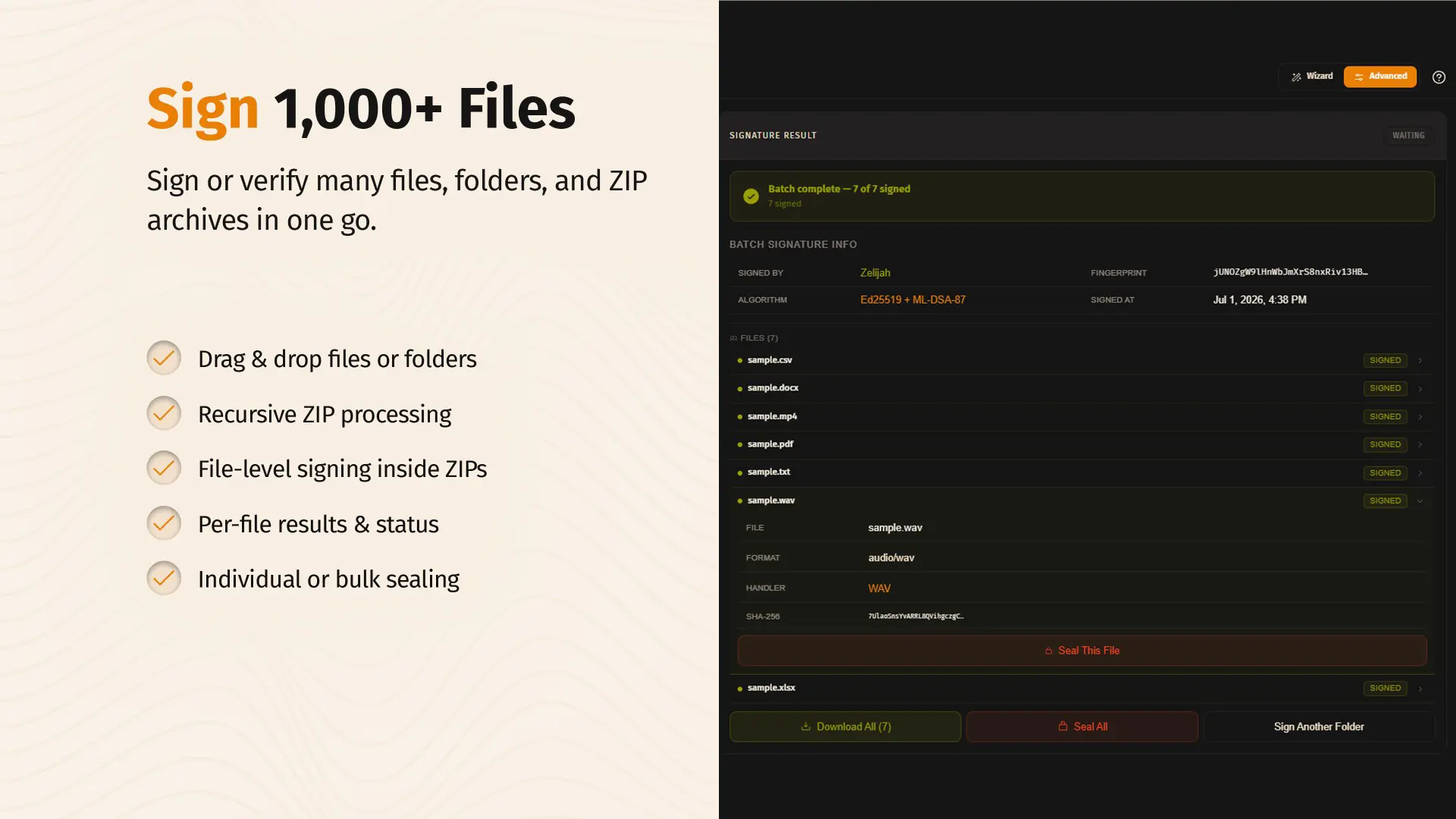
Majik Signature supports batch signing of multiple files in a single workflow. In the Sign tab, click Browse Folder to select a folder and all its contents, or drag-and-drop an entire folder or a ZIP archive onto the input panel. Majik Signature automatically detects all files, recursively traverses nested folders and ZIPs, and signs each file individually with its own embedded signature. File previews are available before processing. After signing, you can seal files individually or all at once, then download the output as a repackaged ZIP that preserves your original directory structure. Each file carries its own signature — enabling granular per-file verification later.
### Setting Up Multi-Party Signing
For documents that need more than one signer — contracts, approvals, or any collaborative workflow — Majik Signature supports multi-party signing. The first person to sign an unsigned file becomes its issuer. From the Sign tab, the issuer can add specific Expected Signers from Contacts to set a signing allowlist, restricting who else is allowed to sign the file — or leave signing open, so anyone with the file can sign. Share the file with each intended signer; each one signs independently, into their own Majik Key, without altering any prior signatures. Track pending and completed signatures from the document's progress view. Once every expected signer has signed, the issuer — and only the issuer — can seal the document to finalize it; if an allowlist is set, sealing isn't possible until everyone on it has actually signed. Verifiers can later inspect every individual signer's signature separately in Advanced verification mode.
### Sealing Cannot Be Undone
> ⚠️ **WARNING:** Sealing permanently locks a file against any further signatures — including from you, even if you were the one who signed first. There is no way to "unseal" a file afterward. Only seal a document once you're certain everyone who needs to sign has already signed.
### Verifying a Signature
1. **1. Open the Verify Tab**
*Navigate to the verification interface*
- Go to the Verify tab (third tab in the navigation bar)
- Choose Quick Mode for a fast drag-and-drop check, or Advanced Mode for detailed technical inspection, paginated signatures, and multi-signer detail
2. **2. Choose a Verification Mode**
*Contact or self-reported keys*
- In Advanced Mode, a Verify Against selector appears at the top of the page
- The default option is Self-reported keys — this uses the public keys embedded in the signature envelope itself (trust-on-first-use mode)
- Alternatively, select a specific contact from your contact directory if you know who signed it — this is the trusted verification path
- For your first verification, stick with Self-reported keys
3. **3. Provide the Signed File**
*Drop the file you want to verify*
- Drag-and-drop the signed file onto the input panel, or click to browse — this also works for folders and ZIP archives signed via batch signing
- The panel validates the file and checks for one or more embedded signatures
- If a signature is found, a ✦ Signature detected chip appears along with metadata preview (signer ID, timestamp, content type, hash)
- If no signature is found, a ◌ No signature found chip appears and verification is blocked
4. **4. Verify the Signature**
*Run the cryptographic verification*
- Click Verify in the bottom-right footer of the input panel
- The output panel shows a real-time progress through 5 steps: ① Extract signature → ② Hash content → ③ Rebuild payload → ④ Ed25519 → ⑤ ML-DSA-87
- For multi-signature files, each signer is verified individually and listed separately in Advanced Mode
- After a moment, the verification result appears in the output panel
- A large verdict banner shows: Signature verified (green) if valid, Verification failed (red) if invalid, Content tampered (red) if the hash doesn't match, or Valid signature · unknown signer (amber) if the signature is cryptographically valid but the signer is not in your contact list
- If a Trusted Timestamp is present, it's checked independently against the timestamp authority's signature and shown alongside the local timestamp
5. **5. Review the Result**
*Inspect the verification details and final output*
- The output panel shows algorithm-level checks: ✓ SHA-256 hash, ✓ Ed25519, ✓ ML-DSA-87, and whether the signer is a known contact
- Below that is a metadata grid showing: signer fingerprint, verdict, timestamp (local and/or TSA), content type, and content hash
- At the bottom is the embedded signature (base64) with a copy button
- If the verdict is Valid or Unknown signer, the content is authentic and unmodified
- If the verdict is Invalid or Tampered, the content has been altered or the signature is forged — do not trust it
- This verification result is the final output of the workflow — no further steps are needed to establish authenticity
### Verifying Plain Text Signatures
To verify a detached base64 signature against text, switch to Text mode in the Verify tab. Paste the original text in the first input box. Paste the base64 signature (from sig.serialize()) in the second input box. Optionally select a contact to verify against. Click Verify. The verification result appears in the output panel with the same detailed breakdown as file verification.
> **NOTE:** Two verification modes: Contact verification (recommended) uses public keys from a known contact in your directory — this is the trusted path. Self-reported verification (TOFU — trust-on-first-use) uses the public keys embedded in the signature envelope itself. The signature is cryptographically valid, but you should cross-check the signerId fingerprint against a known source before trusting it.
### Managing Contacts (Optional)
To verify signatures against known contacts, or to add them as Expected Signers on a multi-party file, you need to add them to your contact directory first. Go to the Identity tab and select the Contacts sub-tab. Click the plus (+) icon. Paste a contact's Invite Key (ask them to share it from their Accounts tab → hover over their account → click the link icon), or import a contact card PNG if they shared one that way. Click Add Contact. The contact now appears in your directory, in the Verify tab's contact selector, and in the Expected Signers picker when setting up a multi-party file.
> **NOTE:** Don't forget to share your own invite key with others so they can verify your signatures or add you as an Expected Signer. Go to the Accounts tab, hover over your account, and click the link icon to copy your invite key.
### Feature Overview
| Feature | Requires Internet? | Requires Account? | Requires Contacts? |
| --- | --- | --- | --- |
| Install Desktop App (Microsoft Store) | Yes (one-time) | No | No |
| Create Majik Key Account | No | No | No |
| Sign a File | No | Yes (unlocked) | No |
| Sign Plain Text | No | Yes (unlocked) | No |
| Add a Document Stamp (PDF/DOCX/XLSX) | No | Yes (unlocked) | No |
| Add an Audio Stamp | No | Yes (unlocked) | No |
| Add an Image Stamp / Batch Image Stamping | No | Yes (unlocked) | No |
| Detached Signing (.mjksig) | No | Yes (unlocked) | No |
| Expiring Signature | No | Yes (unlocked) | No |
| Request a Trusted Timestamp (TSA) | Yes | Yes (Majikah account) | No |
| Multi-Party Signing (Expected Signers / Allowlist) | No | Yes (unlocked) | Optional (for Expected Signers) |
| Seal a Multi-Signature File | No | Yes (unlocked, issuer only) | No |
| Batch Sign (Folder / ZIP) | No | Yes (unlocked) | No |
| Verify a Signed File (self-reported) | No | No | No |
| Verify a Signed File (against contact) | No | No | Yes (in directory) |
| Verify a Folder / ZIP (batch) | No | No | No |
| Verify Plain Text Signature | No | No | No |
| Add Contacts to Directory | No | Yes | No |
| Share Your Invite Key | No | Yes | No |
*Caption: What you can do with Majik Signature, and what each feature requires*
### Back Up Your Seed Phrase Before Anything Else
> ⚠️ **WARNING:** Your seed phrase is the master key to your signing identity. It is the ONLY way to recover your account on a new device or after a reset. Write it down on paper and store it in a safe place. Never store it digitally in plain text, never share it with anyone, and never enter it on any website other than Majik Signature. If you lose your seed phrase, your account and signing capability are permanently unrecoverable.
### What to Explore Next
Once you're set up, Majik Signature has more to offer. Multi-Account Support lets you manage up to 100 local accounts — switch between them seamlessly for different signing contexts (personal, work, projects). Credential Store Passwordless Unlock (Windows Desktop App) lets you unlock with your face, fingerprint, or PIN instead of a typed passphrase, with the normal passphrase flow always available as a fallback. File Previews show inline previews of images, audio (with waveform player), video, PDFs, and text files before signing — including per-file popup previews in batch mode. Document, Audio, and Image Stamping let you add a professional visual or audible mark alongside your cryptographic signature. Detached Signing and Expiring Signatures give you finer control over how, and how long, a signature applies. Trusted Timestamps provide independently verifiable proof of signing time for legal or compliance needs. Multi-Signature Collaboration and sealing support contracts and approvals requiring more than one signer, and a sealed file can optionally be notarized afterward — anchoring its seal hash to a public blockchain for an independent, third-party-checkable timestamp. Hot Folders automatically verify — and sort into Verified/Failed — every file dropped into a monitored folder. CLI and MCP (Windows-only, experimental) let you script signing, verification, and timestamping, or connect an AI assistant to Majik Signature. Chrome Extension (planned) will let you sign and verify files directly from Chrome and detect signatures on any webpage. macOS and Linux desktop apps are also on the roadmap. If you find yourself unlocking your Majik Key often in one sitting, check Preferences for the option to switch from the default Unlock Per Operation to Unlock Once for the rest of your session.
### Security at a Glance
Majik Signature uses hybrid Ed25519 + ML-DSA-87 (FIPS-204) cryptography. Ed25519 provides 128-bit classical security, while ML-DSA-87 provides NIST Category 5 post-quantum security. Both algorithms must verify for the signature to be valid — a break in one is not sufficient to forge. The SHA-256 content hash is part of the signed payload, ensuring any byte change invalidates both signatures. Private keys are encrypted at rest with Argon2id (64 MB memory-hard KDF) inside Majik Key, protected by your passphrase or, on Windows, optionally by Credential Store. Visual, audio, and image stamps are a presentation layer only — they are never part of what's cryptographically signed. All core cryptographic operations happen locally on your device — no server required, no internet needed. Your signatures created today will remain secure even when quantum computers become mainstream.
> **NOTE:** For a deeper dive into any feature, check the dedicated documentation sections: Signing Files and Text, Document, Audio & Image Stamping, Trusted Timestamps, Multi-Signature Workflows, Verifying Signatures, Contacts, Supported File Formats, and How Majik Signature Works. For technical and cryptographic details, refer to the Majik Signature SDK documentation.
--- # End of ms-getting-started-documentation ---
---
title: "How Majik Signature Works"
id: "how-it-works-documentation"
group: "majik-signature"
type: "products"
version: "0.10.0"
lastUpdated: "2026-08-17T00:00:00.000Z"
difficulty: "Advanced"
time: "20-25 minutes"
tags: [cryptography, ed25519, ml-dsa-87, fips-204, post-quantum, hybrid-signatures, sha-256, sha3-512, canonical-payload, key-derivation, argon2id, bip39, seed-phrase, technical, batch, zip, file-level-signing, multi-signature, allowlist, sealing, trusted-timestamps, tsa, windows-hello]
---
# How Majik Signature Works
> Technical deep-dive into Majik Signature's cryptographic architecture, key derivation, signing pipeline, multi-signature envelope format, sealing, trusted timestamps, batch processing model, and verification process
## Overview
Deep dive into the cryptographic internals of Majik Signature. Learn how hybrid Ed25519 + ML-DSA-87 signatures are created, how the canonical payload is constructed, how keys are derived from your seed phrase, how multi-party signing allowlists and sealing work, how Trusted Timestamps are structured, how batch and ZIP signing pipelines work at the file level, and how verification proves authenticity. This guide is for developers, security researchers, and technically curious users who want to understand the system at a fundamental level.
### System Overview
Majik Signature is a hybrid post-quantum digital signature system built on two independent cryptographic algorithms: Ed25519 (classical, elliptic curve) and ML-DSA-87 (post-quantum, lattice-based, NIST FIPS-204). Every signature is produced by both algorithms signing the same canonical payload, and verification requires both to pass. This defense-in-depth approach ensures that a break in one algorithm is not sufficient to forge a signature — an attacker must break both simultaneously, which is infeasible even for quantum computers. The system is built on Majik Key — a BIP-39 seed phrase identity that deterministically derives both Ed25519 and ML-DSA-87 signing keypairs, and that also owns the Argon2id-based encryption protecting those keys at rest. On top of core signing, the library implements multi-party signing (with cryptographically enforced allowlists), envelope sealing, and Trusted Timestamps (TSA) as first-class parts of the envelope format — not bolted-on extensions. All cryptographic operations happen locally using well-audited, dependency-free primitives, and the library is isomorphic — it runs identically in Node.js, browsers, Tauri, Deno, and Bun. In batch mode, this same signing and verification pipeline runs independently per file — each file carries its own self-contained signature envelope.
### Key Derivation from Seed Phrase
Before you can sign anything, you need a Majik Key account. This is a BIP-39 mnemonic seed phrase — 12/24-word or 24-word, in any official BIP-39 language — that deterministically derives two signing keypairs. The derivation process is: (1) A mnemonic is generated using cryptographically secure random number generation (CSPRNG via crypto.getRandomValues) — 128 bits of entropy for a 12/24-word mnemonic, or 256 bits for a 24-word mnemonic. (2) The mnemonic is converted to a 64-byte seed via BIP-39 PBKDF2-SHA512 (2048 iterations, password = mnemonic words, salt = 'mnemonic') — this step produces a 64-byte seed regardless of whether the source mnemonic was 12 or 24 words. (3) Two keypairs are deterministically derived from this seed: Ed25519 keypair — seed[0..32] generates an Ed25519 keypair. This same keypair is also convertible to X25519 (Curve25519) for encryption use in Majik Message, but the Ed25519 form is what Majik Signature uses for signing. The public key is hashed (SHA-256) to create the account fingerprint. ML-DSA-87 keypair — the full seed[0..64] generates an ML-DSA-87 keypair (NIST FIPS-204, parameter set 87). (4) Both private keys are encrypted at rest with Argon2id (64 MB memory, 3 iterations, 4 threads) inside Majik Key, using either a passphrase you enter or — on the Windows Desktop App, if you opt in — a random high-entropy secret gated by Credential Store, and stored locally. The same mnemonic always produces the same keypairs, regardless of whether it's 12 or 24 words — this is how account recovery works.
### Key Derivation Breakdown
| Step | Input | Process | Output |
| --- | --- | --- | --- |
| 1. Mnemonic generation | CSPRNG entropy (128 bits for 12/24-word, 256 bits for 24-word) | BIP-39 word list mapping | 12/24-word or 24-word mnemonic |
| 2. Seed generation | 12/24-word or 24-word mnemonic | BIP-39 PBKDF2-SHA512 (2048 iterations) | 64-byte seed (same output size regardless of mnemonic length) |
| 3. Ed25519 keypair | seed[0..32] | Ed25519 keypair generation from seed | Ed25519 public (32 bytes) + secret (64 bytes) |
| 4. ML-DSA-87 keypair | seed[0..64] | ML-DSA-87 (FIPS-204) keypair generation from seed | ML-DSA-87 public (2592 bytes) + secret (4032 bytes) |
| 5. Fingerprint | Ed25519 public key | SHA-256 hash → base64 encode | 44-char fingerprint string |
| 6. Private key encryption | Ed25519 + ML-DSA-87 secret keys | Argon2id (64 MB, 3 iterations, 4 threads) + AES-256-GCM, inside Majik Key — keyed by a typed passphrase or, on Windows, an optional Credential Store–gated random secret | Encrypted local keystore |
*Caption: How Ed25519 and ML-DSA-87 keys are derived from a 12/24-word or 24-word seed phrase*
> **NOTE:** Deterministic key generation. The same mnemonic always produces the same Ed25519 and ML-DSA-87 keypairs, whether it's 12 or 24 words. This is how account recovery works — as long as you have your seed phrase, you can regenerate your signing keys on any device. Legacy Majik Key accounts created before signing support existed may lack signing keys entirely; these must be re-imported via mnemonic backup before they can sign (check key.hasSigningKeys).
### The Signing Pipeline (Step-by-Step)
When you sign content or a file, the following pipeline executes entirely on your device: Step 0: Pre-signing checks — the signer key must be unlocked (private keys present in memory, whether unlocked via passphrase or Credential Store). For files, any existing embedded envelope is stripped first, so re-signing or re-embedding a file is always safe — signatures never stack or corrupt each other. Step 1: Content hashing — the content is hashed with SHA-256 to produce a 32-byte content hash. For files, this is the raw original file bytes before any signature embedding. For strings, this is the UTF-8 encoded bytes. Step 2: Canonical payload construction — a domain-separated canonical payload string is built (see below). Step 3: Ed25519 signature — the canonical payload is signed with the Ed25519 secret key → produces a 64-byte Ed25519 signature. Step 4: ML-DSA-87 signature — the same canonical payload is signed with the ML-DSA-87 secret key → produces a ~4595-byte ML-DSA-87 signature. Step 5: Envelope assembly — both signatures, the signer's public keys, the content hash, timestamp, content type, and (when applicable) an allowlist hash are assembled into a per-signer MajikSignatureJSON object. Step 6: Multi-sig wrapping — the per-signer envelope is added to (or starts) a MultiSigEnvelope, which is what actually gets embedded into a file or serialized. Step 7: Embedding — for files, the MultiSigEnvelope is embedded using a format-specific handler (native metadata where possible) or the universal binary trailer fallback. For raw content, the signature is instead serialized directly to JSON or base64 (detached signature) — content signing does not use the file-embedding step.
### The Canonical Payload — Domain Separation and Binding
Both Ed25519 and ML-DSA-87 sign the exact same canonical payload string: "majik-signature-v1:" + JSON({ v, id, ts, ct, hash[, alh] }). This single string binds together everything that matters about the signature: Domain separation — the "majik-signature-v1:" prefix prevents cross-protocol signature reuse; a Majik Signature payload can never be mistaken for a payload from sealing ("majik-seal-v1:") or TSA ("majikah-tsa-v-1:"), since each uses a distinct domain-separated prefix. Signer binding — the signer fingerprint (id) is part of the signed data, so a valid signature can never be transferred to a different signer. Timestamp binding — the signing timestamp (ts) is part of the signed data, so it cannot be altered after signing. Content binding — the SHA-256 content hash (hash) is part of the signed data, so any byte change to the content invalidates both signatures. Type binding — the advisory content type (ct) is part of the signed data. Allowlist binding (alh) — present only on the signature that establishes a signing allowlist: the SHA-256 hash of the canonical allowlist is embedded in that signer's own payload, so tampering with the allowlist after the fact breaks the issuer's signature. Crucially, alh is omitted entirely — not set to null — on every signature that isn't establishing an allowlist. This is a deliberate backward-compatibility guarantee: every signature produced before multi-signature support existed still verifies today, because its payload bytes are completely unchanged.
### Canonical Payload Fields
| Field | Type | Example | Purpose |
| --- | --- | --- | --- |
| v | integer | 1 | Envelope version — allows future format upgrades |
| id | string (base64) | "dGhpcy4uLg==" | Signer fingerprint (SHA-256 of Ed25519 public key) |
| ts | string (ISO 8601) | "2026-03-16T15:30:00.000Z" | Signing timestamp — cannot be altered after signing |
| ct | string (optional) | "audio/wav" | Content type — advisory, prevents cross-type reuse |
| hash | string (base64) | "YWJjZGVmMTIzNDU2..." | SHA-256 of content — tamper detection |
| alh | string (base64, optional) | "c2hhMjU2b2ZhbGxvd2xpc3Q=" | SHA-256 of the canonical allowlist — present ONLY when this signer is establishing an allowlist; omitted (not null) otherwise |
| vu | string (ISO 8601) | "2027-09-16T15:30:00.000Z" | Optional ISO 8601 expiry. When present, verify() treats the signature as invalid once the current time is past this value. Absent = never expires (matches all pre-existing signatures — fully backward compatible). Covered by the canonical signing payload when present, so it cannot be stripped or extended post-hoc without breaking both signatures. |
*Caption: Breakdown of the JSON object embedded in the canonical payload*
### Canonical Payload Example
```javascript
// Example canonical payload for a signed file (open signing, no allowlist)
const payload = "majik-signature-v1:" + JSON.stringify({
v: 1,
id: "dGhpc2lzYW5leGFtcGxlZmluZ2VycHJpbnQ=", // base64 fingerprint
ts: "2026-03-16T15:30:00.000Z", // ISO 8601 timestamp
ct: "audio/wav", // content type
hash: "YWJjZGVmMTIzNDU2Nzg5MGFiY2RlZjEyMzQ1Njc4OTA=" // base64 SHA-256
// "alh" is omitted entirely here — this signer is not establishing an allowlist
});
// This payload is signed independently by both Ed25519 and ML-DSA-87
```
### The Per-Signer Envelope (JSON Structure)
After signing, the canonical payload, both signatures, and all metadata are assembled into a per-signer MajikSignatureJSON object. This object is self-contained — it includes everything needed to verify that one signer's signature without external data. Its fields are: version (integer, always 1). signerId (string, base64, 44 chars) — signer fingerprint. signerEdPublicKey (string, base64, ~44 chars) — signer's Ed25519 public key (32 bytes). signerMlDsaPublicKey (string, base64, ~3456 chars) — signer's ML-DSA-87 public key (2592 bytes). contentHash (string, base64, 44 chars) — SHA-256 of content (32 bytes). contentType (string, optional) — advisory MIME type. timestamp (string, ISO 8601). edSignature (string, base64, ~88 chars) — Ed25519 signature (64 bytes). mlDsaSignature (string, base64, ~6127 chars) — ML-DSA-87 signature (4595 bytes). allowlistHash (string, base64, optional) — present only on the issuer's signature. tsa (object, optional) — a full MajikTimestamp, present only if a Trusted Timestamp was attached. A single per-signer envelope serializes to approximately 10 KB of JSON (~14 KB base64) — most of which is the ML-DSA-87 signature and public key. This per-signer envelope is what a file's actual embedded structure wraps — see the Multi-Signature Envelope section below.
### Per-Signer Envelope Example (Truncated)
```json
{
"version": 1,
"signerId": "dGhpc2lzYW5leGFtcGxlZmluZ2VycHJpbnQ=",
"signerEdPublicKey": "YWJjZGVmMTIzNDU2Nzg5MGFiY2RlZjEyMzQ1Njc4OTA=",
"signerMlDsaPublicKey": "dmVyeWxvbmdzdHJpbmdvZmJhc2U2NGVuY29kZWRieXRlcy4uLg==",
"contentHash": "YWJjZGVmMTIzNDU2Nzg5MGFiY2RlZjEyMzQ1Njc4OTA=",
"contentType": "audio/wav",
"timestamp": "2026-03-16T15:30:00.000Z",
"edSignature": "c2lnbmF0dXJlYnl0ZXNmcm9tZWQyNTUxOWFsZ29yaXRobQ==",
"mlDsaSignature": "bG9uZ3Bvc3RxdWFudHVtc2lnbmF0dXJlYnl0ZXMuLi4="
// "allowlistHash" and "tsa" appear here only when applicable
}
```
### The Multi-Signature Envelope — What Actually Gets Embedded
A file signed by Majik Signature never stores a single bare signature — it stores a MultiSigEnvelope: a wrapper containing an array of per-signer envelopes, plus optional allowlist and seal metadata. This is true even for a file with only one signer; the wrapper is always present so that adding a second signer later never requires restructuring the file. The wrapper's fields are: version — wrapper format version. signatures — an array of MajikSignatureJSON objects, one per signer, in the order they signed. allowlist (optional) — an array of ExpectedSigner entries ({ signerId, edPublicKey, mlDsaPublicKey }), present only for restricted-signing files. allowlistSignerId (optional) — the fingerprint of the issuer who established the allowlist. sealHash, sealTimestamp, sealedBy (all optional) — present only once the file has been sealed. Files signed before multi-signature support existed contain a bare MajikSignatureJSON object at the file's signature location instead of this wrapper. The library detects this legacy shape and transparently promotes it to MultiSigEnvelope semantics at read time — every public API always returns/accepts the wrapper shape, and old signatures continue to verify completely unmodified.
### MultiSigEnvelope Structure
```json
{
"version": 1,
"signatures": [ /* MajikSignatureJSON[] — one per signer, in signing order */ ],
"allowlist": [ /* ExpectedSigner[], present only for restricted signing */ ],
"allowlistSignerId": "fingerprint-of-issuer",
"sealHash": "128-hex-char-sha3-512-hash",
"sealTimestamp": "2026-01-01T00:00:00.000Z",
"sealedBy": "fingerprint-of-issuer"
}
```
### Signing Allowlists — Restricted Multi-Party Signing
By default, any Majik Key holder can add a signature to an open-signing file. To restrict who may sign, the first signer (the issuer) supplies an expectedSigners list when signing — an array built from each intended signer's public keys via expectedSignerFromKey(), which does not require unlocking their key. This list becomes the file's allowlist, and its SHA-256 hash is embedded as allowlistHash in the issuer's own canonical payload — cryptographically committing the issuer to that exact allowlist. Every subsequent signing attempt is checked against the allowlist before any cryptographic operation runs: a signer must match all three fields — signerId, Ed25519 public key, and ML-DSA-87 public key — or the attempt is rejected with a typed MajikSignatureAllowlistError. Because the allowlist hash is inside the issuer's signed payload, modifying the allowlist after the fact — adding, removing, or swapping an expected signer — invalidates the issuer's signature the next time it's verified, even though the issuer never re-signs anything. A file only counts as a restricted multi-sig file when it has an allowlist naming more than one expected signer; a single-signer restricted file or an open-signing file with multiple signers does not meet this definition.
### Sealing — Finalizing a Multi-Signature Document
Once a document has collected the signatures it needs, the issuer — and only the issuer — can seal it. Sealing computes a SHA3-512 hash over every current signatory's fingerprint plus a seal timestamp, domain-separated with the "majik-seal-v1:" prefix, and stores the result as sealHash, sealTimestamp, and sealedBy on the MultiSigEnvelope. This is a hash-based integrity lock, not a new Ed25519/ML-DSA-87 signature — it doesn't need to be, since its only job is to detect changes to the signatory set after finalization, and SHA3-512 is more than sufficient for that. A sealed envelope rejects all further signing attempts — including from the issuer themselves. Verifying a seal (verifySeal()) recomputes the SHA3-512 hash from the envelope's current signatory list and compares it to sealHash; this checks the structural integrity of the signatory set, but does not verify the individual Ed25519/ML-DSA-87 signatures — that still requires calling the file verification pipeline separately.
### Trusted Timestamps (TSA) — Structure and Verification
A MajikSignature can optionally carry a MajikTimestamp — proof that an independent timestamp authority observed the signature at a specific time. The flow is: (1) The client builds a MajikTSARequest from an existing signature — essentially just { digest: { algorithm: "SHA-256", value } }, derived from the signature's own content hash. (2) This request is sent to a TSA server, which holds its own Majik Key. (3) The TSA server signs a canonical payload domain-separated with "majikah-tsa-v-1:", binding the digest, a server-generated nonce, and a server-authoritative timestamp — producing a full hybrid Ed25519 + ML-DSA-87 signature over that payload. Because the TSA signature is itself a complete Majik Signature, it inherits the exact same hybrid security guarantees as any other signature in the system. (4) The resulting MajikTimestamp is sent back to the client, which attaches it to the original signature via addTSA(). This attachment step validates that the TSA's signed digest actually matches the signature's content hash, and throws if a TSA is already present (a TSA, once attached, cannot be replaced) or if the TSA's own Ed25519/ML-DSA-87 signature fails to verify. After attachment, hasTSA reports presence and verifyTSA() can independently re-check the TSA's signature — useful after deserializing a signature from storage, since deserialization does not automatically re-verify anything.
### Domain Separation Prefixes
| Prefix | Used By | Binds |
| --- | --- | --- |
| "majik-signature-v1:" | Core content/file signing | signer id, timestamp, content type, content hash, (optional) allowlist hash |
| "majik-seal-v1:" | Envelope sealing | SHA3-512 hash of all current signatories + seal timestamp |
| "majikah-tsa-v-1:" | Trusted Timestamps | content digest, server-generated nonce, server-authoritative timestamp |
*Caption: Each protocol within Majik Signature uses a distinct signed-payload prefix, preventing any cross-protocol signature reuse*
### Batch Signing Pipeline — File-Level Architecture
When you batch-sign a folder or ZIP archive, the signing pipeline runs independently per file — not on the folder or ZIP as a container. This is a distinct concept from multi-signature: batch signing means many files, each carrying its own (possibly single-signer) envelope; multi-signature means many signers on one file's envelope. The two can combine freely — a batch of files can each be routed through a multi-party signing and sealing workflow. The batch pipeline works as follows: Step 0: Input extraction — if the input is a ZIP, it is extracted in memory. Folders and nested ZIPs are recursively traversed. The result is a flat list of (filepath, bytes) pairs preserving relative paths. Step 1: Per-file signing — each file in the list is independently sent through the full signing pipeline. Each file receives its own unique MultiSigEnvelope containing its own content hash, timestamp, and signer information. Signatures across files in the same batch are independent — they are not linked to each other or to the container. Step 2: Result collection — per-file signing outcomes are collected: success (file + embedded signature), failure (file + error reason), or skipped. Progress is reported per file to the UI in real time. Step 3: Output repackaging — successfully signed files are repackaged into a new ZIP that preserves the original directory structure. The output ZIP is not itself signed — only the individual files within it carry signatures. Step 4: Sealing (optional) — individual files or all files can be sealed after signing to mark their signatory sets as finalized.
> **NOTE:** Why file-level signing instead of container signing? Signing the ZIP container as a single binary would mean the signature covers the compressed bytes — not the original file content. Any change to compression settings, ZIP metadata, or file ordering would invalidate the signature even if the file content is unchanged. More importantly, container-level signing prevents individual file verification: you cannot extract a single file and verify it independently without the original ZIP. File-level signing gives each file a self-contained, independently verifiable signature — a much stronger security and usability guarantee. For Office formats (DOCX/XLSX/PPTX/ODT/ODS/ODP), which are themselves ZIP containers, the library performs deterministic ZIP re-canonicalization so that stripping always reproduces identical bytes regardless of when the file was last re-zipped.
### File Format Embedding Handlers
Majik Signature auto-detects a file's format from magic bytes and MIME type, then tries a chain of format-specific handlers in order — the first one whose canHandle() matches wins. If no dedicated handler matches, the universal trailer fallback always applies, meaning every file type is signable, even ones with no dedicated handler. All handlers guarantee three things: the file remains fully usable after signing (a signed PDF still opens, a signed video still plays, a signed DOCX stays editable), signing is idempotent (any existing envelope is stripped before a new one is embedded, so re-signing never stacks or corrupts envelopes), and stripping always reproduces exactly the original bytes that were hashed and signed.
### Supported File Format Handlers
| Format(s) | Handler | Embedding Mechanism |
| --- | --- | --- |
| PDF | PDF | Binary trailer appended after the last %%EOF marker (PDF 1.7 §7.5.6 compliant) |
| PNG | PNG | iTXt metadata chunk |
| WAV | WAV | RIFF LIST INFO chunk, custom ISIG sub-chunk |
| MP3 | MP3 | ID3v2 TXXX frame |
| MP4, MOV, M4A, M4V | MP4/MOV | moov/udta box, custom majk box type |
| DOCX, XLSX, PPTX, ODT, ODS, ODP | Office | Dedicated majik-signature.json entry inside the ZIP container |
| MKV, WebM | MKV | Custom Matroska metadata tag |
| JPEG, FLAC | JPEG / FLAC | Native format metadata (non-destructive; same round-trip guarantees as other handlers) |
| HTML, Markdown, JSON, plain text, source code | Text | Appended, format-appropriate metadata block |
| Anything else | Fallback | Universal binary trailer: [original bytes][signature JSON][8-byte length][8-byte magic "MAJIKSIG"] |
*Caption: Handlers are tried in order; the universal trailer is the always-available fallback*
### The Verification Pipeline (Step-by-Step)
When you verify a signature, the following pipeline executes: Step 1: Signature extraction — for files, the MultiSigEnvelope is extracted using the matching format handler and parsed as JSON; legacy bare-envelope files are promoted transparently. For text, a base64 detached signature is deserialized. Step 2: Signature stripping — for files, the envelope is stripped to recover exactly the original bytes that were signed. For text, this step is skipped (text is already plaintext). Step 3: Content hashing — the original content is hashed with SHA-256. Step 4: Hash comparison — the computed hash is compared to the contentHash in each per-signer envelope. If they don't match for a given signer, that signer's verification fails immediately with a Content tampered reason — no need to check its signatures. Step 5: Canonical payload reconstruction — for each signer, the canonical payload is rebuilt from that signer's own metadata (including allowlistHash when present). Step 6: Ed25519 verification — each signer's Ed25519 signature is verified against the reconstructed payload using that signer's Ed25519 public key. Step 7: ML-DSA-87 verification — each signer's ML-DSA-87 signature is verified against the same payload using that signer's ML-DSA-87 public key. Step 8: Per-signer verdict — for each signer, if both algorithms pass and the hash matches, that signer's result is valid; otherwise it's invalid with a reason. Because a file can carry more than one signer, verifyFile() returns an array of results, one per signer — legacy single-signature files simply return a one-item array, so code that only reads results[0] keeps working. Step 9: TSA verification (optional) — if a signer's envelope carries a tsa object, its own Ed25519/ML-DSA-87 signature is independently checked against the TSA's public keys, and its digest is compared against that signer's content hash.
### Per-Signer Verification Verdict Logic
| Hash Match? | Ed25519 Pass? | ML-DSA-87 Pass? | Signer Known? | Verdict |
| --- | --- | --- | --- | --- |
| ✓ | ✓ | ✓ | ✓ | Signature verified (green) |
| ✓ | ✓ | ✓ | ✕ | Valid signature · unknown signer (amber) |
| ✓ | ✕ | — | — | Verification failed (red) |
| ✓ | — | ✕ | — | Verification failed (red) |
| ✕ | — | — | — | Content tampered (red) |
*Caption: How each signer's individual verdict is determined*
> **NOTE:** Verifying a seal (structural check that the signatory set hasn't changed since sealing) and verifying signatures (cryptographic check of each signer's Ed25519/ML-DSA-87 signature) are two separate operations. A sealed file should generally have both checked: the seal confirms no signatory was added or removed after finalization, while per-signer verification confirms each individual signature is cryptographically valid.
### Error Handling Model
Majik Signature distinguishes between two categories of "failure." A cryptographic signature that simply doesn't verify — wrong key, tampered content, expired trust — is an expected, handled outcome: verification functions return { valid: false, reason } rather than throwing. Exceptions are reserved for misuse: a locked key passed to a signing function, a malformed envelope, a non-allowlisted signer attempting to sign a restricted file, or an attempt to sign an already-sealed file. The library exposes a typed error hierarchy so calling code can catch precisely what it needs: MajikSignatureError (base class, also used for general/unexpected failures), MajikSignatureKeyError (locked key, missing signing keys, or wrong issuer), MajikSignatureVerificationError (verification fails unexpectedly, distinct from a normal valid: false result), MajikSignatureSerializationError (JSON/base64 parsing or encoding failure), and MajikSignatureAllowlistError (a non-listed signer attempts to sign a restricted file).
### Hybrid Security Model — Why Two Algorithms?
Majik Signature uses a hybrid approach: every signature is produced by two independent algorithms, and verification requires both to pass. This provides defense-in-depth against cryptographic breaks. Classical security (Ed25519): Ed25519 provides 128-bit classical security. It is fast, compact (64-byte signatures), and battle-tested — used by SSH, TLS, and Signal. However, Ed25519 is vulnerable to quantum computers running Shor's Algorithm, which can break elliptic curve cryptography in polynomial time. Post-quantum security (ML-DSA-87): ML-DSA-87 (FIPS-204, Module-Lattice-Based Digital Signature Algorithm, parameter set 87) is a NIST-standardized post-quantum signature scheme based on lattice cryptography. It provides security against both classical and quantum computers. The underlying problem (Module Learning With Errors) is believed to be hard even for quantum computers. ML-DSA-87 provides NIST Category 5 security — equivalent to AES-256 against quantum attacks. Hybrid downgrade resistance: For a signature to be forged, an attacker must break both Ed25519 and ML-DSA-87 simultaneously. Breaking one is not sufficient — the other still protects the signature. This ensures your signatures remain secure even if one algorithm is unexpectedly broken. The same hybrid guarantee also applies to sealing indirectly (via the signatures being sealed) and directly to Trusted Timestamps, since a TSA token is itself a full hybrid Majik Signature.
### Ed25519 vs. ML-DSA-87 Comparison
| Property | Ed25519 | ML-DSA-87 |
| --- | --- | --- |
| Type | Elliptic Curve (Curve25519) | Lattice-based (Module-LWE) |
| Security level | 128-bit classical | Category 5 post-quantum (~AES-256 PQ) |
| Quantum resistance | Vulnerable to Shor's Algorithm | Resistant to quantum attacks |
| Public key size | 32 bytes | 2592 bytes |
| Secret key size | 64 bytes | 4032 bytes |
| Signature size | 64 bytes | 4595 bytes |
| Sign speed | ~0.05 ms (very fast) | ~1 ms (fast) |
| Verify speed | ~0.15 ms (very fast) | ~0.5 ms (fast) |
| Standardization | RFC 8032 | NIST FIPS-204 |
*Caption: Detailed comparison of the two signature algorithms*
### Argon2id Key Protection
Your Ed25519 and ML-DSA-87 private keys are encrypted at rest using Argon2id — a memory-hard key derivation function resistant to GPU and ASIC cracking. This protection is owned by Majik Key, the shared identity layer underneath Majik Signature, Majik Universal ID, and Majik Message — Majik Signature consumes it rather than implementing its own key encryption. When you create an account, you set a passphrase (or, on the Windows Desktop App, optionally opt in to Credential Store instead — see below). This passphrase, or the Credential Store–guarded secret, is fed into Argon2id with the following parameters: Memory cost: 64 MB (65536 KB) — forces attackers to use significant RAM per guess, making parallel cracking expensive. Iterations: 3 — number of passes through memory. Parallelism: 4 threads — allows legitimate users to derive the key quickly on modern CPUs while limiting attacker parallelism. Output: 32-byte AES-256 key. The derived key is used to encrypt your private keys with AES-256-GCM before storing them locally. The ciphertext, IV, and salt are stored alongside the encrypted keys. When you unlock your account, you enter your passphrase (or authenticate with Credential Store), Argon2id re-derives the AES key, and your private keys are decrypted into memory. Locking the key afterward (key.lock()) purges the decrypted secret keys from memory. Why Argon2id? It's the winner of the Password Hashing Competition (PHC) and is designed to resist GPU/ASIC cracking — much stronger than PBKDF2 or bcrypt for passphrase-based key derivation.
> **NOTE:** Credential Store passwordless unlock. On the Windows Desktop App, you can opt in to unlocking your Majik Key with Credential Store (face, fingerprint, or PIN) instead of typing a passphrase. Under the hood, this does not bypass Argon2id — instead, a cryptographically random 64-byte (128 hex character) secret is generated in place of a human-chosen passphrase and fed into the exact same Argon2id derivation described above. Credential Store simply gates access to that random secret, removing the risk of a weak, human-guessable passphrase while keeping the same memory-hard protection. This is additive and best-effort: if Credential Store setup or authentication fails for any reason, the account falls back to the normal passphrase flow and continues to work.
### Strong Passphrase Required
> ⚠️ **WARNING:** If you're using a typed passphrase rather than Credential Store, it is the only defense protecting your Argon2id-encrypted private keys in local storage. If an attacker gains access to your device's local keystore and your passphrase is weak (e.g., 'password123'), they can brute-force the Argon2id derivation and recover your private keys. Use a strong, unique passphrase with at least 12 characters, mixed case, numbers, and symbols — or use a diceware passphrase with 6+ words. If available, opting in to Credential Store removes this risk entirely by replacing the human-chosen passphrase with a random 64-byte secret.
### Offline-First Design
All core cryptographic operations in Majik Signature happen locally on your device. Signing: The signing pipeline (hashing, payload construction, Ed25519 signature, ML-DSA-87 signature, envelope assembly, embedding) runs entirely locally with no native bindings. No network calls are made — this includes batch operations, processing an entire folder of 500 files makes zero network calls. Verification: The verification pipeline runs entirely locally with no network calls, including batch verification of ZIP archives and seal verification. Key storage: Your private keys are stored locally — never transmitted to any server. Public keys: The signer's public keys are either embedded in the signature envelope (TOFU) or stored in your local contact directory — no server lookup required. This offline-first design means you can sign and verify files on air-gapped systems, in high-security environments, or when the internet is unavailable. The one exception: Trusted Timestamps require sending a small digest-only request to a TSA server and receiving back a signed token — this is the only network-dependent operation in the entire signing and verification pipeline.
> **NOTE:** Majik Signature does not have a server component for core signing or verification. Everything happens locally on your device. The only server interactions are the static web app delivery from signature.majikah.solutions (after which the app works entirely offline) and, optionally, Trusted Timestamp requests to a TSA server.
### Security Assumptions and Threat Model
Majik Signature's security relies on the following assumptions: Cryptographic hardness: Ed25519 and ML-DSA-87 are computationally hard to break with current and near-future computing power (including quantum computers for ML-DSA-87), and SHA3-512 is collision-resistant for sealing. Implementation correctness: The underlying cryptographic primitives correctly implement the algorithms and are free of critical bugs. Random number generation: The runtime's CSPRNG provides cryptographically secure random numbers for key generation, and — where Credential Store passwordless unlock is used — for the random secret it gates. Device security: Your device is not compromised while your account is unlocked — an attacker with access to your device's memory can extract decrypted private keys. Passphrase strength (when used): Your passphrase is strong enough to resist brute-force attacks against Argon2id, if you're not using Credential Store passwordless unlock. Seed phrase secrecy: Your seed phrase is kept secret — anyone with your seed phrase can regenerate your private keys and forge signatures in your name. Hash collision resistance: SHA-256 (content) and SHA3-512 (sealing) are collision-resistant — an attacker cannot find two different inputs producing the same hash. TSA trust: The library cryptographically verifies a TSA's signature, but deciding which TSA identity to trust in the first place is the application's responsibility.
### What Majik Signature Protects Against
Content tampering: Any byte change to signed content invalidates that signer's signatures — cryptographically guaranteed. This applies equally to individual files and to files signed as part of a batch — each file's signature independently covers its own content. Signature forgery (classical): An attacker without a signer's Ed25519 private key cannot forge a valid Ed25519 signature — 128-bit classical security. Signature forgery (post-quantum): Even with a quantum computer, an attacker cannot forge a valid ML-DSA-87 signature — NIST Category 5 post-quantum security. Timestamp manipulation: The signing timestamp is part of the signed payload — cannot be altered without re-signing. Signer impersonation: A valid signature cannot be transferred to a different signer — the fingerprint is part of the signed payload. Replay attacks: Signatures are bound to specific content via the SHA-256 hash — a signature for one file cannot be reused for a different file. Downgrade attacks: Verification requires both Ed25519 and ML-DSA-87 to pass — an attacker cannot force verification to use only one algorithm. Allowlist tampering: Modifying a restricted file's allowlist invalidates the issuer's own signature. Post-seal tampering with the signatory set: Adding or removing a signer after sealing is detectable via the SHA3-512 seal hash, and no further signatures are accepted once sealed.
### What Majik Signature Does NOT Protect Against
Device compromise: If malware or an attacker gains access to your unlocked device, they can extract your decrypted private keys from memory and forge signatures. Seed phrase theft: If someone steals your seed phrase, they can regenerate your private keys and forge signatures in your name. Weak passphrase (when used): If your passphrase is weak and an attacker steals your local keystore, they can brute-force Argon2id and recover your private keys — this risk does not apply if you've opted in to Credential Store passwordless unlock, since the underlying secret is randomly generated rather than human-chosen. Social engineering: Majik Signature cannot prevent you from signing malicious content or trusting an unknown signer. Local timestamp accuracy: Local (non-TSA) timestamps are self-reported by the signer — there is no independent authority backing them; use a Trusted Timestamp when independent proof of signing time matters. Real-world identity mapping: Majik Signature proves content was signed by a specific cryptographic key, not by a specific person or organization. Identity verification is your responsibility. Choice of trusted TSA: The library verifies a TSA cryptographically, but does not decide which TSA identity your application should trust.
### Security Guarantees Summary
| Property | Guaranteed? | Notes |
| --- | --- | --- |
| Content integrity | ✓ Yes | Any byte change invalidates that signer's signatures |
| Signer binding | ✓ Yes | Signature cannot be transferred to a different key |
| Timestamp binding | ✓ Yes | Timestamp cannot be altered without re-signing |
| Forgery resistance (classical) | ✓ Yes | Ed25519 provides 128-bit classical security |
| Forgery resistance (post-quantum) | ✓ Yes | ML-DSA-87 provides Category 5 PQ security |
| Downgrade resistance | ✓ Yes | Both algorithms must pass — no single-algorithm bypass |
| Replay resistance | ✓ Yes | Signature bound to specific content via hash |
| Per-file integrity in batch | ✓ Yes | Each file signed independently — granular verification |
| Allowlist integrity | ✓ Yes | Tampering with the allowlist invalidates the issuer's signature |
| Seal integrity | ✓ Yes | SHA3-512 hash detects any change to the signatory set post-seal |
| TSA signature integrity | ✓ Yes | TSA token is itself a full hybrid Majik Signature |
| Local timestamp accuracy | ✕ No | Self-reported — use TSA for independent proof |
| Real-world identity | ✕ No | Proves key ownership, not person/organization |
| Device security | ✕ No | Assumes device is not compromised while unlocked |
| Seed phrase secrecy | ✕ No | User must protect their seed phrase (12/24-word or 24-word) |
| Which TSA to trust | ✕ No | Application-level decision, not enforced by the library |
*Caption: What Majik Signature guarantees and what it does not*
### Performance Characteristics
Majik Signature is designed to be fast enough for interactive use on modern devices. Signing performance: For small files (Batch performance: Files in a batch are processed sequentially. For a batch of 100 small files, total signing time is approximately 100 × (ML-DSA-87 ~1 ms + SHA-256 hash time). ZIP extraction and repackaging adds a small overhead proportional to total file size. Multi-signer overhead: Each additional signer on a file adds one more ~10 KB per-signer envelope to the MultiSigEnvelope's signatures array — verification time scales linearly with signer count. Verification performance: Verification is slightly faster than signing because Ed25519 and ML-DSA-87 verification are faster than signing. For small files, verification completes in under 1 second. For large files, hashing again dominates.
### Future Cryptographic Agility
Majik Signature's envelope format includes a version field on both the per-signer envelope and the MultiSigEnvelope wrapper to support future cryptographic upgrades. If Ed25519 or ML-DSA-87 is broken, or if newer post-quantum algorithms are standardized, a new envelope version can be introduced with different algorithms. Old signatures remain verifiable using their original algorithms — the same forward-compatible design that already lets pre-multi-signature files verify unmodified today. Possible future upgrades: Ed448 (higher classical security) or SPHINCS+ (hash-based post-quantum signatures) as alternatives to Ed25519. ML-DSA-65 or ML-DSA-44 (smaller signature sizes) for constrained environments. Falcon (NTRU-based post-quantum signatures) as an alternative to ML-DSA-87. SHA-3 (Keccak) as an alternative to SHA-256 for content hashing. The v1 envelope will always be supported for backward compatibility.
--- # End of how-it-works-documentation ---
---
title: "Signing Files and Text"
id: "signing-documentation"
group: "majik-signature"
type: "products"
version: "0.11.0"
lastUpdated: "2026-09-04T00:00:00.000Z"
difficulty: "Beginner"
time: "10-15 minutes"
tags: [signing, digital-signatures, ed25519, ml-dsa-87, post-quantum, hybrid-crypto, file-signing, text-signing, embedding, offline, batch, folder, zip, sealing, multi-signature, allowlist, trusted-timestamps, tsa, document-stamping, audio-stamping, image-stamping, signing-wizard, windows-hello, notary, solana, blockchain, anchor, sha3-512, revision-chain, file-versioning, chain-verification]
---
# Signing Files and Text
> Complete guide to signing files, text, folders, and ZIP archives with Ed25519 + ML-DSA-87 hybrid signatures, including stamping, TSA, and multi-signature workflows
## Overview
Learn how to sign any file or text with hybrid post-quantum cryptography using Majik Signature. This guide covers the complete signing workflow — single file signing, plain text signing, document/audio/image stamping, Trusted Timestamps, multi-party signing with allowlists, sealing, batch signing of folders and ZIP archives, and result interpretation.
### What Does Signing Mean?
Signing content creates a cryptographic proof that the content originated from you and has not been modified since signing. Majik Signature uses a hybrid approach: every signature is produced by two independent algorithms — Ed25519 (classical) and ML-DSA-87 (post-quantum, NIST FIPS-204). Both algorithms sign the same canonical payload that binds together your signer ID (fingerprint), a timestamp, the content type, and a SHA-256 hash of the content. Anyone with your public keys can verify the signature — no private key is needed for verification, making it safe to verify anywhere. Beyond the base signature, you can optionally layer on a visual, audio, or image stamp, request an independently signed Trusted Timestamp, or route the file through a multi-party signing and sealing workflow.
> **NOTE:** Access the signing interface from the Sign tab — the second tab in the top navigation bar. Choose the guided Signing Wizard for a step-by-step flow, or Advanced Mode for full control over stamping, Trusted Timestamps, and multi-signer options in a single view.
### Signing Wizard vs. Advanced Mode
Majik Signature offers two ways to sign. The Signing Wizard walks you through signing step by step — Select File → Choose Signers → Configure Signing (stamp, TSA) → Review & Sign — and is recommended for most users and new signers. Advanced Mode is the original full-control interface: file, text, and batch modes are all available in one screen, alongside every stamping option, Trusted Timestamp toggle, and multi-signer/allowlist control, without being walked through separate steps. Both modes produce identical signature envelopes — the choice is purely about interface flow, not capability.
### Interface Layout (Advanced Mode)
In Advanced Mode, the Sign tab is split into two side-by-side panels. The left panel (input) is where you provide the content to sign — either a file, text, or a batch of files. The right panel (output) shows the signature result after signing completes. At the top of the panels is a mode toggle: File (blue), Text (green), or Batch (purple). Above the panels is the Signing Account selector, where you choose which of your Majik Key accounts should sign the content. For file signing, an expandable Stamp section (document, audio, or image, depending on file type), a Trusted Timestamp toggle, and a Signers section (for multi-party/allowlist configuration) sit between the file drop zone and the Sign button. Below the input panel is a footer with action buttons.
### Account Must Be Unlocked
> ⚠️ **WARNING:** The selected account must be unlocked before signing — either by entering your passphrase or, on the Windows Desktop App if you've opted in, by authenticating with Credential Store (face, fingerprint, or PIN). If you see a No Keys badge on an account, it means the account was imported without signing keys and needs to be re-imported via mnemonic backup. Accounts without signing keys cannot sign — the Sign button will be disabled.
### Signing a File
1. **1. Open the Sign Tab**
*Navigate to the signing interface*
- Go to the Sign tab — second tab in the navigation bar
- Choose the Signing Wizard or Advanced Mode
- The interface loads in File mode by default
2. **2. Select Your Signing Account**
*Choose which identity will sign*
- At the top of the page is the Signing Account selector
- Your active account is pre-selected
- If you have multiple accounts, click on a different account to switch
- Each account shows its display name, fingerprint (first 32 chars), and a status badge: Selected (active), Ready (has keys), or No Keys (needs re-import)
- If the selected account shows No Keys, you must re-import it via mnemonic backup before it can sign — go to Accounts tab → Import Account → enter your seed phrase (12/24-word or 24-word)
3. **3. Provide Your File**
*Drop or browse for the file to sign*
- In the left panel (input), drag-and-drop a file onto the drop zone, or click to browse
- Any file format is accepted — PDFs, images, audio, video, documents, code, archives, executables, and more
- Once loaded, the panel shows the filename, size, MIME type, and a file icon
- Below the file info is an inline preview for supported formats: images display as thumbnails, audio files show a waveform player, video plays inline, PDFs render in an iframe, and text files show their content
- If you want to change the file, click the ✕ Remove button and drop a new one
4. **4. (Optional) Add a Stamp, TSA, or Multi-Signer Setup**
*Configure additional options before signing*
- For PDF/DOCX/XLSX, open the Document Stamp section to add a visual stamp
- For audio files, open the Audio Stamp section to add a producer tag or watermark
- For image files, open the Image Stamp section to add a logo or watermark with Smart Anchor Placement
- Enable Trusted Timestamp to request an independently signed TSA timestamp instead of a local one (requires Majikah sign-in and internet)
- Open Signers to add additional expected signers and turn this into a multi-party, allowlisted signing session
- All of these are optional — skip this step for a plain single-signer signature with a local timestamp
5. **5. Sign the File**
*Trigger the signing operation*
- Click the ✦ Sign button in the footer of the left panel
- The right panel shows a progress bar and step indicators: ① Extract signature → ② Hash content → … → ⑤ ML-DSA-87
- After a moment (typically under 1 second for local timestamps; longer if requesting a TSA timestamp), the signature result appears in the right panel
- The progress bar fills to 100% and the status badge changes from Signing… to Signed
6. **6. Review the Signature Result**
*Inspect the signature metadata*
- The right panel shows a green success banner: File signed successfully · Ed25519 + ML-DSA-87 · Hybrid post-quantum signature
- Below that is a metadata grid showing: filename, format (MIME type), embed handler (e.g., 'PDF', 'WAV', 'MP4/MOV'), signed by (your display name or fingerprint), signer fingerprint (first 32 chars + …), algorithm (Ed25519 + ML-DSA-87), timestamp (local and/or TSA, when you signed it), and SHA-256 content hash (first 28 chars + …)
- If a Trusted Timestamp was requested, an additional badge shows the TSA that issued it and its own independent timestamp
- If a multi-signer allowlist was configured, a Signers section shows who is expected to sign and who has signed so far
- At the bottom is the Detached Signature (base64) section — this is the serialized signature envelope you can copy and share separately if needed (click Copy)
7. **7. Download the Signed File**
*Save the file with embedded signature*
- Click Download Signed File in the footer of the right panel
- The file downloads with the same filename as the original
- The signature (wrapped in a MultiSigEnvelope, even for a single signer) is embedded in the file's native metadata — PDF signatures are stored as a binary trailer after %%EOF, PNG in iTXt chunks, WAV in RIFF LIST INFO, MP4 in moov → udta → majk box, and so on
- Any stamp you configured (document, audio, or image) is embedded alongside the signature as a visual/audible layer
- The signed file is the same format as the original — a signed PDF is still a valid PDF, a signed WAV is still playable, etc.
- You can share this file anywhere — email, cloud storage, USB — and anyone with your public keys can verify it
> **NOTE:** Re-signing a single-signer file is always safe. If you sign a file that already carries a Majik Signature from the same signer, with no other signer added, the old envelope is automatically stripped before the new one is created (unless the file is sealed — see below, where re-signing is blocked entirely). This is idempotent — signing the same unmodified file twice produces the same content hash (modulo timestamp). Adding a signature to a multi-signer file works differently: nothing is stripped. Each additional signer's pass is recorded as its own revision in the file's chain, so earlier signers' signatures stay valid even if the file's visual content changed along the way.
### Adding a Document Stamp (PDF, DOCX, XLSX)
When signing a PDF, DOCX, or XLSX file, open the Document Stamp section before clicking Sign to add a visual, professional mark alongside the cryptographic signature. Import an image (PNG/JPG) to use as your stamp, or draw one directly with your mouse or stylus. If you imported an image, enable chroma key to automatically remove a solid background color. Resize, rotate, and reposition the stamp on the page or sheet, and optionally add name and position text with custom font size and color. The stamp is a visual layer only — it never changes what's cryptographically signed. The underlying signature always covers the original document content, regardless of whether a stamp is present or how it's styled.
### Adding an Audio Stamp
When signing a WAV or other compatible audio file, open the Audio Stamp section to embed a producer tag, voice signature, or branded audio watermark using the built-in multi-track editor. Import one or more audio clips as reusable stamps, then arrange them on the timeline. Adjust per-track volume, pan, pitch, EQ, trimming, and looping to layer multiple stamps together. Save your mix as a preset to reuse in future signing sessions. Like document stamps, the audio stamp is embedded as an audible layer alongside — not instead of — the cryptographic signature.
### Adding an Image Stamp
When signing a PNG, JPG, WebP, or other compatible image file, open the Image Stamp section to add a logo, watermark, or branding overlay directly onto the image. Import the image you want to use as a stamp, then use Smart Anchor Placement to position it relative to an anchor point (e.g., bottom-right, center) with a margin and relative size — this keeps the stamp consistently positioned even across images of different dimensions and aspect ratios. To apply the same stamp across many images in one operation, use Batch Image Stamping from Batch mode: configure your stamp once, and it's applied consistently to every image in the batch while each file is still signed individually.
> **NOTE:** Document, audio, and image stamps are a presentation layer — a visual or audible complement to the signature, not a replacement for it. Verification always checks the underlying Ed25519 + ML-DSA-87 signature over the original file bytes, regardless of any stamp present.
### Requesting a Trusted Timestamp (TSA)
By default, Majik Signature uses a local, self-reported timestamp — accurate, but not independently verifiable. To get a stronger, independently signed proof of when a file was signed, enable Trusted Timestamp before clicking Sign. This requires signing in to a Majikah account (separate from your Majik Key signing account) and an internet connection. Majik Signature sends a small digest-only request to an independent timestamp authority server, which returns a timestamp token signed with the same hybrid Ed25519 + ML-DSA-87 cryptography used everywhere else in the system — so the TSA timestamp carries the exact same forgery resistance as your own signature. Every Majikah account includes 5 free Trusted Timestamps every 24 hours; re-signing the same unmodified file again within that window doesn't consume an additional credit. Additional TSA credit packs can be purchased if you need more.
> **NOTE:** Local (self-reported) timestamps remain the default and continue to work fully offline. Trusted Timestamps are optional and mainly useful for legal or compliance scenarios where independent proof of signing time matters.
### Multi-Party Signing and Allowlists
For documents that need more than one signer, open the Signers section before your first signature. As the issuer (the first signer), you can leave signing open — anyone with the file can add a signature — or add specific people to a signing allowlist, restricting who is permitted to sign. When a subsequent signer needs to stamp, draw over, or otherwise visually modify the file before adding their signature — a common case for documents, stamped photos, and stamped audio — Majik Signature preserves every earlier signer's signature by recording each pass as its own entry in the file's append-only revision chain, instead of overwriting bytes in place. As signers are added, a progress view shows who is still pending and who has completed their signature. Only the issuer can later seal the file (see below), and if you set an allowlist, tampering with it after the fact is cryptographically detectable — it invalidates your own (the issuer's) signature the next time the file is verified.
> **NOTE:** Revisions are tracked automatically. Any time a signed file is modified before an additional signature is added, Majik Signature appends a new entry to the file's revision chain rather than discarding the previous version's proof. Each entry is matched to its recorded signature by content, not by filename or drop order. This is what lets every signer's signature stay independently valid, and it's what powers Full Chain Verification on the Verify tab.
> **NOTE:** An allowlist restricts who may sign, not who may verify. Anyone can still verify a restricted file's signatures — restriction only applies to adding new signatures.
### Sealing — Finalizing a Signed Document
Sealing is an optional final step that permanently locks a file's set of signers. Only the issuer — the signer who started the signing session — can seal a file, and once sealed, no further signatures are accepted from anyone, including the issuer. This is useful for approval workflows where you want to indicate that all required parties have signed and the document is finalized. Under the hood, sealing computes a SHA3-512 hash over every current signer plus a seal timestamp and stores it in the file — this hash lets anyone confirm the exact set of signers hasn't changed since sealing, separately from verifying each individual signature. Sealing is non-destructive to the existing signatures — it adds seal metadata without replacing or altering any signer's signature. There is no way to "unseal" a sealed file; if changes are needed, the underlying content must be re-signed from scratch as a new signing session.
### Sealing Is Permanent
> ⚠️ **WARNING:** Unlike a normal re-sign (which safely strips and replaces an existing signature), sealing cannot be undone and does not permit further signing afterward — not even by the issuer. Only seal a file once you're certain all required signers have signed.
> **NOTE:** Sealed files can be notarized. Once a file is sealed, a Notarize option becomes available — this anchors the file's seal hash to a public blockchain for an independent, tamper-evident timestamp, for a small per-file fee. This is separate from sealing itself and entirely optional. See the dedicated Notarizing on Solana guide.
### Signing Plain Text
In addition to files, you can sign plain text or clipboard snippets. This produces a detached base64 signature that you can share alongside the original text through any channel — email, messaging apps, notes, etc. The signature is not embedded into the text itself; instead, you share both the text and the signature separately. Stamping and multi-party allowlists apply to file signing only — text signing always produces a single-signer detached signature.
### Signing Text
1. **1. Switch to Text Mode**
*Toggle the mode switcher*
- At the top of the panels is a mode toggle
- Click Text — the toggle turns green
- The left panel now shows a text input area instead of a file drop zone
2. **2. Enter Your Text**
*Paste or type the content to sign*
- In the left panel, type or paste your text into the input box
- There is no size limit, but keep in mind that very long text will take slightly longer to sign
- Below the text box is a character counter showing how many characters you've entered
3. **3. Sign the Text**
*Trigger the signing operation*
- Click the ✦ Sign button in the footer of the left panel
- The right panel shows the same progress animation as file signing
- After a moment, the signature result appears
4. **4. Copy the Signature**
*Save the detached signature*
- The right panel shows a green success banner: Text signed successfully · Ed25519 + ML-DSA-87
- Below that is the metadata grid showing: signed by, fingerprint, algorithm, timestamp, and content hash
- At the bottom is the Detached Signature (base64) section
- Click Copy Signature to copy the base64 string to your clipboard
- Share this signature alongside the original text — both are needed for verification
> **NOTE:** Text signatures are detached. Unlike file signatures which are embedded in the file, text signatures are separate base64 strings. You must share both the original text and the signature. If you change even one character in the text, the signature will no longer verify.
### Batch Signing — Folders and ZIP Archives
Batch mode lets you sign multiple files in a single workflow. Switch to Batch mode using the mode toggle at the top of the panels (purple). You can drop an entire folder or a ZIP archive onto the input panel — Majik Signature automatically detects all contained files, recursively traverses nested folders and nested ZIPs, and signs each file individually. Each file receives its own embedded hybrid signature envelope, enabling granular per-file verification later. Batch mode also supports Batch Image Stamping — configure one image stamp and apply it consistently across every image file in the batch. The output is repackaged as a ZIP that preserves your original directory structure. Batch mode also provides detailed per-file results — you can see exactly which files were signed successfully, which failed, and why.
### Batch Signing a Folder or ZIP
1. **1. Switch to Batch Mode**
*Toggle the mode switcher*
- At the top of the panels is a mode toggle
- Click Batch — the toggle turns purple
- The left panel now shows a batch drop zone and file list area
2. **2. Select Your Signing Account**
*Choose which identity will sign all files*
- The Signing Account selector above the panels works the same as in single-file mode
- The selected account will be used to sign every file in the batch
3. **3. Provide Files, a Folder, or a ZIP**
*Drop your content onto the batch input panel*
- Drag-and-drop one or more individual files, an entire folder, or a ZIP archive onto the input panel
- You can also click to browse and select multiple files or a folder
- Majik Signature automatically detects all files — if you drop a ZIP, it is extracted and all contents are recursively processed, including nested folders and nested ZIPs
- The input panel displays a file list showing each detected file with its name, size, and type
- Click the popup preview icon on any file to inspect it before signing
- Use the ✕ Remove button on individual files to exclude them from the batch
- If the batch contains image files, an optional Batch Image Stamp section lets you configure one stamp with Smart Anchor Placement to apply across all of them
4. **4. Sign the Batch**
*Trigger batch signing*
- Click the ✦ Sign All button in the footer of the input panel
- The right panel shows a per-file progress list — each file advances through the signing steps independently
- The overall progress bar tracks total completion across all files
- After all files are processed, the output panel shows a summary: total files, successful signatures (✅), and failed signatures (❌) with failure reasons
5. **5. Review Per-File Results**
*Inspect the signing outcome for each file*
- The right panel shows a detailed per-file results list
- Each file row shows: filename, signing status (✅ Signed / ❌ Failed), embed handler used, and signer fingerprint
- Failed files show an inline failure reason (e.g., unsupported format for a specific operation, file read error, or an attempt to re-sign a sealed file)
- Shared metadata visible across all files — algorithm, signing account, timestamp range — is shown in a summary panel above the file list
- If any file already had an existing (unsealed) signature, the old signature was stripped and replaced — this is shown per file
6. **6. Seal and Download**
*Finalize and export the signed files*
- After signing, the issuer of each file can seal it to permanently lock its set of signers against further signing
- Seal files individually by clicking the seal icon next to each file, or use Seal All to bulk-seal all successfully signed files at once
- Sealing is permanent — a sealed file rejects all further signing attempts, including from the issuer
- Click Download ZIP to download all signed files repackaged as a ZIP archive that preserves your original directory structure
- Files that failed signing are excluded from the output ZIP by default — you can review failure reasons and re-sign if needed
> **NOTE:** ZIP files are signed at the file level, not the container level. When you sign a ZIP, Majik Signature extracts its contents and signs each individual file with its own embedded signature envelope. This provides granular verification — you can verify any single extracted file independently, without needing the original ZIP. Container-level signing (signing the ZIP as a single binary blob) is not used, as it would prevent individual file verification.
### What's Inside a Signature?
Every file you sign holds a wrapper envelope containing an array of one or more signer entries — even a single-signer file uses this wrapper, so adding another signer later never requires restructuring the file. Each signer's entry is a JSON object containing: version (always 1), signerId (that signer's fingerprint — SHA-256 of their Ed25519 public key), signerEdPublicKey (Ed25519 public key, base64, 32 bytes), signerMlDsaPublicKey (ML-DSA-87 public key, base64, 2592 bytes), contentHash (SHA-256 of the content, base64, 32 bytes), contentType (advisory MIME type, e.g., 'audio/wav' or 'text/plain'), timestamp (ISO 8601 string of when they signed), edSignature (Ed25519 signature, base64, 64 bytes), and mlDsaSignature (ML-DSA-87 signature, base64, 4595 bytes). Two additional fields appear only when relevant: allowlistHash (present only on the issuer's entry, if a signing allowlist was set) and a tsa object (present only if a Trusted Timestamp was attached). The wrapper itself also carries optional seal metadata once a file has been sealed, along with a chainAnchors array (one entry per blockchain the sealed file has been notarized to) and a fileVersions array (the append-only revision chain covering every signed revision) once either feature has been used.
### What Gets Signed (Canonical Payload)
Both Ed25519 and ML-DSA-87 sign the same canonical payload string. This ensures the signature is bound to all the metadata, not just the content. The payload format is: "majik-signature-v1:" + JSON({ v, id, ts, ct, hash[, alh] }), where v is the envelope version, id is the signer's fingerprint, ts is the timestamp, ct is the content type (optional), hash is the SHA-256 of the content, and alh — present only when this signer is establishing a signing allowlist — is the SHA-256 of that allowlist. The domain separator ("majik-signature-v1:") prevents cross-protocol signature reuse — a Majik Signature cannot be mistaken for a signature from another system, such as a seal or a Trusted Timestamp, each of which uses its own distinct separator. Because the fingerprint, timestamp, and (when applicable) allowlist hash are all part of the signed payload, a valid signature cannot be transferred to a different signer, replayed with a modified timestamp, or have its allowlist quietly edited afterward.
### Signature Components (Per Signer)
| Component | Size | Purpose |
| --- | --- | --- |
| Ed25519 signature | 64 bytes | Classical signature |
| ML-DSA-87 signature | 4595 bytes | Post-quantum signature |
| Ed25519 public key | 32 bytes | Signer's classical public key |
| ML-DSA-87 public key | 2592 bytes | Signer's PQ public key |
| Content hash (SHA-256) | 32 bytes | Tamper detection — any byte change invalidates |
| Timestamp | ~24 chars | When this signer signed |
| Signer ID | 44 chars | SHA-256 of Ed25519 public key (base64) |
| Content type | variable | Advisory MIME type (optional) |
| Allowlist hash | 44 chars (optional) | Present only on the issuer's entry when an allowlist was set |
| Trusted Timestamp (TSA) | ~10 KB (optional) | A full independent hybrid signature from a timestamp authority |
*Caption: What's included in every signer's entry within a Majik Signature*
### File Embedding — Native Metadata Containers
Majik Signature embeds directly into each file format's native metadata container. This is what the Embed handler field in the signature result refers to. Tier 1 formats use built-in metadata: PDF uses a spec-compliant binary trailer after the last %%EOF marker, PNG uses iTXt chunks, JPEG uses native metadata, WAV uses RIFF LIST INFO chunks, MP3 uses ID3v2 TXXX frames, MP4/MOV uses moov → udta → majk boxes, FLAC uses native metadata, DOCX/XLSX/PPTX/ODT/ODS/ODP use a dedicated ZIP entry (majik-signature.json), and HTML/Markdown/source code use comment blocks. Tier 2 formats (MKV/WebM and any other file without a dedicated handler) use a universal self-describing binary trailer: [original file bytes][signature JSON UTF-8][8-byte payload length LE][8-byte magic: MAJIKSIG]. The magic bytes at the end allow detection and clean stripping without knowing the format.
> **NOTE:** Tier 1 signatures survive re-save. For formats like PDF, PNG, WAV, MP4, and DOCX, the signature survives standard open → save round-trips in most tools — Office formats additionally use deterministic ZIP re-canonicalization so identical content always strips to identical bytes. Tier 2 signatures do not survive re-encoding. If you re-mux an MKV or re-compress an archive, the trailer is stripped. Use Tier 1 native-metadata formats where signature durability matters.
### Embed Handlers by Format
| Format | Handler Name | Metadata Location | Survives Re-save? |
| --- | --- | --- | --- |
| PDF | PDF | Binary trailer after %%EOF (PDF 1.7 §7.5.6 compliant) | Yes (most tools) |
| PNG | PNG | iTXt chunk | Yes |
| JPEG | JPEG | Native metadata | Yes |
| WAV | WAV | RIFF LIST INFO chunk | Yes |
| MP3 | MP3 | ID3v2 TXXX frame | Yes |
| MP4/MOV/M4A/M4V | MP4/MOV | moov → udta → majk box | Yes |
| FLAC | FLAC | Native metadata | Yes |
| MKV/WebM | MKV/WebM | Binary trailer | No (re-mux strips) |
| DOCX/XLSX/PPTX/ODT/ODS/ODP | Office | Dedicated ZIP entry (majik-signature.json) | Yes |
| HTML/Markdown/source code | Text | Comment block | Yes |
| Any other | Fallback (Universal Trailer) | Binary trailer | No |
*Caption: How signatures are embedded in different file types*
### Signing Account Selector — Multiple Identities
If you have multiple Majik Key accounts, the Signing Account selector lets you choose which identity should sign the content. Each account is a separate cryptographic identity with its own seed phrase, fingerprint, and signing keys — you can store up to 100 accounts locally. This is useful for separating personal, work, and project identities. The selector shows all your accounts with their display names, fingerprints (first 32 chars), and status badges. Selected (green) means this is the active signing account. Ready (neutral) means the account has signing keys and can be selected. No Keys (red) means the account was imported without signing keys — it needs to be re-imported via mnemonic backup before it can sign. In batch mode, the selected account signs every file in the batch. Note this Majik Key account selector is separate from your optional Majikah account sign-in, which is only needed for Trusted Timestamps.
### Accounts Without Signing Keys
> ⚠️ **WARNING:** If an account shows a No Keys badge, it means the account was imported using a JSON backup or created in an older version of Majik Message before signing keys were added. To enable signing, you must re-import the account using your seed phrase (12/24-word or 24-word). Go to the Accounts tab → click the Import button → paste your mnemonic → enter your passphrase → click Import. The account will be upgraded with Ed25519 and ML-DSA-87 signing keys.
### File Previews — See What You're Signing
When you load a file in the input panel, Majik Signature shows an inline preview for supported formats. Images (PNG, JPEG, GIF, WebP, SVG) display as thumbnails up to 320px height. Audio (WAV, MP3, OGG, FLAC) shows a waveform player with play/pause controls, a seek bar, and a timer. Video (MP4, WebM, MOV) plays inline with native HTML5 video controls up to 320px height. PDFs render in an iframe (380px height) so you can see the first page. Text files (TXT, Markdown, JSON, CSV, source code) show their content up to 240px height with syntax highlighting. In Batch mode, each file in the list has a popup preview icon — click it to open an inline preview overlay for that specific file before committing to signing. For generic formats (executables, archives, fonts, 3D assets, etc.), a file icon and MIME type are shown with a message: 'No preview available for [MIME type] — The file will be signed as-is.'
> **NOTE:** File previews are purely for your convenience — they do not affect what gets signed. The signature always covers the raw file bytes, not the preview rendering or any stamp overlay.
### Quick Reference
| Task | Panel | Mode | Notes |
| --- | --- | --- | --- |
| Sign a file | Left (input) + Right (output) | File | Drag-and-drop or browse |
| Choose signing account | Signing Account selector (above panels) | Any | Must have keys and be unlocked (passphrase or Credential Store) |
| Add a document stamp | Left panel — Document Stamp section | File | PDF, DOCX, XLSX only |
| Add an audio stamp | Left panel — Audio Stamp section | File | WAV and other compatible audio |
| Add an image stamp | Left panel — Image Stamp section | File | PNG, JPG, WebP and other compatible images |
| Apply the same image stamp to many images | Left panel — Batch Image Stamp section | Batch | Uses Smart Anchor Placement |
| Request a Trusted Timestamp | Left panel — Trusted Timestamp toggle | File or Batch | Requires Majikah sign-in + internet |
| Set up multi-party signing / allowlist | Left panel — Signers section | File | Configure before the first signature |
| Download signed file | Right panel footer | File | Signature embedded in metadata |
| Sign plain text | Left (input) + Right (output) | Text | Paste or type |
| Copy detached signature | Right panel — Detached Signature section | File or Text | Base64 string |
| Re-sign a file | Left panel | File | Old signature auto-stripped (unless sealed) |
| Batch sign a folder or ZIP | Left (input) + Right (output) | Batch | Each file signed individually |
| Preview file before signing | Left panel — preview area or popup icon | File or Batch | Images, audio, video, PDF, text |
| Seal individual files | Right panel — per-file seal icon | Batch | Issuer only; permanent |
| Seal all files at once | Right panel footer — Seal All | Batch | Bulk sealing; permanent |
| Notarize a sealed file | Right panel, after sealing | File | Solana anchor, small per-file fee; see Notarizing on Solana guide |
| Download signed batch | Right panel footer — Download ZIP | Batch | Preserves original directory structure |
| Switch accounts | Signing Account selector | Any | Click on a different account |
*Caption: Common signing tasks and where to find them*
### Privacy & Security Guarantees
All core signing happens entirely on your device. Your files, private keys, and signatures never leave your computer. The only exception is an explicit Trusted Timestamp request, which sends a small digest-only payload to a TSA server and requires internet access. Every signer's entry is self-contained and only breakable by cryptographic attacks on both Ed25519 and ML-DSA-87 simultaneously — which is infeasible even for quantum computers. The combination of Ed25519 (128-bit classical security) and ML-DSA-87 (NIST Category 5 post-quantum security) ensures your signatures remain secure today and in the future. No server is required for core signing, and no internet connection is needed unless you opt in to a Trusted Timestamp. You can sign files completely offline — including entire folders, ZIP archives in batch mode, and multi-party/allowlisted signing sessions.
> **NOTE:** Core signing works completely offline, including stamping, multi-party signing, and sealing. No internet connection is required unless you explicitly request a Trusted Timestamp. Your files, keys, and signatures never leave your device.
> **NOTE:** For anchoring a sealed file to a blockchain, see Notarizing on Solana. For checking a file's full revision history against its signatures, see Verifying Signatures.
--- # End of signing-documentation ---
---
title: "Verifying Signatures"
id: "verifying-documentation"
group: "majik-signature"
type: "products"
version: "0.4.0"
lastUpdated: "2026-09-05T00:00:00.000Z"
difficulty: "Beginner"
time: "10-15 minutes"
tags: [verification, digital-signatures, ed25519, ml-dsa-87, post-quantum, hybrid-crypto, tamper-detection, trust-models, tofu, contacts, offline, batch, folder, zip, multi-signature, sealing, trusted-timestamps, tsa, majik-universal-id, embeddable-widget, quick-mode, advanced-mode, chain-verification, revision-history, stamped-annotations, drawn-signatures, append-only, photo-stamping, audio-stamping]
---
# Verifying Signatures
> Complete guide to verifying post-quantum signatures — single files, multi-signer documents, text, folders, ZIP archives, and verification against a Majik Universal ID
## Overview
Learn how to verify Ed25519 + ML-DSA-87 hybrid signatures in Majik Signature. This guide covers single file and text verification, multi-signer files, seal verification, Trusted Timestamps, batch verification of folders and ZIP archives, trust models (contact vs. self-reported keys), per-signer result interpretation, and verifying a file against a signer's Majik Universal ID — either on their public profile page or through an embeddable verification widget on any website.
### What Does Verification Mean?
Verification proves that signed content: (1) originated from a specific cryptographic key, (2) has not been modified since signing, and (3) was signed at the claimed timestamp. Majik Signature uses hybrid verification — both Ed25519 and ML-DSA-87 signatures must be valid for a given signer's result to pass. If either algorithm fails, that signer's verification fails. Verification is fully public — you only need the signer's public keys (either from a known contact, self-reported in the signature envelope, or resolved from a Majik Universal ID). No private key is ever needed, making it safe to verify content anywhere. A file may carry more than one signature, so verifying a file returns one result per signer, not a single pass/fail. Batch verification extends this to entire folders and ZIP archives, verifying each file — and each signer within each file — individually and reporting per-file, per-signer results.
> **NOTE:** Access the verification interface from the Verify tab — the third tab in the top navigation bar. Use Quick Mode for a fast drag-and-drop check, or Advanced Mode for detailed technical inspection, paginated signatures, and per-signer detail.
### Quick Mode vs. Advanced Mode
Quick Mode is a fast, minimal drag-and-drop flow: drop a file, get a single overall valid/invalid result, done. It's the fastest way to answer 'is this file authentic?' without digging into per-signer detail. Advanced Mode exposes the full technical picture: every individual signer's verdict, algorithm-level checks, seal status, Trusted Timestamp detail, and flexible verification methods (contact-based, self-reported, or Majik Universal ID lookup). For a single-signer file with no seal or TSA, both modes will show the same underlying result — Advanced Mode simply shows more of it.
### Interface Layout (Advanced Mode)
In Advanced Mode, the Verify tab is split into two side-by-side panels. The left panel (input) is where you provide the content to verify — a signed file, plain text plus a detached signature, or a folder/ZIP for batch verification. The right panel (output) shows the verification result after the process completes. At the top of the panels is a mode toggle: File (blue), Text (green), or Batch (purple). Above the panels is the Verify Against selector, where you choose between self-reported keys (TOFU — trust-on-first-use), a specific contact from your directory, or a signer's Majik Universal ID. Below the input panel is a footer with action buttons.
### Trust Models: Contact, Self-Reported, or Majik Universal ID
Majik Signature supports three verification modes. Contact verification (recommended for people already in your directory) uses the public keys from a known contact you've imported. Self-reported verification (TOFU — trust-on-first-use) uses the public keys embedded in the signature envelope itself — cryptographically valid, but you should cross-check the signerId fingerprint against a known source before trusting it. Majik Universal ID verification resolves the signer's public keys directly from their published identity record — see the dedicated section below — which is often the fastest way to get a trusted result without first manually importing a contact. In every mode, the signature proves the content was signed by someone who controls the corresponding private keys — it's the trust model you choose that determines how confidently you can map that to a real-world identity. All trust models apply to batch verification — your chosen mode is used for every file in the batch.
> **NOTE:** TOFU mode shows a warning. When you select Self-reported keys, an amber warning banner appears reminding you to cross-check the signerId fingerprint against a known contact or Majik Universal ID before trusting the result. This is normal — TOFU is cryptographically valid but requires manual identity verification.
### Verifying a Signed File
1. **1. Open the Verify Tab**
*Navigate to the verification interface*
- Go to the Verify tab — third tab in the navigation bar
- Choose Quick Mode for a fast check, or Advanced Mode for full detail
- The interface loads in File mode by default
2. **2. Choose a Verification Mode**
*Contact, self-reported keys, or Majik Universal ID*
- At the top of the page is the Verify Against selector (Advanced Mode)
- The default option is Self-reported keys — this uses the public keys embedded in the signature envelope (TOFU mode)
- An amber warning banner appears: Trust-on-first-use mode. The public keys used for verification are self-reported inside the signature. Cross-check result.signerId against a known contact fingerprint or Majik Universal ID before trusting this result.
- Alternatively, click on a specific contact from your directory, or enter/select a Majik Universal ID (e.g. a username or profile URL) to verify directly against their published identity
- Each contact shows their display name, fingerprint (first 32 chars), and a badge: You (own account), Contact (external), No Keys (needs signing keys), or Selected (active choice)
3. **3. Provide the Signed File**
*Drop the file you want to verify*
- In the left panel (input), drag-and-drop the signed file onto the drop zone, or click to browse
- The panel validates the file and checks for one or more embedded signatures
- If a signature is found, a blue chip appears: ✦ Signature detected — for multi-signer files, the chip shows the total signer count (e.g. '✦ 2 signatures detected')
- Below that is an Embedded signature info metadata preview, listing every signer with their Signer ID (first 28 chars + …), Signed at (timestamp), Content type (MIME type), and SHA-256 (first 24 chars + …)
- If the file is sealed, a lock chip appears showing when it was sealed and by whom
- If no signature is found, a red chip appears: ◌ No signature found — verification is blocked
4. **4. Preview the File (Optional)**
*See what you're verifying*
- Below the signature detection chip is an inline file preview for supported formats
- Images display as thumbnails, audio shows a waveform player, video plays inline, PDFs render in an iframe, and text files show their content
- The preview is purely for your convenience — it does not affect what gets verified
5. **5. Verify the Signature(s)**
*Run the cryptographic verification*
- Click the ◈ Verify button in the footer of the left panel
- The right panel shows real-time progress through 5 steps, run independently per signer: ① Extract signature → ② Hash content → ③ Rebuild payload → ④ Ed25519 → ⑤ ML-DSA-87
- Each step lights up as it completes: done (green) if passed, active (blue) if in progress, waiting (gray) if not yet started
- If the file is sealed, an additional seal-check step runs, confirming the current signer set matches the sealed set
- After a moment (typically under 1 second for files
6. **6. Interpret the Verdict**
*Understand the result — per signer*
- For a single-signer file, the right panel shows one large verdict banner with one of four outcomes:
- Signature verified (green) — both Ed25519 and ML-DSA-87 passed, hash matches, content is authentic and unmodified
- Verification failed (red) — one or both algorithm checks failed — do not trust this content
- Content tampered (red) — hash mismatch detected — the content has been modified after signing
- Valid signature · unknown signer (amber) — cryptographically valid but signer is not in your contact list or resolvable Majik Universal ID — cross-check signerId before trusting
- For a multi-signer file (Advanced Mode), each signer gets its own verdict banner, listed in signing order, so a partially-signed or mixed-validity document is immediately clear
- If the file is sealed, a separate Seal verified / Seal check failed indicator appears — this confirms the signer set hasn't changed since sealing and is shown alongside, not instead of, the per-signer verdicts
- Below each signer's banner is an algorithm checks row showing: ✓ SHA-256 hash, ✓ Ed25519, ✓ ML-DSA-87, and whether the signer is a known contact or resolvable identity
7. **7. Review the Metadata**
*Inspect the signature details*
- The right panel shows a metadata grid per signer with: File (original filename), Embed handler (e.g., 'PDF', 'WAV', 'MP4/MOV'), Verdict (the outcome), Signed by (signer's label or fingerprint), Fingerprint (first 32 chars + …), Own account (✓ Yes or No), Algorithm (Ed25519 + ML-DSA-87), Signed at (local timestamp, and TSA timestamp if present), Content type (MIME type), and SHA-256 (content hash, first 28 chars + …)
- If a signer attached a Trusted Timestamp, a dedicated TSA badge shows the timestamp authority's identity and its own independently verified timestamp
- At the bottom is the Embedded signature (base64) section for each signer — this is that signer's serialized signature envelope extracted from the file (click Copy to copy it)
### What to Do If Verification Fails
> ⚠️ **WARNING:** If a signer's verification fails (Verification failed or Content tampered verdict), do NOT trust that signature. Verification failed means one or both algorithms (Ed25519 or ML-DSA-87) rejected the signature — the cryptographic checks did not pass. Content tampered means the SHA-256 hash of the current content does not match the hash embedded in that signer's envelope — the file has been altered since that signer signed it. In a multi-signer file, one signer failing does not necessarily invalidate other signers' signatures — check each one individually — but treat the overall file with caution until you understand why a signer's check failed.
### Verifying a Seal
If a file has been sealed, its verification result includes a separate seal check alongside the per-signer signature checks. Seal verification recomputes a hash over the file's current list of signers and compares it against the hash that was stored when the file was sealed. A Seal verified result means the set of signers has not changed since sealing — no signer was silently added or removed after the document was finalized. A Seal check failed result means the current signer set doesn't match what was sealed, which should be treated as a serious red flag regardless of whether individual signatures still verify. Seal verification is a structural check on the signer list — it does not replace verifying each individual signer's Ed25519/ML-DSA-87 signature, and both checks should be reviewed together for a sealed file.
### Verifying Plain Text Signatures
In addition to files with embedded signatures, you can verify plain text against a detached base64 signature. This is useful when someone shares text + signature through email, messaging apps, or notes. The signature is not embedded in the text itself; instead, you need both the original text and the base64 signature string to verify. Text signatures are always single-signer.
### Verifying Text Signatures
1. **1. Switch to Text Mode**
*Toggle the mode switcher*
- At the top of the panels is a mode toggle
- Click Text — the toggle turns green
- The left panel now shows two text input areas instead of a file drop zone
2. **2. Choose a Verification Mode**
*Contact, self-reported keys, or Majik Universal ID*
- At the top of the page is the Verify Against selector
- Choose Self-reported keys (TOFU mode), a specific contact, or a Majik Universal ID
- The same trust model logic applies as with file verification
3. **3. Provide the Original Text**
*Paste the text that was signed*
- In the left panel, the first input box is labeled Original text
- Paste the exact text that was signed — any character change invalidates the signature
- Spaces, line breaks, and capitalization matter — the text must be byte-for-byte identical to what was signed
- Below the text box is a character counter showing how many characters you've entered
4. **4. Provide the Detached Signature**
*Paste the base64 signature string*
- The second input box is labeled Detached signature (base64)
- Paste the base64 signature string you received from the signer (from sig.serialize())
- This is a long base64-encoded string containing the signature envelope
5. **5. Verify the Signature**
*Trigger the verification*
- Click the ◈ Verify button in the footer of the left panel
- The right panel shows the same 5-step progress animation as file verification
- After a moment, the verification result appears
6. **6. Interpret the Result**
*Understand the verdict*
- The right panel shows the same verdict banner and algorithm checks as file verification
- The metadata grid shows: Verdict, Signed by, Fingerprint, Own account, Algorithm, Signed at, Content type (text/plain), and SHA-256
- If the verdict is Valid or Unknown signer, the text is authentic and unmodified
- If the verdict is Invalid or Tampered, the text has been altered or the signature is forged
> **NOTE:** Text must be byte-for-byte identical. If you change even one character, space, or line break in the text, the SHA-256 hash will change and verification will fail with a Content tampered verdict. Copy-paste carefully and preserve all whitespace.
### Batch Verification — Folders and ZIP Archives
Batch mode lets you verify an entire folder or ZIP archive of signed files in a single workflow. Switch to Batch mode using the mode toggle (purple). Drop a folder or ZIP onto the input panel — Majik Signature automatically extracts and recursively processes all contained files, verifying each one — and every signer within each — individually. The output panel shows a detailed per-file, per-signer results list: which files/signers passed (✅), which failed (❌), and why, plus seal status for any sealed files. Batch verification uses the same trust model as single-file verification — your chosen Verify Against setting applies to every file in the batch.
### Batch Verifying a Folder or ZIP
1. **1. Switch to Batch Mode**
*Toggle the mode switcher*
- At the top of the panels is a mode toggle
- Click Batch — the toggle turns purple
- The left panel now shows a batch drop zone and file list area
2. **2. Choose a Verification Mode**
*Contact, self-reported keys, or Majik Universal ID*
- Select your trust model from the Verify Against selector above the panels
- The selected mode applies to every file — and every signer — in the batch
- Use Self-reported keys for TOFU verification, select a known contact, or supply a Majik Universal ID for the trusted path
3. **3. Provide Files, a Folder, or a ZIP**
*Drop your content onto the batch input panel*
- Drag-and-drop one or more individual files, an entire folder, or a ZIP archive onto the input panel
- Majik Signature automatically detects all files — if you drop a ZIP, it is extracted and all contents are recursively processed, including nested folders and nested ZIPs
- The input panel displays a file list showing each detected file with its name, size, and type
- Click the popup preview icon on any file to inspect it before verifying
- Use the ✕ Remove button on individual files to exclude them from the batch
4. **4. Verify the Batch**
*Trigger batch verification*
- Click the ◈ Verify All button in the footer of the input panel
- The right panel shows a per-file progress list — each file (and each signer within it) advances through the verification steps independently
- The overall progress bar tracks total completion across all files
- After all files are processed, the output panel shows a summary: total files, total signatures, successful verifications (✅), and failed verifications (❌)
5. **5. Review Per-File Results**
*Inspect the verification outcome for each file and signer*
- The right panel shows a detailed per-file results list, expandable to show each signer's individual verdict for multi-signer files
- Each row shows: filename, verification verdict (✅ Verified / ❌ Failed / ⚠️ Unknown signer / 🔴 Tampered), signer fingerprint, and seal status if applicable
- Failed entries show an inline failure reason (e.g., no signature found, hash mismatch, algorithm check failed, seal check failed)
- Files that had no embedded signature are listed separately as unsigned — they are not failures, but they have not been verified
- Shared metadata visible across all files — algorithm, verification mode, trust model — is shown in a summary panel above the file list
> **NOTE:** Unsigned files in a batch are reported separately. If a batch contains a mix of signed and unsigned files, the unsigned files are listed as 'No signature found' — distinct from verification failures. A verification failure means a signature was found but did not pass. An unsigned file simply has no signature to verify.
### Verifying Against a Majik Universal ID
Every Majik Universal ID publishes a hybrid Ed25519 + ML-DSA-87 public key bundle as part of its identity record. Because Majik Signature is the signing engine behind Majik Universal ID, any file signed by someone's Majik Key — whether through the Majik Signature app directly, or through their identity via signContent()/signFile() — can be verified against that same published identity, without you needing to manually import a contact first. This gives you a fast path to a trusted result: instead of TOFU (trusting whatever keys are embedded in the file) or manually exchanging invite keys, you resolve the signer's public keys directly from their Majik Universal ID.
### Verifying via a Majik Universal ID Profile Page
1. **1. Find the Signer's Majik Universal ID Page**
*Locate their public identity profile*
- Every Majik Universal ID has a public profile page at id.majikah.solutions/id/[username] — for example, id.majikah.solutions/id/thezelijah
- Ask the signer for their profile URL, or look it up if you already know their username
2. **2. Open the Verification Dropbox**
*Use the built-in verification widget on their profile*
- Every Majik Universal ID profile page includes an embedded verification dropbox — a drag-and-drop widget scoped to that specific identity
- This widget is pre-configured with the profile owner's published Ed25519 and ML-DSA-87 public keys — you don't need to select a trust model manually
3. **3. Drop the Signed File**
*Provide the file to verify*
- Drag-and-drop the signed file onto the profile page's verification dropbox, or click to browse
- The widget extracts the embedded signature(s) just like the main Verify tab
- If the file has multiple signers, only the signature(s) matching this profile's identity are checked against it — other signers are reported separately, unresolved against this particular identity
4. **4. Review the Result**
*Confirm authenticity against this specific identity*
- The widget shows a verdict scoped to this identity: Signed by [name/handle] (verified) or a failure/mismatch state if the file's signer does not match this profile's keys
- Because the public keys come directly from the profile owner's published identity record rather than from the file itself, this result carries the same trust weight as manually verified contact-based verification — with no separate contact import step required
### Embedding the Verification Dropbox on Your Own Website
The same verification dropbox shown on a Majik Universal ID profile page can be embedded directly into a personal website, portfolio, or blog via an <iframe>. This lets you offer visitors a self-service way to verify that a file (an article, a downloadable asset, a piece of media) actually came from you — without them needing to visit your Majik Universal ID profile page separately or understand the underlying cryptography.
### Embedding the Verification Widget
1. **1. Get Your Embed Snippet**
*Locate the iframe embed code for your identity*
- From your Majik Universal ID profile page (id.majikah.solutions/id), locate the Embed Widget option
- This provides an <iframe> snippet scoped to your specific identity and public keys
2. **2. Add the Iframe to Your Site**
*Paste the snippet into your website's HTML*
- Paste the provided <iframe> tag into your website, blog, or portfolio's HTML wherever you'd like the verification dropbox to appear
- The embedded widget renders the same drag-and-drop verification dropbox as your public profile page, scoped to your identity's public keys
- No API keys or backend integration are required — it's a self-contained iframe
3. **3. Visitors Verify Directly on Your Site**
*Self-service verification for anyone visiting*
- A visitor can drag-and-drop any file they believe you signed directly into the embedded widget
- The widget checks the file's embedded signature(s) against your published Majik Universal ID public keys and shows a verdict inline — no separate app or account needed on the visitor's part
- This is useful for content provenance on articles, downloadable resources, released media, or software artifacts distributed from your own site
> **NOTE:** An embedded verification widget is always scoped to the identity that generated the embed snippet — it can only confirm 'was this signed by [this specific Majik Universal ID]', not verify arbitrary signers. For general-purpose verification against any signer, use the main Verify tab in the Majik Signature app instead.
### Verdict Meanings
| Verdict | Color | What It Means | Trust Level |
| --- | --- | --- | --- |
| Signature verified | Green | Both Ed25519 and ML-DSA-87 passed, hash matches, signer is a known contact or resolved Majik Universal ID | ✓ Trusted |
| Valid signature · unknown signer | Amber | Cryptographically valid but signer not in your contact list or resolvable identity — cross-check signerId | ~ Verify identity first |
| Verification failed | Red | One or both algorithm checks failed — signature is invalid | ✕ Do not trust |
| Content tampered | Red | Hash mismatch — content has been modified after signing | ✕ Do not trust |
| Seal verified | Green (separate indicator) | The current signer set matches what was recorded at seal time | ✓ No signer added/removed post-seal |
| Seal check failed | Red (separate indicator) | The current signer set does not match the sealed set — investigate immediately | ✕ Do not trust the signer list |
*Caption: How to interpret the possible per-signer verification outcomes*
### Understanding the Algorithm Checks
Below each signer's verdict banner is an algorithm checks row showing four individual checks. ✓ SHA-256 hash (green) means the content hash matches the hash in that signer's envelope — the content has not been modified relative to what they signed. ✓ Ed25519 (green) means that signer's Ed25519 signature is valid — the classical signature passed. ✓ ML-DSA-87 (green) means that signer's ML-DSA-87 signature is valid — the post-quantum signature passed. ✓ Known signer (green) means the signer's fingerprint matches a contact in your directory or a resolved Majik Universal ID. ~ Signer unknown (amber) means the signer is not in your contact list or resolvable identity — the signature is valid but you should verify their identity. If any of the first three checks show ✕ (red), that signer's verification has failed. In batch mode, these per-check indicators appear inline for each file and signer in the results list.
### Verify Against Selector — Choosing a Trust Model
The Verify Against selector at the top of the page lets you choose how to verify the signature. Self-reported keys (default) uses the public keys embedded in the signature envelope itself. This is TOFU (trust-on-first-use) mode — the signature is cryptographically valid, but you don't know who owns those keys in the real world. An amber warning banner reminds you to cross-check the signerId fingerprint. Known contact verification uses the public keys from a contact you've already added to your directory. Majik Universal ID verification resolves the signer's public keys directly from their published identity record — enter their username or profile URL. If the signature's signerId fingerprint matches the resolved keys (from a contact or a Majik Universal ID) and both algorithms pass, you get a green Signature verified verdict. In batch mode, the same selector applies to every file and signer in the batch.
### Cross-Check Identity in TOFU Mode
> ⚠️ **WARNING:** When using Self-reported keys (TOFU mode), the verification proves the signature is cryptographically valid — but it does NOT prove who the signer is in the real world. Always cross-check the signerId (fingerprint) shown in the result against a known source: ask the signer directly via a trusted channel (Signal, in person, verified email), check their Majik Universal ID profile page, or compare against a fingerprint you've seen before. TOFU is useful for initial contact, but should be upgraded to contact verification or a Majik Universal ID lookup once you've confirmed their identity.
### Signature Detection — How It Works
When you drop a file in the input panel, Majik Signature scans it for one or more embedded signatures. The detection logic checks for: (1) Magic bytes and markers — PDF binary trailers, PNG iTXt chunks, WAV RIFF LIST INFO, MP4 udta boxes, Office ZIP entries, etc. (2) Universal trailer for Tier 2 formats — the 8-byte magic MAJIKSIG at the end of the file. (3) Structural validation — if a signature-like structure is found, it's parsed as JSON and validated against the envelope schema, with legacy single-signature files transparently promoted to the current multi-signer wrapper shape. If all checks pass, the ✦ Signature detected chip appears (with a signer count for multi-signer files) and the embedded metadata is extracted and displayed. If no signature is found, the ◌ No signature found chip appears and verification is blocked. In batch mode, this detection runs per file across all files in the folder or ZIP.
> **NOTE:** The metadata preview in the input panel is extracted before verification runs. This lets you see who claims to have signed the file and when — but it does NOT mean the signature is valid. You must click Verify to cryptographically confirm each signature.
### What Happens During Verification (Step-by-Step)
When you click Verify, Majik Signature runs through five steps for each signer found in the file. ① Extract signature — the signature envelope for each signer is parsed from the file's metadata or trailer and deserialized from JSON. ② Hash content — the file is stripped of its embedded envelope to recover the original bytes, which are then hashed with SHA-256. ③ Rebuild payload — for each signer, the canonical payload is reconstructed using that signer's own metadata: "majik-signature-v1:" + JSON({ v, id, ts, ct, hash[, alh] }). ④ Ed25519 — that signer's Ed25519 signature is verified against their Ed25519 public key (from the envelope, a known contact, or a resolved Majik Universal ID). ⑤ ML-DSA-87 — that signer's ML-DSA-87 signature is verified against their ML-DSA-87 public key. If a signer's envelope carries a Trusted Timestamp, its own signature is independently verified against the timestamp authority's keys. If a file is sealed, an additional check confirms the current signer list matches the sealed hash. If all steps pass and the hash matches for a given signer, that signer's verdict is Signature verified. If any step fails for that signer, their verdict is Verification failed or Content tampered. In batch mode, these steps run independently per file and per signer.
### Verification Steps Breakdown
| Step | What It Does | Failure Means |
| --- | --- | --- |
| ① Extract signature | Parse each signer's envelope from file metadata or trailer | File is not signed or envelope is corrupted |
| ② Hash content | Strip signature, hash original bytes with SHA-256 | Structural error — should not fail |
| ③ Rebuild payload | Reconstruct that signer's canonical payload string from envelope metadata | Structural error — should not fail |
| ④ Ed25519 | Verify Ed25519 signature against payload using signer's Ed25519 public key | Classical signature is invalid or forged |
| ⑤ ML-DSA-87 | Verify ML-DSA-87 signature against payload using signer's ML-DSA-87 public key | Post-quantum signature is invalid or forged |
| (If sealed) Seal check | Recompute hash over current signers, compare to the sealed hash | Signer set was altered after sealing |
| (If TSA present) Timestamp check | Verify the TSA's own Ed25519 + ML-DSA-87 signature and matching digest | Trusted Timestamp is invalid or digest mismatch |
*Caption: What each step of the per-signer verification process checks*
### Full Chain Verification — Drawn & Stamped Revisions
Signed PDFs that get annotated or drawn over, and signed photos or audio that get stamped, used to invalidate every existing signature — the underlying bytes changed, so the hash no longer matched. Majik Signature now tracks an append-only revision chain on the envelope: each new version (a drawn-over PDF, a stamped photo, a stamped audio clip) is cryptographically linked to the version before it, and every signer's original signature is preserved rather than wiped out. This is true multi-signature support across revisions, not just across signers within one static file. By default, the latest version of a file always carries its full chain history and every signature embedded — the standard per-signer verification described above already validates against this latest version with no extra steps.
### Why Verify the Full Chain?
Standard verification confirms the latest version's signatures are valid. Full chain verification goes further: you supply the actual prior-revision files — the ones signed by the issuer, the ones signed by other signatories along the way — and Majik Signature confirms the latest file's chain honestly reconstructs that lineage byte-for-byte, version by version. This is the maximum-assurance path: it proves not just that today's file is validly signed, but that nothing in its history was quietly swapped, skipped, or rewritten between revisions.
> **NOTE:** Full chain verification is optional and only appears when a loaded file's envelope actually contains a revision history. If a file has never been re-drawn or re-stamped after signing, there's nothing to chain-verify — standard per-signer verification is already the complete picture.
### Verifying a Full Revision Chain
1. **1. Load the Latest Version**
*Drop the current file as usual*
- In File mode, drop the most recent version of the file — the one you want to confirm is trustworthy
- If its envelope contains a revision chain, a Verify Full Revision History toggle appears below the drop zone
2. **2. Enable Chain Verification**
*Switch on the toggle*
- Click the toggle to enable full chain verification
- A new drop zone appears, prompting you to load every earlier revision of the file
3. **3. Load Every Prior Revision**
*Drag and drop all earlier versions*
- Drop every earlier version of the file you have — files signed by the issuer, and files signed by any other signatories along the way
- Order doesn't matter — each file is matched to the chain by its content, not by filename or drop order
- Files are de-duplicated by name and size if you drop the same one twice
- Remove an individual file with its ✕ icon, or clear the whole set to start over
4. **4. Run Chain Verification**
*Verify the full lineage*
- Click Verify N Revisions
- Each supplied file is matched against the recorded revision history and checked against its recorded position in the chain
5. **5. Review the Result**
*Per-revision status*
- The result panel shows a status for each revision in the chain: matched and valid, missing, or mismatched
- Full chain verified means every recorded revision was supplied and every one checked out
- Chain verification incomplete means some revisions in the signed history weren't matched by a file you supplied — not a failure, but not a complete picture either
- Chain verification failed means at least one supplied revision didn't match what the chain recorded for that position — treat this as seriously as a failed signature
### Chain Verification Outcomes
| allValid | isCompleteSet | Outcome | Meaning |
| --- | --- | --- | --- |
| true | true | Full chain verified | Every recorded revision was supplied and matched — maximum assurance |
| true | false | Chain verification incomplete | The revisions you supplied all check out, but the history has entries you didn't provide a file for |
| false | true / false | Chain verification failed | At least one supplied revision doesn't match what the chain recorded — investigate immediately |
*Caption: How the combination of allValid and isCompleteSet maps to a result*
### Don't Confuse This With Notary Chain Anchors
> ⚠️ **WARNING:** The revision-chain loader described here (for prior file versions) is a distinct feature from Majik Notary's blockchain anchor loader, which loads an anchor export (a notarization receipt) rather than a prior file revision. Both are chain-related, both are drag-and-drop, but they verify different things: this section confirms a file's own edit lineage; a notary anchor confirms a seal hash was recorded on-chain at a point in time. If you're unsure which one you need, you're most likely looking for this section unless you're specifically re-checking a Solana notarization receipt.
### Handling Unknown Signers (Amber Verdict)
If a signer's verification passes cryptographically but they're not in your contact list or resolvable via a Majik Universal ID, you get an amber Valid signature · unknown signer verdict for that signer. This means: (1) Both Ed25519 and ML-DSA-87 signatures are cryptographically valid. (2) The content hash matches — nothing has been tampered with relative to what they signed. (3) BUT you don't have that signer's fingerprint in your trusted contacts, and no Majik Universal ID was resolved for them. The signature proves the content was signed by someone who controls the private keys corresponding to the public keys in the envelope — but it doesn't prove who that someone is. To upgrade this to a green Signature verified verdict, either add the signer to your contact directory (ask them to share their invite key, or manually create a contact with their public keys if you've obtained them through a trusted channel), or verify against their Majik Universal ID directly if they have one.
> **NOTE:** To add an unknown signer to your contacts after verification, go to the Majikah tab → Contacts section → click the plus (+) icon → paste their invite key → click Add Contact. Next time you verify their signature, it will show as Signature verified (green). Alternatively, if they have a Majik Universal ID, you can simply verify against that instead of managing a manual contact.
### Quick Reference
| Task | Panel | Mode | Notes |
| --- | --- | --- | --- |
| Verify a signed file | Left (input) + Right (output) | File | Drag-and-drop or browse |
| Choose verification mode | Verify Against selector (above panels) | Any | Self-reported (TOFU), known contact, or Majik Universal ID |
| Check for embedded signature(s) | Left panel — signature detection chip | File | ✦ Signature detected (with signer count) or ◌ No signature found |
| Preview file before verifying | Left panel — preview area or popup icon | File or Batch | Images, audio, video, PDF, text |
| Verify text + signature | Left (input) + Right (output) | Text | Paste text and base64 signature |
| Batch verify folder or ZIP | Left (input) + Right (output) | Batch | Per-file, per-signer results with pass/fail breakdown |
| View algorithm checks | Right panel — checks row | File or Text | SHA-256, Ed25519, ML-DSA-87, Known signer, per signer |
| View seal status | Right panel — seal indicator | File or Batch | Separate from per-signer verdicts |
| View per-file results | Right panel — file results list | Batch | ✅ / ❌ / ⚠️ per file and signer with failure reason |
| Copy embedded signature | Right panel — Embedded signature section | File or Text | Base64 string, per signer |
| Verify via a Majik Universal ID profile | Signer's id.majikah.solutions/id/[username] page | N/A | Uses that identity's embedded verification dropbox |
| Verify via an embedded widget | A website with the embedded iframe | N/A | Scoped to the embedding identity's public keys |
| Verify another file/text | Right panel footer | Any | Click 'Verify Another' to reset |
| Verify full revision chain | Left (input) + Right (output) | File | Only shown when the file's envelope has a revision history — load every prior version |
*Caption: Common verification tasks and where to find them*
### Privacy & Security Guarantees
All core verification happens entirely on your device. Your files and the verification result never leave your computer. Resolving public keys from a Majik Universal ID requires fetching that identity's published record, which is the one network-dependent step in an otherwise fully local process — no file content is ever sent anywhere for this lookup, only the identity being verified against is looked up. No server is required for core cryptographic verification itself, and you can verify signatures completely offline against contacts or self-reported keys — including batch verification of entire folders and ZIP archives. The hybrid Ed25519 + ML-DSA-87 approach ensures that even if one algorithm is unexpectedly broken, the other still provides security. For a signature to be forged, an attacker must break both algorithms simultaneously — which is infeasible even for quantum computers.
> **NOTE:** Verification against a known contact or self-reported keys works completely offline. Verifying against a Majik Universal ID requires an internet connection to fetch the identity's published record. Your files and verification results never leave your device either way.
--- # End of verifying-documentation ---
---
title: "Supported File Formats"
id: "supported-files-documentation"
group: "majik-signature"
type: "products"
version: "0.2.2"
lastUpdated: "2026-04-02T00:00:00.000Z"
difficulty: "Intermediate"
time: "10-15 minutes"
tags: [file-formats, embedding, metadata, pdf, png, wav, mp4, docx, tier-1, tier-2, compatibility, preservation, zip, batch, folder, recursive]
---
# Supported File Formats
> Comprehensive reference for file format support, embedding methods, ZIP and folder handling, and signature preservation across different file types
## Overview
Majik Signature supports signing any file format — from PDFs and images to audio, video, documents, code, archives, executables, and more. This guide explains how signatures are embedded in different file types, how ZIP archives are handled with file-level signing, which formats preserve signatures through standard editing workflows, and how to choose the right format for your use case.
### Any File Format Works
Majik Signature can sign literally any file format — there are no restrictions. Drop in a PDF, PNG, MP4, DOCX, ZIP, EXE, SQLite database, 3D model, font file, or any other binary — it will be signed. The difference is not whether a format can be signed, but how the signature is embedded and whether it survives standard editing operations. This is where the two-tier embedding system comes in. For ZIP archives and folders, a special file-level signing mode automatically extracts and individually signs each contained file.
### ZIP Archives and Folders — File-Level Signing
When you sign a ZIP archive or folder in batch mode, Majik Signature does not sign the container as a single binary. Instead, it extracts the contents, recursively traverses nested folders and nested ZIPs, and signs each individual file with its own embedded hybrid signature. The output is repackaged as a new ZIP that preserves the original directory structure. This approach — called file-level signing — provides significantly stronger security and usability guarantees than container-level signing: each file can be independently extracted and verified without the original ZIP, any individual tampered file is detected even if others are clean, and signatures survive ZIP repackaging because they are embedded in each file's metadata rather than in the container.
> **NOTE:** Why not sign the ZIP container itself? Container-level signing (signing the ZIP binary as a whole) would mean the signature covers the compressed bytes and ZIP metadata — not the original file content. Changing compression settings or file ordering would invalidate the signature without any actual content change. More critically, you could not extract and verify an individual file without the original ZIP. File-level signing solves both problems.
### ZIP and Folder Handling Behavior
| Input Type | Processing | Output | Individual File Verifiable? |
| --- | --- | --- | --- |
| Single file | Direct signing — file signed in place | Single signed file | Yes |
| Multiple files (batch) | Each file signed independently | ZIP of signed files | Yes — each file independently |
| Folder | Recursive traversal — each file signed independently | ZIP preserving directory structure | Yes — each file independently |
| ZIP archive | Extracted, recursive traversal, each file signed individually | New ZIP preserving original structure | Yes — extract any file and verify |
| Nested ZIP inside ZIP | Recursively extracted and processed — inner files signed individually | Repackaged preserving nesting | Yes — at any nesting depth |
*Caption: How Majik Signature processes different container inputs*
### Two-Tier Embedding System
Majik Signature uses a two-tier embedding system to balance broad compatibility with signature durability. Tier 1 (Native Metadata) — for well-known formats with built-in metadata containers (PDF, PNG, JPEG, WAV, MP3, MP4, DOCX, etc.), signatures are embedded directly into the format's native metadata fields. These signatures survive standard open → save round-trips in most tools. Tier 2 (Universal Trailer) — for everything else (RAR, 3D assets, executables, databases, etc.), signatures are appended as a self-describing binary trailer. These signatures do not survive re-encoding or re-muxing but can be cleanly stripped. The tier is chosen automatically based on file format detection — you don't need to configure anything. In batch mode, each file is independently assigned to Tier 1 or Tier 2 based on its own format.
> **NOTE:** File format is auto-detected via magic bytes (the first few bytes of the file) and MIME type sniffing. You don't need to provide hints — Majik Signature figures it out automatically.
### Tier 1 vs. Tier 2 Comparison
| Feature | Tier 1 (Native Metadata) | Tier 2 (Universal Trailer) |
| --- | --- | --- |
| Embedding method | Format's built-in metadata container | Self-describing binary trailer |
| Signature location | Inside the file structure (e.g., PDF /Info dict, PNG iTXt chunk) | Appended at the end of the file |
| Survives re-save? | Yes (most tools) | No (re-encoding strips trailer) |
| Survives re-encoding? | Usually yes (depends on tool) | No |
| File remains valid? | Yes — file opens normally | Yes — trailer is ignored by parsers |
| Detection speed | Fast (metadata scan) | Fast (8-byte magic at EOF) |
| Stripping | Format-specific logic | Universal — remove bytes after magic |
| Use cases | Documents, media, long-term archival | One-time delivery, temporary signing |
*Caption: Key differences between the two embedding tiers*
### Tier 1 Formats — Native Metadata Embedding
Tier 1 formats use each format's built-in metadata container to store the signature. This means the signature is part of the file's official structure and survives most standard editing operations. For example: PDF signatures are stored in the /Info dictionary and XMP metadata stream — visible in File → Properties in most PDF readers. PNG uses iTXt chunks (international text) with the keyword 'majik-signature'. JPEG uses APP15 application markers. WAV uses RIFF LIST INFO chunks. MP3 uses ID3v2 TXXX (user-defined text) frames. MP4/MOV uses a custom 'majk' box inside the moov → udta (user data) container. DOCX/XLSX/PPTX (Office Open XML) store signatures as a ZIP entry named 'majik-signature.json'. HTML/Markdown/source code use comment blocks. Tier 1 signatures are the most durable and are recommended whenever possible.
### Tier 1 Format Support
| Format | Extensions | Handler Name | Metadata Location | Survives Re-save? |
| --- | --- | --- | --- | --- |
| PDF | .pdf | PDF | /Info dict + XMP metadata stream | Yes (most tools) |
| PNG | .png | PNG | iTXt chunk (keyword: 'majik-signature') | Yes |
| JPEG | .jpg, .jpeg | JPEG | APP15 application marker | Yes |
| GIF | .gif | GIF | Application Extension block | Yes |
| WebP | .webp | WebP | EXIF chunk | Yes |
| WAV | .wav | WAV | RIFF LIST INFO chunk | Yes |
| MP3 | .mp3 | MP3 | ID3v2 TXXX frame (description: 'majik-signature') | Yes |
| FLAC | .flac | FLAC | VORBIS_COMMENT metadata block | Yes |
| OGG Vorbis | .ogg | OGG | Vorbis comment header | Yes |
| MP4/M4A/M4V | .mp4, .m4a, .m4v | MP4/MOV | moov → udta → majk box | Yes |
| MOV | .mov | MP4/MOV | moov → udta → majk box | Yes |
| MKV | .mkv | MKV/WebM | Tags segment (Title tag) | Partial (depends on tool) |
| WebM | .webm | MKV/WebM | Tags segment (Title tag) | Partial (depends on tool) |
| DOCX | .docx | Office (DOCX/XLSX/PPTX/ODF) | ZIP entry: majik-signature.json | Yes |
| XLSX | .xlsx | Office (DOCX/XLSX/PPTX/ODF) | ZIP entry: majik-signature.json | Yes |
| PPTX | .pptx | Office (DOCX/XLSX/PPTX/ODF) | ZIP entry: majik-signature.json | Yes |
| ODT/ODS/ODP | .odt, .ods, .odp | Office (DOCX/XLSX/PPTX/ODF) | ZIP entry: majik-signature.json | Yes |
| HTML | .html, .htm | Text/Markup/Source | comment block | Yes |
| Markdown | .md | Text/Markup/Source | comment block | Yes |
| XML | .xml | Text/Markup/Source | comment block | Yes |
| SVG | .svg | Text/Markup/Source | comment block | Yes |
| Source code | .js, .ts, .py, .java, etc. | Text/Markup/Source | // majik-signature: ... or /* ... */ comment block | Yes |
*Caption: Formats with native metadata embedding and their handlers*
> **NOTE:** MKV and WebM are listed as Tier 1 but with partial re-save survival. Most tools (VLC, ffmpeg, mkvmerge) preserve the Tags segment, but some transcoders strip it. Test your specific workflow if MKV/WebM signature durability is critical.
### Tier 2 Formats — Universal Trailer Embedding
Tier 2 is the fallback for all formats that don't have a native metadata container Majik Signature knows how to use. The signature is appended as a binary trailer at the end of the file. The trailer structure is: [original file bytes][signature JSON UTF-8][8-byte payload length LE][8-byte magic: MAJIKSIG]. The 8-byte magic at the very end (MAJIKSIG) allows detection and clean stripping without knowing the format. The advantage of Tier 2 is universal compatibility — any file can be signed. The disadvantage is that signatures do not survive re-encoding, re-muxing, or re-compression. If you save a Tier 2 signed file in a different tool or change its encoding, the trailer is stripped. Use Tier 2 for one-time delivery, temporary signing, or when the file will not be edited after signing. Note: plain ZIP archives (used as containers — not as Office Open XML files) are signed at the Tier 2 level when treated as single files; in batch mode they are extracted and each inner file is signed at its own appropriate tier.
### Tier 2 Format Examples
| Category | Extensions | Notes |
| --- | --- | --- |
| Archives (plain ZIP) | .zip | In batch mode, contents are extracted and each file is signed individually at its own tier; as a single file, Tier 2 trailer is used |
| Archives (other) | .rar, .7z, .tar, .gz, .bz2, .xz | Re-compression strips trailer |
| Executables | .exe, .dll, .so, .dylib | Trailer ignored by OS loaders |
| Installers | .msi, .deb, .rpm, .apk | Trailer ignored by package managers |
| Fonts | .ttf, .otf, .woff, .woff2 | Trailer ignored by font renderers |
| 3D Models | .obj, .stl, .fbx, .blend, .gltf, .glb | Trailer ignored by 3D software |
| Databases | .db, .sqlite, .sqlite3 | Trailer ignored by SQLite |
| eBooks | .epub, .mobi | Re-save in e-reader strips trailer |
| Design Files | .psd, .ai, .sketch, .fig, .afdesign | Depends on software |
| CAD | .dwg, .dxf | Trailer ignored by AutoCAD |
| Raw Images | .cr2, .nef, .arw, .dng | Re-export strips trailer |
| Spreadsheets (non-Office) | .numbers, .gnumeric | Re-save strips trailer |
| Audio (exotic) | .aiff, .au, .mid | Re-encode strips trailer |
| Video (exotic) | .avi, .wmv, .flv, .3gp | Re-encode strips trailer |
| Any unknown format | .* | Falls back to Tier 2 |
*Caption: Common file types that use universal trailer embedding*
### Tier 2 Signatures Do Not Survive Re-Encoding
> ⚠️ **WARNING:** If you sign a file using Tier 2 (universal trailer), the signature is only preserved as long as the file bytes are not modified. If you open the file in an editor and save it, re-encode a video, re-compress an archive, or export a 3D model to a different format, the trailer is stripped and the signature is lost. For files that need durable signatures, use Tier 1 formats (PDF, PNG, WAV, MP4, DOCX, etc.).
### How Tier Is Chosen (Automatic)
When you sign a file, Majik Signature automatically detects the format and chooses the appropriate tier. The detection pipeline works as follows: (1) Magic bytes scan — the first 16 bytes of the file are checked against known magic byte patterns (e.g., %PDF for PDF, 89 50 4E 47 for PNG, 52 49 46 46 for WAV). (2) MIME type sniffing — the file extension and MIME type are used as hints. (3) Tier 1 lookup — if the magic bytes or MIME type match a known Tier 1 format, that handler is used. (4) Tier 2 fallback — if no Tier 1 handler matches, the universal trailer method is used. The chosen tier and handler name are displayed in the signature result panel under Embed handler (e.g., 'PDF', 'WAV', 'MP4/MOV', or 'Fallback (Universal Trailer)'). In batch mode, the embed handler is shown per file in the results list.
> **NOTE:** The Embed handler field in the signature result tells you which tier and method were used. If you see 'Fallback (Universal Trailer)', the file was signed with Tier 2 — the signature will not survive re-encoding.
### Signature Stripping (Re-Signing Is Always Safe)
If you sign a file that already has a Majik Signature embedded, the old signature is automatically stripped before the new one is created. This ensures re-signing is always idempotent — you never accumulate multiple signatures. For Tier 1 formats, the existing metadata entry is removed and replaced with the new signature. For Tier 2 formats, the trailer is detected via the MAJIKSIG magic bytes and cleanly removed before appending the new trailer. This stripping logic runs as the first step of the signing pipeline, so the content hash in the new signature always covers the original file bytes before any signature was added. In batch mode, stripping runs per file — each file is independently cleaned before re-signing.
### Files Remain Valid After Signing
Both Tier 1 and Tier 2 embedding methods preserve file validity. A signed PDF is still a valid PDF — it opens normally in any PDF reader. A signed PNG is still a valid PNG — it displays in any image viewer. A signed WAV is still playable in any audio player. A signed MP4 plays in any video player. A signed DOCX opens in Microsoft Word or LibreOffice. The signature is stored in metadata containers or appended as a trailer that parsers ignore — it does not interfere with the file's primary function. The only difference is that the file now has additional metadata or trailing bytes that can be extracted and verified by Majik Signature.
> **NOTE:** Signing a file increases its size by approximately 10 KB due to the signature envelope (Ed25519 64 bytes + ML-DSA-87 4595 bytes + public keys + metadata). This overhead is constant regardless of the original file size — a 1 MB file becomes ~1.01 MB, a 100 MB file becomes ~100.01 MB. In a batch of 100 files, total signature overhead is approximately 1 MB.
### Format Categories
| Category | Tier 1 Formats | Tier 2 Formats | Recommended Tier |
| --- | --- | --- | --- |
| Images | PNG, JPEG, GIF, WebP | BMP, TIFF, ICO, HEIC, PSD, RAW (CR2, NEF, ARW) | Tier 1 (PNG/JPEG) for archival |
| Audio | WAV, MP3, FLAC, OGG | AIFF, AU, MIDI, Opus | Tier 1 (WAV/MP3) for durability |
| Video | MP4, MOV | AVI, WMV, FLV, 3GP | Tier 1 (MP4/MOV) for re-save survival |
| Documents | PDF, DOCX, XLSX, PPTX, ODT, ODS, ODP | Pages, Numbers, Keynote | Tier 1 (PDF/DOCX) strongly recommended |
| Text & Code | HTML, Markdown, XML, SVG, JS, TS, Python, etc. | Plain .txt (no metadata) | Tier 1 (HTML/Markdown) for comments |
| Archives (ZIP) | N/A as container — contents signed individually in batch mode | Tier 2 if signed as a single file | Use batch mode for file-level signing |
| Archives (other) | None | RAR, 7Z, TAR, GZ | Tier 2 only — doesn't survive re-compression |
| Executables | None | EXE, DLL, MSI, DMG, DEB, RPM | Tier 2 only — use for distribution |
| 3D & Design | None | OBJ, STL, FBX, Blender, GLB, GLTF | Tier 2 only — doesn't survive export |
| Fonts | None | TTF, OTF, WOFF, WOFF2 | Tier 2 only |
| Databases | None | SQLite, DB | Tier 2 only |
*Caption: Major file format categories and their support status*
### Choosing the Right Format for Your Use Case
If signature durability matters — the file will be edited, re-saved, or archived long-term — use a Tier 1 format. Convert images to PNG, audio to WAV or MP3, video to MP4, and documents to PDF or DOCX before signing. If you need to sign a collection of files with individual verifiability — use batch mode with drag-and-drop folder or ZIP input. Each file is signed at its own appropriate tier. If the file is for one-time delivery or temporary use — a software installer, a 3D model for a client, or a database snapshot — Tier 2 is fine. The signature will verify as long as the file is not re-encoded. If you're signing source code or markup for version control — use HTML, Markdown, or source code formats (Tier 1) so the signature embeds as a comment block and survives git commits.
### PDF Editing May Strip Signatures in Some Tools
> ⚠️ **WARNING:** While most PDF readers and editors (Adobe Acrobat, Preview, Foxit, etc.) preserve the /Info dictionary and XMP metadata when saving, some PDF manipulation tools (especially command-line utilities like pdftk or qpdf without the --preserve-metadata flag) may strip custom metadata entries. Always test your specific PDF workflow if signature preservation is critical. For maximum durability, avoid editing signed PDFs — or re-sign after editing.
### Signature Durability Reference
| Operation | Tier 1 (Native) | Tier 2 (Trailer) | Notes |
| --- | --- | --- | --- |
| Open and view | ✓ Preserved | ✓ Preserved | Signature is not affected |
| Save without edits | ✓ Preserved | ✓ Preserved | File bytes unchanged |
| Edit and save (same format) | ✓ Usually preserved | ✕ Stripped | Depends on editing tool |
| Export to different format | ✕ Stripped | ✕ Stripped | Format conversion loses metadata |
| Re-encode (video/audio) | ~ Partial | ✕ Stripped | Depends on encoder settings |
| Re-compress (archives) | ✕ Stripped | ✕ Stripped | New archive created |
| Git commit (text/code) | ✓ Preserved | ✕ Stripped | Tier 1 embeds as comments |
| Copy file bytes | ✓ Preserved | ✓ Preserved | File is not modified |
| Email as attachment | ✓ Preserved | ✓ Preserved | File is not modified |
| Repackage in new ZIP (individual files) | ✓ Preserved | ✓ Preserved | The file itself is unchanged — only the container changes |
*Caption: Which operations preserve signatures for each tier*
### Re-Verification After Editing
If you edit a signed file and the signature survives (Tier 1, tool preserves metadata), the verification will still pass — as long as the original content is unchanged. However, if you modify the content (change text in a PDF, crop an image, trim audio), the SHA-256 hash will change and verification will fail with a Content tampered verdict. This is by design — the signature proves the content has not been modified. If you need to edit a signed file, edit it first, then sign the final version. Or, if you must edit after signing, re-sign the file after editing to create a new signature covering the updated content.
> **NOTE:** Re-signing is always safe and idempotent. If you re-sign a file, the old signature is automatically stripped and replaced with a new one. You never accumulate multiple signatures.
### Format Recommendations by Use Case
Long-term archival (10+ years): Use PDF for documents, PNG for images, WAV for audio, MP4 for video. These are Tier 1 formats with strong tool support and signature durability. Software distribution: Use Tier 2 (universal trailer) for executables (.exe, .dmg, .deb, .rpm). The signature verifies before installation, and re-encoding is unlikely. Content provenance (art, music, video): Use Tier 1 native metadata formats (PNG for art, MP3 or WAV for music, MP4 for video). The signature embeds in metadata visible to tools and survives most standard edits. Source code and documentation: Use HTML or Markdown (Tier 1 comment blocks). The signature embeds as a comment and survives git commits, code reviews, and version control. Signing a project folder or release ZIP: Use batch mode — each file is signed individually at its own appropriate tier, and the output ZIP preserves the structure. Any file can be extracted and verified independently. Temporary delivery or one-time use: Any format works — Tier 2 is fine if the file won't be re-encoded.
### Use Case Recommendations
| Use Case | Recommended Formats | Tier | Why |
| --- | --- | --- | --- |
| Long-term document archival | PDF, DOCX | Tier 1 | Survives re-save, widely supported |
| Art and photography provenance | PNG, JPEG | Tier 1 | Metadata survives standard edits |
| Music and audio distribution | MP3, WAV, FLAC | Tier 1 | ID3/RIFF metadata preserved |
| Video distribution | MP4, MOV | Tier 1 | udta box survives most editors |
| Software installers | EXE, DMG, DEB, RPM | Tier 2 | One-time use, trailer ignored by OS |
| Source code version control | HTML, Markdown, JS, TS, Python | Tier 1 | Comment blocks survive git |
| Project folder or release ZIP | Batch mode (folder or ZIP input) | Per-file (Tier 1 or 2) | File-level signing — each file independently verifiable |
| Temporary file delivery | Any format | Tier 1 or 2 | Short-lived, re-encoding unlikely |
| 3D assets for clients | OBJ, STL, GLTF | Tier 2 | One-time delivery, trailer ignored |
| Database snapshots | SQLite, DB | Tier 2 | One-time backup, trailer ignored |
*Caption: Best file formats for different signing scenarios*
### Cross-Platform Compatibility
Majik Signature's embedding methods are designed to be cross-platform compatible. A file signed on Windows can be verified on macOS or Linux, and vice versa. The signature envelope is stored as JSON (UTF-8 text for Tier 1, binary for Tier 2), which is platform-agnostic. However, some platform-specific tools may handle metadata differently. For example, Windows File Explorer may not display custom metadata added to PNGs, but the metadata is still there and verifiable. macOS Preview preserves PDF /Info dict entries, but some Linux PDF tools may strip them. Always test your specific platform and tool combination if cross-platform signature preservation is critical.
> **NOTE:** The Majik Signature web app (signature.majikah.solutions) works identically across all platforms — Windows, macOS, Linux, ChromeOS — because it runs in the browser. The embedding logic is the same regardless of operating system.
### Future Format Support
Majik Signature's format support is actively expanding. Future updates may add Tier 1 native metadata embedding for: AVIF and HEIC (image formats), Opus (audio), AV1/AVIF video, EPUB and MOBI (eBooks), and more executable formats (Mach-O for macOS, ELF for Linux). If you have a specific format you'd like to see added to Tier 1, open an issue on the Majik Signature GitHub repository.
--- # End of supported-files-documentation ---
---
title: "Majik Signature CLI (mjksig) & MCP Server (mjksig-mcp)"
id: "mjksig-cli-mcp"
group: "majik-signature"
type: "products"
version: "0.15.0"
lastUpdated: "2026-09-24T00:00:00.000Z"
difficulty: "Intermediate"
time: "15 minutes"
tags: [majik-signature, cli, mcp, model-context-protocol, automation, ci-cd, trusted-timestamps, batch-signing, ai-agents, key-management, contact-management, manifest-signing, detached-signatures, windows]
---
# Majik Signature CLI (mjksig) & MCP Server (mjksig-mcp)
> This guide covers installation (none required — both ship bundled with the app), every mjksig CLI command and flag — including detached signatures, folder/manifest signing and cosigning, expiring signatures, and signing-order verification — key and contact management, batch signing behavior, the mjksig-mcp MCP server's full tool set, exact configuration snippets for Claude Desktop, Cursor, VS Code (Copilot), Windsurf, and Codex CLI, and the underlying security/trust model.
## Overview
mjksig and mjksig-mcp let scripts, CI pipelines, and AI agents request signing, sealing, verification, folder-manifest, key management, contact management, and Trusted Timestamp actions from Majik Signature — without ever giving them your private key. Both tools relay requests over a local named pipe to the desktop app, which still requires your explicit, in-app approval before anything is actually signed, sealed, or changed, and private key export remains a CLI-only, interactive-only operation with no MCP equivalent.
### What This Is
mjksig is a command-line interface for Majik Signature, and mjksig-mcp is a Model Context Protocol server that exposes the same capabilities as callable tools for AI agents (Claude Desktop, Cursor, VS Code, Windsurf, Codex CLI, and any other MCP-compatible client). Both are bundled automatically with the Microsoft Store build of Majik Signature — there is nothing separate to install. As of v0.15.0, both remain Windows-only.
> **NOTE:** If you already have Majik Signature installed from the Microsoft Store, mjksig and mjksig-mcp are already on your PATH. Neither requires the app to be open ahead of time — the app launches automatically (hidden, in the background) the first time a command needs it.
### The Trust Model
Automation reaches the request, never the key. Both tools talk to the already-running (or auto-launched) Majik Signature desktop app over a local named pipe (\\.\pipe\majik-signature-cli on Windows). Only the desktop app process ever touches your decrypted signing keys. When a request would actually produce a signature, seal, or account change, the app brings its own window to the front so any unlock prompt, passphrase entry, or Credential Store dialog happens somewhere you can see and approve it — the same way a manual, in-app signature works today.
### Which Actions Require Approval
| Action | Approval Required? | Why |
| --- | --- | --- |
| sign / sign_file | Yes | Produces a new signature — key material is used. Applies whether signing a single file, a detached sidecar, or a folder manifest. |
| seal / seal_file | Yes | Locks the file and applies a seal signature |
| verify / verify_file | No | Read-only — checks existing embedded, detached, or manifest signatures |
| can-sign / can_sign | No | Read-only — allowlist/seal permission check |
| tsa-quota / tsa_quota | No | Read-only — reads your credit balance |
| key --list / --get / --card, key_list / key_get / key_card | No | Read-only — public account metadata and shareable invite-key cards only |
| key --unlock, key_unlock | Yes (passphrase prompt) | Requires the account's passphrase, entered live in the app |
| key --lock / --set, key_lock / key_set_active | Minimal / none | Idempotent state changes; may prompt for unlock if the target account is currently locked |
| key create / key import / key delete | Yes | Creates, restores, or permanently removes key material — interactive confirmation required; not exposed via MCP |
| key --dangerous | Yes (CLI-only) | Exports raw private key material in plaintext. Interactive terminal and typed fingerprint confirmation required. Never reachable via MCP. |
| contact --list / --get / --card / --invite-key, contact_get / contact_card / contact_invite_key | No | Read-only — public contact metadata and invite keys only |
| contact-rename / contact-import, contact_rename / contact_import_invite / contact_import_card | No | Modifies your local contact list only; imports public material |
| contact-delete | Yes (typed confirmation) | Permanently removes a saved contact; requires typing the fingerprint to confirm |
> ⚠️ **WARNING:** No script, pipeline, or AI agent can ever complete a signature, account change, or private key export without you approving it live in the app or terminal. If you see an unexpected unlock prompt appear, you can always decline it — declining causes the CLI or MCP call to fail cleanly rather than silently succeed.
### The CLI: mjksig
mjksig exposes signing subcommands (sign, seal, verify, can-sign, tsa-quota) alongside key and contact management subcommands (key, key create, key import, key delete, contact, contact-rename, contact-delete, contact-import). Run mjksig --help or mjksig --help at any time for the full flag reference.
### mjksig Subcommands
| Command | Purpose | Approval |
| --- | --- | --- |
| sign | Sign a file, folder, or archive — supports --detached, --as-map/--cosign-map, --bundle, --valid-until | Required |
| seal | Seal an already-signed file | Required |
| verify | Verify embedded, detached, or manifest signature(s) — supports --order/--strict | None |
| can-sign | Preflight allowlist/seal permission check | None |
| tsa-quota | Show remaining Trusted Timestamp credits | None |
| key | Inspect or manage Majik Key accounts (--list, --active/--id, --unlock, --lock, --set, --card, --dangerous) | Varies — see approval matrix |
| key create | Create a new account from a typed or generated recovery phrase | Required |
| key import | Restore an account from a mnemonic backup file | Required |
| key delete --id | Permanently remove an account and its key material | Required (typed confirmation) |
| contact | Inspect or manage saved contacts (--list, --id, --card, --invite-key) | None |
| contact-rename / contact-delete / contact-import | Rename, remove, or add a saved contact | None / typed confirmation for delete |
### Using: mjksig sign
1. **Basic signature**
*Signs with your active Majik Key*
- mjksig sign report.pdf
2. **Custom output path**
*-o / --output*
- mjksig sign report.pdf -o ./out/report-signed.pdf
3. **Sign with a specific account**
*-a / --account*
- mjksig sign report.pdf --account
4. **Seal immediately after signing**
*--seal locks the file against further signers*
- mjksig sign report.pdf --seal
5. **Request a Trusted Timestamp**
*--tsa uses a TSA timestamp instead of a local one (consumes TSA quota)*
- mjksig sign report.pdf --tsa
6. **Combine flags in one call**
*Sign, timestamp, and seal in a single step*
- mjksig sign report.pdf --tsa --seal
7. **Name expected co-signers**
*--signers accepts a comma-delimited list for a multi-party envelope*
- mjksig sign contract.pdf --signers ,
### Example: sign, timestamp, and seal in one command
```bash
mjksig sign report.pdf --tsa --seal
```
### Using: mjksig sign — Detached, Manifest, and Expiring Signatures
1. **Produce a detached signature**
*--detached writes a separate .mjksig sidecar instead of embedding into the original file. Combine with --seal to lock the detached envelope against further co-signers.*
- mjksig sign report.pdf --detached --seal
2. **Sign a whole folder as one manifest**
*--as-map treats the folder as one logical signing subject and produces a .mjksmap manifest; you become the first signer. Mutually exclusive with --cosign-map.*
- mjksig sign ./contracts --as-map
3. **Cosign an existing manifest**
*--cosign-map adds your signature to an existing .mjksmap instead of starting a new one.*
- mjksig sign ./contracts --cosign-map ./contracts/signatures.mjksmap
4. **Bundle a manifest with its files**
*--bundle (with --as-map or --cosign-map) also produces a .zip containing the original files plus the .mjksmap.*
- mjksig sign ./contracts --as-map --bundle
5. **Set a signature expiration**
*--valid-until (ISO 8601) applies the same expiration to every signature produced in the run.*
- mjksig sign contract.pdf --valid-until 2027-01-01T00:00:00Z
> **NOTE:** A signature's expiration (--valid-until) makes an expired status visible the next time the file is verified — it does not technically lock the file or prevent it from being opened or used. Treat it as a freshness signal your workflow can check for, not an access control.
> **NOTE:** --as-map and --detached cannot be combined — a manifest is already a detached format by nature. --as-map and --cosign-map are also mutually exclusive: a folder-signing run either establishes a new manifest or cosigns an existing one, not both.
### Using: mjksig verify
1. **Verify against the embedded signature (default)**
*--against self — trust-on-first-use*
- mjksig verify incoming/file.pdf
2. **Verify against your own account**
*--against account*
- mjksig verify incoming/file.pdf --against account --account
3. **Verify against a saved contact**
*--against contact requires --contact*
- mjksig verify incoming/vendor-invoice.pdf --against contact --contact
> **NOTE:** verify is read-only and never triggers an approval prompt, regardless of which client (CLI or MCP) is calling it.
### Using: mjksig verify — Detached, Manifest, and Signing Order
1. **Verify a detached signature**
*--detached checks the original file against a separate .mjksig sidecar instead of an embedded signature.*
- mjksig verify report.pdf --detached report.pdf.mjksig
2. **Verify a folder against a manifest**
*--map checks every file in a folder against an existing .mjksmap. A .zip archive containing its own .mjksmap at the root is detected and verified automatically, without --map.*
- mjksig verify ./contracts --map ./contracts/signatures.mjksmap
3. **Require a specific signing order**
*--order (comma-delimited contact IDs and/or fingerprints) checks that signing happened in that sequence.*
- mjksig verify report.pdf --order alice,bob,carol
4. **Reject signers outside the expected order**
*--strict (used with --order) also fails verification if anyone outside the given order signed the file.*
- mjksig verify report.pdf --order alice,bob,carol --strict
> **NOTE:** --detached and --map cannot be combined on a verify call — pick one verification source.
### Preflight permission check before a batch job
```bash
mjksig can-sign contract.pdf --account
```
can-sign runs the exact same allowlist and sealing check that sign performs automatically before producing a signature. It just exposes that check on its own, as a read-only command — useful before a large batch job so a permission problem fails fast instead of surfacing mid-batch. sign will still stop cleanly on its own if permission is denied, with or without running can-sign first.
### Check remaining Trusted Timestamp credits
```bash
mjksig tsa-quota
```
tsa-quota prints your free daily remaining credits, free daily limit, paid credit balance, total available, and when your free allowance next resets — shown as human-readable relative time (e.g. "resets in 6 hours") rather than a raw ISO timestamp.
### Key Management: mjksig key
mjksig key inspects and manages Majik Key accounts. mjksig key create, mjksig key import, and mjksig key delete handle account lifecycle separately.
### Using: mjksig key
1. **List all accounts**
*--list*
- mjksig key --list
2. **Get info on the active account**
*--active*
- mjksig key --active
3. **Get info on a specific account**
*--id *
- mjksig key --id
4. **Unlock an account**
*--active --unlock (prompts for passphrase)*
- mjksig key --active --unlock
5. **Make an account active**
*--id --set*
- mjksig key --id --set
6. **Export a shareable contact card**
*--active --card [path] — a PNG encoding your public invite key; no private material. Defaults to the Downloads folder if no path is given.*
- mjksig key --active --card
### Using: mjksig key create / import / delete
1. **Generate a brand-new account**
*--generate creates a phrase locally, shows it once, and requires typing back 3 random words as a write-it-down safety check. --strength 128 (12 words) or 256 (24 words); language defaults to English.*
- mjksig key create --generate --strength 256 --label "Main Account"
2. **Create from a phrase you already have**
*Single masked-line entry (12 or 24 words)*
- mjksig key create --label "Recovered Account"
3. **Enter a phrase word-by-word**
*--word-by-word, one masked prompt per word*
- mjksig key create --word-by-word --strength 256
4. **Import from a backup file**
*Accepts a .json or .png backup*
- mjksig key import ./backup.json
5. **Import using an embedded passphrase**
*--use-embedded-passphrase skips the passphrase prompt*
- mjksig key import ./backup.json --use-embedded-passphrase
6. **Permanently delete an account**
*Requires typing the last 8 characters of the fingerprint to confirm; refuses to run non-interactively; cannot delete the active account.*
- mjksig key delete --id
> ⚠️ **WARNING:** mjksig key --dangerous --i-understand-the-risk exports an account's raw private key material as plaintext JSON. It requires an interactive terminal, typing the account's fingerprint to confirm, and an explicit y/N prompt before printing (and again before optionally writing to disk with --output). This is the only operation in the entire CLI/MCP surface that touches unencrypted key material directly, and it is not — and will not be — exposed as an MCP tool.
### Contact Management: mjksig contact
mjksig contact mirrors the key commands for people you've saved as trusted signers — every value here is public material (fingerprints, labels, invite keys), never anything private.
### Using: mjksig contact
1. **List all saved contacts**
*--list*
- mjksig contact --list
2. **Get info on a specific contact**
*--id *
- mjksig contact --id
3. **Export a contact's shareable card**
*--id --card [path]*
- mjksig contact --id --card
4. **Get a contact's invite key as text**
*--id --invite-key (also copies to clipboard)*
- mjksig contact --id --invite-key
5. **Rename a contact**
*contact-rename*
- mjksig contact-rename --id --label "Legal Team"
6. **Delete a contact**
*contact-delete — requires typing the last 8 characters of the fingerprint to confirm*
- mjksig contact-delete --id
7. **Import a contact from an invite key**
*contact-import --invite-key*
- mjksig contact-import --invite-key
8. **Import a contact from a card file**
*contact-import --card*
- mjksig contact-import --card ./their-card.png
### Batch Signing & Progress Streaming
Point sign or verify at a folder or archive instead of a single file, and mjksig streams live progress from the app as each file completes — a spinner, an elapsed-time counter, and a progress bar, updated per file rather than only at the end. When the batch finishes, the CLI prints a summary table (total files, signed/processed count, error count) followed by a per-file status table: green for success, yellow for anything flagged unknown or unsigned, red for errors.
> **NOTE:** TSA-related fields — the Trusted Timestamp line and TSA authority — render in Majikah's brand accent color in the terminal output, matching the amber used across the rest of the ecosystem.
> **NOTE:** Manifest verification (--map) reports through the same batch summary format. If the manifest lists files that weren't actually provided in the folder, the summary calls out how many are missing and names them.
### The MCP Server: mjksig-mcp
The Model Context Protocol (MCP) is an open standard that lets AI agents call external tools directly with structured arguments, rather than a person copy-pasting commands for an agent to run. mjksig-mcp implements an MCP server over stdio. It launched with five tools mapping onto the original CLI commands, and has since grown to include full key and contact management. Every tool routes through the same named-pipe bridge and approval flow as the CLI — an agent gets no more direct access to your key than a terminal command does.
### Available MCP Tools — Signing
| Tool | Maps To | Description | Approval |
| --- | --- | --- | --- |
| sign_file | mjksig sign | Sign a file, folder, or archive. Supports seal_after_sign, use_tsa, detached, as_map/cosign_map_path, bundle, and valid_until in one call. | Required |
| seal_file | mjksig seal | Seal an already-signed file. | Required |
| verify_file | mjksig verify | Verify embedded, detached, or manifest signature(s), optionally against a specific signing order (expected_order, strict_order). | None |
| can_sign | mjksig can-sign | Check allowlist/seal permission ahead of time. | None |
| tsa_quota | mjksig tsa-quota | Check remaining Trusted Timestamp credits. | None |
### Available MCP Tools — Key & Contact Management
| Tool | Maps To | Description | Approval |
| --- | --- | --- | --- |
| key_list / key_get | mjksig key --list / --id | List all accounts, or get one account's fingerprint, label, and active/locked status. No private material. | None |
| key_unlock | mjksig key --unlock | Unlock an account. Prompts for a passphrase in the app. | Yes (passphrase prompt) |
| key_lock | mjksig key --lock | Lock an account. | None / idempotent |
| key_set_active | mjksig key --set | Make an account the active signing account. | Minimal — may prompt for unlock |
| key_card | mjksig key --card | Export an account's contact card as a PNG (public invite key only). | None |
| contact_get | mjksig contact --id | Get info about a saved contact. | None |
| contact_card | mjksig contact --card | Export a contact's card as a PNG. | None |
| contact_invite_key | mjksig contact --invite-key | Get a contact's invite key as text. | None |
| contact_rename | mjksig contact-rename | Rename a saved contact's label. | None |
| contact_import_invite | mjksig contact-import --invite-key | Import a contact from an invite key string. | None |
| contact_import_card | mjksig contact-import --card | Import a contact from a .png contact card file on disk. | None |
> ⚠️ **WARNING:** There is no dangerous_export, key_export, or equivalent MCP tool, and there won't be. Every key/contact tool above deals strictly in public, shareable material — fingerprints, labels, invite keys, lock status. Raw private key export (mjksig key --dangerous) stays a CLI-only, interactive-terminal-only, explicitly-confirmed operation with no MCP path.
> **NOTE:** Tool descriptions are written specifically so an agent combines flags correctly in a single call. A request like "sign and seal this with a TSA timestamp" should become one sign_file call with both seal_after_sign=true and use_tsa=true set — not a sign_file call followed by a separate seal_file call. The same applies to the newer folder/expiry options: "sign this folder as a manifest and bundle it, expiring at year end" becomes one sign_file call with as_map=true, bundle=true, and a computed valid_until date.
Every tool call returns two content blocks: a markdown table for a human reading the chat, and a structured JSON object for anything downstream that needs to parse the result programmatically. The JSON is enriched with human-readable _relative sibling fields next to every ISO timestamp (resets_at becomes resets_at_relative: "in 6 hours", for example); the original ISO fields are left untouched for exact-time parsing.
### Setting Up MCP in Your Client
Every client points at the same command, mjksig-mcp — nothing to build, no arguments required. Add the relevant snippet below to your client's config file. All paths shown are for Windows, since mjksig-mcp currently ships Windows-only.
### Client Configuration
1. **Claude Desktop**
*%APPDATA%\Claude\claude_desktop_config.json*
- { "mcpServers": { "majik-signature": { "command": "mjksig-mcp" } } }
2. **Cursor**
*%USERPROFILE%\.cursor\mcp.json — same format as Claude Desktop. A project-level .cursor/mcp.json in your repo root works too and takes priority over the global file.*
- { "mcpServers": { "majik-signature": { "command": "mjksig-mcp" } } }
3. **VS Code (GitHub Copilot)**
*.vscode\mcp.json — the root key is servers, not mcpServers, and each entry needs an explicit "type": "stdio" field. The server only loads while Copilot Chat is in Agent mode.*
- { "servers": { "majik-signature": { "type": "stdio", "command": "mjksig-mcp" } } }
4. **Windsurf**
*%USERPROFILE%\.codeium\windsurf\mcp_config.json — same format as Claude Desktop and Cursor. Restart Windsurf fully after saving; it does not hot-reload this file.*
- { "mcpServers": { "majik-signature": { "command": "mjksig-mcp" } } }
5. **Codex CLI**
*%USERPROFILE%\.codex\config.toml — TOML, not JSON, and the table name is snake_case: mcp_servers, not mcpServers.*
- [mcp_servers.majik-signature]
command = "mjksig-mcp"
### Claude Desktop config
```json
{
"mcpServers": {
"majik-signature": {
"command": "mjksig-mcp"
}
}
}
```
### VS Code (Copilot) config
```json
{
"servers": {
"majik-signature": {
"type": "stdio",
"command": "mjksig-mcp"
}
}
}
```
### Codex CLI config
```toml
[mcp_servers.majik-signature]
command = "mjksig-mcp"
```
> **NOTE:** You don't need Majik Signature open before using mjksig or mjksig-mcp — if it isn't already running, both launch it automatically the first time a command needs it.
### Real-World Workflows
- Client handoff — sign and seal an entire delivery folder in one command: mjksig sign ./final_delivery --tsa --seal
- Inbound file trust — verify a vendor or contractor's file against a known contact before trusting it downstream: mjksig verify incoming/file.pdf --against contact --contact
- Preflight for large batches — check permission before a co-signing run touches 200 files: mjksig can-sign contract.pdf --account
- Quota-aware automation — run mjksig tsa-quota before a batch job that would use more Trusted Timestamps than you have free credits for
- Agent-driven signing — ask an agent in Claude Desktop or Cursor to "sign and seal this render with a trusted timestamp"; the agent calls sign_file once with both flags set, Majik Signature surfaces itself for approval, you approve once, done
- Approved resource library — sign a whole approved asset folder once as a manifest (mjksig sign ./approved-assets --as-map), then verify the entire folder against that manifest before an agent or pipeline touches anything in it: mjksig verify ./approved-assets --map ./approved-assets/signatures.mjksmap
- Multi-stage approval chain — require a contract to be signed by Legal and then Finance, in that order, before it counts as approved: mjksig verify contract.pdf --order legal,finance --strict
- Building a trusted-signer roster — import a new vendor or teammate's public invite key as a contact (mjksig contact-import --invite-key ), then reference that contact by name in every future verification, via the CLI or through an agent using contact_import_invite
### FAQ: Does the AI agent get access to my private key?
No. An agent using mjksig-mcp can request that something be signed, or manage keys and contacts by their public metadata — it never receives, handles, or has any path to your decrypted private key. Only the Majik Signature desktop app process ever holds that, and only after you've unlocked your account there.
### FAQ: Can an agent export my private key material through MCP?
No. The dangerous export flow (mjksig key --dangerous --i-understand-the-risk) is CLI-only, requires an interactive terminal and a typed fingerprint confirmation, and has no MCP-tool equivalent. It was deliberately left off the MCP surface.
### FAQ: What happens if I run a command while the app is closed?
Majik Signature launches automatically. You don't need to have it open ahead of time for mjksig or mjksig-mcp to work.
### FAQ: Is mjksig available for macOS or Linux?
Not yet. As of v0.15.0, this remains Windows-only, bundled with the Microsoft Store build of Majik Signature.
### FAQ: Is can-sign's check different from what happens during a real sign?
No — it's the identical allowlist and sealing check that sign runs automatically by default before producing any signature. can-sign just exposes that same check as its own read-only command, so you can confirm permission ahead of time without attempting a real signature.
### FAQ: If a signature expires, does the file get locked or become unusable?
No. An expiration set with --valid-until makes the expired status visible the next time someone verifies the file — it doesn't technically prevent anyone from opening, using, or acting on the file itself.
### FAQ: Should I sign a folder as a manifest, or sign each file individually?
If the folder is meant to be trusted as one unit — a delivery, an approved asset library — --as-map signs it once as a manifest, and --map verification confirms every file present is part of that approved set. If files need to travel or be trusted independently of each other, sign them individually instead.
### Key Takeaways
- mjksig (CLI) and mjksig-mcp (MCP server) both ship bundled with the Microsoft Store build of Majik Signature — nothing to install separately, Windows-only for now.
- Both talk to the already-running (or auto-launched) desktop app over a local named pipe. The private key never leaves the app's process, and any action that creates a signature, seal, or account change requires explicit in-app approval.
- Read-only operations (verify, can-sign, tsa-quota, and key/contact lookups) skip approval entirely, since nothing is being created or changed.
- As of v0.15.0: detached signatures, whole-folder .mjksmap manifest signing and cosigning with optional .zip bundling, expiring signatures, multi-signer signing-order verification, and full key and contact management are available through both the CLI and MCP.
- Private key export remains a CLI-only, interactive, explicitly-confirmed operation with no MCP equivalent — every key/contact MCP tool deals strictly in public, shareable material.
- The CLI streams live batch progress and prints color-coded status tables; the MCP server returns both a markdown table and machine-parseable JSON with relative-time fields.
- MCP tool descriptions are written so an agent combines flags correctly in one call — "sign and seal with a TSA timestamp" becomes a single sign_file call, not several.
- can-sign / can_sign exposes the exact same permission check sign performs automatically — a way to confirm permission ahead of time, not a separate rule set.
--- # End of mjksig-cli-mcp ---
---
title: "Hot Folders"
id: "hot-folders"
group: "majik-signature"
type: "products"
version: "0.9.1"
lastUpdated: "2026-08-07T00:00:00.000Z"
difficulty: "Beginner"
time: "5 minutes"
tags: [hot folders, automation, verify, auto-verify, desktop, watched folder, majik signature]
---
# Hot Folders
> A step-by-step guide to setting up, managing, and understanding Hot Folders in Majik Signature — an automation feature that watches a folder and auto-verifies files dropped into it, sorting them into pass/fail destinations.
## Overview
Hot Folders let Majik Signature watch a folder on your computer and automatically verify any files that show up in it — no need to open the app, drag files in, or click Verify each time. Just drop your files into the watched folder, and Majik Signature quietly checks them and sorts them into a 'Verified' folder or a 'Failed' folder for you.
### What is a Hot Folder?
A Hot Folder is simply a regular folder on your computer that you tell Majik Signature to keep an eye on. Whenever a file is dropped, saved, or moved into that folder, Majik Signature automatically checks its digital signature and then moves the file into one of two places: a folder for files that passed verification, or a folder for files that didn't. You never have to open the app, click 'Verify', or drag anything into Majik Signature manually — you just work with your files the way you normally would, and the checking happens in the background.
> **NOTE:** Hot Folders were designed for everyday, non-technical use. If you're comfortable creating folders and moving files around on your computer, you already have everything you need to set this up — no coding, scripting, or IT knowledge required.
### Why use Hot Folders?
- Automatically verify files you receive by email, cloud sync, or file transfer, just by saving them into one folder
- Keep verified and unverified files physically separated so mistakes are harder to make
- Save time on repetitive verification for high-volume workflows (e.g. daily batches of signed documents)
- Get a visual, always-available activity log of what was checked and when
- Set up different watched folders for different clients, departments, or document types, each with its own name and icon
### Where to find Hot Folders
1. **Open Majik Signature Desktop**
- Launch the Majik Signature desktop app like you normally would.
2. **Open Preferences**
- In the window's menu bar, click Preferences.
- Select User Preferences from the dropdown. This opens the App Preferences dialog.
3. **Go to the Hot Folders tab**
- Inside App Preferences, click the Hot Folders tab.
- This is where you can view, add, edit, enable/disable, and delete all of your hot folders.
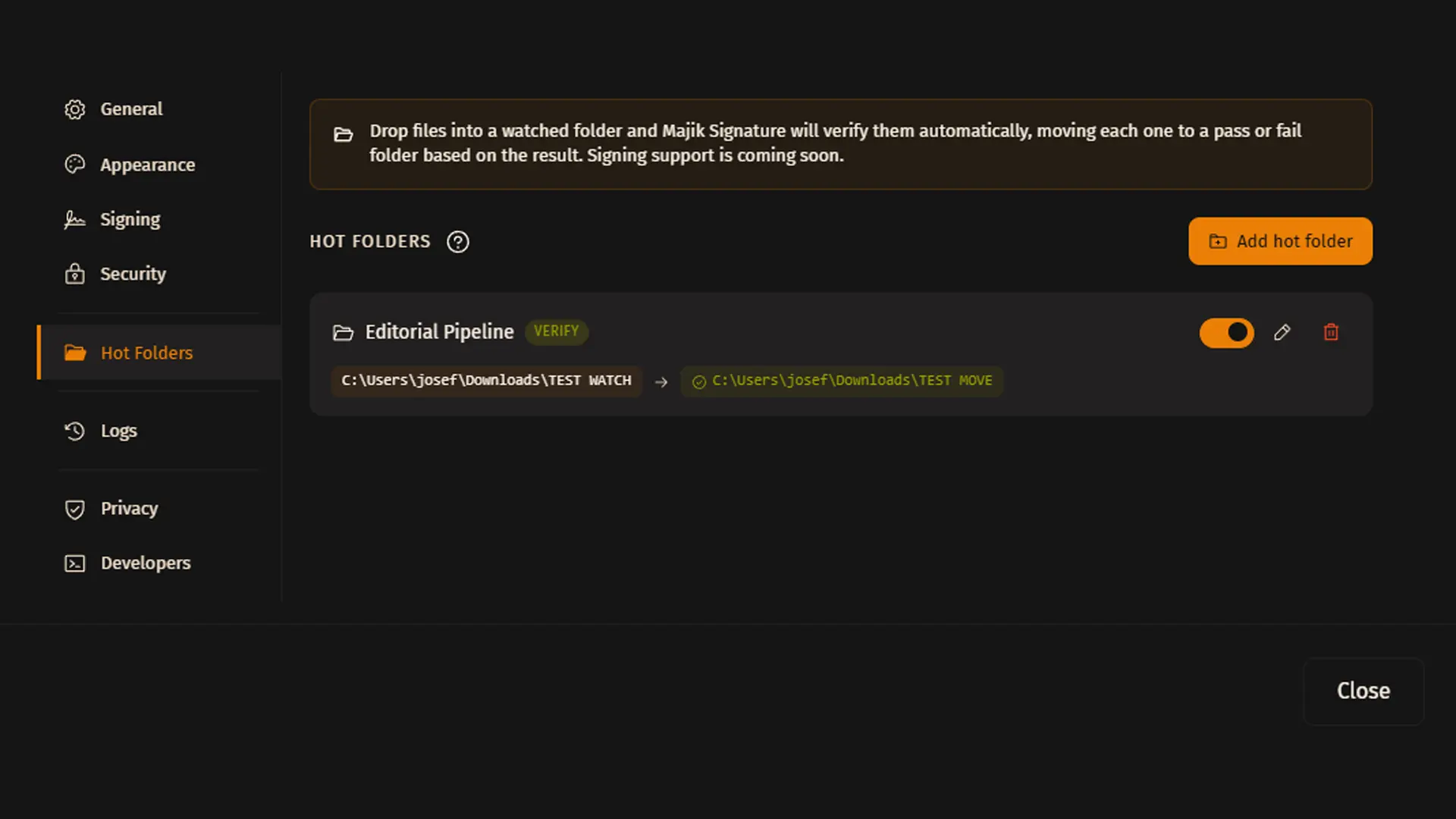
*Image: The Hot Folders tab, showing existing watched folders and the Add Hot Folder button.*
### How to create a Hot Folder
1. **Press "Add hot folder"**
- From the Hot Folders tab, click the Add hot folder button.
- A new form will open below the list where you can set up your hot folder.
2. **Give it a name**
- Enter a name you'll recognize later, e.g. "Client Uploads" or "Accounting Team".
- Names are just for your own organization — they don't affect how verification works.
3. **(Optional) Customize the folder icon**
*Click 'Choose image' to pick a PNG, JPG, or WEBP image as the icon for this hot folder.*
- By default, every hot folder uses the standard Majik Signature icon.
- A custom icon makes it easier to tell hot folders apart at a glance, especially if you have several.
- You can always click 'Use default' later to revert back to the standard icon.
4. **Pick the folder to watch**
*This is your source folder — the one Majik Signature keeps watching.*
- Under 'Watch folder', click Browse and choose the exact folder you want monitored.
- Any file placed inside this folder (or its subfolders, if you enable that option) will be automatically verified.
- This should be a folder you actively drop files into — not the same folder you'll use as a destination.
5. **Pick where verified files should go**
*This is your destination ("pass") folder.*
- Under 'Move verified files to', click Browse and choose the folder where successfully verified files should be moved.
- By default, both passed and failed files go here unless you set a separate fail folder in the next step.
6. **(Optional) Use a separate folder for failed files**
- Toggle on 'Use a separate folder for failed files' if you want files that fail verification to go somewhere different from successful ones.
- When enabled, choose the 'Move failed files to' folder.
- When left off, both passed and failed files are moved into the same destination folder.
7. **(Optional) Include subfolders**
- Toggle 'Also process files inside dropped subfolders' on if you want Majik Signature to look inside folders that get dropped into the watched folder, not just individual files.
8. **Choose how files should be verified**
*Set this under the 'Verification' section.*
- Embedded signature (trust on first use / TOFU) — the default. Majik Signature checks the signature that's already embedded in the file, without requiring you to specify who signed it.
- One of my accounts — verifies that the file was signed specifically by one of your own Majik Key accounts. Select the account from the dropdown.
- A saved contact — verifies that the file was signed specifically by someone in your Majik Contacts list. Select the contact from the dropdown.
9. **Create the hot folder**
- Press Create hot folder to save it.
- Your new hot folder immediately becomes active and will start watching for files.
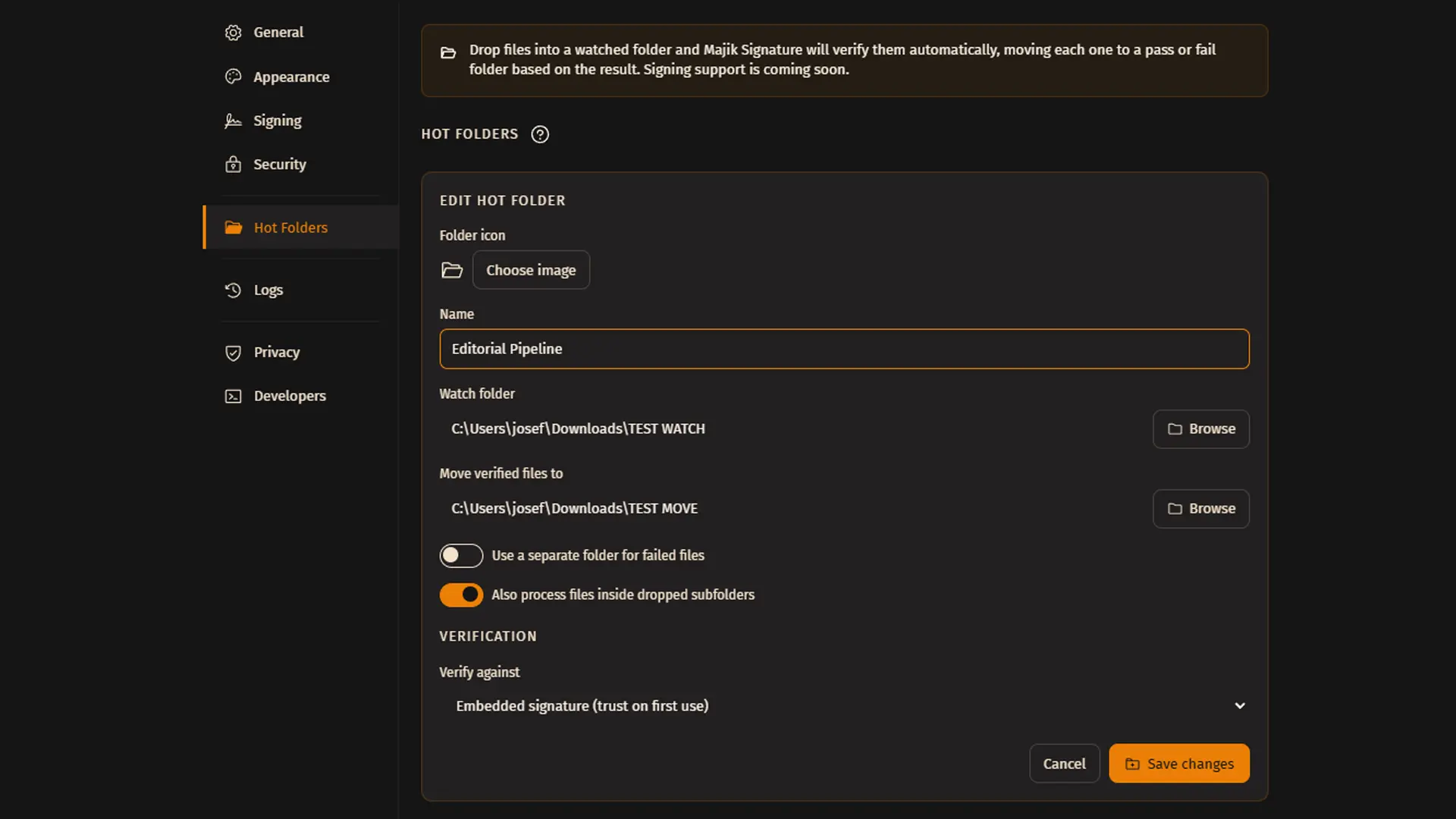
*Image: Setting up a new hot folder: name, icon, watch folder, destination folders, and verification method.*
> ⚠️ **WARNING:** Majik Signature must be open (or running in the background/tray) for hot folders to work. If you close the app entirely, files dropped into a watched folder will not be verified until you reopen it. For always-on automation, add Majik Signature to your computer's startup programs.
> ⚠️ **WARNING:** The folder you're watching cannot also be used as a destination (pass or fail) folder. Majik Signature will block saving a hot folder configured this way, since it could cause files to be repeatedly re-processed.
### Hot folder settings reference
| Field | Required? | What it does |
| --- | --- | --- |
| Folder icon | No | A custom image shown next to this hot folder in the list. Defaults to the standard Majik Signature icon. |
| Name | Yes | A friendly label to help you identify this hot folder. For your reference only. |
| Watch folder | Yes | The source folder Majik Signature monitors for new files. |
| Move verified files to | Yes | Destination for files that pass verification (and for failed files too, if a separate fail folder isn't set). |
| Use a separate folder for failed files | No | When on, lets you pick a different destination specifically for files that fail verification. |
| Move failed files to | Only if separate fail folder is enabled | Destination for files that fail verification. |
| Also process files inside dropped subfolders | No | When on, files inside folders dropped into the watch folder are processed too, not just top-level files. |
| Verify against | Yes | Determines how trust is established: embedded signature (TOFU), a specific own account, or a specific saved contact. |
| Account | Only if 'Verify against' = one of my accounts | Which of your own Majik Key accounts the file's signature must match. |
| Contact | Only if 'Verify against' = a saved contact | Which saved contact the file's signature must match. |
*Caption: A quick reference for every field in the Add/Edit hot folder form.*
### Managing existing Hot Folders
1. **Enable or disable a hot folder**
- Use the toggle switch in the top-right of a hot folder's card to turn it on or off.
- Disabling a hot folder stops it from watching, without deleting its configuration — handy if you want to pause it temporarily.
2. **Edit a hot folder**
- Click the pencil (edit) icon on the hot folder's card.
- This reopens the same form used to create it, pre-filled with its current settings, so you can change the name, folders, icon, or verification method.
- Press Save changes when done.
3. **Delete a hot folder**
- Click the trash icon on the hot folder's card.
- Click Confirm delete to permanently remove it, or Cancel to back out.
- Deleting a hot folder does not delete or move any files that were already sorted — it only stops future watching.
### Tips for working with multiple Hot Folders
- You can add as many hot folders as you like — there's no fixed limit.
- Give each one a distinct name and icon (e.g. by client, department, or document type) so they're easy to tell apart at a glance.
- Keep watch folders separate from each other; don't point two hot folders at the same source folder.
- If you regularly work with one client or team, consider a dedicated hot folder just for their files so you can quickly see their pass/fail history in the activity log.
### Understanding the "Inactive" badge
A hot folder that's enabled but shows an 'Inactive' badge means Majik Signature can't currently watch it — most commonly because the watched folder has been moved, renamed, or deleted since the hot folder was set up. To fix this, edit the hot folder and re-select the correct folder.
### Recent activity log
Every file processed by any of your hot folders shows up in the Recent activity list at the bottom of the Hot Folders tab, along with the time it was checked. This gives you a running record of what's been verified without needing to open individual files or folders.
### What the activity log icons mean
| Icon / Verdict | Meaning |
| --- | --- |
| Green check | Valid — the file's signature was successfully verified. |
| Yellow check | Unknown signer — the file has a valid signature, but from a signer that wasn't specifically matched (relevant when verifying against embedded/TOFU signatures). |
| Red X | Invalid — the file's signature did not verify successfully. |
| Yellow warning triangle | Error or issue — something prevented Majik Signature from completing verification (e.g. an unreadable or corrupted file). |
> **NOTE:** Hot Folders currently support automatic verification only. Automatic signing of files placed in a hot folder is planned for a future release.
### Frequently asked questions
- Do I need Majik Signature open all the time for hot folders to work? Yes — the app needs to be running (in the foreground or background/tray) to detect new files. Add it to your startup apps so it's always ready.
- What happens if I drop a non-file-type Majik Signature can't verify? It will be logged with a warning/error verdict rather than being silently ignored.
- Can I point two hot folders at folders inside each other? This isn't recommended, as it can create overlapping or repeated processing. Keep watch folders separate and unrelated.
- Will my original file be deleted? No — the file is moved (not deleted) into your chosen pass or fail folder after verification.
- Can I change a hot folder's watched folder after creating it? Yes — open the edit form and browse to a new folder at any time.
--- # End of hot-folders ---
---
title: "How to Sign a PDF"
id: "ms-how-to-sign-pdf"
group: "majik-signature"
type: "products"
version: "0.11.0"
lastUpdated: "2026-09-04T00:00:00.000Z"
difficulty: "Beginner"
time: "15-20 minutes"
tags: [pdf, pdf-signing, sign-pdf, document-signing, stamp-studio, signing-wizard, advanced-mode, signature-templates, chroma-key, repeat-across-pages, multi-signature, allowlist, sealing, trusted-timestamps, tsa, detached-signature, expiring-signature, ed25519, ml-dsa-87, post-quantum, notary]
---
# How to Sign a PDF
> Step-by-step guide to signing a PDF with Majik Signature — Stamp Studio (draw/import, chroma key, repeat across pages), TSA, detached and expiring signatures, multi-party allowlists, and sealing
## Overview
A complete, step-by-step walkthrough of signing a PDF in Majik Signature — from dropping in your file to downloading a document that's both visually and cryptographically signed. Covers the guided Signing Wizard and its Stamp Studio (drawing or importing a signature, chroma key cleanup, repeating a stamp across pages, adding a name/position label), Advanced Mode, Trusted Timestamps, detached signatures, expiring signatures, multi-party signing with allowlists, and sealing. Written to work for someone signing their first PDF and for someone who wants to understand exactly what's happening under the hood.
### What This Guide Covers
Signing a PDF in Majik Signature does two things at once: it places a visual signature stamp on the page (so anyone opening the file sees a familiar signature, the way they would on paper), and it embeds a hybrid Ed25519 + ML-DSA-87 cryptographic signature into the PDF's own metadata (so anyone can verify — offline, with just your public key — that the file is exactly what you signed and hasn't changed since). The two are connected but not the same thing: the visual stamp is what a person sees; the cryptographic signature is what verification actually checks. This guide walks through both, using the guided Signing Wizard, and then covers Advanced Mode for anyone who wants the same result without the step-by-step flow.
> **NOTE:** You'll need a Majik Key account before you can sign anything — this is your cryptographic identity, not a Majikah account. If you haven't created one yet, the app will guide you through it the first time you try to sign, or you can set one up ahead of time from the Accounts tab. See the Getting Started guide for the full account setup walkthrough.
### Opening Majik Signature and Getting to the Sign Tab
1. **1. Open Majik Signature**
*Web app or desktop app*
- Open the web app at signature.majikah.solutions — for PDF signing specifically, you can also go directly to signature.majikah.solutions/sign
- Or launch the installed Windows Desktop App from the Start menu
2. **2. Make Sure You Have a Majik Key Account**
*Your cryptographic signing identity*
- If you already have an account, it should be selected and ready to go
- If not, follow the onboarding flow to quickly set one up — this takes under a minute and requires no email, phone number, or personal information
3. **3. Go to the Sign Tab**
*Second tab in the navigation bar*
- Click the Sign tab
- Choose Wizard Mode for a guided, step-by-step flow (recommended if this is your first time), or Advanced Mode for full manual control in a single screen — see the comparison later in this guide
### Wizard Mode vs. Advanced Mode
Both modes produce the exact same signed PDF — a full hybrid Ed25519 + ML-DSA-87 signature, plus whatever visual stamp you configure. The difference is purely how you get there. Wizard Mode walks you through the process one screen at a time — choose your file, set up your stamp, configure signing options, review and sign — and is the easier starting point if you're new to the app. Advanced Mode puts everything on one two-column screen with every option exposed and toggleable manually, without being walked through separate steps. The rest of this guide follows Wizard Mode step by step; the Advanced Mode section near the end covers what changes when you use that instead.
### Step 1 — Choose Your PDF
1. **Select the File**
*Browse or drag-and-drop*
- Browse from your folder or directory, or drag-and-drop the PDF directly onto the panel
- You can select a specific file, or drop a folder — if you drop a folder instead of a single file, Majik Signature automatically switches you to Advanced Mode in batch processing, since the Wizard is built around signing one file at a time
> **NOTE:** Once your PDF is loaded, a banner appears: "This file supports a signature stamp before signing." PDF is a Tier 1 format with native visual stamping support, so this banner shows up automatically. Click Add Signature Stamp to open the Stamp Studio — or skip it entirely if you only want the cryptographic signature with no visual mark on the page.
### The Stamp Studio
The Stamp Studio is where you build the visual signature that gets placed on your PDF. It opens with a preview of your document and a side panel for creating and configuring your stamp.
### Previewing and Navigating Your PDF
1. **Browse and Zoom**
*Get a feel for the document before stamping*
- The Stamp Studio shows a live preview of your PDF — use the navigation controls to move between pages
- Zoom in and out using the control buttons below the preview, or hold Alt and scroll with your mouse for quick zooming
### Creating Your Signature — Draw It or Import It
Before you can place a stamp, you need a signature to place. Majik Signature gives you two ways to create one, both available in the side panel of the Stamp Studio.
### Option A — Import an Existing Signature, Logo, or Seal
1. **1. Drop Your Image**
*Upload a photo, scan, or existing file*
- Drop your image file into the dropbox on the right side panel
- You'll see a live preview of how it looks once imported
2. **2. Remove the Background**
*Chroma key cleanup*
- By default, white backgrounds are automatically removed — useful for a photographed or scanned signature on paper
- Control how aggressively background is removed using the threshold slider: move it toward 255 to turn chroma-key removal off entirely, or toward 0 to remove more aggressively
- If your background isn't white, click Pick Color and choose any pixel on your screen to set a custom chroma key color
3. **3. Fine-Tune the Look**
*Recolor, opacity, and contrast*
- Apply a recolor/tint to override the image with a single consistent color, if you want the imported signature to match a specific color rather than whatever was in the original file
- Adjust opacity and contrast using the control sliders in the panel
- The live preview below updates as you adjust each setting
### Option B — Draw a Signature Directly
1. **1. Open the Draw Tab**
*Switch to drawing mode in the side panel*
- Press the Draw tab on the side panel to open the signature pad
- Draw your signature using your mouse, trackpad, touchscreen, or a stylus
2. **2. Choose Your Stroke Color**
*Per-stroke color control*
- Change the color per stroke as you draw, using either the built-in template colors or a full color picker
- Made a mistake? Undo a single stroke, or clear everything and start over in one click
3. **3. Fine-Tune the Look**
*The same controls as the import path*
- Adjust opacity and contrast using the same sliders available for imported signatures
- Apply an overall recolor/tint if you want to override the final color of the entire drawn signature
- A live preview below shows the result as you draw and adjust
> **NOTE:** Save your signature for next time. After drawing or configuring a signature, look for Save as Signature to store it as a reusable Signature Template — found under the Identity tab → Signatures section. This means you don't need to redraw or re-import the same signature every time you sign a new document. It's useful to save more than one: a full formal signature for contracts, an initials-only version for page-by-page acknowledgment, or a name-and-role stamp for a role you sign in regularly.
### Placing Your Stamp on the Document
1. **1. Confirm the Signature**
*Lock in what you drew or imported*
- Once you're happy with your signature, press Use This Signature
- This confirms the signature itself, but it isn't placed on the document yet
2. **2. Add It to the Document**
*Create your first stamp instance*
- Press Add Stamp to Document to place your first instance of the signature
- Majik Signature allows multiple instances of the same signature, so you have full control over where and how many times it appears
3. **3. Position, Resize, and Rotate**
*Place it exactly where you want it*
- Once added, the stamp appears visually on the document
- Transform, rotate, scale, and place it anywhere on the page using the on-canvas controls
### Repeat Across Pages — Signing a Multi-Page PDF Without Repeating Yourself
If your PDF has more than one page, you don't need to place your signature manually on every page. Enable Repeat Across Pages on a stamp instance to apply that same signature, in the same position, across the pages you choose — every page, or a specific set of pages, using a simple range syntax.
### Page Range Syntax
| Syntax | Meaning |
| --- | --- |
| (left blank) | Applies to every page |
| 1-3,5,8 | Pages 1, 2, 3, 5, and 8 |
| 1,5-7,12 | Pages 1, 5, 6, 7, and 12 |
*Caption: How to target specific pages when repeating a stamp*
> **NOTE:** You can apply this range as either Include (only stamp the listed pages) or Exclude (stamp every page except the listed ones) — useful for something like a contract where you want your signature on every signature block and initialed annex, but not on the cover page.
You can add multiple stamp instances of the same signature — each with its own position and its own Repeat Across Pages settings. This is useful when you need, say, a full signature on the final signature page and a smaller initials-only stamp repeated across every other page.
### Adding a Name and Position Label (Optional)
1. **Add Text Below Your Signature**
*Make authorship obvious at a glance*
- Optionally include your name and position as text below the signature stamp
- Customize the font size and font color
- You can also change the actual font — on desktop, Majik Signature can load any system font you have installed
### Confirming the Stamp
1. **Confirm and Stamp**
*Lock in your visual stamp*
- Once everything is positioned the way you want, click Confirm and Stamp
- You can always come back and make changes later by pressing Edit Stamp — nothing here is final until you actually sign
> **NOTE:** The stamp you've just built is a visual layer, not the cryptographic signature itself. It's what a person sees when they open the document. The actual proof of authenticity — the hybrid Ed25519 + ML-DSA-87 signature — is applied separately when you complete the signing process, and always covers the original document content regardless of how the stamp looks or where it's placed.
### Step 2 — Configure Signing
From the main Sign panel, press Continue to move to the wizard's next step: configuring how the signature itself behaves. All of the following options are optional — skip anything you don't need for a plain, single-signer signature with a local timestamp.
### Configuration Options
1. **Trusted Timestamp (TSA)**
*Independently verifiable proof of signing time*
- Toggle this on to request a Trusted Timestamp instead of relying on a local, self-reported timestamp
- You get 5 free Trusted Timestamps every 24 hours
- You can top up with additional credits if needed (currently PHP only, via QR Ph — check the app for current accepted payment methods, as this may change)
2. **Detached Signing**
*Keep the original PDF completely untouched*
- By default, the signature is embedded directly into the PDF
- Toggle Detached Signing on if you'd rather download and save a separate .mjksig Signature Envelope file instead — this leaves your original PDF completely unmodified, with the proof kept alongside it as its own file
3. **Expiring Signature**
*Set a validity window*
- Toggle this on if you want the signature on this file to only be considered valid until a certain date and time — useful for time-sensitive approvals, quotations, or licenses
- Once enabled, pick the exact expiration date and time
- Anyone verifying the file afterward will see whether the signature is still valid or has expired
4. **Expected Signers (Multi-Party Signing)**
*Restrict and require multiple signatures*
- Add expected signers from your contact list to restrict who is allowed to sign this PDF
- This turns the file into a multi-signature document — once set, the file can only be sealed after every expected signer has actually signed
### Step 3 — Review and Sign
1. **1. Review Your Configuration**
*Check everything before signing*
- Once you're done configuring, review all the details on this step
- Press Sign when you're ready
2. **2. Unlock Your Majik Key**
*Authenticate to sign*
- You'll be prompted to unlock your Majik Key account — with your passphrase, or with Credential Store (face, fingerprint, or PIN) on the Windows Desktop App if you've opted in
- By default, you're asked to unlock every time you sign. If you'd rather unlock once and stay unlocked for the rest of your active session, go to Preferences and switch to Unlock Once instead of the default Unlock Per Operation
3. **3. Signing Completes**
*Your file is signed*
- After unlocking, Majik Signature signs your file
- You'll see confirmation that it's been signed successfully — both visually (the stamp you configured) and cryptographically (the hybrid Ed25519 + ML-DSA-87 signature)
### Downloading and Sealing
Once signing completes, you can download the file immediately — it already carries both your visual stamp and the underlying cryptographic signature. From here you have a choice about whether to seal it.
### Download or Seal
1. **Download As-Is**
*Signed but still open to more signatures*
- Download the signed file right away — it's fully signed and verifiable
- This leaves the file open for further signatures if it's a multi-party document, or if you simply want the option to re-sign later
2. **Seal the Document (Optional)**
*Finalize it permanently*
- If this is a single-signer document with no expected signers, you can seal it right after signing
- For a multi-party document with expected signers, sealing only becomes available once every expected signer has signed
- Once sealed, download the sealed version instead of the unsealed one
> **NOTE:** Once a document is sealed, a Notarize option becomes available in the results panel — this anchors the document's seal hash to a public blockchain (currently Solana) for an independent, tamper-evident timestamp, for a small per-file fee. It's optional and separate from sealing itself. See the dedicated Notarizing on Solana guide.
### Sealing Cannot Be Undone
> ⚠️ **WARNING:** Sealing permanently locks the document against any further signatures — including from you, even if you were the one who signed first. There is no way to "unseal" a file afterward. Only seal a document once you're certain everyone who needs to sign has already signed.
### Advanced Mode — Same Result, No Wizard Steps
Advanced Mode gives you everything covered above, but instead of being walked through it screen by screen, it's all available at once in a single, full-panel, two-column layout. You're not guided step by step — you can toggle and configure every property manually, in whatever order you prefer. The Stamp Studio, TSA toggle, Detached Signing, Expiring Signature, and Expected Signers are all accessible directly, without moving through separate wizard steps. The final signed PDF is identical either way — Advanced Mode is purely a difference in how you interact with the same underlying features, and it's the mode you're automatically switched to if you drop a folder instead of a single PDF.
### Wizard Mode vs. Advanced Mode
| | Wizard Mode | Advanced Mode |
| --- | --- | --- |
| Flow | Guided, one step at a time | Everything on one screen, manual control |
| Best for | First-time signers, simple single-file signing | Repeat users, full manual control, complex configurations |
| Folder dropped instead of a file? | Automatically switches you to Advanced Mode (batch) | Native batch support |
| Stamp Studio | Available | Available |
| TSA, Detached Signing, Expiring Signature, Allowlists | Available | Available |
| Resulting signature | Identical | Identical |
*Caption: Choosing the right mode for how you like to work*
### Verifying a Signed PDF
Anyone with your public keys — a known contact, or the self-reported keys embedded in the signature itself — can verify a PDF you've signed from the Verify tab, completely offline. Verification checks the visual stamp is irrelevant to this — it always checks the underlying Ed25519 + ML-DSA-87 signature against the original document bytes. If the PDF carries a revision chain — built up across multiple signing or re-stamping passes — the Verify tab offers a toggle to check every prior revision's bytes against its recorded signature, not just the latest version. See the dedicated Verifying Signatures guide for the full walkthrough, including how to interpret verdicts for multi-signer, sealed, and chain-verified documents.
### Quick Reference
| Feature | Where to Find It | Notes |
| --- | --- | --- |
| Import a signature image | Stamp Studio — side panel, import dropbox | Chroma key, recolor, opacity, contrast controls |
| Draw a signature | Stamp Studio — side panel, Draw tab | Per-stroke color, undo, clear |
| Save a signature for reuse | Save as Signature → Identity tab → Signatures | Signature Templates |
| Add multiple stamp instances | Stamp Studio, after Add Stamp to Document | Each instance has its own position and repeat settings |
| Repeat a stamp across pages | Stamp instance — Repeat Across Pages toggle | Include/Exclude with page range syntax (e.g. 1-3,5,8) |
| Add name/position text | Stamp Studio, below the signature | Custom font, size, color; system fonts on desktop |
| Request a Trusted Timestamp | Configure Signing step (Wizard) or main panel (Advanced) | 5 free every 24 hours |
| Sign without embedding (.mjksig) | Configure Signing step — Detached Signing toggle | Leaves original PDF untouched |
| Set an expiration date | Configure Signing step — Expiring Signature toggle | Verifiers see valid/expired status |
| Restrict who can sign | Configure Signing step — Expected Signers | Creates a multi-signature allowlist |
| Choose unlock behavior | Preferences | Unlock Once vs. Unlock Per Operation (default) |
| Seal the document | After signing, in the result panel | Permanent; requires all expected signers first if multi-sig |
| Notarize the document | After sealing, in the result panel | Optional; Solana anchor, small per-file fee — see Notarizing on Solana guide |
*Caption: Where to find each PDF signing feature*
> **NOTE:** For the underlying cryptography, see How Majik Signature Works. For signing formats other than PDF, see Signing Files and Text. For checking a signature someone else sent you, see Verifying Signatures. For anchoring a sealed PDF to a blockchain, see Notarizing on Solana.
--- # End of ms-how-to-sign-pdf ---
---
title: "Notarizing Sealed Files"
id: "ms-notarizing-sealed-files"
group: "majik-signature"
type: "products"
version: "1.0.0"
lastUpdated: "2026-09-04T00:00:00.000Z"
difficulty: "Intermediate"
time: "10 minutes"
tags: [notary, notarization, solana, blockchain, anchor, chain-anchor, sha3-512, proof-of-existence, chain-agnostic, memo, spl-memo-program, qr-ph, philippines, revision-chain, file-versioning, chain-verification, sealing]
---
# Notarizing Sealed Files
> How to notarize a sealed file by anchoring its seal hash on-chain — no crypto wallet needed, PHP 50/file via QR Ph, with email backup and independent verification
## Overview
A complete guide to notarizing a sealed Majik Signature file — anchoring its seal hash to a public blockchain for an independent, tamper-evident proof of existence. Covers what notarization actually anchors (and what it doesn't), the no-wallet-required payment flow via QR Ph, what arrives by email as a backup, how to attach an anchor you already have, and how anyone can independently verify an anchor without trusting Majikah's servers.
### What Notarization Adds
Sealing a file (see Signing Files and Text) locks in its final set of signers and computes a SHA3-512 hash over that sealed state. Notarization takes that seal hash and writes it to a public blockchain — currently Solana — as an independent, third-party timestamp that nobody, including Majikah, can quietly alter afterward. It doesn't replace your Ed25519 + ML-DSA-87 signature or the seal itself; it adds an extra, independently checkable layer on top of a decision you've already made by sealing. A file must be sealed before it can be notarized, since notarization anchors the seal hash specifically — but sealing a file doesn't notarize it automatically. Notarization is a separate, optional, per-file action you choose to take afterward.
> **NOTE:** Sealing and notarizing are independent steps. Not every sealed file is notarized — notarization is optional and has a small fee. But every notarized file is a sealed Majik Signature file, since the seal hash is the thing being anchored. You can't notarize an unsealed file.
### How This Fits Together
Notarization is handled by a separate layer, Majik Notary, rather than being built into the signing engine itself. Majik Signature is responsible for signing, sealing, and verifying signatures; Majik Notary is responsible only for producing and checking blockchain proof for an already-sealed file. This split means the blockchain used for anchoring can change or expand over time without changing how signing or sealing works, and without changing the sealed file format. Solana is the chain used today, but nothing about a sealed file or its seal hash is Solana-specific.
> **NOTE:** Internally, an anchor's chain and network fields are plain strings, not fixed to Solana — this is what allows additional blockchain adapters to be added later without requiring changes to sealed files created today. Everything else in this guide describes the current, live implementation: Solana, via the SPL Memo Program.
### Starting a Notarization
1. **1. Seal the File First**
*Notarization requires a sealed file*
- Sign and seal your file as normal — see Signing Files and Text or How to Sign a PDF
- Once sealing completes, a Notarize option becomes available in the results panel
2. **2. Open the Notarize Dialog**
*Two paths are offered*
- Click Notarize to open the notarization dialog
- Choose Start New Anchor to pay and anchor this file's seal hash right now
- Or choose I Have an Anchor File if you already have a previously paid-for anchor .json — for example, one you exported earlier or received by email — and just want to attach it to this file
### No Crypto Wallet Required
You do not need a Solana wallet, any crypto holdings, or any prior blockchain experience to notarize a file. Payment is handled entirely through familiar, everyday methods, and the actual on-chain transaction is submitted and paid for on your behalf by Majikah's internal fee-payer account. From your side, notarizing a file feels like completing a normal online payment — not a crypto transaction.
### Paying for a New Anchor
1. **1. Review the Cost**
*Flat per-file pricing*
- Notarizing a file costs ₱50.00 per file, exclusive of VAT and any processing fees
- This is a one-time cost per file — there's no subscription or recurring charge
2. **2. Pay via QR Ph**
*Currently available in the Philippines only*
- A QR code appears — scan it with your banking or e-wallet app to pay via QR Ph
- If your device can't display or scan a QR code directly, a checkout page opens in a new tab instead — complete payment there and return
- The QR code and checkout link both expire after a short window; if it expires, you can generate a fresh one without losing your place
3. **3. Confirm Payment**
*Tell the app you've paid*
- Once you've paid, click I've paid
- The app checks your payment — if it hasn't been received yet, you'll see a brief waiting state and can tap Check again once it clears; this is common if you just completed payment and it hasn't settled yet
4. **4. Wait for On-Chain Confirmation**
*Majikah submits and pays for the transaction*
- Once payment is confirmed, Majikah's fee-payer account submits the anchoring transaction to Solana and covers the network's gas fee — you never pay gas directly, and no separate wallet interaction is needed on your end
- The app polls the network until the transaction reaches a confirmed state — this is usually a matter of seconds
- It's safe to close the dialog and check back later; the transaction continues processing on-chain regardless
5. **5. Anchor Complete**
*Automatically attached to your file*
- Once confirmed, the anchor is embedded directly into your current file automatically — no extra step needed
- A link to view the transaction on a Solana block explorer is shown
> **NOTE:** You'll also receive an email containing the anchor as a downloadable .json file, along with the block explorer transaction URL. This is a backup, not the primary copy — the anchor is already attached to your file automatically once confirmed. If something goes wrong locally (the app crashes, the file gets misplaced, you're working from a different device), you can always come back to I Have an Anchor File and attach the emailed .json to reproduce the same result.
### What Actually Gets Anchored
Only your file's SHA3-512 seal hash — a 128-character hex digest — is ever transmitted or written on-chain. Your file's contents are never uploaded anywhere as part of notarization. The hash is embedded in a short, deterministic memo string written via Solana's Memo Program, in the exact form:
```text
majik-notary-v-1:{sealHash}
```
This format is fixed and deterministic — the same seal hash always produces the exact same memo string, regardless of which device, account, or session generated it. That determinism is what makes independent verification possible: anyone can recompute a file's seal hash themselves and check whether a matching memo exists on-chain, without needing to trust Majikah's records at all.
### Anchor Object Reference
| Field | Description |
| --- | --- |
| version | Anchor object format version (currently 1) |
| id | Internal UUID identifying this anchor |
| payload.chain | Which blockchain this anchor lives on — currently always "solana" |
| payload.network | Which network — e.g. "mainnet" for live notarizations |
| payload.digest.algorithm | Always "SHA3-512" — the hash algorithm used for the seal hash |
| payload.digest.value | The 128-character hex seal hash that was anchored, taken as-is from the file's seal |
| memo | The exact memo string written on-chain: "majik-notary-v-1:{sealHash}" |
| txSignature | The Solana transaction signature (base58) |
| slot | The Solana slot the transaction landed in — null until confirmed |
| blockTime | Unix timestamp of the block — null until confirmed |
| confirmedAt | ISO 8601 timestamp of when this anchor first reached confirmed status — null until then |
| status | One of: pending, confirmed, finalized, or failed |
*Caption: Fields in the anchor.json you can download, embedded in your file, or attach manually*
### Independent Verification
Anyone — not just Majikah, and not just you — can verify a notarized file without trusting any Majikah server. Verification recomputes the SHA3-512 seal hash from the file's own seal, derives the expected memo string from that hash, fetches the actual transaction from the Solana blockchain using the anchor's transaction signature, and checks that the on-chain memo matches exactly and that the transaction reached a confirmed or finalized state. If any of those checks fail — a mismatched memo, a transaction that can't be found, or one still stuck pending — the anchor doesn't verify. You can also open the transaction directly in a Solana block explorer (a link is provided both in the app and in the confirmation email) to inspect the memo on-chain yourself.
> **NOTE:** On a block explorer, the anchored proof shows up as a Memo Program instruction — its logged data is the exact majik-notary-v-1:{sealHash} string. This is the entirety of what's public on-chain: a version tag and a hash, nothing else identifying the file, its contents, or you.
### Notarization and the Revision Chain
Multi-signer files that go through additional stamping or drawing passes build up an append-only revision chain (see Signing Files and Text) so that every earlier signer's signature stays valid. When you load a file that carries this chain, the Verify tab detects it automatically and offers a Verify full revision history toggle. Turning it on lets you drag in every earlier revision of the file — signed by the issuer and by every other signatory — so each one can be checked against its own recorded signature and against its place in the chain, in any order and regardless of filename. This gives you the strongest possible guarantee: not just that the latest version's signatures are valid, but that every version along the way is exactly what it was signed as. Notarization and revision-chain verification are independent features that can both apply to the same file — a file can carry a full revision chain, a blockchain anchor, or both.
### What Notarization Does Not Do
> ⚠️ **WARNING:** Notarization proves that a specific seal hash existed at or before a specific point in time, independently of Majikah. It does not replace, strengthen, or substitute for the underlying Ed25519 + ML-DSA-87 signature — a file's signatures are valid or invalid on their own regardless of whether it's ever notarized. Likewise, notarizing a file doesn't affect sealing: a sealed file remains permanently closed to further signatures whether or not it's notarized.
### Quick Reference
| Task | Where to Find It | Notes |
| --- | --- | --- |
| Notarize a file | Results panel, after sealing | Requires a sealed file |
| Pay for a new anchor | Notarize dialog — Start New Anchor | ₱50.00/file excl. VAT and processing fees, via QR Ph |
| Attach an anchor you already have | Notarize dialog — I Have an Anchor File | No payment required; loads a previously issued anchor.json |
| Find your anchor backup | Email inbox | Sent automatically on confirmation; includes anchor.json and explorer link |
| View the on-chain transaction | Explorer link in-app or in the confirmation email | Shows the raw memo instruction |
| Check a file's full revision history | Verify tab — Verify full revision history toggle | Appears automatically when a file's fileVersions chain is detected |
*Caption: Where to find each notarization-related feature*
> **NOTE:** For signing and sealing a file before notarizing it, see Signing Files and Text. For PDF-specific signing and stamping, see How to Sign a PDF. For checking a signature or a full revision chain, see Verifying Signatures.
--- # End of ms-notarizing-sealed-files ---
---
title: "Contacts"
id: "ms-contacts-documentation"
group: "majik-signature"
type: "products"
version: "1.2.0"
lastUpdated: "2026-09-19T00:00:00.000Z"
difficulty: "Beginner"
time: "4-6 minutes"
tags: [contacts, public-keys, signature-verification, multi-signature, identity]
---
# Contacts
> Learn how to import, manage, organize, and use contacts for signature verification and multi-signature files.
## Overview
Contacts let you save other people's public keys for reuse across Majik Signature. A saved contact can be used as a verification key when checking signatures or assigned as an expected signer when creating multi-signature files.
### Understanding Contacts
Contacts are saved records of other people's public keys. They let you keep a reusable reference to someone's signing identity without storing any private keys. Once a contact is saved, you can use their public key to verify signatures or assign them as an expected signer for a file.
> **NOTE:** Contact management is available under Identity → Contacts.
### What Can You Use Contacts For?
Contacts are primarily used for two signature workflows: verification and multi-signature files. During verification, Majik Signature can compare a file's signature against a public key saved in your Contacts. When preparing a multi-signature file, you can assign one or more contacts as expected signers so their public keys are associated with the required signatures.
### Contact Use Cases
| Use Case | How Contacts Are Used |
| --- | --- |
| Signature Verification | Use a saved contact's public key to verify a signature against a known signing identity. |
| Expected Signer | Assign a contact to a file as one of its expected signers. |
| Multi-Signature Files | Add multiple contacts as expected signers when a file requires signatures from more than one person. |
| Key Reuse | Save a public key once and reuse it across future verification and signing workflows. |
*Caption: The main ways contacts are used throughout Majik Signature*
### What a Contact Contains
A contact contains public identity information needed to identify and verify a signer. Contacts do not contain your private keys or another person's private keys, and adding someone as a contact does not give you the ability to sign on their behalf.
### A Contact Is Not Automatically Trusted
> ⚠️ **WARNING:** Saving a public key as a contact does not by itself prove that the key belongs to the person you expect. Before relying on a contact for important verification or signature requirements, make sure the public key was obtained from a source you trust and belongs to the intended signer.
### Add a Contact
1. **Open Contacts**
*Go to your saved public keys*
- Open Identity from the main navigation
- Select the Contacts sub-tab
- Click the Add Contact button
2. **Choose an Import Method**
*Add the signer's public key*
- Paste their Invite Key into the contact import field, or
- Import their contact card PNG if they shared one with you
3. **Confirm the Contact**
*Save the public-key record*
- Review the contact information shown by Majik Signature
- Confirm the import to save the contact
- The contact will appear in your Contacts list and can be used in supported signature workflows
### Importing with an Invite Key
An Invite Key is a shareable representation of a user's public signing identity. Ask the signer to provide their Invite Key, then paste it into the Add Contact flow. This lets you save their public key without requiring access to their private keys.
### Importing a Contact Card PNG
Contacts can also be exchanged as a contact card PNG. When someone shares their contact card, use the PNG import option in the Add Contact flow to load the encoded contact information into Majik Signature.
> **NOTE:** Invite Keys and contact cards are intended to share public identity information. They do not expose the signer's private signing keys.
### Using Contacts as Expected Signers
Contacts become especially useful when a file requires signatures from specific people. You can assign one or more saved contacts as expected signers. Each expected signer represents a public key that can later be checked against a corresponding signature on the file.
### Create a Multi-Signature Requirement
1. **Choose the File**
*Open the file signature workflow*
- Open the file you want to sign
- Enter the workflow for configuring its signature requirements
2. **Add Expected Signers**
*Select people from Contacts*
- Choose the option for adding or managing expected signers
- Select a contact from your saved Contacts
- Repeat the process for each additional signer required by the file
3. **Review the Signer Set**
*Confirm the required public keys*
- Review the contacts assigned to the file
- Make sure each expected signer corresponds to the intended public signing identity
- Save or continue with the file signing workflow
> **NOTE:** A file can have multiple expected signers. Each signer is associated with a specific public key, allowing signatures to be verified against the identities defined for that file.
### Using Contacts for Signature Verification
When verifying a signed file, a saved contact can provide the public key used to identify the signer. This is useful when you already know the signer and want verification to be performed against a previously saved key rather than manually supplying the key each time.
### Verify a Signature Against a Contact
1. **Open Verification**
*Start the file verification workflow*
- Open the signed file in Majik Signature
- Start the signature verification process
2. **Select the Contact**
*Use a stored public key*
- Choose the contact whose public key corresponds to the expected signer
- Majik Signature uses the saved public key as the verification reference
3. **Review the Result**
*Confirm the signature identity*
- Review the verification result
- Confirm that the signature corresponds to the expected public key
- For multi-signature files, repeat the process for the applicable expected signers
### Organizing Contacts with Groups
Groups help organize contacts when you work with many signers. You can create groups for teams, organizations, projects, or other sets of signing identities and use them to keep your Contacts list easier to manage.
### Manage Contact Groups
1. **Open Groups**
*View your contact organization*
- Open Identity → Contacts
- Locate the Groups section
- The default Favorites group is available for frequently used contacts
2. **Create or Edit a Group**
*Organize your contacts*
- Create a new group to organize a specific set of contacts
- Select an existing group to filter its members
- Use the group management controls to rename it, update its details, manage members, or delete it
### Rename a Contact
1. **Locate the Contact**
*Find the contact you want to rename*
- Open Identity → Contacts
- Find the contact you want to update
- Hover over the contact to reveal its actions
2. **Update the Display Name**
*Customize how the contact appears to you*
- Click the edit/pencil icon
- Enter the new display name
- Save the changes
> **NOTE:** Renaming a contact only changes how that contact is displayed in your local Contacts list. It does not modify the signer's account, public key, or identity.
### Remove a Contact
1. **Locate the Contact**
*Find the contact you want to remove*
- Open Identity → Contacts
- Find the contact you want to remove
- Hover over the contact to reveal its actions
2. **Remove the Contact**
*Delete the saved public-key record*
- Click the delete icon
- Confirm the removal when prompted
- The contact will be removed from your local Contacts list
### Removing a Contact
> ⚠️ **WARNING:** Removing a contact deletes its saved record from your Contacts list. It does not revoke the signer's key, invalidate their signatures, or modify the original identity. However, you will no longer be able to select that contact as a stored public-key reference until you add it again.
### Quick Reference: Contact Actions
| Action | Purpose | Requirement |
| --- | --- | --- |
| Add Contact | Save another user's public key to your Contacts list | Invite Key or contact card PNG |
| Verify with Contact | Use a stored public key when verifying a signature | Existing contact |
| Add Expected Signer | Associate a contact with a file's required signer set | Existing contact |
| Create Multi-Signature File | Assign multiple contacts as expected signers | One or more existing contacts |
| Manage Invites | View and manage incoming or outgoing contact invites | Contacts access |
| Create Group | Organize contacts into a logical collection | Contacts access |
| Rename Contact | Change the local display name | Existing contact |
| Remove Contact | Delete the saved contact record | Existing contact |
*Caption: Common contact tasks and what they are used for*
### Contacts vs. My Keys
My Keys contains your own signing identities and the private key material required to create signatures. Contacts contains other people's public signing identities for reference. Your private keys remain associated with your own identities; contacts only provide the public information needed to identify and verify other signers.
### Verify the Identity Behind the Key
> ⚠️ **WARNING:** Cryptographic verification confirms that a signature matches a specific public key. It does not by itself confirm that the public key belongs to the person, organization, or account you intended to trust. For sensitive workflows, independently confirm the public key or contact information before adding it as an expected signer or relying on it for verification.
--- # End of ms-contacts-documentation ---
---
title: "Signing Accounts"
id: "ms-signing-accounts"
group: "majik-signature"
type: "products"
version: "1.2.0"
lastUpdated: "2026-09-19T00:00:00.000Z"
difficulty: "Beginner"
time: "5-8 minutes"
tags: [signing-accounts, accounts, seed-phrase, signing-keys, ed25519, ml-dsa-87, post-quantum, security, identity]
---
# Signing Accounts
> Learn how to create, protect, manage, and use your local Signing Accounts for Ed25519 and ML-DSA-87 digital signatures.
## Overview
Signing Accounts are local cryptographic identities in Majik Signature. Each account securely holds the signing keys used to create digital signatures, including Ed25519 and ML-DSA-87 signing keypairs. Your private keys remain protected locally and are used when signing files, while the corresponding public keys can be shared with others for verification.
### Understanding Signing Accounts
A Signing Account is your local cryptographic identity in Majik Signature. It contains the private and public signing keys associated with that identity and is used whenever you create a digital signature. Unlike an online profile, a Signing Account is stored locally and is directly responsible for your cryptographic signing operations.
### Your Signing Keys
Each Signing Account contains signing keypairs used by Majik Signature. This includes an Ed25519 keypair for classical digital signatures and an ML-DSA-87 keypair for post-quantum digital signatures. Your private keys are used locally to create signatures, while the corresponding public keys can be shared with contacts and used to verify signatures.
### Signing Keys at a Glance
| Key | Purpose | Can Be Shared? |
| --- | --- | --- |
| Ed25519 Private Key | Creates Ed25519 digital signatures | No |
| Ed25519 Public Key | Verifies Ed25519 signatures | Yes |
| ML-DSA-87 Private Key | Creates post-quantum digital signatures | No |
| ML-DSA-87 Public Key | Verifies ML-DSA-87 signatures | Yes |
*Caption: The signing algorithms associated with a Majik Signature Signing Account*
> **NOTE:** Post-Quantum Signing: ML-DSA-87 is a NIST-standardized post-quantum digital signature algorithm (FIPS 204). Majik Signature uses it alongside Ed25519 so files can carry modern classical and post-quantum signature protection.
> **NOTE:** Signing Account management is available under Identity → My Keys.
### Create a Signing Account
1. **Open My Keys**
*Navigate to your local signing identities*
- Open Identity from the main navigation
- Select the My Keys sub-tab
- Click the plus (+) icon to create a new Signing Account
2. **Set Account Details**
*Configure your local signing identity*
- Enter a display name such as 'Personal', 'Work', or 'Company Signing Key'
- Set a strong password/passphrase to protect the account locally
- This passphrase is used to protect your private signing keys while they are stored on your device
3. **Create or Import Your Seed Phrase**
*Establish the account's cryptographic root*
- Generate a new 12/24-word BIP-39 seed phrase, or
- Enter an existing compatible seed phrase to restore an account
- Store your seed phrase securely because it is the recovery material for your cryptographic identity
4. **Complete Setup**
- Review the account information
- Click Create or the equivalent confirmation action
- Your Signing Account will appear under My Keys
### Protect Your Seed Phrase
> ⚠️ **WARNING:** Never share your seed phrase with anyone. Anyone who obtains it may be able to regenerate the cryptographic identity associated with your Signing Account. Store it securely offline and keep backup copies in a safe location. Losing your seed phrase may prevent you from recovering the account if the local account data is lost.
### How Your Signing Keys Are Created
Your Signing Account is based on a BIP-39 seed phrase. Majik Key uses this deterministic cryptographic root to derive the account's signing identities, including the Ed25519 and ML-DSA-87 keypairs. This allows the same seed phrase to reproduce the corresponding signing identity when an account is restored.
### How Private Keys Are Protected
Your private signing keys are sensitive cryptographic material and are intended to remain local to your device. Majik Signature protects stored private-key material using password-based encryption so that your passphrase protects the keys while they are at rest. Your public keys, by contrast, can be safely shared with people who need to verify your signatures.
### Never Share Private Keys
> ⚠️ **WARNING:** Your Ed25519 and ML-DSA-87 private keys must remain secret. Never share private-key files, raw private-key material, or your seed phrase with another person or service. A person who gains access to your private signing keys may be able to create signatures that appear to come from your Signing Account.
### Rename a Signing Account
1. **Locate the Account**
*Find the identity you want to rename*
- Open Identity → My Keys
- Find the Signing Account you want to rename
- Hover over the account to reveal its available actions
2. **Update the Display Name**
*Customize the local account label*
- Click the pencil/edit icon
- Enter the new display name
- Click Save to apply the change
> **NOTE:** Renaming a Signing Account only changes how it is displayed locally. It does not change the underlying seed phrase, public keys, private keys, or cryptographic identity.
### Set the Active Signing Account
1. **Choose Your Signing Identity**
*Select which local account should sign files*
- Open Identity → My Keys
- Find the Signing Account you want to use
- Click the star icon or equivalent account-selection control
- The selected account becomes the active signing identity
2. **Use the Active Account**
*Sign files with the selected identity*
- When you sign a file, Majik Signature uses the active Signing Account
- The account's private signing keys are used locally to create the signature
- You can switch between Signing Accounts whenever you need to sign using a different identity
> **NOTE:** Changing the active Signing Account changes which local signing identity is used for new signatures. It does not modify signatures that have already been created.
### View or Copy Public Keys
1. **Open Your Signing Account**
- Go to Identity → My Keys
- Find the Signing Account whose public key you want to share
- Open the account's available key actions
2. **Copy the Public Key**
*Share verification material safely*
- Use the public key or copy key action
- The public signing key is copied to your clipboard
- You can provide it to people who need to verify your signatures or add you as a contact
> **NOTE:** Public signing keys are designed to be shared. They can be used by others to verify signatures produced by your corresponding private keys. Sharing a public key does not reveal your private signing keys.
### Share Your Signing Identity
1. **Generate a Shareable Identity**
*Prepare your public signing information*
- Open Identity → My Keys
- Find the Signing Account you want to share
- Use the share/link action to generate or copy its shareable Invite Key
2. **Share with Another Person**
*Let them add you to their Contacts*
- Send the Invite Key through a communication channel you trust
- The recipient can import the Invite Key into Identity → Contacts
- They can then use your public key for signature verification or assign you as an expected signer
### Signing Accounts vs. Contacts
Signing Accounts represent your own local signing identities and contain the private keys required to create signatures. Contacts represent other people's public signing identities and are used as references for signature verification and expected-signer requirements. In simple terms: My Keys signs; Contacts verify.
### Signing Accounts vs. Contacts
| | My Keys | Contacts |
| --- | --- | --- |
| Represents | Your own signing identity | Another person's signing identity |
| Private Keys | Stored locally and protected | Never stored |
| Public Keys | Available for sharing | Stored for verification |
| Creates Signatures | Yes | No |
| Verifies Signatures | Can be used | Primary purpose |
| Expected Signer | Represents your identity when selected elsewhere | Can be assigned to files |
*Caption: The difference between your own signing identities and external public keys*
### Delete a Signing Account
1. **Locate the Account**
- Open Identity → My Keys
- Find the Signing Account you want to remove
- Hover over it to reveal the available actions
2. **Delete the Account**
*Remove the local signing identity*
- Click the delete icon
- Review the warning and confirm the deletion
- The Signing Account and its locally stored key material will be removed
### Deleting an Account Can Affect Recovery
> ⚠️ **WARNING:** Deleting a local Signing Account removes its locally stored key material. Make sure you have securely preserved the account's seed phrase or another supported recovery method before deleting the account. Existing signatures remain cryptographically verifiable as long as the corresponding public key is available, but you may not be able to create new signatures from the deleted identity without restoring it.
### Change the Account Passphrase
1. **Open Account Security**
- Open Identity → My Keys
- Find the Signing Account
- Open its security/settings controls
2. **Update the Passphrase**
*Re-protect your locally stored private keys*
- Enter your current passphrase
- Enter a strong new passphrase
- Confirm the new passphrase
- Save the changes
- Your locally stored private signing-key material is re-protected using the new passphrase
> **NOTE:** Your passphrase protects the locally stored account data, while your seed phrase is the recovery material for the underlying cryptographic identity. If you lose your passphrase but still have a valid seed phrase, you may be able to restore the Signing Account using the supported account import or recovery flow.
### Using a Signing Account
Once a Signing Account is created, it can be selected whenever you need to sign a file. Majik Signature uses the account's local private signing keys to produce the requested signatures. The resulting signature can then be verified using the corresponding public key, either directly or through a saved Contact.
> **NOTE:** For multi-signature files, each signer uses their own Signing Account to produce their signature. Other participants only need the corresponding public keys, typically stored through Contacts, to identify and verify those signatures.
### Quick Reference: Signing Account Actions
| Action | Purpose | Requirement |
| --- | --- | --- |
| Create Signing Account | Create a new local signing identity | None |
| Import / Restore | Recover a signing identity from supported recovery material | Valid seed phrase or supported backup |
| Set Active | Choose which identity will be used for new signatures | Existing Signing Account |
| Copy Public Key | Share a public signing key for verification | Existing Signing Account |
| Share Signing Identity | Provide an Invite Key so another user can add the public key to Contacts | Existing Signing Account |
| Rename Account | Change the local display name | Existing Signing Account |
| Change Passphrase | Change protection for locally stored private keys | Current passphrase |
| Delete Account | Remove the local Signing Account | Existing Signing Account |
*Caption: Common Signing Account management tasks and their purposes*
### Your Signing Account Is Your Signing Identity
> ⚠️ **WARNING:** Treat your Signing Account's private keys and seed phrase as highly sensitive. Anyone who gains control of the underlying private signing keys may be able to create cryptographic signatures associated with your identity. Keep recovery material offline, use a strong passphrase, and only share public keys or supported public identity information with others.
--- # End of ms-signing-accounts ---
---
title: "Getting Started with Majik Universal ID"
id: "muid-getting-started"
group: "majik-universal-id"
type: "products"
version: "0.0.1"
lastUpdated: "2026-03-16T00:00:00.000Z"
difficulty: "Beginner"
time: "5–10 minutes"
tags: [getting-started, quick-start, setup, beginner, onboarding, muid, identity, post-quantum, ml-kem-768, didit, kyc, majik-key]
---
# Getting Started with Majik Universal ID
> Everything you need to know before creating your first Majik Universal ID
## Overview
Majik Universal ID (MUID) is a cryptographic identity system by Majikah that permanently binds your account, your Majik Key, and your verified identity in a strict 1:1:1 relationship. This guide covers everything you need to get up and running.
### What is a Majik Universal ID?
Majik Universal ID (MUID) is Majikah's proprietary identity layer. It anchors your Majikah account to a single Majik Key and optionally to a verified real-world identity via Didit KYC. Once created, your MUID has a public profile page anyone can visit to inspect your signing keys, verification status, and published signed content — without exposing any private information.
> **NOTE:** Only one MUID is allowed per Majikah account, and only one Majik Key per MUID. A Majik Key that is already bound to another user's MUID cannot be reused.
### The 1:1:1 Binding
Your MUID creates a permanent, cryptographically provable link between three things: your Majikah user account, a single Majik Key (Ed25519 + ML-DSA-87 + ML-KEM-768), and your verified identity. Private personal information is always encrypted at rest using ML-KEM-768 — the same technology used in Majik Message — and is never exposed through the public profile.
### Verified vs. Unverified
A newly created MUID starts as Unverified. It is fully functional for signing and SLinks, but carries no KYC backing. You can delete and recreate an unverified MUID at any time to correct personal information or swap the bound key. Once you complete Didit KYC, your MUID becomes Verified and is locked for 30 days — after which revocation is possible if needed.
> **NOTE:** A verified MUID cannot be revoked or deleted until 30 days after the verification date. This protects against abuse and key-swap attacks. After the lockout expires, the identity can be revoked and a new one created.
### Prerequisites
1. **1. Create a Majikah Account**
*Register at majikah.solutions*
- Visit majikah.solutions and sign up for a free account.
- Fill in your profile information accurately — this is what gets encrypted into your MUID and cross-checked during Didit KYC.
- If you already have a Majikah account, skip this step and go directly to id.majikah.solutions/id.
2. **2. Get a Majik Key**
*Your cryptographic signing identity*
- You need a Majik Key backup (.json seed file) to bind to your MUID.
- If you already have one from Majik Signature or Majik Message, you can reuse it — all Majik Keys are interoperable across Majikah products.
- If you do not have one yet, create a free Majik Key account at signature.majikah.solutions, message.majikah.solutions, or directly from the MUID setup flow.
- Back up your 12/24-word seed phrase. This is the only way to recover your key. Your MUID is permanently linked to this key — losing the seed phrase means losing the ability to sign as that identity.
3. **3. Open the Universal ID App**
*id.majikah.solutions/id*
- Navigate to id.majikah.solutions/id and log in with your Majikah account.
- If no MUID exists yet, the setup wizard will launch automatically.
### Feature Overview
| Feature | Requires Verified MUID? | Requires Majik Key? | Public? |
| --- | --- | --- | --- |
| Create a MUID | No | Yes | No |
| Public Profile Page | No | No | Yes |
| Sign Files & Text | No | Yes (unlocked) | No |
| Publish SLinks | No | Yes (unlocked) | Yes |
| Verify Others' Files | No | No | Yes |
| Verification Badge (Didit) | Yes | No | Yes |
| Revoke MUID | After 30-day lock | No | No |
*Caption: What you can do with Majik Universal ID*
> **NOTE:** Ready to proceed? Head to How to Create a Majik Universal ID for the full step-by-step setup walkthrough.
--- # End of muid-getting-started ---
---
title: "Creating a Majik Universal ID"
id: "muid-create"
group: "majik-universal-id"
type: "products"
version: "0.0.1"
lastUpdated: "2026-03-16T00:00:00.000Z"
difficulty: "Beginner"
time: "3–5 minutes"
tags: [create, register, setup, muid, majik-key, identity, onboarding]
---
# Creating a Majik Universal ID
> Step-by-step guide to registering your first Majik Universal ID
## Overview
Create your Majik Universal ID in three steps: confirm your profile, load your Majik Key, and register. The entire flow takes under five minutes.
### Before You Begin
You need a Majikah account with accurate personal information, and a Majik Key backup (.json) file. Your profile information — legal name, date of birth, address — will be encrypted and stored as part of your MUID. It will be cross-checked against your government ID when you later complete Didit KYC, so make sure everything is correct before proceeding.
### Creating Your MUID — 3 Steps
1. **Step 1 — Confirm Your Profile**
*Review and update your personal information*
- Navigate to id.majikah.solutions/id. The setup wizard launches automatically if you have no existing MUID.
- Review the pre-filled personal information pulled from your Majikah profile: legal name, date of birth, gender, address.
- If any information is incorrect, click Edit and update it in place — or click Edit on Profile Page to update your Majikah profile first and return.
- This must match your government-issued ID exactly. Discrepancies will cause Didit KYC to fail in a later step.
- Once everything looks correct, click Confirm & Continue.
2. **Step 2 — Load Your Majik Key**
*Bind a Majik Key to your identity*
- Drag and drop your Majik Key backup .json file onto the drop zone, or click Browse files to select it from disk.
- The key is loaded into memory only — it is never uploaded to any server.
- Once loaded, a green confirmation banner shows the key fingerprint and confirms it is ready to bind.
- This key will be permanently associated with your MUID. All future signatures verified against your public profile will reference this key's Ed25519 and ML-DSA-87 public keys.
- If you load the wrong file, click the ✕ button to clear it and try again.
3. **Step 3 — Create**
*Register your MUID on the server*
- Click Create Universal ID. The system encrypts your private personal information using your key's ML-KEM-768 public key and registers the identity.
- You will see a success summary showing your new MUID ID, bound key fingerprint, and creation date.
- Your MUID is now active with an Unverified badge. It is fully functional for signing and publishing SLinks.
- To get a verified badge, proceed to How to Verify a Majik Universal ID.
### Need to Make Changes?
While your MUID is still Unverified, you can delete and recreate it at any time. From your ID panel, click Delete & Re-create. The setup wizard will reopen immediately so you can correct your personal information or bind a different Majik Key. Once deleted, the old MUID is permanently gone — but since it was unverified, no history is lost.
### Keep Your Majik Key Secure
> ⚠️ **WARNING:** Your Majik Key .json backup contains your seed phrase. Anyone with this file can sign content as you. Store it securely offline — treat it like a password manager master key. Once your MUID is verified, replacing the bound key requires revoking the entire identity.
--- # End of muid-create ---
---
title: "Verifying a Majik Universal ID"
id: "muid-verify"
group: "majik-universal-id"
type: "products"
version: "0.0.1"
lastUpdated: "2026-03-16T00:00:00.000Z"
difficulty: "Beginner"
time: "5–15 minutes"
tags: [verify, kyc, didit, upgrade, tier, trusted, identity, muid, biometric, liveness]
---
# Verifying a Majik Universal ID
> How to complete Didit KYC and earn a verified badge on your MUID
## Overview
Upgrade your Majik Universal ID from Unverified to Verified by completing Didit's KYC flow. A verified MUID displays a badge on your public profile and anchors your signing keys to a real-world identity.
### Why Verify?
An unverified MUID is fully functional — you can sign files and publish SLinks — but it carries no KYC backing. Completing verification adds a trusted badge to your public profile, increases the credibility of your signed content, and unlocks the full trust tier system. Verification is powered by Didit, a third-party identity verification provider.
### Verification Stages
Didit checks four stages to complete verification: ID Verification (government-issued document scan), Liveness Check (biometric selfie to confirm real presence), Face Match (cross-referencing your selfie against the document photo), and IP Analysis (network risk assessment). All four stages must pass for your MUID to reach the Verified tier.
### Starting Verification
1. **1. Open the Universal ID Panel**
*id.majikah.solutions/id*
- Log in and navigate to id.majikah.solutions/id.
- If your MUID is Unverified, a Verify your identity card is shown at the top of the panel.
2. **2. Start the Didit Session**
*Launch the KYC portal*
- Click Start Verification. A Didit session is created on the server and a new tab opens with the Didit KYC portal.
- If a session already exists but was not completed (status shows In Progress or Not Started), click Continue in Didit instead — this reuses the existing session without creating a new one.
3. **3. Complete the Didit KYC Flow**
*In the Didit portal*
- Follow the on-screen prompts in the Didit portal.
- Have your government-issued ID ready (passport, national ID, or driver's license).
- Complete the liveness check using your device's camera.
- Ensure your face is clearly visible and matches the photo on your document.
- Didit will process your submission. Status may show In Review if manual review is required — this can take up to a few hours.
4. **4. Return and Refresh**
*See your updated verification status*
- Return to id.majikah.solutions/id and click the Refresh button (↻) in the top toolbar.
- If all stages passed, your MUID will display the Verified (or higher) badge.
- If a stage failed or was flagged, the panel shows the current session status and a Continue in Didit button to resubmit.
> **NOTE:** If you need to start over, click Cancel on the verification card to discard the current session. You can then restart from scratch. Sessions in In Review status cannot be cancelled.
### After Verification
Once verified, your MUID is locked for 30 days. During this period it cannot be revoked or deleted — this is a security measure to prevent key-swap abuse. After the lockout expires, you may revoke the identity and create a new one if needed. Your verification status and all passed stages are displayed publicly on your MUID profile page.
### Need to Correct Information First?
If your profile information does not match your government ID, the KYC check will fail. Click Delete & Re-create from the panel while your MUID is still unverified to start over with the correct details. You cannot change personal information after verification.
--- # End of muid-verify ---
---
title: "Majik Universal ID — Use Cases"
id: "muid-use-cases"
group: "majik-universal-id"
type: "products"
version: "0.0.1"
lastUpdated: "2026-03-16T00:00:00.000Z"
difficulty: "Beginner"
time: "3 minutes"
tags: [use-cases, signing, slink, verification, public-profile, post-quantum, muid, majik-signature]
---
# Majik Universal ID — Use Cases
> Practical applications of a Majik Universal ID
## Overview
A Majik Universal ID is more than an identity record — it is a verifiable signing anchor for files, text, and public URLs. Here is what you can do with one.
### What Can You Do With a MUID?
Your Majik Universal ID acts as a cryptographic identity anchor for the Majikah ecosystem. It ties your account to a Majik Key, making every signature you produce verifiable by anyone — without sharing private information. The following are the primary use cases available today.
### Current Use Cases
- Sign Files and Text — Use Majik Signature or Majik Message with the same bound Majik Key to produce hybrid Ed25519 + ML-DSA-87 signatures. Anyone can verify those signatures against your MUID's public keys.
- Publish Signed URLs (Majik SLinks) — Prove you own or control a public URL — a YouTube channel, social media profile, personal website, or any publicly accessible page — by publishing a cryptographically signed SLink tied to your MUID.
- Public Identity Profile — Share your MUID profile URL so others can inspect your verification tier, signing keys, and published SLinks. No sensitive data is ever visible.
- Drag-and-Drop File Verification — Anyone can visit your public profile and drop any file onto the verification zone to instantly check whether it was legitimately signed by your bound keys.
- Tamper-Evident Announcements — Publish important statements, documents, or links via SLinks so that anyone can cryptographically confirm the content has not been altered and traces back to your verified identity.
- Cross-Product Key Identity — Your Majik Key works across Majik Signature, Majik Message, and Majik Universal ID. Signatures made in any product are verifiable through your MUID's public profile.
### Majik Signature as the Foundation
Majik Universal ID uses Majik Signature internally for all signing and verification operations. Every MUID identity record is itself signed with its bound key at creation time. When you sign a file or a URL, those signatures reference the same Ed25519 and ML-DSA-87 public keys exposed on your public profile — giving anyone a single, permanent place to verify your cryptographic identity.
> **NOTE:** Additional integrations across the Majikah ecosystem are planned. As new Majikah products launch, your existing MUID and bound key will carry over automatically.
--- # End of muid-use-cases ---
---
title: "Verifying a File Against a Public MUID"
id: "muid-verify-file"
group: "majik-universal-id"
type: "products"
version: "0.0.1"
lastUpdated: "2026-03-16T00:00:00.000Z"
difficulty: "Beginner"
time: "1–2 minutes"
tags: [verify, file, signature, public-profile, ed25519, ml-dsa-87, drag-and-drop, muid]
---
# Verifying a File Against a Public MUID
> How to drag a file onto a MUID's public profile to verify its signature
## Overview
Anyone can verify whether a file was signed by a specific Majik Universal ID — no account required. The check runs entirely in your browser using the signer's public keys.
### How It Works
Every MUID exposes two signing public keys: Ed25519 (classical, 128-bit security) and ML-DSA-87 (NIST Category 5 post-quantum). When someone signs a file with their Majik Key, both keys sign the same content hash. The public profile's verification zone uses these published public keys to check the embedded signature — entirely locally, without sending the file to any server.
### Verifying a File
1. **1. Find the Signer's Public Profile**
*Get the MUID profile URL*
- If you know the signer's username, go to: https://id.majikah.solutions/id/{username}
- If you only have their MUID ID, go to: https://id.majikah.solutions/id/{id}
- Example: https://id.majikah.solutions/id/thezelijah
- No login is required — the public profile is accessible to everyone.
2. **2. Locate the Verify a Signature Section**
*Find the drop zone on the profile page*
- On the profile page, scroll to (or look in the right column on desktop for) the Verify a Signature section.
- You will see a drop zone with an upload icon.
3. **3. Drop the File**
*Drag or browse to select the signed file*
- Drag the signed file onto the drop zone, or click it to browse and select a file from your device.
- Any file format is supported — PDF, image, audio, video, document, etc. — as long as it was signed with Majik Signature.
- The file is loaded locally. It is never uploaded to any server.
4. **4. Read the Result**
*Interpret the verification verdict*
- Signature Valid ✓ — The file contains an embedded signature that matches this MUID's Ed25519 and ML-DSA-87 public keys and the content has not been modified since signing.
- Signature Invalid ✗ — The signature does not verify against this MUID's keys, or the file was signed by a different key.
- The result panel shows the signer fingerprint, whether it matches this MUID, the content hash, the signing timestamp, and the content type.
- Click Verify another file to reset and check a different file.
> **NOTE:** While you are on the public profile, you can also browse the signer's Recently Signed Content section to see all published SLinks associated with this identity.
### Privacy
The public profile never displays private personal information — only the display name, verification tier, signing public keys, and published SLinks. All signature verification happens locally in your browser using the exposed public keys. The signer's private key material is never involved in verification.
--- # End of muid-verify-file ---
---
title: "Sharing Your Majik Universal ID"
id: "muid-share"
group: "majik-universal-id"
type: "products"
version: "0.0.1"
lastUpdated: "2026-03-16T00:00:00.000Z"
difficulty: "Beginner"
time: "1 minute"
tags: [share, public-profile, link, identity, muid, verification]
---
# Sharing Your Majik Universal ID
> How to get and share your public MUID profile link
## Overview
Share your public MUID profile link so others can verify your signatures, inspect your keys, and confirm your verification status — no sensitive information is ever disclosed.
### Your Public Profile
Every Majik Universal ID has a permanent public profile URL that anyone can visit without an account. The profile shows your display name, verification tier and status, bound signing public keys, verification stage breakdown, and your most recently published SLinks. No private information — email, phone, address, legal name, or date of birth — is ever included.
### Sharing Your MUID
1. **1. Copy Your Profile Link**
*From the ID panel toolbar*
- Log in and go to id.majikah.solutions/id.
- In the top toolbar of the Universal ID panel, click the Share button (↗ icon, top right).
- Your public profile URL is copied to the clipboard.
- If you have set a username on your MUID, the link takes the form: https://id.majikah.solutions/id/{username}
- If no username is set, the link uses your full MUID ID: https://id.majikah.solutions/id/{id}
2. **2. Share the Link**
*Paste it anywhere*
- Paste your profile link in your social media bio, email signature, website, or anywhere you want others to be able to verify your identity.
- Anyone who clicks the link can see your verification tier, inspect your public signing keys, and verify files or SLinks against your identity.
- No account or login is required for someone to view your public profile.
> **NOTE:** You can also export a full copy of your MUID data by clicking the Download button (↓) in the toolbar. This produces a base64-encoded copy of your MUID JSON — useful for backup or migration, but not intended for sharing publicly.
### Why Share Your MUID?
Sharing your MUID profile link gives recipients a tamper-proof way to verify any files or documents you have signed with your Majik Key — without requiring them to install any software or create an account. It is especially useful for journalists, developers, legal professionals, or anyone who regularly signs and distributes sensitive documents.
--- # End of muid-share ---
---
title: "Embedding Your Majik Universal ID on Your Website"
id: "muid-embed"
group: "majik-universal-id"
type: "products"
version: "0.0.1"
lastUpdated: "2026-04-20T00:00:00.000Z"
difficulty: "Beginner"
time: "5–10 minutes"
tags: [embed, iframe, widget, website, integration, muid, identity, verification, public-profile, signature]
---
# Embedding Your Majik Universal ID on Your Website
> How to generate your MUID embed code and add a live signature verification widget to any website
## Overview
Add a live Majik Universal ID verification widget to any website or platform. Visitors can drop a file directly onto the widget to verify signatures against your identity — no account required, no file ever leaves their browser.
### What Is the MUID Embed?
The Majik Universal ID embed is a self-contained iframe widget that displays your public identity — your display name, verification tier, and bound signing keys — alongside a live drag-and-drop file verification zone. Anyone visiting a page where the widget is installed can drop a signed file onto it to instantly verify whether the file was signed by your Majik Key. The verification runs entirely in the visitor's browser using your published Ed25519 and ML-DSA-87 public keys. No file data is ever sent to any server.
> **NOTE:** You need an active Majik Universal ID to generate an embed. If you have not created one yet, see How to Create a Majik Universal ID first.
### Step 1 — Generate Your Embed Code
1. **Open the Embed Generator**
*id.majikah.solutions/id → Embed tab*
- Log in and navigate to id.majikah.solutions/id.
- In the Universal ID panel toolbar, click the Embed button to open the embed generator side panel.
- Alternatively, visit the embed generator directly at id.majikah.solutions/id/embed.
2. **Configure the Widget**
*Adjust appearance to match your site*
- Your MUID Key is pre-filled automatically. If you are generating an embed for a different identity, paste its MUID key into the field (format: muid_xxxxxxxxxxxxxxxx).
- Choose a Theme: Light, Dark, or Auto (follows the visitor's system preference).
- Pick an Accent color to match your brand. This tints the interactive elements inside the widget.
- Adjust the Corner radius slider (0–32 px) to match your site's design language — square corners for minimal sites, rounded for softer aesthetics.
- Toggle Show footer to show or hide the 'Verified by Majikah' attribution bar at the bottom.
- Toggle Show Public Key to show or hide the truncated public key string below your display name.
3. **Preview the Widget**
*See changes in real time*
- The Live Preview panel on the right updates instantly as you change any setting.
- The preview renders the actual embed iframe — what you see is exactly what your visitors will see.
- Click Open embed ↗ in the configuration panel header to open the embed URL directly in a new tab.
4. **Copy the Embed Code**
*Get the HTML snippet*
- Click Copy code in the Embed Code section at the bottom.
- The copied snippet includes a self-sizing <iframe> and a small inline <script> that automatically adjusts the iframe height as the widget content changes.
- The code is ready to paste — no build step, no npm package, no dependencies.
### Step 2 — Add the Widget to Your Site
1. **Plain HTML or Static Site**
*Paste directly into any HTML page*
- Open your HTML file and paste the copied snippet wherever you want the widget to appear — inside a <div>, in a sidebar, or in a footer section.
- No additional scripts or stylesheets are required. The widget is fully self-contained.
- Example placement: <div class="about-sidebar">[paste here]</div>
2. **WordPress**
*Use a Custom HTML block*
- In the WordPress block editor, add a Custom HTML block to the page or post where you want the widget.
- Paste the embed snippet into the block.
- Click Preview to confirm it renders, then publish or update.
- For sidebars or footers, go to Appearance → Widgets, add a Custom HTML widget, and paste the snippet.
3. **Notion, Webflow, Framer, or Similar Builders**
*Use the platform's embed or code block*
- Notion: Use the /Embed block and paste the embed URL (from the Open embed ↗ link) rather than the full HTML snippet, as Notion does not support inline script tags.
- Webflow: Add an Embed element from the Add panel, paste the full HTML snippet, then save and publish.
- Framer: Insert a Code component and paste the snippet, or use the Embed component with the iframe URL directly.
- For platforms that strip <script> tags, the widget will still display and verify files correctly — the script is only needed for automatic height adjustment. You can set a fixed height on the iframe as a fallback (recommended: 450px).
4. **React or Next.js**
*Use dangerouslySetInnerHTML or an iframe directly*
- The simplest approach is to render the iframe directly, pulling the embed URL from the generator:
- <iframe src="https://embed.majikah.solutions/muid/{muidKey}?theme=system&accent=%23ea7f05&radius=16&footer=true&id=true" width="460" style={{'{{'} border: 'none', borderRadius: 16 {'}'}} title="Majikah signature verifier" />
- For automatic height resizing, add a useEffect that listens for window.addEventListener('message', ...) events with type === 'majikah-embed-resize' and updates the iframe's height accordingly.
- Avoid wrapping the raw HTML snippet in dangerouslySetInnerHTML on a component that re-renders frequently, as this remounts the iframe on every render.
### Embed URL Parameters
| Parameter | Type | Default | Description |
| --- | --- | --- | --- |
| theme | light | dark | system | system | Color theme of the widget. 'system' follows the visitor's OS preference. |
| accent | hex color (URL-encoded) | #ea7f05 | Accent color for interactive elements. Encode # as %23. |
| radius | number (0–32) | 16 | Border radius of the widget card in pixels. |
| footer | true | false | true | Show or hide the 'Verified by Majikah' footer bar. |
| id | true | false | true | Show or hide the truncated public key below the display name. |
*Caption: All parameters supported by the embed URL*
### Example Embed URL
```plaintext
https://embed.majikah.solutions/muid/muid_abc123xyz?theme=dark&accent=%23ea7f05&radius=16&footer=true&id=true
```
### Example Embed Snippet
```html
```
### Automatic Height Resizing
The embed widget posts a majikah-embed-resize message to its parent window whenever its content height changes — for example, when a visitor drops a file and the verification result panel appears. The inline <script> in the embed snippet listens for this message and adjusts the iframe height automatically, preventing scrollbars or clipped content. If your platform strips script tags, set a fixed height of at least 450px on the iframe to ensure the result panel is not cut off.
### Content Security Policy
> ⚠️ **WARNING:** If your site uses a Content Security Policy (CSP), you must allow embed.majikah.solutions as a valid frame-src. Add frame-src https://embed.majikah.solutions to your CSP header, otherwise the browser will block the iframe from loading. For the resize script to work, you also need script-src 'unsafe-inline' or a nonce-based allowance for the inline script.
### Privacy & Security
The embed widget never sends visitor-uploaded files to any server. All signature verification is performed locally in the visitor's browser using your published Ed25519 and ML-DSA-87 public keys. The widget only loads your public MUID profile data — display name, verification tier, and public keys. No private information is ever exposed through the embed.
> **NOTE:** Once your widget is live, share your profile link alongside it so visitors can also view your full public ID page. See Sharing Your Majik Universal ID for how to copy and distribute your public profile URL.
--- # End of muid-embed ---
---
title: "Getting Started with Majik SLink"
id: "slink-getting-started"
group: "majik-slink"
type: "products"
version: "0.0.2"
lastUpdated: "2026-08-07T00:00:00.000Z"
difficulty: "Beginner"
time: "3–5 minutes"
tags: [getting-started, slink, url, ownership, attribution, reference, attestation, signing, muid, beginner, onboarding, post-quantum]
---
# Getting Started with Majik SLink
> What Majik SLink is, the three kinds of claims it supports, and what you need before publishing your first one
## Overview
Majik SLink lets you cryptographically bind your Majik Universal ID to a public URL — proving you own the domain, control the content, or simply want to attest a connection to it — by publishing a signed, publicly verifiable record.
### What is a Majik SLink?
A Majik SLink is a signed, publicly verifiable record linking your Majik Universal ID to a public URL — a YouTube channel, a social profile, a personal website, a repo, or any publicly accessible page. Every SLink is one of three claim types, depending on how you actually relate to the URL: Ownership (you control the domain), Attribution (you control the content but not the domain), or Reference (neither — a plain signed attestation). Ownership and Attribution claims are independently checkable; Reference claims are not, and are always shown to others as an attestation rather than a verification. Whichever type you pick, your Majik Key signs the canonical URL using hybrid Ed25519 + ML-DSA-87 cryptography, and the resulting record is published to the Majikah registry and linked from your public MUID profile.
> **NOTE:** Creating SLinks requires a registered Majikah account and an active Majik Universal ID. If you don't have one yet, Majik Signature will walk you through creating it right inside the Sign a Link panel — no separate trip required. Your MUID doesn't need to be fully verified to sign a SLink, but a verified MUID carries more weight with anyone checking your claim.
### Where to Find It
Open Majik Signature and go to the Sign a Link panel — it defaults to Sign mode, which is what you'll use to create a SLink. The same panel has a Verify mode for checking who has signed a URL, and a My SLinks button for managing everything you've already published.
### The Three Claim Types
| Claim type | Use it when… | Proven by |
| --- | --- | --- |
| Ownership | You control the domain itself. | A DNS TXT record — strongest, independent of any single page. |
| Attribution | You control the content at this URL, but not the domain (a channel, profile, or repo). | A short code embedded on the page. |
| Reference | You control neither, but want to sign a statement about the URL anyway. | Nothing — recorded as a signed attestation only. |
*Caption: You'll pick one of these for every URL you sign — see the Signing and Publishing a SLink guide for full detail.*
### The Challenge-Response Model (Ownership & Attribution)
Ownership and Attribution claims use a challenge-response flow to prove your claim without ever needing Majikah to have access to your account or domain. Majik Signature derives a short, deterministic code (prefixed majik-slink:) from the URL — the same URL always produces the same code. You publish that code either in your domain's DNS (Ownership) or somewhere visible on the page itself (Attribution). Majik Signature then checks for it — a DNS lookup for Ownership, or a page scrape for Attribution — and once found, finalizes and publishes the signed record.
> **NOTE:** Reference claims skip this step entirely. There's no code to publish anywhere — you sign the attestation directly, and it's recorded immediately.
### Prerequisites
- Majikah Account — Register at majikah.solutions if you don't have one.
- Majik Universal ID — Create one inline the first time you open Sign a Link, or ahead of time at id.majikah.solutions/id. See Getting Started with Majik Universal ID if needed.
- The public URL you want to sign — it must be reachable over https:// without a login.
- For Ownership claims: access to that domain's DNS settings, to add a TXT record.
- For Attribution claims: edit access to the page itself (bio, description, README, or page content), so you can paste a short code somewhere on it.
- For Reference claims: nothing further — no page or DNS access needed at all.
### Platform Compatibility
| Platform | Where to Paste |
| --- | --- |
| YouTube | Video description or channel About section |
| X / Twitter | Profile bio or a pinned post |
| Instagram | Profile bio |
| Everything else — GitHub, TikTok, personal websites, blogs, etc. | Anywhere visible in the page's content |
*Caption: Where the challenge code goes for Attribution claims. Ownership claims always use a DNS TXT record instead, regardless of platform.*
> **NOTE:** Once your SLink is verified and published, you can safely remove the challenge code from your page or DNS records. It was only needed for that one verification step and serves no purpose afterward.
### Next Steps
Ready to publish your first SLink? See Signing and Publishing a SLink for the full step-by-step walkthrough. To check whether a URL has already been signed by someone else, see Searching & Verifying a SLink — no account required for that part.
--- # End of slink-getting-started ---
---
title: "Signing and Publishing a SLink"
id: "slink-publish"
group: "majik-slink"
type: "products"
version: "0.0.3"
lastUpdated: "2026-08-07T00:00:00.000Z"
difficulty: "Beginner"
time: "3–7 minutes"
tags: [slink, sign, publish, url, ownership, attribution, reference, attestation, challenge, dns, scrape, muid, post-quantum]
---
# Signing and Publishing a SLink
> Step-by-step walkthrough for creating and publishing a signed public URL, including choosing a claim type and completing verification
## Overview
Sign and publish a URL as a Majik SLink from the Sign a Link panel in Majik Signature — cryptographically binding your Majik Universal ID to a public URL as proof of ownership, attribution, or reference.
### Before You Start
You'll need to be signed in to Majikah and have an active Majik Universal ID (MUID) — if you don't have one yet, Majik Signature will guide you through creating one before letting you sign a link. The URL you want to sign must be publicly reachable over https:// without a login.
### Where to Find It
Open Majik Signature and go to the Sign a Link panel. Make sure the mode switch at the top of the panel is set to Sign — this is the default. The same panel also handles checking who has signed a URL; switch to Verify for that (see the Searching & Verifying a SLink guide).
### Choosing Your Signing Account
Use the account selector next to the panel title to pick which of your Majik Key accounts should sign this URL. If your MUID is bound to a different key than the one currently active, a banner appears offering to switch to the bound key, import a key backup, or sign out. Resolve this before continuing — a SLink must be signed with the key your MUID is bound to.
### Creating a SLink
1. **1. Enter the URL and choose a claim type**
*The first step of the Sign a Link wizard*
- Type or paste the full https:// URL you want to sign into the URL field. It's checked live as you type, and query parameters or #fragments are stripped automatically — the same page always produces the same claim regardless of tracking parameters.
- Choose the claim type that honestly matches your relationship to this URL, using the three pills below the URL field:
- Ownership — "You control this domain (DNS TXT record verification)."
- Attribution — "You control this content (a channel bio, README) but not the domain."
- Reference — "A signed attestation only — no independent proof is possible."
- Click Continue once the URL is valid and a claim type is selected.
2. **2. Prove your claim (Ownership / Attribution only)**
*Embed the challenge code, then confirm*
- Majik Signature signs the URL and generates a short challenge code, shown both as easy-to-read grouped characters and as the full code (e.g. majik-slink:a1b2c3d4…) with a one-tap copy button.
- For an Ownership claim, add a DNS TXT record at _majik-challenge.<your domain> with the value majik-slink-verify=<your challenge code>.
- For an Attribution claim, paste the code somewhere public on the page instead — see the platform table below for exactly where.
- Once it's live, click I've added it — Create & Continue. Majik Signature checks the page or DNS record for your code and finalizes the claim.
3. **2. Record your attestation (Reference only)**
*No proof step needed*
- A Reference claim is a signed attestation only — you're not asserting ownership or control of the URL, so there's nothing to publish anywhere.
- Click Sign & Record Attestation to sign it immediately. It's recorded right away and will never be labeled "verified", since no independent proof is possible for a URL you don't own or control.
4. **3. Check the result**
*What you'll see after clicking Create*
- Verified (Ownership/Attribution) — the challenge was found. You'll also see a breakdown of the signed URL's subdomain, domain, TLD, and path so you can confirm the right resource was signed.
- Attestation recorded (Reference) — your signed claim is saved immediately.
- Not verified — the challenge code wasn't found. Double-check your page or DNS changes are live and public, then click Try again.
- Something went wrong — creation itself failed (for example, this URL already has a claim that conflicts with yours, or you've reached a SLink limit). The message explains why; click Try again, or Start over to pick a different URL.
5. **4. Share**
*Your SLink is now published*
- A public share link is generated in the form https://slink.majikah.solutions/l/{id}, shown with a copy button and an "open in new tab" shortcut.
- Share it anywhere. Anyone who opens it can see who signed the URL, when, and inspect the cryptographic proof — no account required on their end.
- Click Sign another URL to start a new SLink, or you can safely remove the challenge code from your page or DNS records now — it's no longer needed once published.
### Claim Types
| Claim type | What it means | How it's proven | How strong is the proof? |
| --- | --- | --- | --- |
| Ownership | You control the domain itself. | A DNS TXT record you publish for that domain. | Strong — independently checkable, and survives page redesigns since it lives in DNS, not the page. |
| Attribution | You control the content at this URL, but not the domain (e.g. a social profile, channel, or repo you don't own the domain of). | The challenge code embedded directly on the page. | Medium — checkable, but tied to that specific page staying unchanged. |
| Reference | You don't control the domain or the content — a plain statement of relevance. | None — recorded as a signed attestation with no code to publish. | None — never shown to others as "verified"; always labeled "attested by …". |
*Caption: The claim type you pick on step 1 determines how (or whether) your proof is checked — this isn't something you choose separately.*
### Where to Paste the Code (Attribution claims)
| Platform | Where to paste it |
| --- | --- |
| YouTube | Your video's description, or your channel's About section. |
| X / Twitter | Your bio, or a pinned post. |
| Instagram | Your profile bio. |
| Website / Blog | Anywhere in the visible page content. |
> **NOTE:** Reference claims are attestations, not proofs. Majik Signature never labels them as verified — they always display as attested by <signer> so viewers understand no independent check was possible.
### What Gets Signed
Your Majik Key signs a canonical representation of the URL — not the raw input. The canonical form strips query parameters, fragments, and normalises the structure: majik-slink-v1:<subdomain>::<sld>::<tld>::<path>. This ensures the same resource always produces the same signature, regardless of tracking tokens or URL variations. Both Ed25519 and ML-DSA-87 sign this payload simultaneously (a post-quantum hybrid signature). The challenge code embedded on the page or in DNS is derived from a SHA-256 digest of the canonical string, truncated to 32 hex characters and prefixed with majik-slink:.
> ⚠️ **WARNING:** Every URL is normalised by removing query parameters and fragments before signing. If you need to prove ownership of a URL that depends on meaningful query parameters (e.g. a dynamic report link), sign the canonical page itself and reference the parameterized link separately in your own description.
--- # End of slink-publish ---
---
title: "Managing Your SLinks"
id: "slink-manage"
group: "majik-slink"
type: "products"
version: "0.0.2"
lastUpdated: "2026-08-07T00:00:00.000Z"
difficulty: "Beginner"
time: "2 minutes"
tags: [slink, manage, delete, copy, list, my-slinks, dashboard, muid]
---
# Managing Your SLinks
> How to view, copy, and manage your published SLinks
## Overview
View, share, and manage every SLink you've published from the My SLinks panel inside Majik Signature.
### Opening My SLinks
From the Sign a Link panel in Sign mode, click the My SLinks button in the header. A sliding panel opens listing every SLink you've published, newest activity easiest to spot at a glance.
### Using the My SLinks Panel
1. **1. Review your SLinks**
*Each row is one signed claim*
- A platform icon shows the source at a glance — YouTube, X, Instagram, TikTok, GitHub, or a generic globe for other websites.
- The signed page's address is shown as the heading, with a status pill, a claim type pill, and — once verified — the method used (DNS or page content).
- A shortened hash is shown on the right for quick reference.
2. **2. Copy a share link**
*Get the public link for any SLink*
- Hover a row to reveal its action buttons.
- Click the copy icon to copy its public link — https://slink.majikah.solutions/l/{id} — to your clipboard, ready to paste anywhere.
3. **3. Open the public record**
*See it the way others will*
- Click the magnifying-glass icon to open that SLink's public verification page in a new tab — the exact page anyone else sees when they follow your share link.
4. **4. Open the original URL**
*Jump to the signed page*
- Click the outward-arrow icon to open the page or resource that was actually signed.
### Status Meanings
| Status | Meaning |
| --- | --- |
| pending | The DNS or page check is currently running. |
| unverified | Created, but a check hasn't been attempted yet. |
| verified | The challenge code was found and the signature checked out — fully proven. |
| failed | A check ran, but the challenge code wasn't found on the page or in the DNS record. |
| sig_invalid | The challenge code was found, but the signature itself didn't validate — usually a sign of a key or account mismatch. |
### Editing a SLink
SLinks can't be edited once published — the signed record is immutable by design, since altering it after the fact would defeat the point of a signature. To update a claim, remove the old SLink and go through the Sign flow again for the same URL.
### Removing a SLink
Where a remove option is available for a SLink, removing it is permanent — it takes the record out of the Majikah registry and off your public profile right away. If the underlying page changes, or you need to re-prove ownership under a different claim type, publish a fresh SLink for that URL rather than trying to reuse the old one.
> **NOTE:** Every published SLink is also visible on your public Majik Universal ID profile. Removing it here takes it out of both places at once.
--- # End of slink-manage ---
---
title: "Searching & Verifying a SLink"
id: "slink-verify"
group: "majik-slink"
type: "products"
version: "0.0.2"
lastUpdated: "2026-08-07T00:00:00.000Z"
difficulty: "Beginner"
time: "1–2 minutes"
tags: [search, verify, slink, url, ownership, attribution, reference, public, signature, muid, post-quantum]
---
# Searching & Verifying a SLink
> How to search for SLink claims on any URL and read the results dashboard
## Overview
Check whether any URL has been signed, and by whom, using Majik Signature's Verify mode or the public site at slink.majikah.solutions — no account required.
### Two Places to Search
You can search for SLink claims on any URL from two places, and both show the exact same results: inside Majik Signature, using the Verify mode of the SLink panel, or standalone at slink.majikah.solutions from any browser — no Majikah account or login required for either.
### Searching a URL
1. **1. Open the search**
*Inside Majik Signature, or on the web*
- In Majik Signature, open the SLink panel and click the Verify pill in the header.
- Or, in any browser, go to slink.majikah.solutions.
2. **2. Enter a URL**
*Any public https:// address*
- Type or paste any public https:// URL into the search field.
- Press Enter or click the search button.
- Only valid https:// URLs are accepted — you'll be prompted to fix the address if it isn't recognized.
3. **3. Read the results**
*See who has signed, owned, or attested to this URL*
- If nobody has signed the URL yet, you'll see a No SLink claims found for this URL message — it's simply unclaimed.
- If one or more claims exist, a full results dashboard opens (see below).
> **NOTE:** An unclaimed URL isn't a red flag by itself — most pages on the internet have never been signed. You (or anyone with a Majik Universal ID) can be the first to sign it via the Sign flow.
### Understanding the Results Header
The header badge summarizes the strongest claim found for this URL: URL VERIFIED means at least one Ownership claim has been independently verified — the strongest possible signal. CONTENT VERIFIED means the strongest verified claim is Attribution — someone proved they control the content, though not the domain. UNVERIFIED means no claim on this URL has been independently verified yet (it may still have Reference/attestation-only claims).
### What's on the Results Dashboard
| Section | What it shows |
| --- | --- |
| Stats row | Counts of Ownership, Attribution, and Reference claims found for this URL, plus the date the first claim was signed. |
| Tabs | Filter the claim list to All Claims, or just Ownership / Attribution / Reference. |
| Sort & view | Sort claims by Most Recent, Oldest First, or Claim Type; switch between list and grid layouts. |
| Claim cards | One card per signer: their name, claim type, a short description of what's proven (or not), when they signed, and a status badge — a proof-strength badge for verified claims, or a plain status like pending or failed for others. |
| View Details | Expand any claim card to see its full hash, verification code, signer's Majik Universal ID, and key fingerprint — each with a one-click copy button. |
| About This URL | The domain, the date of the first claim, the total number of claims, the last-updated date, and the URL's own hash. |
| What do claim types mean? | A quick-reference legend explaining Ownership, Attribution, and Reference claims. |
### Claim Types at a Glance
| Claim type | What it proves |
| --- | --- |
| Ownership | The signer controls the domain (checked via a DNS TXT record or the page itself). The strongest available proof. |
| Attribution | The signer controls the content at this URL, but not the domain (checked via the page's content only). |
| Reference / Attestation | The signer controls neither the domain nor the content — this is an attestation only, with no independent proof. |
> **NOTE:** A Reference claim always displays as Attestation Only, never as verified — this is by design, since a reference is a claim with no independent proof behind it.
### Trusting a Result
A verified SLink proves that whoever holds a specific Majik Key placed the challenge code on that exact page (or DNS record) at a specific time. It does not, by itself, prove the real-world identity behind that key — open the signer's Majik Universal ID profile from the claim card for that.
--- # End of slink-verify ---
---
title: "What is Majik Buwiz?"
id: "buwiz-overview"
group: "majik-buwiz"
type: "products"
version: "0.1.1"
lastUpdated: "2026-05-13T00:00:00.000Z"
difficulty: "Beginner"
time: "3–5 minutes"
tags: [overview, introduction, majik-buwiz, post-quantum, invoice, offline-first, ed25519, ml-dsa-87, ml-kem-768, aes-256-gcm, freelancer, small-business]
---
# What is Majik Buwiz?
> An introduction to Majik Buwiz — what it is, who it's for, and how it protects your invoices
## Overview
Majik Buwiz is a free, offline-first invoice management application for Windows built by Majikah Solutions OPC. It combines professional invoicing features with post-quantum cryptography — every invoice is digitally signed by default, and can be optionally encrypted for private sharing.
### What is Majik Buwiz?
Majik Buwiz (from the Tagalog word buwis, meaning tax) is a professional invoice management app built for freelancers, consultants, and small business owners. It is designed around two core principles: your data stays on your device, and every invoice you issue is cryptographically protected by default. Majik Buwiz is completely free to use — no subscriptions, no hidden fees, no usage limits.
### Your data, your device
Majik Buwiz is offline-first. All invoice management, dashboard summaries, PDF exports, and CSV exports work entirely without an internet connection. No Majikah account is required for full local functionality. Internet access is only needed if you choose to use the Invoice Cloud Exchange — the built-in network for sending and receiving invoices with other Majik Buwiz users.
### What works offline vs. online
| Feature | Works offline? | Requires Majikah account? |
| --- | --- | --- |
| Create, edit, and manage invoices | Yes | No |
| Sign invoices (Ed25519 + ML-DSA-87) | Yes | No |
| Encrypt invoices (ML-KEM-768 + AES-256-GCM) | Yes | No |
| Dashboard summary and charts | Yes | No |
| Export invoices as PDF | Yes | No |
| Export invoices as CSV | Yes | No |
| Send invoices via Invoice Cloud Exchange | No | Yes |
| Receive invoices via Invoice Cloud Exchange | No | Yes |
| Verify invoices in the Exchange via MUID | No | Yes (sender must have MUID) |
*Caption: All core features work without an internet connection.*
### Why post-quantum cryptography?
Every invoice created in Majik Buwiz is automatically sealed with two independent digital signatures — one using Ed25519 (a widely trusted classical algorithm) and one using ML-DSA-87 (a post-quantum signature algorithm standardized by NIST under FIPS-204). This dual-signature design makes your invoices tamper-proof: if anyone modifies an invoice after you issue it — changing an amount, swapping a recipient, or altering any field — that tampering is immediately detectable. More practically, it protects your business from invoice fraud and impersonation. No one can issue a valid invoice in your name without your private key.
> **NOTE:** Signing and encryption are two different protections. Signing proves an invoice came from you and has not been altered — it applies to every invoice automatically. Encryption hides the invoice contents so only the intended recipient can read them — this is optional and used when you need confidentiality.
### Optional encryption for confidential invoices
For invoices that require full confidentiality, Majik Buwiz offers an additional encryption layer using ML-KEM-768 key encapsulation and AES-256-GCM symmetric encryption. An encrypted invoice is completely opaque to anyone who does not hold the recipient's private key — including the Majikah relay server itself, which stores only ciphertext it cannot read. All invoices sent through the Invoice Cloud Exchange are automatically upgraded to encrypted-and-signed mode.
### Binding your identity to your invoices
Majik Buwiz uses the Majik Key system as its cryptographic identity layer. A Majik Key is a local, seed-phrase-based account that holds your signing and encryption keys. Optionally, you can bind your Majik Key to a Majik Universal ID (MUID) — a public identity profile on the Majikah platform. When you send invoices through the Exchange, your MUID is permanently attached, so recipients can verify that the invoice genuinely came from you and has not been tampered with.
### Feature overview
| Area | Features |
| --- | --- |
| Invoice management | Custom invoice builder, line items, notes, tags, reference attachments |
| Tax system | VAT, expanded withholding tax (EWT), percentage-based, additive and withholding tax combinations — totals calculated automatically |
| Invoice lifecycle | Draft, Issued, Sent, Paid, Void, and more |
| Security | Ed25519 + ML-DSA-87 dual signing on every invoice; optional ML-KEM-768 + AES-256-GCM encryption |
| Dashboard | Revenue overview, tax breakdown, overdue alerts, payment time tracking, invoice size analytics |
| Exports | PDF export for sharing and printing; CSV export for accounting tools |
| Exchange | End-to-end encrypted invoice sending and receiving between Majik Buwiz users |
| Batch operations | Multi-select actions with advanced filtering and pagination |
| Contacts | Client and business contact records with full tax profile metadata |
*Caption: A summary of what Majik Buwiz includes out of the box.*
### Who is Majik Buwiz for?
Majik Buwiz is built for freelancers managing independent client billing, consultants handling sensitive engagements, solo entrepreneurs who want financial clarity without cloud dependency, and service providers in privacy-sensitive industries. If you issue invoices and care about the authenticity and privacy of your financial documents, Majik Buwiz is designed for you.
### Platform availability
Majik Buwiz is currently available as a native Windows desktop application through the Microsoft Store. It is built with Tauri — a lightweight desktop framework — and uses a fraction of the memory and disk space of typical Electron-based apps. A web app is also in development and will be available at buwiz.majikah.solutions. The app is open-source under the Apache 2.0 license.
> **NOTE:** Ready to get started? Head to Getting Started with Majik Buwiz for the full setup walkthrough.
--- # End of buwiz-overview ---
---
title: "Getting Started with Majik Buwiz"
id: "buwiz-getting-started"
group: "majik-buwiz"
type: "products"
version: "0.1.1"
lastUpdated: "2026-05-13T00:00:00.000Z"
difficulty: "Beginner"
time: "5–10 minutes"
tags: [getting-started, quick-start, setup, beginner, onboarding, majik-key, passphrase, business-profile, muid, offline]
---
# Getting Started with Majik Buwiz
> How to install Majik Buwiz and complete the onboarding flow from scratch
## Overview
A step-by-step walkthrough of first-time setup in Majik Buwiz — from installing the app and creating your Majik Key, to configuring your business profile and optionally going online with a Majik Universal ID.
### Before you begin
Majik Buwiz requires one thing before you can create your first invoice: a Majik Key. This is a local, seed-phrase-based cryptographic account that holds both your signing keys (used to seal every invoice) and your encryption keys (used for confidential invoice sharing). Everything else — a Majikah account, a Majik Universal ID, an internet connection — is optional and only needed if you want to send or receive invoices online through the Invoice Cloud Exchange.
> **NOTE:** If you already use another Majikah product such as Majik Message or Majik Signature, you can reuse the same Majik Key in Majik Buwiz. All Majikah products share the same underlying key management SDK and all Majik Keys are fully interoperable.
### Step 1 — Install Majik Buwiz
1. **Download from the Microsoft Store**
*Windows only (v0.1.1)*
- Search for Majik Buwiz in the Microsoft Store, or visit apps.microsoft.com/detail/9mzz1gm9238r directly.
- Click Get and follow the installation prompts.
- Once installed, launch the app. The onboarding flow will start automatically on first run.
### Step 2 — Complete the onboarding flow
1. **Create or import your Majik Key**
*Your cryptographic identity*
- On first launch, the onboarding wizard will open. The first step is to set up your Majik Key.
- If you do not have a Majik Key yet, choose Create new key. You will be asked to set a passphrase — this passphrase protects your key locally using Argon2id hashing. Choose something strong and memorable.
- If you already have a Majik Key from Majik Message or Majik Signature, choose Import existing key. Majik Buwiz accepts three backup formats: a .json seed file, a .png backup image, or a manually entered 12/24-word seed phrase. All three restore the same key. Your passphrase will remain the same as when you originally created the key.
- Write down your 12/24-word seed phrase and store it somewhere safe. This is the only way to recover your key if you lose your device or forget your passphrase. Losing the backup file means permanently losing everything tied to that key — your invoice history, your signing identity, and access to any Majikah products that use it.
2. **Set up your business profile**
*Used as the sender on all your invoices*
- After your key is set up, the wizard moves to your business profile. This is the sender information that will appear on every invoice you issue.
- Fill in your legal name or business name, TIN (Tax Identification Number), address, and other relevant details.
- This information is stored locally on your device and is never sent to any server unless you explicitly share an invoice through the Exchange.
3. **Optional — Set up a Majik Universal ID**
*Required only for online invoice exchange*
- The final onboarding step will prompt you to create a Majik Universal ID (MUID). This is only required if you want to send or receive invoices through the Invoice Cloud Exchange.
- A MUID is a public identity profile that binds your Majik Key to your Majikah account. All invoices sent through the Exchange are strictly tied to a MUID — this is a design requirement. No MUID means no access to the Exchange.
- If you prefer to stay fully offline for now, you can skip this step. The onboarding flow will be marked as complete and you can go online later at any time from the Majik Universal ID tab.
### Unlocking your key each session
Every time you open Majik Buwiz, you will be prompted to enter your passphrase to unlock your Majik Key. This unlock is session-based — the key remains accessible for the duration of that app session, and is automatically cleared from memory when you close or restart the app. There is no auto-lock timer while the app is running. If you need to change your passphrase, you can do so from the Majik Universal ID tab. If you forget your passphrase, the only recovery path is to delete the key from the app and re-import it from your backup file.
> ⚠️ **WARNING:** Back up your seed phrase before doing anything else. Your 12/24-word seed phrase is the master backup for your entire Majik Key. If you lose both the app data and the backup file, there is no recovery path — not for your invoices, not for your signing identity, not for any Majikah product tied to that key. Store it offline in a secure location.
### Account types at a glance
| Account type | What it is | Required for | Where it lives |
| --- | --- | --- | --- |
| Majik Key | Local seed-phrase account holding your signing and encryption keys | Everything — the app cannot function without it | Your device only — never transmitted |
| Majikah account + MUID | Online identity profile binding your Majik Key to a public, verifiable identity | Invoice Cloud Exchange (sending and receiving invoices online) | Majikah servers (public profile only — private keys never leave your device) |
*Caption: Understanding the two account types in Majik Buwiz.*
### Step 3 — Create your first invoice
1. **Navigate to My Invoices**
*Start from the invoices tab*
- Once onboarding is complete, go to the My Invoices tab.
- Click New Invoice to open the invoice builder.
- Your business profile information will be pre-filled as the sender. Add a recipient (from your Contacts or entered manually), line items, taxes, and any notes.
- Save the invoice as a Draft at any time. When you are ready to issue it, sign it — your Majik Key will seal it with both Ed25519 and ML-DSA-87 signatures automatically.
> **NOTE:** Next: Setting Up Your Majik Universal ID — if you want to go online and use the Invoice Cloud Exchange, the MUID setup guide covers everything you need.
--- # End of buwiz-getting-started ---
---
title: "Security Architecture of Majik Buwiz"
id: "buwiz-security-overview"
group: "majik-buwiz"
type: "products"
version: "0.1.1"
lastUpdated: "2026-05-13T00:00:00.000Z"
difficulty: "Intermediate"
time: "8–12 minutes"
tags: [security, cryptography, post-quantum, ed25519, ml-dsa-87, fips-204, ml-kem-768, fips-203, aes-256-gcm, argon2id, sha-256, sha3-512, dual-signature, zero-knowledge, offline-first]
---
# Security Architecture of Majik Buwiz
> How Majik Buwiz protects your invoices — the full cryptographic stack explained
## Overview
A technical reference for the cryptographic architecture of Majik Buwiz — covering dual digital signatures, optional encryption, key derivation, seal integrity, and the zero-knowledge relay design. All algorithms referenced here are drawn directly from the production codebase.
### Why cryptographic invoices?
A standard invoice is just a document — there is nothing stopping a malicious actor from creating a convincing copy, changing the amounts, swapping bank details, or issuing invoices in your name entirely. Majik Buwiz addresses this by sealing every invoice with a digital signature the moment it is issued. If the invoice is modified after signing — any field, any amount, any recipient — the signature fails verification immediately. No one can issue a valid Majik Buwiz invoice on your behalf without your private key, which never leaves your device.
### Dual digital signatures on every invoice
Every invoice in Majik Buwiz is signed with two independent algorithms simultaneously: Ed25519 (a classical elliptic-curve signature algorithm with a long track record in production systems) and ML-DSA-87 (CRYSTALS-Dilithium, standardized by NIST as FIPS-204, a post-quantum signature algorithm resistant to attacks from quantum computers). Both signatures are computed over the same canonical content and stored together in the invoice's integrity block. Either algorithm alone would be sufficient by today's standards — having both means the invoice remains verifiable even if one algorithm is later broken.
> **NOTE:** The signature covers the financial content of the invoice only — line items, taxes, parties, dates, currency, invoice number, references, and payment terms. Fields that change after signing as part of normal workflow — status, notes, tags, metadata, proof-of-payment records, and timestamps — are intentionally excluded. This means a signed invoice can move through its lifecycle (draft → issued → sent → paid) without invalidating the original signature.
### How signing works internally
When you sign an invoice, Majik Buwiz serializes the financial fields into a deterministic canonical JSON (keys sorted alphabetically, no whitespace) and computes a SHA-256 hash of those bytes. That hash is then combined with the invoice ID into a signing input in the form "majik-invoice-v1:" + JSON({ contentHash, id }), which is what both Ed25519 and ML-DSA-87 sign. The resulting signature entry contains the signer's Ed25519 public key, their ML-DSA-87 public key, the signer ID (fingerprint), a timestamp, and both signature values — everything a recipient needs to verify the invoice independently.
### Signing algorithms
| Algorithm | Standard | Type | Role |
| --- | --- | --- | --- |
| Ed25519 | RFC 8032 | Classical elliptic-curve | Fast, widely trusted signature standard |
| ML-DSA-87 (CRYSTALS-Dilithium) | NIST FIPS-204 | Post-quantum lattice-based | Forgery-resistant against quantum and classical attacks |
*Caption: Both algorithms are applied to every invoice automatically.*
### Sealing an invoice
After all expected signers have signed, the issuer can seal the invoice. A sealed invoice is permanently locked — no further signatures can be added or modified. The seal itself is computed as a SHA3-512 hash over all signature entries (sorted by signer ID) combined with a seal timestamp and a domain separator. This seal hash is stored alongside the invoice so any party can verify the seal independently. Once sealed, the invoice's cryptographic state is final.
### Optional encryption for confidential invoices
When full confidentiality is required, Majik Buwiz adds an encryption layer on top of signing. The encryption scheme uses ML-KEM-768 (CRYSTALS-Kyber, standardized by NIST as FIPS-203) for key encapsulation and AES-256-GCM for symmetric encryption of the invoice payload.
### How encryption works internally
For a single recipient, ML-KEM-768 encapsulation is run against the recipient's public key, producing a 32-byte shared secret and a 1088-byte ciphertext. That 32-byte shared secret is used directly as the AES-256-GCM key — no additional KDF step. A 12-byte IV is generated using a cryptographically secure random number generator for each encryption operation. The invoice JSON is compressed before encryption (transparent to the user). For multi-recipient invoices, a random 32-byte AES key is generated once, the message is encrypted with it, and each recipient's share of that AES key is XOR-masked with their individual ML-KEM shared secret. ML-KEM decapsulation never throws on a wrong key — it silently returns a garbage shared secret, which causes AES-GCM authentication tag verification to fail, surfacing as a decryption error.
### Encryption algorithms
| Algorithm | Standard | Type | Role |
| --- | --- | --- | --- |
| ML-KEM-768 (CRYSTALS-Kyber) | NIST FIPS-203 | Post-quantum lattice-based KEM | Key encapsulation — produces the shared secret used as the AES key |
| AES-256-GCM | NIST FIPS-197 / SP 800-38D | Classical symmetric encryption | Authenticated encryption of the invoice payload |
*Caption: Used only when encryption mode is selected or when sending via the Invoice Cloud Exchange.*
> **NOTE:** Even on encrypted invoices, a minimal public summary remains plaintext — issuer name, recipient name, currency, total amount, invoice type, issue date, and status. This is intentional: it allows recipients to identify and preview an invoice before committing to the decryption operation. No line-item detail or sensitive financial data is exposed in the public summary.
### How your private keys are protected locally
Your Majik Key is a seed-phrase-based account (BIP-39, 12 words). From the 64-byte BIP-39 seed, two keypairs are derived deterministically: an Ed25519 keypair (converted to X25519 via the ed2curve transform for encryption use) from the first 32 bytes of the seed, and an ML-KEM-768 keypair from the full 64 bytes of the seed. An ML-DSA-87 keypair is derived separately using a domain-separated 32-byte seed. All private key material is encrypted at rest using AES-256-GCM with a 32-byte key derived from your passphrase via Argon2id. The Argon2id parameters are tuned for memory-hardness to resist brute-force attacks. The passphrase itself is never stored — only the Argon2id-derived wrapping key is used to encrypt the key material, and only for the duration of the operation. Existing accounts created before the Argon2id migration are automatically re-encrypted with Argon2id the next time a passphrase change is performed.
### Key derivation summary
| Key | Derived from | Used for |
| --- | --- | --- |
| Ed25519 signing keypair | BIP-39 seed bytes 0–31 | Invoice signing (classical) |
| X25519 encryption keypair | Ed25519 keypair via ed2curve | Fingerprint generation and legacy envelope compatibility |
| ML-KEM-768 keypair | Full 64-byte BIP-39 seed | Post-quantum key encapsulation (encryption) |
| ML-DSA-87 keypair | Domain-separated 32-byte seed | Invoice signing (post-quantum) |
*Caption: All keys are derived deterministically from the 12/24-word seed phrase.*
### Session model
When you open Majik Buwiz and enter your passphrase, the key is decrypted into memory for that session only. The in-memory key state is cleared when the app is closed or restarted. There is no persistent unlocked state between sessions. For encrypted invoices, a decrypted cache is held in memory only for the duration of the current session — calling secureLock() explicitly clears it. The key is never written to disk in plaintext at any point.
### Zero-knowledge relay
The Invoice Cloud Exchange operates as a zero-knowledge relay — the Majikah server stores only the encrypted invoice envelope and the public summary. It cannot read invoice contents. All invoices sent through the Exchange are automatically upgraded to encrypted-and-signed mode before transmission, regardless of their local mode. Encrypted invoice data is automatically deleted from the relay after 30 days unless updated by participants. Users are responsible for syncing and storing received invoices to their local database before that window closes.
> **NOTE:** Majik Buwiz uses NIST-standardized post-quantum algorithms (FIPS-203 for ML-KEM-768, FIPS-204 for ML-DSA-87). No formal third-party security audit has been conducted and no FIPS compliance certification is claimed. The implementation uses @noble/post-quantum and @stablelib libraries for all cryptographic primitives.
### Complete cryptographic stack
| Algorithm | Purpose | Library |
| --- | --- | --- |
| Ed25519 | Classical invoice signing | @stablelib/ed25519 |
| ML-DSA-87 (FIPS-204) | Post-quantum invoice signing | @noble/post-quantum |
| ML-KEM-768 (FIPS-203) | Post-quantum key encapsulation | @noble/post-quantum |
| AES-256-GCM | Symmetric invoice payload encryption | @stablelib/aes + @stablelib/gcm |
| SHA-256 | Content hash for signing commitment | @stablelib/sha256 |
| SHA3-512 | Seal hash computation | @noble/hashes |
| Argon2id | Passphrase-based key derivation (key protection) | @noble/hashes |
| BIP-39 (PBKDF2-SHA512) | Seed phrase to 64-byte seed derivation | bip39 |
*Caption: Every algorithm used in Majik Buwiz and its purpose.*
--- # End of buwiz-security-overview ---
---
title: "Setting Up Your Majik Universal ID"
id: "buwiz-muid-setup"
group: "majik-buwiz"
type: "products"
version: "0.1.1"
lastUpdated: "2026-05-13T00:00:00.000Z"
difficulty: "Beginner"
time: "5–10 minutes"
tags: [muid, majik-universal-id, identity, majikah-account, majik-key, exchange, online, verification, public-profile]
---
# Setting Up Your Majik Universal ID
> What a Majik Universal ID is, when you need it, and how to set it up inside Majik Buwiz
## Overview
A Majik Universal ID (MUID) is your public, verifiable identity on the Majikah platform. It is required to use the Invoice Cloud Exchange — and it permanently binds your Majik Key to your Majikah account in a strict 1:1:1 relationship. This guide explains what a MUID is, when you need one, and how to create or load one inside Majik Buwiz.
### What is a Majik Universal ID?
A Majik Universal ID (MUID) is a public identity profile that permanently binds three things together: your Majikah account, a single Majik Key (holding your Ed25519, ML-DSA-87, and ML-KEM-768 keypairs), and optionally your verified real-world identity through Didit KYC. Once bound, this relationship is strict and immutable — one Majikah account, one Majik Key, one MUID. The same Majik Key cannot be bound to two different MUIDs, and you cannot hold two MUIDs on the same Majikah account.
> **NOTE:** A MUID is only required for the Invoice Cloud Exchange. If you use Majik Buwiz purely offline — creating, signing, and exporting invoices locally — you do not need a MUID at all. You can set one up at any time from the Majik Universal ID tab.
### Why the Exchange requires a MUID
Every invoice published or sent through the Invoice Cloud Exchange is permanently tied to the sender's MUID. This is a strict design requirement, not an optional feature. It means recipients can always verify who issued an invoice and confirm the issuer's Majik Key before accepting anything. There are no anonymous invoices in the Exchange — if you do not have a MUID, you cannot send or receive invoices through it.
### What your public MUID profile shows
Your MUID has a public profile page that anyone can visit to inspect your cryptographic identity. Visitors can see your public signing keys and key fingerprint, your verification status (unverified or Didit KYC-verified), and your verification badge if applicable. Users can drag and drop any signed file — including a Majik Buwiz invoice file (.mjki) or a raw invoice signature string — onto your public profile page to verify the signature against your public key. The profile does not expose any private information, passphrase, or secret key material.
### Setting up your MUID in Majik Buwiz
1. **Open the Majik Universal ID tab**
*Located in the main navigation*
- Navigate to the Majik Universal ID tab inside Majik Buwiz.
- If your Majikah account already has a MUID bound to it, it will be loaded automatically — no setup required.
- If no MUID exists yet, the setup flow will launch from this tab.
2. **Log in to your Majikah account**
*Required for online identity binding*
- A Majikah account is required to create a MUID. If you do not have one yet, register at majikah.solutions.
- Log in with your Majikah credentials. This account is strictly used for the online relay and identity layer — your invoices and private keys remain local to your device.
3. **Bind your Majik Key**
*The 1:1:1 binding*
- Your currently loaded Majik Key will be bound to your MUID. Make sure the correct key is loaded and unlocked before proceeding.
- Once bound, the key cannot be swapped to a different MUID, and this MUID cannot be reassigned to a different key.
- If your Majik Key is already in use on another Majikah account's MUID, the binding will be rejected.
4. **Optional — Complete Didit KYC verification**
*Adds a verification badge to your public profile*
- KYC verification is entirely optional. An unverified MUID is fully functional for the Exchange.
- Completing Didit KYC adds a verification badge to your public profile, signalling to recipients that your identity has been independently verified.
- A verified MUID is locked for 30 days after verification — it cannot be revoked or deleted during this window. After 30 days, revocation is possible if needed.
- An unverified MUID can be deleted and recreated at any time.
### Verified vs. unverified MUID
| | Unverified MUID | Verified MUID (Didit KYC) |
| --- | --- | --- |
| Invoice Cloud Exchange access | Yes | Yes |
| Public profile page | Yes | Yes |
| Signature verification by recipients | Yes | Yes |
| Verification badge on public profile | No | Yes |
| Can be deleted immediately | Yes | No — 30-day lock after verification |
| Can be revoked immediately | Yes | No — 30-day lock after verification |
*Caption: KYC verification is optional but adds trust signals for recipients.*
> ⚠️ **WARNING:** The binding between your Majik Key and your MUID is permanent while the MUID exists. If you delete an unverified MUID and create a new one, you can bind a different key — but all previously signed invoices will remain signed under the old key's fingerprint. Existing signatures are not retroactively invalidated, but they will no longer match the new MUID's active key.
> **NOTE:** If you already use another Majikah product — such as Majik Message or Majik Signature — and have an existing MUID bound to your account, it will be detected and loaded automatically when you log in. You do not need to create a new MUID.
--- # End of buwiz-muid-setup ---
---
title: "Configuring Your Tax Profile"
id: "buwiz-muid-tax-profile"
group: "majik-buwiz"
type: "products"
version: "0.1.1"
lastUpdated: "2026-05-13T00:00:00.000Z"
difficulty: "Beginner"
time: "5 minutes"
tags: [tax-profile, business-profile, tin, bir, vat, ewt, issuer, party, setup, onboarding]
---
# Configuring Your Tax Profile
> How to set up and manage the business profile used as the sender on all your invoices
## Overview
Your tax profile is the sender identity embedded in every invoice you issue. It contains your legal name, TIN, address, and tax classification. This guide covers all available fields, which are required, and how changes affect your invoices.
### What is a tax profile?
Your tax profile is the issuer record that Majik Buwiz pre-fills on every new invoice you create. It represents you or your business as the sending party — your legal name, trade name, Tax Identification Number (TIN), address, and tax classification details. When you sign an invoice, this profile data becomes part of the signed payload and cannot be altered without invalidating the signature. It is set up during the onboarding flow and can be updated at any time from the Majik Universal ID tab.
> **NOTE:** Changes to your tax profile only affect new invoices created after the change. Previously signed invoices retain the issuer data that was present at the time of signing — signatures are not retroactively invalidated, and the old issuer data remains embedded in those invoices permanently.
### Tax profile fields
1. **Identity fields**
*Who you are as an invoicing entity*
- Legal Name (required) — Your registered legal name or business name. This is the primary issuer name that appears on all invoices.
- Trade Name (optional) — Your DBA (doing business as) name, if different from your legal name.
- Nature of Business (optional) — Your industry or type of business activity.
2. **Tax identification fields**
*Your tax registration details*
- TIN (optional) — Your Tax Identification Number. For Philippine businesses, this is your BIR-assigned TIN.
- Tax ID Type (optional) — The type of tax identifier (e.g. BIR TIN, VAT registration number, EIN).
- Tax Exempt (optional) — Toggle this on if your entity is tax-exempt.
- Tax Exempt Reference (optional) — Your exemption certificate reference number, if applicable.
3. **Tax classification (Tax Profile)**
*Used to determine default tax behaviour on invoices*
- Taxpayer Type — Your legal classification (e.g. individual, corporation, partnership, sole proprietor). Aligned with BIR classifications.
- Taxpayer Category (optional) — More specific classification within your taxpayer type.
- VAT Type (optional) — Whether you are VAT-registered, non-VAT, or zero-rated.
- Is Percentage Tax (optional) — Whether you are subject to percentage tax (BIR Form 2551Q).
- Is Withholding Agent (optional) — Whether your entity is a registered BIR withholding agent.
- Default ATC (optional) — Your default Alphanumeric Tax Code, used as a hint when applying expanded withholding tax (EWT) on invoices.
4. **Address**
*Your registered business address*
- Line 1 (required when providing an address) — Street address.
- Line 2 (optional) — Unit, floor, or suite.
- City (required when providing an address).
- State or Province (optional).
- Postal Code (optional).
- Country (required when providing an address) — ISO 3166-1 alpha-2 code (e.g. PH, US).
- Branch Code (optional) — BIR branch code for Philippine taxpayers with multiple registered branches.
- District (optional).
5. **Contact fields**
*Optional contact information*
- Email (optional)
- Phone (optional)
- Website (optional)
### How the tax profile is used in invoices
Every time you create a new invoice, Majik Buwiz copies your tax profile into the invoice's issuer field. This is a snapshot — editing your profile after an invoice is created does not change existing invoices. The issuer data embedded in a signed invoice is cryptographically committed and cannot be altered without breaking the signature. This is by design: your signed invoices are a permanent, tamper-evident record of who issued them and under what identity at the time of signing.
### Field summary
| Field | Required? | Notes |
| --- | --- | --- |
| Legal Name | Yes | Primary issuer name on all invoices |
| Trade Name | No | DBA name — shown alongside legal name if set |
| Nature of Business | No | Industry classification |
| TIN | No | BIR TIN for Philippine businesses |
| Tax ID Type | No | Type of tax identifier |
| Tax Exempt | No | Defaults to false |
| Tax Exempt Reference | No | Required only if tax-exempt is true |
| Taxpayer Type | No | BIR-aligned classification |
| Taxpayer Category | No | Sub-classification within taxpayer type |
| VAT Type | No | VAT-registered, non-VAT, or zero-rated |
| Is Percentage Tax | No | For 2551Q filers |
| Is Withholding Agent | No | Registered BIR withholding agents |
| Default ATC | No | EWT alphanumeric tax code hint |
| Address (Line 1, City, Country) | No (but recommended) | Appears on issued invoices |
| Branch Code | No | BIR branch code for multi-branch taxpayers |
| Email / Phone / Website | No | Contact information on invoice |
*Caption: All tax profile fields and their requirements.*
> **NOTE:** The tax profile structure is designed with Philippine BIR compliance in mind — TIN format, branch codes, EWT/ATC fields, and percentage tax classification all map directly to BIR requirements. The system is also general enough to accommodate non-Philippine tax jurisdictions by using the generic Tax ID Type and Tax Exempt Reference fields.
--- # End of buwiz-muid-tax-profile ---
---
title: "Managing Your Identity & Profile"
id: "buwiz-muid-manage"
group: "majik-buwiz"
type: "products"
version: "0.1.1"
lastUpdated: "2026-05-13T00:00:00.000Z"
difficulty: "Intermediate"
time: "5 minutes"
tags: [muid, identity, passphrase, key-management, unlock, recovery, seed-phrase, majik-key]
---
# Managing Your Identity & Profile
> Managing your active Majik Key session, passphrase, profile edits, and recovery options
## Overview
How to manage your Majik Key session, change your passphrase, update your profile, and understand what happens if you lose access to your key.
### Your key session
Each time you open Majik Buwiz, you are prompted to enter your passphrase to unlock your Majik Key. Once unlocked, the key remains active for the entire app session — you will not be asked again until you close and reopen the app. There is no idle timeout while the app is running. When you close or restart Majik Buwiz, the in-memory key state is cleared automatically. Your private keys are never written to disk in plaintext at any point.
### Changing your passphrase
You can change your passphrase at any time from the Majik Universal ID tab. When you change your passphrase, the key material is re-encrypted under the new passphrase using Argon2id. Your seed phrase and all derived keys remain identical — only the local encryption wrapping changes. If your existing account was created with the legacy PBKDF2-SHA256 KDF, it is automatically upgraded to Argon2id at the next passphrase change.
### Editing your tax profile
Your tax profile fields — legal name, TIN, address, trade name, tax classification, and contact details — can all be updated at any time from the Majik Universal ID tab. Changes are saved immediately and used as the default issuer on all new invoices you create after the change. Previously signed invoices are not affected — the issuer data embedded in a signed invoice is part of the cryptographic commitment and cannot be altered without invalidating the signature.
### What can be changed after setup
| Item | Editable after setup? | Effect on existing invoices |
| --- | --- | --- |
| Tax profile (name, TIN, address, etc.) | Yes | No effect — existing signed invoices retain the original issuer data |
| Passphrase | Yes | No effect — only re-wraps the key locally |
| Bound Majik Key | No — key is permanent while MUID exists | N/A |
| Majikah account binding | No | N/A |
| MUID (unverified) | Delete and recreate | Old invoices retain old key fingerprint |
| MUID (verified) | Cannot be deleted for 30 days after verification | N/A |
*Caption: Summary of editable vs. fixed identity fields.*
### Forgot your passphrase
If you forget your passphrase, the only recovery path is to delete the Majik Key from the app and re-import it from your backup. Majik Buwiz supports three backup formats for import: a .json seed file, a .png backup image, or manually entering your 12/24-word seed phrase. All three restore the same key — after re-import you will be asked to set a new passphrase.
> ⚠️ **WARNING:** If you lose both the app data and all backup formats (the .json file, the .png file, and the seed phrase), there is no recovery path. Your signing identity, your invoice history tied to that key, and access to any Majikah products using that key are permanently lost. Store at least one backup in a secure offline location.
### Removing your key from the device
You can delete your Majik Key from Majik Buwiz from the Majik Universal ID tab. This removes the local key data from the app. It does not delete your MUID or your Majikah account — those remain intact on the platform. After deletion, you can re-import the same key using your backup to restore full functionality.
> **NOTE:** Your Majik Key is shared across all Majikah products — Majik Buwiz, Majik Message, and Majik Signature all use the same key. A passphrase change in Majik Buwiz only affects the local key storage in Majik Buwiz. Other Majikah apps on other devices retain their own locally stored copy of the key, each protected by its own passphrase.
--- # End of buwiz-muid-manage ---
---
title: "Managing Contacts in Majik Buwiz"
id: "buwiz-contacts-overview"
group: "majik-buwiz"
type: "products"
version: "0.1.1"
lastUpdated: "2026-05-13T00:00:00.000Z"
difficulty: "Beginner"
time: "3–5 minutes"
tags: [contacts, directory, recipients, public-key, tax-profile, encryption, exchange]
---
# Managing Contacts in Majik Buwiz
> What contacts are in Majik Buwiz, what they store, and how they connect to invoices and the Exchange
## Overview
Contacts in Majik Buwiz are more than an address book — each contact holds a full tax identity record and the cryptographic public keys needed to send them encrypted invoices. This overview explains what contacts are, what they contain, and how they are used across the app.
### What is a contact in Majik Buwiz?
A contact in Majik Buwiz is a cryptographic contact record — it combines the billing party information you would find on an invoice (legal name, TIN, address, tax classification) with the public key material needed to send that party encrypted invoices via the Exchange. Every contact requires a valid public key to be created. There is no basic or key-free contact mode — the cryptographic fields are mandatory because the app's encryption and signing features depend on them.
### How contacts connect to invoices
When you create an invoice and select a recipient from your Contacts, their party information (legal name, TIN, address, etc.) is copied into the invoice's recipient field as a snapshot. Their ML-KEM-768 public key is used to encrypt the invoice if you choose encrypted mode. Their Ed25519 and ML-DSA-87 public keys are used to verify any signatures they have added. Changes to a contact after an invoice is created do not affect that invoice — the data was snapshotted at invoice creation time.
### What a contact record contains
| Field | Required? | Purpose |
| --- | --- | --- |
| Legal Name | Yes | Primary party name on invoices |
| Trade Name | No | DBA name |
| Nature of Business | No | Industry classification |
| TIN | No | Tax Identification Number |
| Tax ID Type | No | Type of tax identifier |
| Tax Exempt | No | Whether party is tax-exempt |
| Tax Exempt Reference | No | Exemption certificate reference |
| Taxpayer Type | No | BIR-aligned legal classification |
| Taxpayer Category | No | Sub-classification |
| VAT Type | No | VAT-registered, non-VAT, or zero-rated |
| Is Percentage Tax | No | Subject to 2551Q |
| Is Withholding Agent | No | Registered withholding agent |
| Default ATC | No | EWT alphanumeric tax code hint |
| Address | No | Structured postal address |
| Email / Phone / Website | No | Contact information |
| Ed25519 Public Key | Yes (crypto) | Signature verification |
| ML-DSA-87 Public Key | Yes (crypto) | Post-quantum signature verification |
| ML-KEM-768 Public Key (mlKey) | Yes (crypto) | Encryption key for sending encrypted invoices |
| Fingerprint | Yes (crypto) | Unique contact identifier derived from public key |
*Caption: All fields stored in a Majik Buwiz contact.*
### How to add a contact
Because a contact requires cryptographic key material, you cannot add one by typing details manually from scratch. Contacts are added by importing a contact's public key in one of two formats: a .png contact card (a scannable image that encodes the contact's public key and party metadata) or an invite key string (a text string encoding the same data). Both formats are exported from the other party's Majikah product. Once imported, you can edit all non-cryptographic fields (name, TIN, address, tax profile) freely.
### Exporting contacts
Each contact can be exported as a .png contact card — a portable image that encodes their full public key and party metadata. You can export individual contacts or perform a batch export as part of a full backup. Contacts are also included in the app's general backup export.
> **NOTE:** Contacts can be organized into groups for easier filtering and management. See Organizing Contacts with Groups for details.
--- # End of buwiz-contacts-overview ---
---
title: "Adding & Editing Contacts"
id: "buwiz-contacts-create-edit"
group: "majik-buwiz"
type: "products"
version: "0.1.1"
lastUpdated: "2026-05-13T00:00:00.000Z"
difficulty: "Beginner"
time: "3–5 minutes"
tags: [contacts, add-contact, edit-contact, invite-key, contact-card, png, tax-profile, tin]
---
# Adding & Editing Contacts
> Adding contacts via contact card or invite key, and editing their party and tax details
## Overview
How to add a new contact to your directory using a .png contact card or invite key string, and how to edit their tax profile and party information after import.
### Adding a contact
Because every contact in Majik Buwiz must hold cryptographic public keys, contacts cannot be created from scratch by typing information manually. They are always added by importing the other party's public key data in one of two supported formats. The key material establishes the contact's identity — you can then fill in or update all non-cryptographic fields (name, TIN, address, tax classification) after import.
### Method 1 — Import a .png contact card
1. **Receive the contact card**
*A .png file exported from any Majikah product*
- Ask your contact to export their contact card from their Majikah product (Majik Buwiz, Majik Message, or Majik Signature). The export produces a .png image that encodes their public key and basic party metadata.
- Save the .png file to your device.
2. **Import in Majik Buwiz**
*Contacts tab → Add contact → Import .png*
- Open the Contacts tab and select Add Contact.
- Choose Import contact card (.png) and select the file.
- Majik Buwiz will extract the public key and any metadata encoded in the image and create the contact record.
- Review and complete any additional fields (TIN, address, tax classification) if they were not included in the card.
### Method 2 — Import via invite key string
1. **Receive the invite key string**
*A text string encoding the contact's public key*
- Ask your contact to share their invite key string from their Majikah product. This is a compact text representation of their public key and basic identity.
- The string can be shared via any channel — email, chat, or copied directly.
2. **Import in Majik Buwiz**
*Contacts tab → Add contact → Paste invite key*
- Open the Contacts tab and select Add Contact.
- Choose Import via invite key and paste the string.
- Majik Buwiz will parse the key and create the contact record.
- Complete any additional tax profile fields as needed.
### Editing a contact
After a contact is added, all non-cryptographic fields are freely editable. Open the contact from the Contacts tab and update any of the following: legal name, trade name, nature of business, TIN, tax ID type, tax exemption status, tax profile classification (taxpayer type, VAT type, percentage tax, withholding agent, default ATC), address, email, phone, and website. Cryptographic fields — the public key, ML-KEM key, fingerprint, and key signatures — are immutable and cannot be changed after import. If a contact's key changes, they must share a new contact card and you must add them as a new contact.
> **NOTE:** Editing a contact's tax profile does not update any existing invoices that used that contact as a recipient. Invoice recipient data is snapshotted at invoice creation time. Only new invoices created after the edit will reflect the updated contact details.
### Blocking a contact
Contacts can be marked as blocked, which prevents them from being selected as a recipient on new invoices. Blocking a contact does not delete them or affect any existing invoices. You can unblock a contact at any time.
--- # End of buwiz-contacts-create-edit ---
---
title: "Importing & Exporting Contacts"
id: "buwiz-contacts-import"
group: "majik-buwiz"
type: "products"
version: "0.1.1"
lastUpdated: "2026-05-13T00:00:00.000Z"
difficulty: "Beginner"
time: "3–5 minutes"
tags: [contacts, import, export, backup, contact-card, png, batch]
---
# Importing & Exporting Contacts
> Importing contacts into and exporting them out of your Majik Buwiz directory
## Overview
How to import contacts from .png contact cards or invite key strings, and how to export contacts individually or as part of a backup.
### How contact import works
Contacts in Majik Buwiz can only be imported with their cryptographic public key included. The two supported import formats are: a .png contact card (a scannable image encoding the contact's full public key and party metadata, exported from any Majikah product) and an invite key string (a compact text string encoding the same data). There is no CSV or vCard import — the cryptographic key requirement means all contact import flows go through these two formats.
### Importing a contact
1. **Open the Contacts tab**
- Navigate to the Contacts tab in the main navigation.
- Select Add Contact.
2. **Choose your import format**
*.png contact card or invite key string*
- Select Import contact card (.png) to upload a .png file received from your contact.
- Or select Import via invite key to paste their invite key string.
- Majik Buwiz will parse the key data and create the contact record automatically.
3. **Complete the contact record**
*Fill in any missing tax profile fields*
- The contact card may or may not include full tax profile details (TIN, address, classification) depending on what the sender included.
- After import, open the contact and fill in any missing fields relevant to how you will use them on invoices.
### Exporting contacts
Contacts can be exported individually or as part of a full backup. Each contact exports as a .png contact card — a portable image that encodes the contact's full public key and party metadata. You can share this card with others so they can import you or your contact into their own Majikah product.
### Exporting a contact
1. **Single contact export**
*From the contact's detail view*
- Open the contact from the Contacts tab.
- Select Export contact card. A .png contact card file will be generated and saved.
- Share this file with anyone who needs to add you to their Majikah product directory.
2. **Batch export**
*Export multiple contacts at once*
- From the Contacts tab, select multiple contacts using the batch selection mode.
- Choose Export selected. All selected contacts will be exported as individual .png contact card files.
- Batch export is also included as part of the full app backup flow.
> **NOTE:** Contact exports are also included in the full Majik Buwiz backup. If you perform a complete app backup, your entire contact directory is included automatically.
--- # End of buwiz-contacts-import ---
---
title: "Organizing Contacts with Groups"
id: "buwiz-contacts-groups"
group: "majik-buwiz"
type: "products"
version: "0.1.1"
lastUpdated: "2026-05-13T00:00:00.000Z"
difficulty: "Beginner"
time: "3 minutes"
tags: [contacts, groups, organization, filtering, directory]
---
# Organizing Contacts with Groups
> Creating and using contact groups to organize your directory
## Overview
Groups let you organize your contacts into named collections for easier filtering and management. A contact can belong to multiple groups, and groups have no effect on cryptographic operations.
### What are groups?
Groups are named collections of contacts in your Majik Buwiz directory. They are purely organizational — they have no effect on invoice signing, encryption, or Exchange operations. A contact can belong to multiple groups simultaneously. Groups can have a name, description, and optional color for visual identification.
### Creating a group
1. **Open the Contacts tab**
- Navigate to the Contacts tab.
- Open the Groups section and select New Group.
2. **Name and configure the group**
- Enter a group name (required).
- Optionally add a description and choose a color for visual identification.
- Save the group.
3. **Add contacts to the group**
- From the group's detail view, select Add members and choose contacts from your directory.
- You can also assign a contact to a group from the contact's own detail view.
- A contact can belong to multiple groups — there is no limit.
### Using groups
Groups appear as filter options in the Contacts tab, letting you quickly narrow your directory to a specific set of contacts. They are also available as filter dimensions in the invoice search and filter panel, so you can find all invoices issued to contacts within a particular group.
### Deleting a group
Deleting a group removes the group and its membership records only. The contacts themselves remain in your directory — they are not deleted along with the group. Any invoices previously issued to members of the group are also unaffected.
> **NOTE:** Some groups may be marked as system groups — these are created and managed automatically by Majik Buwiz and cannot be deleted manually.
--- # End of buwiz-contacts-groups ---
---
title: "Invoice Overview & Statuses"
id: "buwiz-invoices-overview"
group: "majik-buwiz"
type: "products"
version: "0.1.1"
lastUpdated: "2026-05-13T00:00:00.000Z"
difficulty: "Beginner"
time: "5 minutes"
tags: [invoices, lifecycle, status, draft, issued, sent, paid, void, overdue, disputed, integrity-status, signed, sealed, encrypted]
---
# Invoice Overview & Statuses
> Invoice lifecycle statuses, integrity statuses, and what each state means
## Overview
Every invoice in Majik Buwiz has two parallel status tracks — a business lifecycle status tracking its payment and delivery state, and a cryptographic integrity status tracking its signing and encryption state. This doc explains both tracks and how they interact.
### Two status tracks
Every invoice in Majik Buwiz carries two independent status values. The business status tracks where the invoice is in the payment and delivery workflow — draft, issued, sent, paid, and so on. The integrity status tracks the cryptographic state of the invoice — whether it has been signed, how many signers have signed, whether it is sealed, and whether it is encrypted. Both statuses are always visible and operate independently of each other.
### Business statuses
| Status | Meaning | Editable? |
| --- | --- | --- |
| Draft | Invoice is being prepared. Not yet issued or signed. | Yes — full edit access |
| Issued | Invoice has been finalized and issued. Signing triggers this. | Limited — no structural changes |
| Sent | Invoice has been delivered to the recipient. | No |
| Viewed | Recipient has opened the invoice. | No |
| Partial | A partial payment has been recorded. | No |
| Paid | Invoice has been fully settled. | No |
| Overdue | Due date has passed without full payment. | No |
| Disputed | Invoice has an active dispute raised. | No |
| Void | Invoice has been cancelled. Permanently terminal. | No |
*Caption: The lifecycle status of an invoice through the payment workflow.*
### Integrity statuses
| Status | Meaning |
| --- | --- |
| Unsigned | Invoice has been created but no signatures have been attached yet. |
| Partially Signed | At least one signature exists, but not all expected signers on the allowlist have signed. |
| Fully Signed | All expected signers have signed. Invoice is not yet sealed. |
| Sealed | Invoice is permanently locked. No further signatures or modifications are permitted. The seal hash covers all signatures. |
| Invalid | Structural or cryptographic verification failed. The invoice may be corrupted or tampered with. |
*Caption: The cryptographic signing and sealing state of an invoice.*
> **NOTE:** Encrypted invoices show an additional (Encrypted) qualifier alongside their integrity status — for example Sealed (Encrypted) or Fully Signed (Encrypted). An encrypted invoice whose payload has not been decrypted in the current session is shown as Locked. You must unlock your Majik Key and decrypt the invoice to view its full contents.
### How signing affects business status
When you sign an invoice, Majik Buwiz automatically transitions its business status from Draft to Issued. This is the primary lifecycle trigger — an unsigned invoice remains a draft regardless of how complete its content is. Signing is the act of finalizing and issuing the invoice. After signing, structural changes to line items, taxes, parties, and dates are no longer permitted — only lifecycle mutations (marking sent, recording payment, voiding) are allowed without re-issuing.
### Reissuing an invoice
If you need to make structural changes to a signed invoice — changing a line item, correcting a tax rate, updating the recipient — you must reissue it. Reissuing clears all existing signatures, recomputes the content hash from the updated financial data, and returns the invoice to an unsigned state ready to be re-signed. The invoice retains its ID and creation timestamp. Reissuing is the correct path for amendments; it is not the same as duplicating.
### Voiding an invoice
Voiding permanently cancels an invoice. A voided invoice cannot be edited, re-signed, or transitioned to any other business status — void is a terminal state. If you need to issue a corrected version after voiding, duplicate the voided invoice and issue a new one. Alternatively, use a credit note invoice type to formally reverse the original.
### Invoice types
| Type | Use case |
| --- | --- |
| Commercial | Standard B2B invoice — the default for most use cases |
| Proforma | Pre-invoice estimate — not a legal document |
| Credit | Credit note / reversal of a previously issued invoice |
| Debit | Debit note — additional charge on an existing transaction |
| Tax | Tax accounting invoice — VAT or GST invoice |
| Government | Government or public procurement invoice |
| Intercompany | Internal transfer between related entities |
| Project | Project accounting — milestone or phase billing |
| Recurring | Subscription or periodic billing |
| Forensic | Flagged invoice for audit or investigation |
| Environmental | Social and environmental accounting |
*Caption: All invoice types available in Majik Buwiz.*
> **NOTE:** Invoices can be duplicated at any time. A duplicate is always created as a new unsigned draft. The invoice number is automatically incremented from the original. Duplicating is useful for recurring invoices or for creating a corrected version after voiding.
--- # End of buwiz-invoices-overview ---
---
title: "Creating & Editing Invoices"
id: "buwiz-invoices-create-edit"
group: "majik-buwiz"
type: "products"
version: "0.1.1"
lastUpdated: "2026-05-13T00:00:00.000Z"
difficulty: "Beginner"
time: "5–8 minutes"
tags: [invoices, create, edit, line-items, tax, draft, invoice-defaults, payment-terms, currency, discount]
---
# Creating & Editing Invoices
> Creating invoices, filling in fields, configuring line items and taxes, and managing invoice defaults
## Overview
How to create a new invoice in Majik Buwiz, fill in all available fields, configure taxes and line items, and set up invoice defaults so new invoices are pre-filled with your standard settings.
### Creating a new invoice
To create a new invoice, open the My Invoices tab and select New Invoice. The invoice builder opens with your issuer information pre-filled from your tax profile. From here you add a recipient, configure line items and taxes, set dates and payment terms, and optionally add notes, tags, and references. There is no autosave — only finalized, signed invoices are stored. Work in progress in the builder is held in memory until you sign or explicitly discard.
### Invoice fields
1. **Header fields**
*Invoice identity and metadata*
- Invoice Number — Auto-generated from your invoice number prefix and counter (set in Invoice Defaults), or entered manually. Example: INV-2025-001.
- Invoice Type — Select from: Commercial, Proforma, Credit, Debit, Tax, Government, Intercompany, Project, Recurring, Forensic, Environmental. Defaults to Commercial.
- Issue Date — Defaults to today. Part of the signed payload.
- Due Date — Optional. Must be on or after the issue date.
- Payment Terms — Choose from: Pay Immediately, 7 Days, 15 Days, 30 Days, 60 Days, 90 Days, End of Month, Cash on Delivery, Pay Before Work Starts, or Custom.
- Period — Optional. A start and end date range for the billing period (e.g. a monthly retainer).
- Currency — ISO 4217 currency code. Defaults from Invoice Defaults.
2. **Parties**
*Issuer and recipient*
- Issuer — Pre-filled from your tax profile. Includes legal name, trade name, TIN, address, email, phone, and website.
- Recipient — Select from your Contacts directory, or enter manually. Includes legal name, TIN, address, and contact details.
3. **Line items**
*What you are billing for*
- Add one or more line items. Each line item has: Description (required), Quantity, Unit Price, Unit (optional label, e.g. hours, pcs), Discount (percentage or fixed amount), and Taxes.
- Line items inherit the invoice-level default taxes unless overridden individually. You can assign different tax configurations per line item.
- Subtotal, tax amounts, discounts, grand total, withholding total, and net payable are all calculated automatically as you add or edit line items.
- Additional per-line fields: Account Code, Cost Center, Tags, and Metadata — useful for accounting integrations.
4. **Taxes**
*Multi-layer tax system*
- Taxes are configured at two levels: invoice-level defaults (applied to all line items that don't have their own tax) and per-line-item taxes (override the default for that specific line).
- Three tax behaviours are supported: Additive — tax is added on top of or embedded in the price (e.g. VAT, GST). Withholding — tax is withheld by the buyer at payment time; it reduces cash remitted but does not change the grand total (e.g. Expanded Withholding Tax / EWT). Informational — disclosed on the invoice for transparency but has no effect on any computed total (e.g. zero-rated VAT notation).
- Multiple tax layers can be combined on the same line item — for example, 12% VAT (additive) + 2% EWT (withholding) applied together.
- Additive taxes can be set as inclusive (tax is embedded in the unit price) or exclusive (tax is added on top).
5. **Supplementary fields**
*Notes, tags, and references*
- Notes — Free-text field for payment instructions, terms, or any other message to the recipient. Notes are excluded from the signed payload and can be amended without invalidating signatures.
- Tags — Organizational labels for filtering and categorization. Also excluded from the signed payload.
- References — Attach document references to the invoice (e.g. purchase order number, contract reference). Each reference has a type, number, optional date, and optional notes. References are part of the signed payload.
### Invoice defaults
Invoice defaults let you pre-configure the standard settings used on every new invoice you create. Defaults are set up during onboarding based on your tax profile and can be updated at any time from the My Invoices settings. The following fields can be set as defaults: currency, default taxes (applied to all new invoices), payment terms, issuer information (pre-filled from your tax profile), invoice number prefix and starting counter, notes, and tagline.
### Invoice default fields
| Default field | Description |
| --- | --- |
| Currency | ISO 4217 currency code — e.g. PHP, USD |
| Default Taxes | Tax rules applied to all new invoices (can be overridden per invoice or per line item) |
| Payment Terms | Standard payment terms pre-selected on new invoices |
| Issuer | Your tax profile data — pre-fills the issuer block |
| Invoice Number Prefix | Text prefix for auto-generated invoice numbers — e.g. INV-2025- |
| Invoice Number Counter | Starting number for the auto-increment sequence |
| Notes | Default notes or payment instructions added to every new invoice |
| Tagline | Optional tagline shown on the invoice |
*Caption: Default settings applied to every new invoice.*
> **NOTE:** Once an invoice is signed, structural fields are locked — line items, taxes, parties, dates, currency, invoice number, and references cannot be changed without reissuing. Fields excluded from the signed payload (notes, tags, status, payment records) remain editable after signing. To amend financial content, use Reissue — this clears signatures and lets you make changes before re-signing.
### Recording payments
Once an invoice is issued you can attach proof-of-payment records to track settlement. Each payment record includes: payment method (bank transfer, e-wallet, cash, check, credit card, crypto, wire, or custom), a transaction reference number, the settlement date and time, the amount paid, and an optional URL linking to proof documentation such as a bank confirmation or receipt image. Multiple payment records are supported for partial payments. The invoice status automatically transitions to Partial or Paid as payment records are added.
--- # End of buwiz-invoices-create-edit ---
---
title: "Signing Invoices with ML-DSA-87"
id: "buwiz-invoices-signing"
group: "majik-buwiz"
type: "products"
version: "0.1.1"
lastUpdated: "2026-05-13T00:00:00.000Z"
difficulty: "Intermediate"
time: "5 minutes"
tags: [signing, ed25519, ml-dsa-87, fips-204, post-quantum, dual-signature, seal, verify, integrity, tamper-proof]
---
# Signing Invoices with ML-DSA-87
> How invoice signing works, what it protects, and how recipients can verify signed invoices
## Overview
Signing is the act of issuing an invoice — it seals the financial content with a tamper-proof dual signature (Ed25519 + ML-DSA-87) and transitions the invoice from Draft to Issued. This doc explains what signing does, what it covers, and how to verify a signature.
### What signing does
When you sign an invoice in Majik Buwiz, two independent digital signatures are computed simultaneously over the invoice's financial content: one using Ed25519 (a classical elliptic-curve algorithm) and one using ML-DSA-87 (CRYSTALS-Dilithium, standardized by NIST as FIPS-204). Both signatures are stored in the invoice's integrity block alongside the signer's public keys, a content hash, and a timestamp. The invoice business status transitions from Draft to Issued at the moment of signing. After signing, the financial content of the invoice is locked — any attempt to alter line items, taxes, parties, amounts, dates, or references will invalidate the signature.
### What the signature covers
The signature does not cover the entire invoice JSON. It covers a deterministic canonical snapshot of the financial fields only: line items, taxes, parties (issuer and recipient), currency, invoice number, issue date, due date, billing period, payment terms, and document references. Fields that legitimately change after signing — business status, notes, tags, metadata, proof-of-payment records, and timestamps — are intentionally excluded. This means a signed invoice can be marked as sent, have payments recorded, and have notes updated without invalidating the original signature. Only changes to the financial content require a reissue.
### How to sign an invoice
1. **Complete the invoice**
*All required fields must be filled*
- Ensure the invoice has at least one line item, a valid issuer, and a recipient.
- Review all amounts, taxes, dates, and references — these cannot be changed after signing without reissuing.
2. **Sign**
*Your Majik Key must be unlocked*
- Select Sign Invoice from the invoice actions.
- Your Majik Key must be unlocked (you entered your passphrase when the app opened). If the key is locked, you will be prompted to unlock it.
- Majik Buwiz computes the canonical content hash and applies both Ed25519 and ML-DSA-87 signatures. This operation is local — no data is sent to any server.
- The invoice transitions to Issued status and its integrity status becomes Fully Signed (or Sealed if sealing was applied).
### Sealing a signed invoice
After signing, you can optionally seal the invoice. Sealing permanently prevents any further signatures or modifications to the integrity block. Only the original signer (the issuer) can seal. The seal is computed as a SHA3-512 hash over all attached signatures, the signer's public keys, and a seal timestamp — it is stored alongside the invoice so any party can independently verify it. Once sealed, the invoice's integrity status is Sealed and the invoice is completely immutable from a cryptographic perspective.
### Multi-signature invoices
Majik Buwiz supports multi-signature workflows through an expected signers allowlist. When creating an invoice, the issuer can specify a list of additional required signers — for example, an approver or a countersigning party. Only signers on the allowlist can add their signature. The integrity status shows Partially Signed until all expected signers have signed, then transitions to Fully Signed. Recipients countersign using their own Majik Key. The issuer seals the invoice once all signatures are in place.
### Verifying a signature
Anyone with the invoice file can verify its signatures locally inside Majik Buwiz — no internet connection required. Verification recomputes the canonical content hash from the invoice's financial fields and checks it against each attached signature using the signer's public keys embedded in the signature entry. If any financial field was modified after signing, the hash will not match and verification will fail, flagging the invoice as Invalid.
### Verifying via a public MUID profile
If the issuer has a Majik Universal ID, anyone can verify the invoice against their public profile. Navigate to the issuer's MUID public profile page and drag the invoice file (.mjki) or paste the raw invoice signature string. The profile verifies the signature using the issuer's published public keys and displays the verification result — valid, invalid, or tampered.
> **NOTE:** If you need to correct financial content after signing, use Reissue — this clears all signatures, rebuilds the content hash from the updated invoice, and returns the invoice to an unsigned state ready to be re-signed. Reissuing is not the same as creating a credit note — use a Credit invoice type to formally reverse a previously issued invoice.
--- # End of buwiz-invoices-signing ---
---
title: "Encrypting Invoices with ML-KEM-768"
id: "buwiz-invoices-encryption"
group: "majik-buwiz"
type: "products"
version: "0.1.1"
lastUpdated: "2026-05-13T00:00:00.000Z"
difficulty: "Intermediate"
time: "5 minutes"
tags: [encryption, ml-kem-768, fips-203, aes-256-gcm, post-quantum, confidential, decrypt, locked, encrypted-and-signed]
---
# Encrypting Invoices with ML-KEM-768
> When and how to encrypt invoices, and how recipients decrypt them
## Overview
Encryption is an optional layer on top of signing that hides invoice contents so only the intended recipient can read them. This doc explains when to use encryption, how it works, and how recipients decrypt invoices.
### Signing vs. encryption
Signing and encryption are two separate protections that serve different purposes. Signing proves the invoice came from you and has not been altered — it applies to every invoice automatically and makes the financial content tamper-evident. Encryption hides the invoice contents so only the intended recipient can read them — it is optional and used when confidentiality is required. An encrypted invoice is always also signed. You cannot encrypt without signing.
### When to use encryption
Use encryption when the invoice contains sensitive financial information you do not want visible to anyone other than the recipient — for example, confidential project rates, undisclosed pricing agreements, or invoices for sensitive engagements. All invoices sent through the Invoice Cloud Exchange are automatically upgraded to encrypted-and-signed mode regardless of their local setting. The relay server stores only ciphertext it cannot read.
### How encryption works
Majik Buwiz uses ML-KEM-768 (CRYSTALS-Kyber, NIST FIPS-203) for key encapsulation and AES-256-GCM for symmetric encryption of the invoice payload. The recipient's ML-KEM-768 public key (stored in their contact record) is used to encapsulate a one-time 32-byte shared secret. That shared secret is used directly as the AES-256-GCM key. The invoice JSON is compressed and then encrypted. The recipient's key fingerprint is stored alongside the encrypted payload so Majik Buwiz can identify which key is needed to decrypt. A minimal plaintext public summary (issuer name, recipient name, total amount, invoice type, status) remains unencrypted so the invoice can be identified without decrypting.
> **NOTE:** Encryption requires the recipient to have a Majik Key with an ML-KEM-768 public key. This means the recipient must be in your Contacts directory with their full key material imported. You cannot encrypt an invoice for a recipient who is not in your directory with their key.
### How to encrypt an invoice
1. **Select the recipient from Contacts**
*Recipient must have their ML-KEM public key on file*
- When creating or editing an invoice, select a recipient from your Contacts directory.
- Encryption is only available for contacts that have a full Majik Key on file (imported via .png contact card or invite key string).
2. **Enable encryption**
*Toggle encrypted-and-signed mode*
- Select Encrypted & Signed as the invoice mode from the invoice settings.
- Majik Buwiz will use the recipient's ML-KEM-768 public key to encrypt the payload when you sign.
- Signing and encryption happen together in a single operation — you do not need to perform them separately.
### Decrypting a received invoice
When you receive an encrypted invoice, it is shown as Locked until decrypted. To decrypt, your Majik Key must be unlocked (you entered your passphrase when the app opened) and your key must be one of the listed recipients for that invoice. Select Decrypt from the invoice actions. Majik Buwiz uses your ML-KEM-768 secret key to recover the shared secret from the encapsulated ciphertext and decrypts the payload with AES-256-GCM. The decrypted invoice is held in memory for the session — closing or restarting the app clears the decrypted cache and the invoice returns to Locked state.
### Signed-only vs. encrypted-and-signed
| | Signed only | Encrypted & signed |
| --- | --- | --- |
| Invoice content visible to | Anyone with the file | Recipient only (with their Majik Key) |
| Tamper detection | Yes | Yes |
| Requires recipient's public key | No | Yes — ML-KEM-768 key required |
| Usable offline | Yes | Yes (encryption/decryption is local) |
| Required for Invoice Cloud Exchange | No — auto-upgraded | Yes — Exchange always uses this mode |
| Public summary visible without decrypting | N/A — full content is plaintext | Yes — issuer, total, status visible |
| Relay server can read contents | N/A | No — server stores only ciphertext |
*Caption: Choosing the right mode for your use case.*
> ⚠️ **WARNING:** The decrypted invoice cache is held in memory only for the current session. When you close or restart Majik Buwiz, the decrypted cache is cleared and the invoice returns to Locked state. This is by design — private key material and decrypted content are never written to disk in plaintext.
--- # End of buwiz-invoices-encryption ---
---
title: "Searching & Filtering Invoices"
id: "buwiz-invoices-search-filter"
group: "majik-buwiz"
type: "products"
version: "0.1.1"
lastUpdated: "2026-05-13T00:00:00.000Z"
difficulty: "Beginner"
time: "3 minutes"
tags: [invoices, search, filter, status, date, recipient, group, encrypted, signed, pagination, batch]
---
# Searching & Filtering Invoices
> Finding invoices by text search, status, date, recipient, and other filters
## Overview
How to search and filter your invoice list in Majik Buwiz — covering search fields, filter dimensions, and batch selection.
### Searching invoices
The invoice list in the My Invoices tab supports text search across key invoice fields. Search is applied against invoice number, issuer name, recipient name, notes, and tags. Encrypted invoices that have not been decrypted in the current session are searchable by their public summary fields only — invoice number, issuer name, recipient name, total amount, and status. Line-item descriptions and amounts inside an encrypted, locked invoice are not searchable until the invoice is decrypted.
### Available filter dimensions
| Filter | Options |
| --- | --- |
| Business status | Draft, Issued, Sent, Viewed, Partial, Paid, Overdue, Disputed, Void |
| Integrity status | Unsigned, Partially Signed, Fully Signed, Sealed, Invalid |
| Invoice mode | Signed only, Encrypted & signed |
| Locked state | Locked (encrypted, not yet decrypted), Unlocked |
| Invoice type | Commercial, Proforma, Credit, Debit, Tax, Government, Intercompany, Project, Recurring, Forensic, Environmental |
| Recipient | Filter by a specific contact from your directory |
| Contact group | Filter by all contacts belonging to a group |
| Date range | Issue date or due date within a selected range |
| Currency | Filter by ISO 4217 currency code |
| Has discount | Invoices with at least one line-item discount applied |
| Has withholding tax | Invoices with EWT or other withholding tax |
| Overdue only | Invoices past their due date with unpaid balance |
| Due soon | Invoices due within the next 7 days |
*Caption: Filters can be combined — all active filters apply simultaneously.*
### Batch operations
The invoice list supports multi-select for batch operations. Select multiple invoices using the batch selection mode and apply actions across all selected invoices at once. Available batch actions include: export to CSV, export to PDF, mark as void, duplicate, and delete. Batch decrypt is also available — provide your unlocked Majik Key and Majik Buwiz will attempt to decrypt all selected encrypted invoices in parallel, skipping any where your key is not a listed recipient.
### Pagination
The invoice list uses advanced filtering with pagination to handle large invoice volumes efficiently. Results are paginated and load progressively. All active search and filter settings persist while you navigate between pages.
> **NOTE:** Encrypted invoices that are Locked (not decrypted in the current session) are always included in the invoice list and count toward all status-based filters. However, their financial detail — line item descriptions, amounts, tax breakdowns — is not accessible until decrypted. Use the Locked filter to quickly identify all encrypted invoices that need to be decrypted.
--- # End of buwiz-invoices-search-filter ---
---
title: "Exporting Invoices (PDF & CSV)"
id: "buwiz-invoices-export"
group: "majik-buwiz"
type: "products"
version: "0.1.1"
lastUpdated: "2026-05-13T00:00:00.000Z"
difficulty: "Beginner"
time: "3–5 minutes"
tags: [export, pdf, csv, print, accounting, batch-export, integrity, proof-of-payment, custom-columns, presets]
---
# Exporting Invoices (PDF & CSV)
> Exporting invoices as PDF or CSV — single and batch, with customizable CSV columns and presets
## Overview
Majik Buwiz can export invoices as PDF for printing and sharing, or as CSV for accounting tools. CSV exports are fully customizable — you choose exactly which columns to include using a column selector with built-in presets. This doc covers both formats, what each includes, and how batch export works.
### PDF export
The PDF export produces a professional A4 document using a fixed Majik Buwiz invoice template. There is no option to add a custom logo or change the layout. The filename is automatically generated from the issuer name, recipient name, and invoice number — for example Acme Corp - for Beta Inc - #INV-2025-001.pdf. PDF export works fully offline and is generated locally on your device.
### PDF structure — two pages
Page 1 contains the commercial content: issuer and recipient details, dates, payment terms, line items table, and totals (subtotal, discounts, taxes, grand total, withholding total, net payable). Optional sections shown in the table below can be included or excluded per export. Page 2 contains the cryptographic record — invoice mode, integrity status, SHA-256 content hash, all attached Ed25519 + ML-DSA-87 signatures with signer IDs and timestamps, pending signers, seal information — and proof-of-payment records. Page 2 only appears for signed MajikInvoices. The two-page split is always maintained — cryptographic content is never on the commercial page.
### PDF export options
| Option | What it adds | Page |
| --- | --- | --- |
| Tax Breakdown | Per-tax-type table: taxable base, rate, behaviour, and amount | 1 |
| References | All document references attached to the invoice | 1 |
| Notes | Invoice notes and payment instructions | 1 |
| Tags | Invoice tags displayed as chips | 1 |
| Cryptographic Proof | Full integrity block — mode, status, SHA-256 content hash, all signatures, seal info | 2 |
| Proof of Payment | All payment entries: method, reference, settlement date, and amount | 2 |
*Caption: Optional sections that can be included or excluded per export.*
> **NOTE:** If an invoice is encrypted and locked (not yet decrypted this session), Page 1 shows the public summary (issuer, recipient, total, status) and an encrypted payload notice. Line items and amounts will not appear. Decrypt the invoice first to export a full PDF.
### CSV export — customizable columns
The CSV export produces a UTF-8 encoded, comma-delimited file compatible with Excel, Google Sheets, and most accounting tools. Unlike the PDF, the CSV export is fully customizable. When you initiate a CSV export, a column selector dialog opens where you choose exactly which fields to include. Columns are organized into groups — Identity, Parties, Dates, Totals, Payment, Line Items, Accounting, Tax Breakdown, and Meta. Three built-in presets are available as starting points, and you can also select columns individually for a fully custom configuration.
### CSV column presets
| Preset | Best for | Columns included |
| --- | --- | --- |
| Essentials | General use — the default | Invoice ID, Number, Type, Status, Issuer Name, Recipient Name, Issue Date, Due Date, Currency, Subtotal, Tax Total, Grand Total, Net Payable, Payment Status, Total Paid, Amount Due |
| Accounting | Bookkeeping and accounting tool import | Essentials + Issuer TIN, Recipient TIN, Withholding Total, Tax Types, Cost Centers, Account Codes |
| Full Export | Complete data dump | Every available column across all groups |
| Custom | Your own needs | Any combination of columns — selected individually per group |
*Caption: Built-in presets for the most common export scenarios.*
### All available CSV columns by group
| Group | Available columns |
| --- | --- |
| Identity | Invoice ID · Invoice Number · Invoice Type · Invoice Status · Payment Status |
| Parties | Issuer Name · Issuer TIN · Issuer Email · Issuer Address · Recipient Name · Recipient TIN · Recipient Email · Recipient Address |
| Dates | Issue Date · Due Date · Period Start · Period End · Payment Terms |
| Totals | Currency · Subtotal · Total Discount · Total Tax · Total Withholding · Grand Total · Net Payable · Effective Tax Rate · Formatted Total |
| Payment | Total Paid · Amount Due · Fully Paid (true/false) · Payment Count |
| Line Items | Line Item Count · Descriptions (pipe-separated) · Quantities · Unit Prices · Net Totals |
| Accounting | Cost Centers · Account Codes · Tax Types |
| Tax Breakdown | Dynamic per-tax-type columns built from tax types in your invoice population — e.g. VAT Amount, VAT Withholding, EWT Amount, EWT Withholding |
| Meta | Notes · Tags |
*Caption: Every column available in the CSV export. Groups can be expanded and columns toggled individually.*
> **NOTE:** Encrypted invoices that are Locked are always included in the CSV — they are never silently dropped. Columns sourced from the public summary (Invoice ID, Number, Issuer Name, Recipient Name, Grand Total, Currency, Status, Payment Status) will be populated. All other columns — subtotal, taxes, discounts, line items, addresses, TINs — will be blank. A warning appears at export time showing how many invoices exported with partial data. Decrypt before exporting for complete rows.
### Batch export
1. **Select invoices**
*Use batch selection mode in My Invoices*
- Enable batch selection in the My Invoices tab and choose the invoices to export.
- Apply filters first to narrow the list, then select all filtered results if needed.
2. **Choose export format and configure**
*PDF or CSV*
- Export as PDF — generates one PDF file per selected invoice. Each file is named after the issuer, recipient, and invoice number.
- Export as CSV — opens the column selector dialog. Choose a preset (Essentials, Accounting, Full Export) or configure columns individually. Select any combination from any group. The total selected column count is shown in the dialog footer alongside the invoice scope (e.g. '12 selected invoices').
- Select Export CSV in the dialog. A single CSV file is produced with one header row and one data row per invoice.
3. **Save the file**
*Tauri save dialog*
- A save dialog opens. The default filename for CSV is invoices-selected-YYYY-MM-DD.csv or invoices-all-YYYY-MM-DD.csv depending on whether you exported a selection or all invoices.
- If any invoices could not be exported at all, an error notification appears.
- If any invoices exported with partial data (encrypted and locked), a warning appears showing the count. A desktop notification is also sent on success.
--- # End of buwiz-invoices-export ---
---
title: "Dashboard Overview"
id: "buwiz-dashboard-overview"
group: "majik-buwiz"
type: "products"
version: "0.1.1"
lastUpdated: "2026-05-13T00:00:00.000Z"
difficulty: "Beginner"
time: "4 minutes"
tags: [dashboard, analytics, revenue, tax, overdue, payment, charts, summary, financial, withholding]
---
# Dashboard Overview
> What the dashboard shows, how metrics are computed, and what each card and chart represents
## Overview
The Majik Buwiz dashboard aggregates your entire invoice database into a real-time financial summary — revenue, tax breakdown, payment status, overdue alerts, and recipient analytics — all computed locally from your invoices without any server involvement.
### What the dashboard does
The Dashboard tab computes financial statistics across your entire local invoice database in real time. All calculations are performed locally on your device — no data is sent to any server. The dashboard is read-only: it summarizes your invoices but does not allow editing from this view. Encrypted invoices that have not been decrypted in the current session contribute their public summary figures (total amount, status, dates) to the dashboard counts and amounts, but their detailed financial breakdown (tax, discount, line items) is excluded until decrypted.
### Summary cards
| Card | What it shows |
| --- | --- |
| Total Invoices | Count of all invoices in your local database |
| Gross Revenue | Sum of grand totals across all invoices |
| Amount Collected | Sum of all recorded proof-of-payment amounts |
| Outstanding Balance | Sum of amount due across all accessible (non-locked) invoices |
| Paid | Count and total amount of invoices with status Paid |
| Partial | Count and total of invoices with partial payment recorded |
| Overdue | Count and total of invoices past their due date with unpaid balance |
| Draft | Count of unsigned draft invoices |
| Void | Count of voided invoices |
| Unsigned | Count of invoices with no signatures attached |
| Encrypted (Locked) | Count of encrypted invoices not yet decrypted this session |
| Due Soon | Count of invoices due within the next 7 days |
*Caption: Key metrics displayed at the top of the dashboard.*
### Tax & financial breakdown
| Metric | What it shows |
| --- | --- |
| Tax Collected (Output Tax) | Sum of all additive tax amounts (VAT, GST, etc.) across accessible invoices |
| Withholding Total | Sum of all withholding tax amounts (EWT/CWT) across accessible invoices |
| Net Payable | Sum of grand totals minus withholding tax — the actual cash you receive |
| Discount Given | Total discount amounts across all invoices |
| Effective Tax Rate | Weighted average additive tax rate across your invoice population |
| Tax Breakdown by Type | Per-tax-type breakdown — e.g. VAT total, EWT total, with rates |
*Caption: Tax and net financial metrics derived from your invoice population.*
### Invoice sizing analytics
| Metric | What it shows |
| --- | --- |
| Average Invoice Value | Mean grand total across all invoices |
| Median Invoice Value | Middle value of sorted invoice amounts |
| Largest Invoice | Highest single invoice grand total |
| Smallest Invoice | Lowest single invoice grand total |
| Average Days to Payment | Mean days between issue date and first recorded payment |
*Caption: Distribution statistics across your invoice values.*
### Recipient analytics
| Metric | What it shows |
| --- | --- |
| Top Recipients | Up to 10 recipients ranked by total invoice amount — includes count and amount paid per recipient |
| Unique Recipient Count | Number of distinct recipients across all invoices |
| Unique Issuer Count | Number of distinct issuers (relevant for multi-identity setups) |
*Caption: Revenue breakdown by client or recipient.*
### Temporal metrics
| Metric | What it shows |
| --- | --- |
| Oldest Invoice Date | Issue date of the earliest invoice in your database |
| Newest Invoice Date | Issue date of the most recent invoice |
| Due Soon Count | Number of invoices due within the next 7 days |
| Overdue Alerts | Invoices past their due date with outstanding balance |
*Caption: Time-based data across your invoice history.*
> **NOTE:** Encrypted invoices that are Locked (not decrypted in the current session) contribute their public summary figures only to the dashboard — total amount, status, and dates. Their tax amounts, withholding totals, discounts, and line-item detail are excluded from all financial breakdowns until the invoice is decrypted. Decrypt your encrypted invoices for a complete financial picture.
--- # End of buwiz-dashboard-overview ---
---
title: "Filtering & Exporting Financial Summaries"
id: "buwiz-dashboard-filter-export"
group: "majik-buwiz"
type: "products"
version: "0.1.1"
lastUpdated: "2026-05-13T00:00:00.000Z"
difficulty: "Beginner"
time: "3–5 minutes"
tags: [dashboard, filter, export, financial-summary, pdf, date-range, status, reporting, tax, revenue, charts]
---
# Filtering & Exporting Financial Summaries
> Filtering dashboard metrics and exporting a full financial summary PDF report
## Overview
How to filter the dashboard to a specific time period or invoice subset, and how to export a multi-page financial summary PDF report — including revenue charts, tax breakdowns, invoice health metrics, and client intelligence.
### Filtering the dashboard
All dashboard metrics are recomputed in real time as you apply filters. Filters narrow the invoice population used to calculate every card, chart, and breakdown on the dashboard. Filtering is non-destructive — your invoice data is unchanged; only the view is scoped. The active filter scope is carried through into the exported financial summary PDF so the report always reflects exactly what you are viewing.
### Dashboard filter options
| Filter | Description |
| --- | --- |
| Date range (Issue Date) | Scope to invoices issued within a selected start and end date |
| Date range (Due Date) | Scope to invoices with a due date within a selected range |
| Business status | Include only invoices with selected statuses — e.g. Paid only, or Overdue + Partial |
| Invoice type | Scope to a specific invoice type — e.g. Commercial only, or Tax invoices only |
| Currency | Scope to invoices in a specific currency |
| Recipient / Contact | Scope to invoices issued to a specific recipient |
| Contact group | Scope to all recipients belonging to a selected contact group |
*Caption: Filters can be combined. All active filters apply simultaneously.*
### Exporting a financial summary PDF
The dashboard can be exported as a Financial Summary Report — a professionally designed, multi-page A4 PDF that covers all metrics currently visible based on your active filters. The report is generated locally on your device and does not require an internet connection. It is branded with your business name, TIN, and tagline from your tax profile. Each page has a dedicated cover, section header, and footer showing your business name, report label, and page number.
### Financial summary report structure
| Page | Title | What it contains |
| --- | --- | --- |
| 1 | Cover | Business identity (name, TIN, tagline), report period, headline KPIs (total invoices, gross revenue, amount collected, output tax), generation date and author |
| 2 | Revenue & Collections | Gross revenue, amount collected, outstanding balance, overdue amount — plus a revenue composition stacked bar chart, a collection breakdown donut chart, settlement metrics (avg days to payment, avg/median/largest/smallest invoice value), and overdue/due-soon alert boxes |
| 3 | Tax & Withholding | Output tax collected, EWT withheld, net payable, discounts given — plus a horizontal bar chart of tax amounts by tax type, a rate analysis table (effective tax rate, withholding rate, discount rate, net-to-gross ratio), and a full tax breakdown table with % of tax total per type |
| 4 | Invoice Health | Invoice count and amount KPIs by status — partially paid, drafts, encrypted/locked, unsigned, due soon, overdue — plus a vertical bar chart of invoice count by status, a horizontal bar chart of revenue by status, and a full status breakdown table with counts and % of gross |
| 5 | Client Intelligence | Unique recipient count, top client revenue and share — plus a horizontal bar chart ranking top recipients by revenue, a full top-recipients table (invoices, total revenue, collected, % of gross), and a revenue concentration risk warning if one client exceeds 40% of gross |
| 6 | Appendix | Complete raw metric reference table for audit and record-keeping — all 27 metrics from the dashboard in a single table, plus report generation info (generated on, generated by, business name, currency) and a data disclaimer about encrypted invoices |
*Caption: The exported PDF is always 6 pages regardless of the number of invoices.*
### How to export the financial summary
1. **Apply filters (optional)**
*Scope the report to a specific period or subset*
- Use the filter controls on the Dashboard to scope the view — for example, set a date range for the current fiscal quarter or filter to Paid invoices only.
- All active filters are reflected in the exported report. The period label and date range appear on the cover page and every page header.
- If no filters are applied, the report covers your entire invoice database and shows 'All Time' as the period.
2. **Export the report**
*Dashboard → Export Financial Summary*
- Select Export Financial Summary from the dashboard toolbar.
- A Tauri save dialog opens. The default filename is built from your business name and the active period label — for example Acme Corp - Financial Summary - Q1 2025.pdf.
- Choose a save location and confirm. The PDF is generated and saved locally.
> **NOTE:** Encrypted invoices that are Locked at export time contribute their public summary figures (grand totals, status, dates) to all aggregate metrics in the report. Their detailed tax, discount, and line-item breakdowns are excluded from tax and financial breakdown sections. The report appendix includes a disclaimer noting this. For a complete report, decrypt your encrypted invoices before exporting.
> **NOTE:** All charts in the financial summary PDF — the revenue donut, stacked progress bar, horizontal bar charts, and vertical bar charts — are rendered as native SVG inside the PDF. No external charting library is used. Charts render correctly in all PDF viewers without any plugins.
--- # End of buwiz-dashboard-filter-export ---
---
title: "How the Invoice Cloud Exchange Works"
id: "buwiz-exchange-overview"
group: "majik-buwiz"
type: "products"
version: "0.1.1"
lastUpdated: "2026-05-13T00:00:00.000Z"
difficulty: "Beginner"
time: "5 minutes"
tags: [exchange, invoice-cloud-exchange, send, receive, muid, online, relay, zero-knowledge, encrypted, 30-day]
---
# How the Invoice Cloud Exchange Works
> What the Exchange is, how it works, and what you need to use it
## Overview
The Invoice Cloud Exchange is Majik Buwiz's built-in encrypted invoice transmission network. It lets you send and receive invoices directly with other Majik Buwiz users — fully end-to-end encrypted, with no payment processing and no permanent cloud storage.
### What is the Invoice Cloud Exchange?
The Invoice Cloud Exchange is a secure, encrypted relay network built into Majik Buwiz for sending and receiving invoices between users. It is strictly a communication layer — Majik Buwiz does not process payments. The Exchange simply ensures that invoices travel securely and privately from sender to recipient. All invoices transmitted through the Exchange are end-to-end encrypted before leaving your device. The relay server stores only ciphertext it cannot read.
### What you need to use the Exchange
The Exchange has two requirements that do not apply to offline use. First, you need an internet connection — the Exchange is the only feature in Majik Buwiz that requires one. Second, both sender and recipient must have a Majik Universal ID (MUID) bound to their Majikah account. This is a strict design requirement: every invoice in the Exchange is permanently tied to the sender's MUID, so recipients can always verify who issued the invoice. There are no anonymous invoices in the Exchange.
### Exchange requirements
| Requirement | Needed for Exchange? | Needed for offline use? |
| --- | --- | --- |
| Majik Key | Yes | Yes — always required |
| Majikah account | Yes | No |
| Majik Universal ID (MUID) | Yes — both sender and recipient | No |
| Internet connection | Yes | No |
| Recipient in Contacts directory | Yes — with full key material | No |
| KYC / Didit verification | No — unverified MUID is sufficient | No |
*Caption: What is needed vs. what is optional for Exchange use.*
### Encryption on the Exchange
All invoices sent through the Exchange are automatically upgraded to encrypted-and-signed mode before transmission, regardless of their local mode. If you have a signed-only invoice locally and publish it to the Exchange, Majik Buwiz re-encrypts it for the recipient before sending. The relay server receives and stores only the encrypted envelope — it cannot read the invoice contents at any point. This is a zero-knowledge relay design.
### 30-day retention window
Encrypted invoice data on the relay is automatically deleted after 30 days from the sent date unless updated by participants. This means recipients must sync and save received invoices to their local database within 30 days. After deletion from the relay, the invoice is no longer accessible via the Exchange. Invoices stored in your local database are not affected by the relay deletion — only the relay copy is removed.
### Exchange invoice states
| State | Meaning |
| --- | --- |
| Published | Invoice has been prepared and is ready to send via the Exchange |
| Sent | Invoice has been transmitted to the recipient via the relay |
| Received | Recipient's app has fetched the invoice from the relay |
| Accepted | Recipient has accepted and stored the invoice locally |
| Countersigned | Recipient has added their own signature to the invoice |
| Void | Invoice has been voided — relay copy may still exist until 30-day window expires |
*Caption: The state of an invoice as it moves through the Exchange.*
> **NOTE:** The Invoice Cloud Exchange is not a payment processor. It transmits invoice documents only — no money moves through Majik Buwiz. Payment is handled separately between the parties by whatever method they agree on.
--- # End of buwiz-exchange-overview ---
---
title: "Publishing & Sending Invoices"
id: "buwiz-exchange-send"
group: "majik-buwiz"
type: "products"
version: "0.1.1"
lastUpdated: "2026-05-13T00:00:00.000Z"
difficulty: "Beginner"
time: "4 minutes"
tags: [exchange, send, publish, outbox, muid, encrypt, relay, invoice-cloud-exchange]
---
# Publishing & Sending Invoices
> Step-by-step guide to publishing and sending an invoice via the Exchange
## Overview
How to publish and send an invoice to another Majik Buwiz user through the Invoice Cloud Exchange — from preparing the invoice locally to transmitting it securely to the recipient.
### The send flow
Sending an invoice through the Exchange is a two-stage process. First you publish the invoice — signing it and preparing it for transmission. Then you send it — transmitting the encrypted envelope to the recipient via the Majikah relay. Both stages can happen in a single action, or you can publish first and send later from the Exchange tab outbox.
> **NOTE:** Before sending, confirm that: your Majik Key is unlocked, you have an active internet connection, your Majikah account is logged in with a valid MUID, and the recipient is in your Contacts directory with their full key material (ML-KEM public key required for encryption).
### How to send an invoice
1. **Prepare and sign the invoice**
*Invoice must be signed before it can be sent*
- Open the invoice from My Invoices and ensure it is complete — all line items, taxes, parties, and dates filled in.
- Sign the invoice using your Majik Key. This transitions it to Issued status.
- Signing is required before the Exchange will accept the invoice for transmission.
2. **Publish to the Exchange**
*Exchange tab → Outbox → Publish*
- From the invoice actions, select Send via Exchange, or navigate to the Exchange tab and select the invoice from the outbox.
- Majik Buwiz automatically upgrades the invoice to encrypted-and-signed mode using the recipient's ML-KEM-768 public key from your Contacts directory.
- The invoice is encrypted locally before leaving your device. The relay server never sees the plaintext.
3. **Transmit to the recipient**
*Invoice is sent to the Majikah relay*
- Confirm the recipient and select Send.
- Majik Buwiz transmits the encrypted envelope to the Majikah relay, addressed to the recipient's MUID.
- The invoice status transitions to Sent in your local database.
- The relay retains the encrypted envelope for up to 30 days. The recipient must sync and save it locally within that window.
### The outbox
The Exchange tab outbox shows all invoices you have published or sent. From here you can view delivery status, resend if needed, and see which invoices are approaching the 30-day relay deletion window. Invoices marked as Sent show a sent timestamp and the relay expiry date.
### Recalling a sent invoice
You can void a sent invoice before the recipient accepts it. Voiding marks the invoice as Void in your local database and signals the relay to flag the envelope. The relay copy is still subject to the 30-day deletion window regardless of void status. Once the recipient has accepted and stored the invoice locally, recalling via the relay is not possible — coordinate directly with the recipient.
> **NOTE:** Sending an invoice through the Exchange transmits the document only — it does not initiate any payment. Payment is handled separately between you and the recipient by whatever method you agree on.
--- # End of buwiz-exchange-send ---
---
title: "Receiving & Accepting Invoices"
id: "buwiz-exchange-receive"
group: "majik-buwiz"
type: "products"
version: "0.1.1"
lastUpdated: "2026-05-13T00:00:00.000Z"
difficulty: "Beginner"
time: "4 minutes"
tags: [exchange, receive, inbox, accept, decrypt, countersign, sync, 30-day, muid]
---
# Receiving & Accepting Invoices
> Receiving invoices via the Exchange inbox — decrypting, accepting, countersigning, and syncing to local storage
## Overview
How to receive, decrypt, accept, and optionally countersign invoices sent to you through the Invoice Cloud Exchange.
### How receiving works
When another Majik Buwiz user sends you an invoice through the Exchange, it arrives in your Exchange inbox as an encrypted envelope. The invoice is stored on the Majikah relay until you sync it to your local database. All received invoices are encrypted — you need your Majik Key unlocked to decrypt and read the contents. The relay automatically deletes the envelope after 30 days from the sent date, so sync received invoices to your local storage promptly.
### How to receive and accept an invoice
1. **Open the Exchange inbox**
*Exchange tab → Inbox*
- Navigate to the Exchange tab and select Inbox.
- Majik Buwiz fetches any new invoices from the relay addressed to your MUID.
- Each inbox entry shows the public summary — sender name, total amount, invoice type, issue date, and sent date — without requiring decryption.
2. **Decrypt the invoice**
*Your Majik Key must be unlocked*
- Select an invoice from the inbox and choose Decrypt.
- Majik Buwiz uses your ML-KEM-768 secret key to recover the shared secret and decrypts the invoice payload with AES-256-GCM.
- Once decrypted, the full invoice content — line items, taxes, amounts, references, and notes — is visible.
- Verify the sender's signature: Majik Buwiz checks the Ed25519 and ML-DSA-87 signatures against the sender's public keys. A valid signature confirms the invoice came from the stated MUID and has not been modified.
3. **Accept and sync to local storage**
*Saves the invoice to your local invoice database*
- Select Accept to save the invoice to your local My Invoices database.
- Accepting does not send any automatic reply to the issuer — it is a local action only.
- Once stored locally, the invoice is accessible offline and is included in your dashboard and CSV exports.
- Do this before the 30-day relay window expires — after that, the relay copy is deleted and cannot be recovered from the Exchange.
4. **Optional — Countersign the invoice**
*Add your signature to the invoice*
- If the issuer has set up an expected signers allowlist that includes your MUID's key fingerprint, you can countersign the invoice.
- Select Countersign to add your Ed25519 + ML-DSA-87 signature to the invoice's integrity block.
- The countersigned invoice is re-encrypted and transmitted back to the issuer via the Exchange so they can sync your signed version.
- Countersigning confirms your review and acceptance of the invoice contents cryptographically.
### Issuer syncing a countersigned invoice
After a recipient countersigns an invoice, the issuer can sync the updated version from the Exchange to their local database. This brings in the recipient's signature, making the invoice fully signed by all expected parties. The issuer can then seal the invoice to permanently lock the integrity block.
> ⚠️ **WARNING:** Sync received invoices within 30 days. The Majikah relay automatically deletes encrypted invoice envelopes 30 days after they were sent. After deletion, the invoice is no longer accessible via the Exchange. If you have not accepted and saved the invoice to your local database before that window closes, you will need to ask the issuer to resend it.
> **NOTE:** Always verify the sender's MUID before accepting an invoice. The Exchange guarantees the invoice was sent from the stated MUID — but you should confirm that MUID belongs to the party you expect. You can check the sender's public MUID profile page to view their verification status and key information.
--- # End of buwiz-exchange-receive ---
---
title: "Troubleshooting Common Issues"
id: "buwiz-troubleshooting"
group: "majik-buwiz"
type: "products"
version: "0.1.1"
lastUpdated: "2026-05-13T00:00:00.000Z"
difficulty: "Beginner"
time: "5 minutes"
tags: [troubleshooting, error, decrypt, signature, seed-phrase, passphrase, exchange, export, locked, recovery]
---
# Troubleshooting Common Issues
> Common Majik Buwiz issues and how to resolve them
## Overview
Solutions to the most common issues encountered in Majik Buwiz — covering key and passphrase problems, decryption failures, signature errors, Exchange issues, and export problems.
Most issues in Majik Buwiz fall into one of five categories: key and passphrase problems, decryption failures, signature verification errors, Exchange connectivity issues, and export problems. Work through the relevant section below before reaching out for support.
### Key and passphrase issues
1. **I forgot my passphrase**
- The passphrase is never stored — only the Argon2id-derived key used to encrypt your key material is kept locally. There is no passphrase recovery mechanism.
- The only path forward is to delete the key from the app and re-import from your backup: a .json seed file, a .png backup image, or manually entering your 12/24-word seed phrase.
- After re-import, you will be asked to set a new passphrase.
- If you do not have any backup format, access to that key and everything tied to it is permanently lost.
2. **I lost my seed phrase / backup file**
- If you still have the app open and the key is unlocked in the current session, immediately export a new backup from the Majik Universal ID tab.
- If the app is closed and you have no backup, the key cannot be recovered. There is no server-side copy.
- Going forward: store your seed phrase in at least two separate secure offline locations.
3. **The app is asking for my passphrase but I just entered it**
- The key unlock is session-based. Closing and reopening the app always requires re-entry of the passphrase — this is by design.
- If the passphrase prompt appears unexpectedly mid-session, the app may have restarted. Re-enter your passphrase to continue.
### Decryption failures
1. **I cannot decrypt a received invoice**
- Confirm your Majik Key is unlocked — the passphrase must be entered at the start of each session.
- Confirm your key is one of the listed recipients for that invoice. Only keys whose fingerprint matches the invoice's recipient list can decrypt it. If you are not a listed recipient, you will need to ask the issuer to resend with your key included.
- If you recently re-imported your key from backup, verify the fingerprint matches the one on the invoice. A different seed phrase produces a different key and will not decrypt invoices encrypted for the original.
2. **A decrypted invoice shows as Locked after restarting the app**
- This is expected behaviour. The decrypted cache is held in memory only for the current session and is cleared when the app closes or restarts.
- Re-decrypt the invoice after unlocking your key at the start of the new session.
### Signature verification issues
1. **Signature verification fails on my own invoice**
- If you edited the invoice after signing, the content hash will no longer match and verification will fail. Structural changes (line items, taxes, parties, amounts, dates, references) invalidate signatures — this is by design.
- If you did not edit the invoice, the file may be corrupted. Try re-exporting the invoice from your local database.
- If the invoice shows as Invalid, do not send or share it until you reissue and re-sign.
2. **A received invoice shows as Invalid**
- An Invalid integrity status means the signature does not match the invoice content — the financial fields were modified after signing.
- Do not accept or pay an invoice that shows as Invalid. Contact the issuer to request a correctly signed version.
- This can also occur if the invoice file was corrupted in transit — ask the issuer to resend via the Exchange.
### Exchange issues
1. **I cannot send an invoice via the Exchange**
- Confirm you have an active internet connection.
- Confirm you are logged in to your Majikah account with a valid MUID.
- Confirm the recipient is in your Contacts directory with their full key material imported.
- Confirm the invoice is signed — unsigned invoices cannot be sent via the Exchange.
2. **A received invoice has disappeared from the inbox**
- The relay automatically deletes encrypted envelopes after 30 days from the sent date. If the invoice was not accepted and saved locally before the window closed, it is no longer available on the relay.
- Contact the issuer and ask them to resend the invoice.
- Going forward: sync and accept received invoices promptly — do not leave them in the inbox unaccepted.
3. **I cannot see my MUID or the Exchange tab is not loading**
- Check your internet connection.
- Log out and log back in to your Majikah account from the Majik Universal ID tab.
- If your MUID was recently created, allow a few minutes for propagation.
### Export issues
1. **The PDF export is missing line items**
- If the invoice is encrypted and locked, the PDF will not include line items — only the public summary and an encrypted payload notice.
- Decrypt the invoice first, then re-export the PDF.
2. **The CSV export has blank financial columns for some invoices**
- Blank financial columns indicate the invoice was encrypted and locked at export time. Decrypt those invoices and re-export.
3. **The app crashed mid-signing or mid-encryption**
- Reopen the app and check the invoice status in My Invoices.
- If the invoice is still in Draft, the signing operation did not complete — retry signing.
- If the invoice shows as Partially Signed, the operation was interrupted. Reissue and re-sign to ensure a clean integrity block.
> **NOTE:** If you cannot resolve an issue using this guide, reach out via business@thezelijah.world or open an issue on the GitHub repository at github.com/Majikah/majik-buwiz-desktop-releases.
--- # End of buwiz-troubleshooting ---
---
title: "Frequently Asked Questions"
id: "buwiz-faq"
group: "majik-buwiz"
type: "products"
version: "0.1.1"
lastUpdated: "2026-05-13T00:00:00.000Z"
difficulty: "Beginner"
time: "5 minutes"
tags: [faq, general, security, exchange, export, privacy, offline, majik-key, muid, post-quantum]
---
# Frequently Asked Questions
> Common questions about Majik Buwiz answered
## Overview
Answers to the most frequently asked questions about Majik Buwiz — covering general use, security, the Exchange, and exporting.
### General
- Is Majik Buwiz free? Yes — completely free. No subscriptions, no usage limits, no hidden fees.
- What platforms is it available on? Currently available as a native Windows desktop app on the Microsoft Store. A web app is in development.
- Do I need an internet connection? No — all invoice management, dashboard, PDF export, and CSV export work fully offline. Internet is only required for the Invoice Cloud Exchange.
- Do I need a Majikah account? No — only if you want to use the Invoice Cloud Exchange. Offline use requires only a Majik Key.
- Can I use the same Majik Key I use in Majik Message or Majik Signature? Yes — all Majikah products share the same Majik Key format and SDK. Your existing key works in Majik Buwiz without any changes.
- Is Majik Buwiz open source? Yes — released under the Apache 2.0 license. The repository is at github.com/Majikah/majik-buwiz-desktop-releases.
- What language does Majik Buwiz support? English only at this time. Localization is not yet available.
- Can I use multiple Majik Keys in one app instance? No — one Majik Key per app instance. Each key establishes a distinct identity. To use a different key, delete the current one and import the new one.
### Security
- Are my invoices stored in the cloud? No — invoices are stored locally on your device by default. The only time invoice data reaches a server is when you explicitly send it via the Invoice Cloud Exchange, and even then the server only stores encrypted ciphertext it cannot read.
- Does Majik Buwiz ever see my private keys? No — private keys are generated and stored locally on your device and are never transmitted to any server under any circumstances.
- What does signing an invoice actually protect against? Signing makes every invoice tamper-evident and forgery-resistant. It protects against invoice fraud — no one can alter an amount, swap a recipient, or issue an invoice in your name without your private key. If a signed invoice is modified, verification fails immediately.
- What is the difference between signing and encryption? Signing proves an invoice is authentic and unaltered — it is applied to every invoice automatically. Encryption hides the invoice contents so only the intended recipient can read them — it is optional.
- What is post-quantum cryptography and why does it matter? Post-quantum algorithms are designed to remain secure against attacks from both classical computers and future quantum computers. Majik Buwiz uses NIST-standardized post-quantum algorithms (ML-DSA-87 for signing, ML-KEM-768 for encryption) alongside classical algorithms (Ed25519, AES-256-GCM) so your invoices are protected today and remain protected as computing technology evolves.
- Has Majik Buwiz been formally audited? No formal third-party security audit has been conducted. The cryptographic implementation uses the @noble/post-quantum and @stablelib libraries. No FIPS compliance certification is claimed.
- What happens if I lose my seed phrase? If you lose your seed phrase and all backup formats (.json file, .png file), there is no recovery path. Your signing identity and all data tied to that key are permanently inaccessible. Always store your seed phrase in a secure offline location.
- Is my passphrase stored anywhere? No — the passphrase is never stored. Only the Argon2id-derived key used to encrypt your key material is kept locally. The passphrase must be entered each time you open the app.
### Exchange
- Does the recipient need Majik Buwiz to receive an invoice? Yes — both sender and recipient must have Majik Buwiz (or a compatible Majikah product) and a valid Majik Universal ID to use the Exchange.
- Can the Majikah relay read my invoices? No — all invoices are encrypted before leaving your device. The relay stores only ciphertext and has no access to invoice contents.
- How long does the relay keep my invoice? Up to 30 days from the sent date. After that it is automatically deleted. Save received invoices to your local database before the window closes.
- Does sending an invoice via the Exchange trigger payment? No — the Exchange is strictly a document transmission layer. No money moves through Majik Buwiz. Payment is handled separately between the parties.
- Do I need a verified (KYC) MUID to use the Exchange? No — an unverified MUID is sufficient for full Exchange functionality. KYC verification adds a badge to your public profile but is not required for sending or receiving.
- Can I send an invoice to someone not in my Contacts? No — the recipient must be in your Contacts directory with their full key material imported (via .png contact card or invite key string). Encryption requires their ML-KEM-768 public key.
- What if I send an invoice to the wrong person? Void the invoice and contact the recipient directly. The relay copy will be deleted after 30 days. If the recipient has already accepted and saved it locally, coordinate with them directly to disregard it.
### Exporting
- Can I customize the PDF invoice template? No — Majik Buwiz uses a fixed professional template. Custom branding, logos, and layout changes are not currently supported.
- Can I export multiple invoices as a single PDF? No — each invoice produces its own PDF file. Batch PDF export generates individual files per invoice.
- Why are some columns blank in my CSV export? Encrypted invoices that were locked (not decrypted) at export time have blank financial columns. Decrypt those invoices and re-export for complete data.
- Can I import CSV invoices from another app? No — CSV is export-only. Majik Buwiz does not support importing invoice data from external CSV files.
- Is the CSV compatible with Excel? Yes — the CSV is UTF-8 encoded and uses standard comma delimiters compatible with Excel, Google Sheets, and most accounting tools.
- Can I export my entire invoice database? Yes — use the batch export feature with no filters applied to export all invoices at once as CSV, or export individual PDFs in batch.
--- # End of buwiz-faq ---
---
title: "ML-KEM-768"
id: "wiki-ml-kem-768"
group: "majik-message"
type: "products"
version: "1.1.0"
lastUpdated: "2026-02-19T00:00:00.000Z"
difficulty: "Beginner"
time: "4-5 minutes"
tags: [ml-kem, ml-kem-768, fips-203, post-quantum, key-encapsulation, lattice, nist, quantum-resistant, cryptography]
---
# ML-KEM-768
> The NIST-standardized post-quantum key encapsulation mechanism at the heart of Majik Message encryption — resistant to both classical and quantum computers
## Overview
ML-KEM-768 is the cryptographic algorithm Majik Message uses to establish a secure encryption key between sender and recipient. It is quantum-resistant, meaning it remains secure even against future quantum computers. It is standardized by NIST under FIPS-203.
### What is ML-KEM-768?
ML-KEM-768 stands for Module Lattice Key Encapsulation Mechanism, security level 768. It is a post-quantum cryptographic algorithm standardized by the US National Institute of Standards and Technology (NIST) under FIPS-203, published in 2024. Its job is key encapsulation: given a recipient's public key, it generates a random shared secret and a ciphertext. Only the recipient — with their corresponding private key — can recover that shared secret. That shared secret then becomes the key used to encrypt the actual message content with AES-256-GCM.
### Why Does Quantum Resistance Matter?
Classical encrypted messaging platforms (Signal, WhatsApp, iMessage) rely on Elliptic Curve Diffie-Hellman (ECDH) for key exchange. ECDH's security depends on the mathematical difficulty of the discrete logarithm problem — something a sufficiently powerful quantum computer could solve efficiently using Shor's Algorithm. ML-KEM-768 is built on the hardness of lattice problems (specifically Module Learning With Errors, or MLWE), which are not vulnerable to Shor's Algorithm or any known quantum attack. This makes it secure against both today's classical computers and tomorrow's quantum computers.
### What Does '768' Mean?
The number refers to the security parameter set. ML-KEM-768 provides 192-bit equivalent security (comparable to AES-192), which NIST considers more than sufficient to resist even large-scale quantum computers. The three available parameter sets are ML-KEM-512 (128-bit security), ML-KEM-768 (192-bit security), and ML-KEM-1024 (256-bit security). Majik Message uses the 768 level — a balance between strong quantum resistance and practical key sizes.
### ML-KEM-768 Key & Ciphertext Sizes
| Item | Size | Purpose |
| --- | --- | --- |
| Public Key | 1,184 bytes | Shared with others to receive encrypted messages (your invite key) |
| Secret Key | 2,400 bytes | Kept private; used to decrypt messages |
| Ciphertext | 1,088 bytes per recipient | Produced during encapsulation; included in every MJKB envelope |
| Shared Secret | 32 bytes | Used as the AES-256-GCM encryption key |
### How ML-KEM-768 Is Used in Majik Message
When you send a message, Majik Message calls ML-KEM-768 encapsulation using the recipient's public key. This produces two outputs: a 32-byte shared secret and a 1,088-byte ciphertext. The shared secret becomes the AES-256-GCM key used to encrypt your message. The ciphertext is stored in the MJKB envelope alongside the encrypted message content. When the recipient opens the message, their private key runs ML-KEM-768 decapsulation on the ciphertext to recover the identical shared secret, which is then used to decrypt the AES ciphertext. The relay server only ever sees the ML-KEM ciphertext and the encrypted message — it cannot recover the shared secret without the recipient's private key.
> **NOTE:** Forward Secrecy: Each message in Majik Message uses a fresh ML-KEM encapsulation — a new shared secret is generated every time. This means even if a private key were somehow compromised in the future, past messages encrypted with previous encapsulations remain secure.
### FIPS-203: Why Standardization Matters
FIPS-203 is a Federal Information Processing Standard — a formal certification published by NIST that defines approved cryptographic algorithms for use by US government agencies and regulated industries. When Majik Message says it is FIPS-203 compliant, it means the ML-KEM-768 implementation follows the exact specification that undergoes rigorous public scrutiny by cryptographers worldwide. This is not a marketing claim — it is a verifiable, auditable standard with a published specification and reference implementations.
--- # End of wiki-ml-kem-768 ---
---
title: "AES-256-GCM"
id: "wiki-aes-256-gcm"
group: "majik-message"
type: "products"
version: "1.1.0"
lastUpdated: "2026-02-19T00:00:00.000Z"
difficulty: "Beginner"
time: "3-4 minutes"
tags: [aes, aes-256, aes-256-gcm, symmetric-encryption, authenticated-encryption, gcm, cryptography]
---
# AES-256-GCM
> The symmetric cipher that encrypts your actual message content — providing both confidentiality and built-in tamper detection
## Overview
AES-256-GCM is the algorithm that encrypts the content of every message in Majik Message. While ML-KEM-768 handles securely sharing the encryption key between sender and recipient, AES-256-GCM is what actually scrambles the message so no one else can read it — and it includes a built-in mechanism to detect if the ciphertext has been tampered with.
### What is AES-256-GCM?
AES stands for Advanced Encryption Standard. It is the symmetric cipher used by the US government, banks, healthcare systems, and virtually all secure software worldwide. The 256 refers to the key length — 256 bits — providing the highest standard security level. GCM stands for Galois/Counter Mode, which is the mode of operation that adds two critical properties to basic AES: it produces a unique encrypted output for every message (via a random initialization vector), and it generates an authentication tag that detects any tampering with the ciphertext.
### AES-256-GCM vs. ML-KEM-768: What's the Difference?
These two algorithms serve different roles and work together. ML-KEM-768 is an asymmetric (public-key) algorithm — it uses a public key to encrypt and a private key to decrypt. It is used to securely deliver the encryption key to the recipient. AES-256-GCM is a symmetric algorithm — both encryption and decryption use the same secret key. It is fast, efficient, and used to encrypt the actual message content. The hybrid approach works like this: ML-KEM-768 securely delivers a shared secret to the recipient; that shared secret becomes the AES-256-GCM key; AES-256-GCM encrypts the message. Neither algorithm alone is sufficient — together they provide both quantum resistance and high-performance encryption.
### GCM Mode: Encryption Plus Integrity
A critical feature of GCM mode is authenticated encryption. In addition to encrypting the message, AES-256-GCM produces a 16-byte authentication tag — a mathematical fingerprint of the ciphertext. When you decrypt a message, the authentication tag is verified before decryption. If the ciphertext has been altered in any way — even a single bit — the authentication tag fails verification and decryption is rejected. This means AES-256-GCM protects against both eavesdropping (confidentiality) and tampering (integrity). This is why you cannot silently corrupt an encrypted message — any modification is immediately detected.
### Initialization Vector (IV): Why Every Encryption is Unique
AES-256-GCM uses a random 12-byte initialization vector (IV) for every message. Even if you encrypt the same plaintext twice with the same key, the IV ensures the resulting ciphertexts are completely different. This prevents pattern analysis attacks where an attacker might try to infer message content by comparing ciphertexts. The IV is not secret — it is stored alongside the ciphertext in the MJKB envelope and is required for decryption.
> **NOTE:** Is AES-256 Quantum-Safe? AES-256 is considered quantum-resistant for the foreseeable future. Grover's Algorithm — the quantum attack relevant to symmetric ciphers — effectively halves the key length, reducing AES-256 to approximately AES-128 equivalent security against a quantum attacker. AES-128 is still considered computationally infeasible to break. This is why Majik Message uses AES-256 specifically — the additional headroom accounts for quantum threats.
--- # End of wiki-aes-256-gcm ---
---
title: "Argon2id"
id: "wiki-argon2id"
group: "majik-message"
type: "products"
version: "1.1.0"
lastUpdated: "2026-02-19T00:00:00.000Z"
difficulty: "Beginner"
time: "3-4 minutes"
tags: [argon2id, key-derivation, passphrase, at-rest-encryption, password-hashing, security, gpu-resistant, cryptography]
---
# Argon2id
> The memory-hard key derivation function that protects your private keys at rest — why login takes a few seconds and why that's a feature, not a bug
## Overview
Argon2id is the algorithm Majik Message uses to convert your passphrase into the AES key that encrypts your private keys on your device. It is intentionally slow and memory-intensive — properties that make it extraordinarily difficult for attackers to crack passphrases through brute force, even with specialized hardware.
### What is Argon2id?
Argon2id is a password-based key derivation function (PBKDF) — an algorithm designed to convert a human-memorable passphrase into a cryptographic key. It won the Password Hashing Competition in 2015 and is recommended by NIST as the gold standard for password-based key derivation. The 'id' variant combines two modes: Argon2i (resistant to side-channel attacks) and Argon2d (resistant to GPU-based attacks), providing defense against both attack classes simultaneously.
### Why Is Login Slow? (2–5 Seconds)
When you unlock your Majik Message account with your passphrase, Argon2id runs to re-derive the AES key that decrypts your private keys. This takes 2–5 seconds — and that delay is intentional security. Argon2id's parameters require 64 MB of RAM and 3 iterations. This means an attacker trying to crack your passphrase by guessing millions of combinations cannot speed up the process with GPUs, ASICs, or parallel hardware: each guess requires 64 MB of memory and takes seconds. A powerful GPU cluster that could test billions of MD5 hashes per second can only test hundreds of Argon2id hashes per second. This turns a weak passphrase into a much stronger barrier.
### Majik Message Argon2id Parameters
| Parameter | Value | Effect |
| --- | --- | --- |
| Memory | 64 MB | Each guess requires 64 MB of RAM — GPU parallelism is severely limited |
| Iterations | 3 | The memory-intensive computation runs 3 passes — adds time cost |
| Parallelism | 4 threads | Up to 4 CPU threads can be used per hash |
| Output Length | 32 bytes | Produces a 256-bit AES key for encrypting private keys at rest |
### How Argon2id Protects Your Keys at Rest
Your ML-KEM-768 and X25519 private keys are never stored in plaintext on your device. When you create or import an account, Majik Message runs Argon2id on your passphrase to produce a 32-byte AES-256 key. Your private keys are then encrypted with that AES key and stored in your local MajikKeyStore. When you unlock your account by entering your passphrase, Argon2id re-derives the same AES key (deterministically — same passphrase always gives the same key), and that key decrypts your private keys in memory for the duration of your session. Your private keys exist in plaintext only in RAM, only while your account is unlocked.
### Your Passphrase Cannot Be Recovered
> ⚠️ **WARNING:** Majikah does not store your passphrase, the Argon2id output, or any way to recover access to your encrypted keys if you forget your passphrase. If you forget your passphrase but still have your 12/24-word seed phrase, you can re-import your account and set a new passphrase. If you lose both your passphrase and your seed phrase, your account and private keys are permanently and irrecoverably lost.
> **NOTE:** Coming Q2 2026: Argon2id currently runs in pure JavaScript, which is why login takes 2–5 seconds. A WebAssembly (WASM) migration is planned that will bring a 5–10x performance improvement — reducing login time to under 1 second — while keeping all security parameters identical.
### Choosing a Strong Passphrase
Argon2id dramatically raises the cost of brute-force attacks, but a very short or common passphrase can still be vulnerable if guessed directly. Use a passphrase that is long, unique, and memorable — a sequence of unrelated words, a personal phrase with substitutions, or a passphrase stored in a dedicated password manager. Avoid using the same passphrase as your Majikah Account password or any other account.
--- # End of wiki-argon2id ---
---
title: "Harvest Now, Decrypt Later"
id: "wiki-hndl"
group: "majik-message"
type: "products"
version: "1.1.0"
lastUpdated: "2026-02-19T00:00:00.000Z"
difficulty: "Beginner"
time: "4-5 minutes"
tags: [hndl, harvest-now-decrypt-later, quantum, threat-model, post-quantum, nation-state, shor-algorithm, ecdh, security]
---
# Harvest Now, Decrypt Later
> The attack strategy that makes post-quantum encryption urgent today — why messages encrypted right now could be decrypted by quantum computers in the future
## Overview
Harvest Now, Decrypt Later (HNDL) is the reason post-quantum encryption matters right now, not just in the future. Nation-state actors are already collecting encrypted internet traffic with the intention of decrypting it once quantum computers become powerful enough to break today's encryption. If you're using classical encryption today, any sensitive information you transmit is potentially at risk — not from today's computers, but from tomorrow's quantum ones.
### What is Harvest Now, Decrypt Later?
HNDL is a surveillance strategy where an adversary captures and stores encrypted internet traffic today, even though they cannot decrypt it yet. The bet is that quantum computers — which will be powerful enough to break classical encryption — will exist within the next decade. At that point, the adversary retrieves the stored ciphertext and decrypts years or decades worth of previously 'secure' communications. The attack is passive and undetectable: the victim has no way of knowing their encrypted traffic was recorded. And there is no defense available after the fact — once the traffic is captured, it cannot be un-captured.
### Why Classical Encryption Is Vulnerable
Almost all widely-used secure messaging platforms — Signal, WhatsApp, iMessage, Telegram, and most enterprise messaging tools — use Elliptic Curve Diffie-Hellman (ECDH) for key exchange. ECDH's security relies on the mathematical difficulty of the discrete logarithm problem. In 1994, mathematician Peter Shor published an algorithm — now called Shor's Algorithm — that a sufficiently powerful quantum computer could run to solve the discrete logarithm problem efficiently. This would completely break ECDH key exchange, exposing all messages ever encrypted with those keys. Every message sent on these platforms today is potentially vulnerable to an HNDL attack.
### When Is the Quantum Threat Real?
Estimates from security researchers and national intelligence agencies place the arrival of 'cryptographically relevant quantum computers' — ones powerful enough to run Shor's Algorithm against production ECDH keys — somewhere between 2030 and 2040. The exact timeline is uncertain, but national security agencies including CISA, NSA, and NIST have all issued guidance recommending that organizations begin migrating to post-quantum cryptography immediately, precisely because of HNDL. Data that must remain confidential beyond the next 5–10 years — legal records, health information, national security communications, financial data, journalist sources — should be protected with post-quantum encryption today.
### How Majik Message Addresses HNDL
Majik Message uses ML-KEM-768 (FIPS-203) — a NIST-standardized lattice-based key encapsulation mechanism — for all message encryption. Lattice-based cryptography is not vulnerable to Shor's Algorithm. A quantum computer running Shor's Algorithm against an ML-KEM-768 ciphertext gains no advantage over a classical computer. This means traffic captured today and stored for future quantum decryption remains secure — the math does not break. Additionally, Majik Message's hybrid approach combines ML-KEM-768 with X25519, so messages are secure against both classical attackers today and quantum attackers in the future.
> **NOTE:** Who Should Care About HNDL? Anyone whose communications need to remain confidential for more than a few years: legal professionals (attorney-client privilege), healthcare providers (patient records), journalists (protecting sources), government and defense contractors (classified adjacent communications), financial institutions (transaction and strategy data), and researchers working on sensitive or competitive projects. If the information you're sending today would still be damaging if exposed in 2035, it should be protected with post-quantum encryption today.
### What Majik Message Does Not Protect Against
Post-quantum encryption addresses one specific threat: the mathematical breaking of key exchange algorithms by quantum computers. It does not protect against: device compromise — if an attacker has access to your unlocked device with private keys in memory, they can decrypt messages regardless of the encryption algorithm; traffic analysis — message timing, frequency, and participant relationships are visible to the relay and network observers; endpoint malware — keyloggers, screen capture, or other software on your device are outside the cryptographic threat model; IP address exposure — the relay sees your IP address; use Tor or a VPN if IP anonymity is required. Majik Message is a layer of a complete security posture, not a complete solution on its own.
--- # End of wiki-hndl ---
---
title: "Fingerprint & Public Address"
id: "wiki-fingerprint"
group: "majik-message"
type: "products"
version: "1.1.0"
lastUpdated: "2026-02-19T00:00:00.000Z"
difficulty: "Beginner"
time: "3-4 minutes"
tags: [fingerprint, public-address, identity, routing, sha-256, x25519, address, cryptography]
---
# Fingerprint & Public Address
> The unique cryptographic identifier derived from your public key — used for routing messages, verifying identity, and building thread integrity chains
## Overview
Every Majik Message account has a fingerprint: a 32-byte SHA-256 hash of its X25519 public key. The fingerprint uniquely identifies your account without revealing your private key or seed phrase. A shortened 2-byte version is displayed in the UI and used by the relay for routing. The full 32-byte fingerprint is embedded in every MJKB envelope and used to anchor the Thread integrity chain.
### What is a Fingerprint?
A fingerprint is a cryptographic identity token derived from your account's X25519 public key. It is calculated by running your X25519 public key through SHA-256, producing a 32-byte (256-bit) hash. This hash is unique to your account — no two accounts will produce the same fingerprint (the probability is astronomically small, approximately 1 in 2²⁵⁶). The fingerprint serves as your account's canonical identifier throughout the Majik Message system.
### Fingerprint vs. Public Address: Two Representations
The full fingerprint (32 bytes) is used internally: it is embedded in every MJKB envelope to identify the sender or intended recipient, and it anchors the SHA-256 integrity chain in persistent Threads. The public address (2 bytes) is what you see displayed in the Majik Message UI — a human-readable shorthand derived by truncating the full fingerprint. It is also what the relay server uses for message routing. The 2-byte address is not globally unique on its own, but in context — combined with the full MJKB envelope and encryption — it is sufficient for correct message delivery.
### Fingerprint Representations
| Form | Size | Where Used |
| --- | --- | --- |
| Full Fingerprint | 32 bytes (SHA-256 hash) | MJKB envelopes, Thread hash chain, internal routing |
| Public Address | 2 bytes (truncated fingerprint) | UI display, relay server routing |
| Invite Key | 1,184 bytes (ML-KEM-768 public key) | Adding contacts; contains full public key for encryption |
### How Fingerprints Are Used in MJKB Envelopes
Every MJKB envelope contains a fingerprint in bytes 1–32 of the binary structure. For a solo message, this is the recipient's fingerprint — so the relay knows which account to route the message to. For a group message, this is the sender's fingerprint — the per-recipient fingerprints are embedded inside the JSON payload's keys array, one entry per recipient. During decryption, Majik Message checks whether any fingerprint in the envelope matches one of the local seed phrase accounts, and if so, attempts decapsulation with the matching private key.
### What the Relay Can See
The Majikah relay only ever handles 2-byte truncated addresses for routing — not full fingerprints, not public keys, and certainly not private keys or message content. This means the relay cannot build a reliable social graph from routing metadata alone. Two-byte addresses are short enough to have collisions across the global user base, which is intentional — plausible deniability is built into the routing layer. Only the full MJKB envelope, combined with the private key of the intended recipient, can confirm the true destination of any message.
> **NOTE:** In persistent Threads, the sender's full fingerprint is included in each message payload before hashing. This means the hash chain not only verifies message content integrity but also cryptographically binds each message to its sender's identity. Tampering with the sender field breaks the chain.
--- # End of wiki-fingerprint ---
---
title: "Hybrid Encryption"
id: "wiki-hybrid-encryption"
group: "majik-message"
type: "products"
version: "1.1.0"
lastUpdated: "2026-02-19T00:00:00.000Z"
difficulty: "Beginner"
time: "4-5 minutes"
tags: [hybrid-encryption, ml-kem, x25519, aes-256-gcm, post-quantum, defense-in-depth, cryptography, key-encapsulation]
---
# Hybrid Encryption
> How Majik Message layers ML-KEM-768, X25519, and AES-256-GCM together for defense-in-depth security against both classical and quantum threats
## Overview
Majik Message does not rely on a single cryptographic algorithm. Instead, it uses a hybrid approach that layers multiple algorithms — each defending against a different class of threat. This design means that even if one algorithm were somehow weakened in the future, the others continue to protect your messages.
### What is Hybrid Encryption?
Hybrid encryption combines asymmetric (public-key) and symmetric encryption. Asymmetric encryption is powerful but slow, so it is used only to securely deliver a symmetric key. Symmetric encryption is fast and efficient, so it is used to encrypt the actual message content. In Majik Message's case, the hybrid stack adds a third layer: a classical asymmetric algorithm (X25519) runs alongside the post-quantum asymmetric algorithm (ML-KEM-768), so the system is secure against both present-day classical computers and future quantum computers simultaneously.
### The Three Layers of Majik Message Encryption
Layer 1 — ML-KEM-768 (Post-Quantum Key Encapsulation): Uses the recipient's 1,184-byte ML-KEM public key to generate a shared secret. Produces a 1,088-byte ciphertext that only the recipient's private key can open. Resistant to quantum computers. Layer 2 — X25519 (Classical Identity): The Curve25519 elliptic curve algorithm provides classical security and is used for identity (fingerprinting) and account derivation. It acts as a defense-in-depth fallback and has been the gold standard for key agreement in modern secure messaging for over a decade. Layer 3 — AES-256-GCM (Symmetric Message Encryption): The actual message content is encrypted with a 256-bit AES key derived from the ML-KEM shared secret, using GCM mode for authenticated encryption. This is the fastest and most widely vetted symmetric cipher in existence.
### How It All Works Together: The Encryption Flow
When you send a message, Majik Message executes this sequence: (1) ML-KEM-768 encapsulation runs against the recipient's public key, producing a 32-byte shared secret and a 1,088-byte ciphertext. (2) The 32-byte shared secret becomes the AES-256-GCM key. (3) A random 12-byte IV is generated. (4) AES-256-GCM encrypts your message using the shared secret as the key and the random IV, producing an encrypted ciphertext and a 16-byte authentication tag. (5) The ML-KEM ciphertext, the AES IV, and the AES ciphertext are all packaged together into an MJKB binary envelope. (6) That envelope is what gets stored in Redis, Supabase, or serialized into a scanner string — the relay never sees any of the underlying keys or plaintext.
### Group Messages: One Message, Many Recipients
For group messages (2 or more recipients), Majik Message is efficient: the message is only AES-encrypted once. A random 32-byte AES key encrypts the message. Then for each recipient, ML-KEM-768 encapsulation produces a unique shared secret. The group AES key is XOR'd with each recipient's unique shared secret, creating an individually encrypted key slot. Each recipient's slot is included in the MJKB envelope. To decrypt, a recipient uses their private key to recover their ML-KEM shared secret, un-XORs it to retrieve the group AES key, then decrypts the message. Recipients cannot recover each other's key slots or shared secrets.
> **NOTE:** Defense-in-Depth: By combining ML-KEM-768 and X25519, Majik Message is secure under two independent mathematical assumptions. If a major breakthrough somehow weakened ML-KEM lattice problems (which has never happened and is not currently anticipated), X25519 would still provide classical security. If quantum computers eventually break X25519 (the known future threat), ML-KEM-768 continues to protect the message. Both would need to fail simultaneously for the encryption to be compromised.
--- # End of wiki-hybrid-encryption ---
---
title: "Invite Key"
id: "wiki-invite-key"
group: "majik-message"
type: "products"
version: "1.1.0"
lastUpdated: "2026-02-19T00:00:00.000Z"
difficulty: "Beginner"
time: "2-3 minutes"
tags: [invite-key, public-key, contacts, sharing, ml-kem, identity, onboarding]
---
# Invite Key
> The shareable public key token that lets others add you as a contact and encrypt messages only you can decrypt
## Overview
An invite key is the shareable representation of your ML-KEM-768 public key. It is safe to share with anyone — it contains no private key material and cannot be used to decrypt messages or access your account. When someone adds your invite key to their contact directory, they can encrypt messages that only you can decrypt.
### What is an Invite Key?
An invite key is a serialized representation of your account's ML-KEM-768 public key (1,184 bytes). It is the token you share with someone so they can add you as a contact in Majik Message. Once they have your invite key, their app can use it to encrypt messages for you — specifically, to run ML-KEM-768 encapsulation against your public key, producing a shared secret that only your corresponding private key can recover. The invite key is your cryptographic identity card: it uniquely identifies you and enables others to send you encrypted messages without ever having access to your private key or seed phrase.
> **NOTE:** Invite keys are completely safe to share publicly. They contain only your public key — information that is, by definition, meant to be public. Sharing your invite key cannot compromise your account, your private keys, or your ability to decrypt messages. You can post it on a website, send it over email, or include it in a forum post.
### How to Get Your Invite Key
Your invite key is accessible from the Accounts tab. Hover over the seed phrase account you want to share, then click the link icon (Share button). The invite key is automatically copied to your clipboard. You can then paste it into any message, email, or communication channel to share with your contact. Each seed phrase account has a unique invite key — if you have multiple accounts, make sure you share the key for the account you want to receive messages on.
### Adding Someone Using Their Invite Key
To add a contact, ask them to share their invite key with you. Then go to the Contacts tab, click the user plus (+) icon, paste their invite key into the input field, and click Add Contact. Majik Message extracts and stores their ML-KEM-768 public key from the invite key and adds them to your local directory. You can then select them as a recipient when encrypting messages in the Message tab or when starting a chat.
### Invite Key vs. Fingerprint vs. Public Address
These three identifiers are related but serve different purposes. The invite key (1,184 bytes) is your full ML-KEM-768 public key — shared with contacts so they can encrypt messages to you. The fingerprint (32 bytes) is the SHA-256 hash of your X25519 public key — used internally in MJKB envelopes and Thread integrity chains. The public address (2 bytes) is a truncated fingerprint — used for UI display and relay routing. You only ever need to share your invite key; the fingerprint and address are derived and handled automatically by the app.
### One Invite Key Per Account
> ⚠️ **WARNING:** Each seed phrase account has its own unique invite key. If you have multiple accounts registered, contacts added with Account A's invite key can only send encrypted messages to Account A — not Account B. Make sure you and your contacts are using the correct invite keys for the accounts you intend to communicate on.
--- # End of wiki-invite-key ---